
Since The Messenger app provides many security measures, Handling Messages has become complicated. After WhatsApp Messenger Delete for everyone option rolls out, Most people send some Messages and delete them as soon as they don’t feel it is functional. For relationship Messages, It is ok. Deleting Messages can save you from a small fight..:). , But Some Business companies send product images and details after we send the money, and they completely delete the proofs from their side. We don’t screenshot them often. So, In those situations, we can use, Read Deleted For Everone Messages In WhatsApp using some third-party app add-ons.
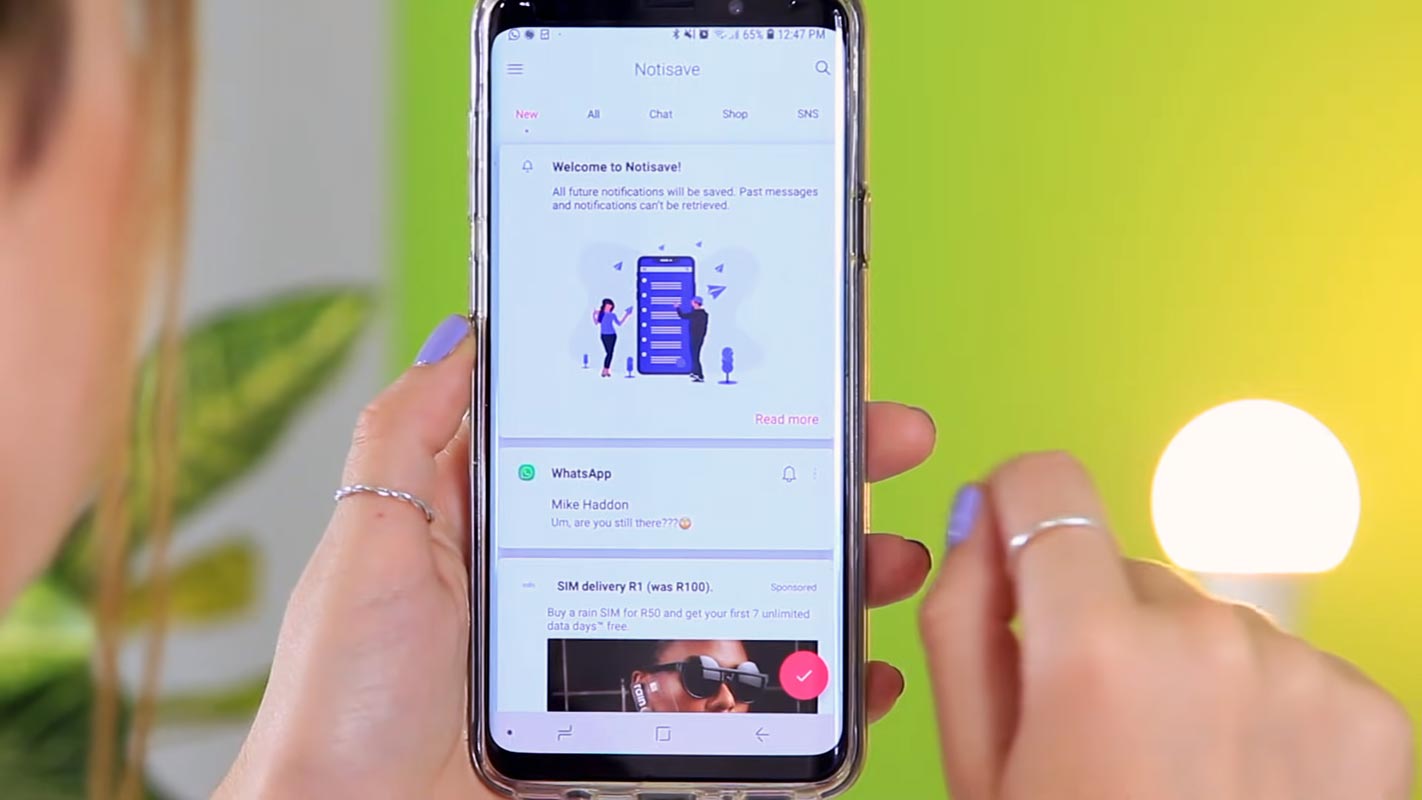
Why Needed to Read Deleted For Everone Messages In WhatsApp?
As I said earlier, Not all Messages are helpful. That is why the senders deleted them before you read or after you saw them. But when it comes to sensitive information like transaction details, It is necessary to retire that information.
How to Read Deleted For Everone Messages In WhatsApp?
By default, there is no option in WhatsApp to store those data. Because it affects the function of the Deleted Messages option. We have to use some third parties to capture the Messages data. You can use one of the compatible apps on your mobile to store the Deleted For Everone Messages In WhatsApp.
WhatisRemoved+
WhatsApp doesn’t officially provide any solution to access deleted Messages stored on the platform. There is, however, an unofficial method to solve this. It is important to remember that this works only on Android. Therefore, if you’re using an iOS device, the chances are very slim that you will be able to read deleted Messages. Thus, with no further delay, we’ll look at ways you can view Messages that have been deleted from WhatsApp Messages.
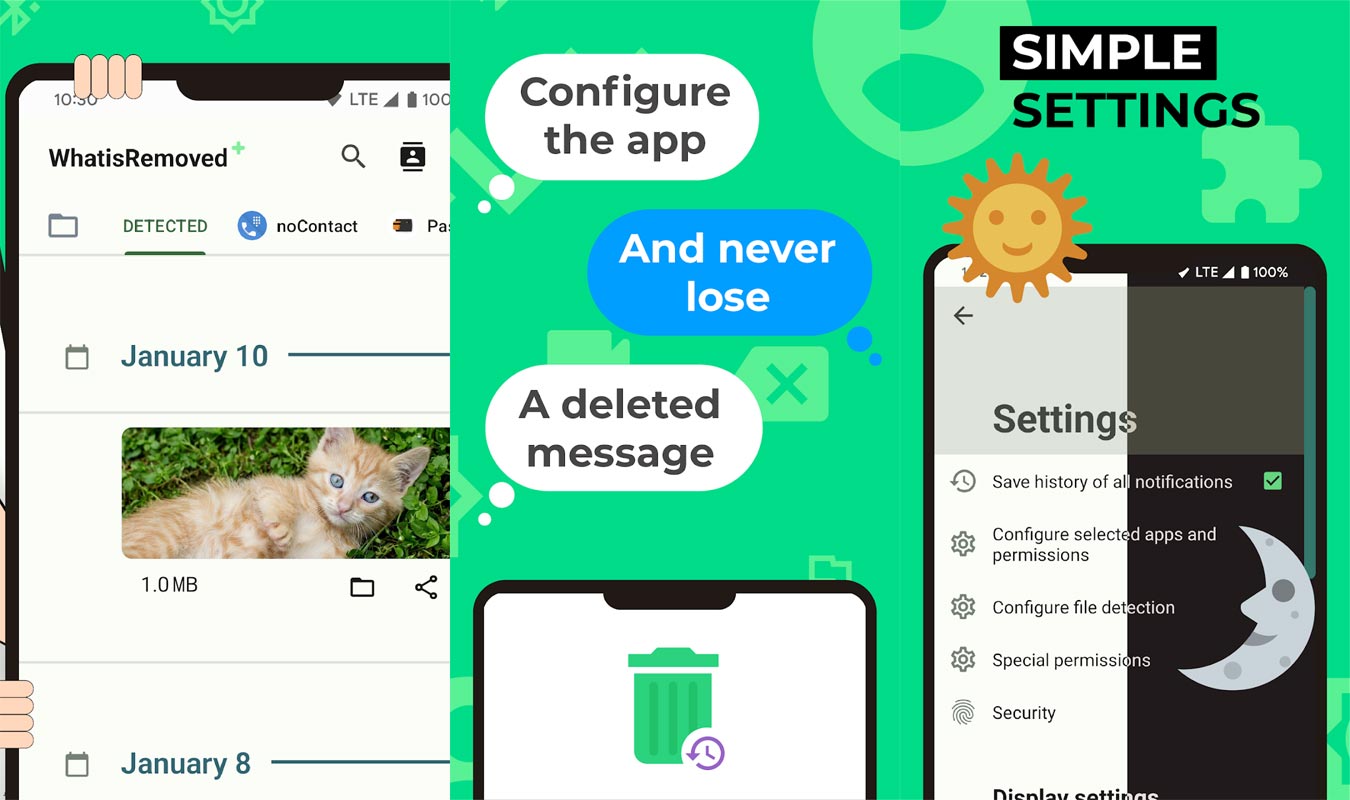
Steps
- Log on to Google Play Store, search for the WhatsRemoved+ application, and then Install it onto the Android smartphone.
- Give the necessary permission for the application. After that, you’ll be asked to choose the app you want to save notifications or detect changes.
- From the menu, choose WhatsApp and click Next. You will be presented with an option to save your files. Click on it, and follow the instructions that appear on the screen.
How do you use WhatisRemoved+?
After the setup is complete, the app will be able to store all notifications received from WhatsApp, including deleted Messages. If a Messages is deleted by someone else, you can visit the WhatsRemoved+ app and tap WhatsApp to open the Messages that were deleted.
Notification Log
Jefe has discovered a method to access Messages that were deleted. It doesn’t need you to capture every when you get a text. This only works with Android but apologies iPhone or Windows users.
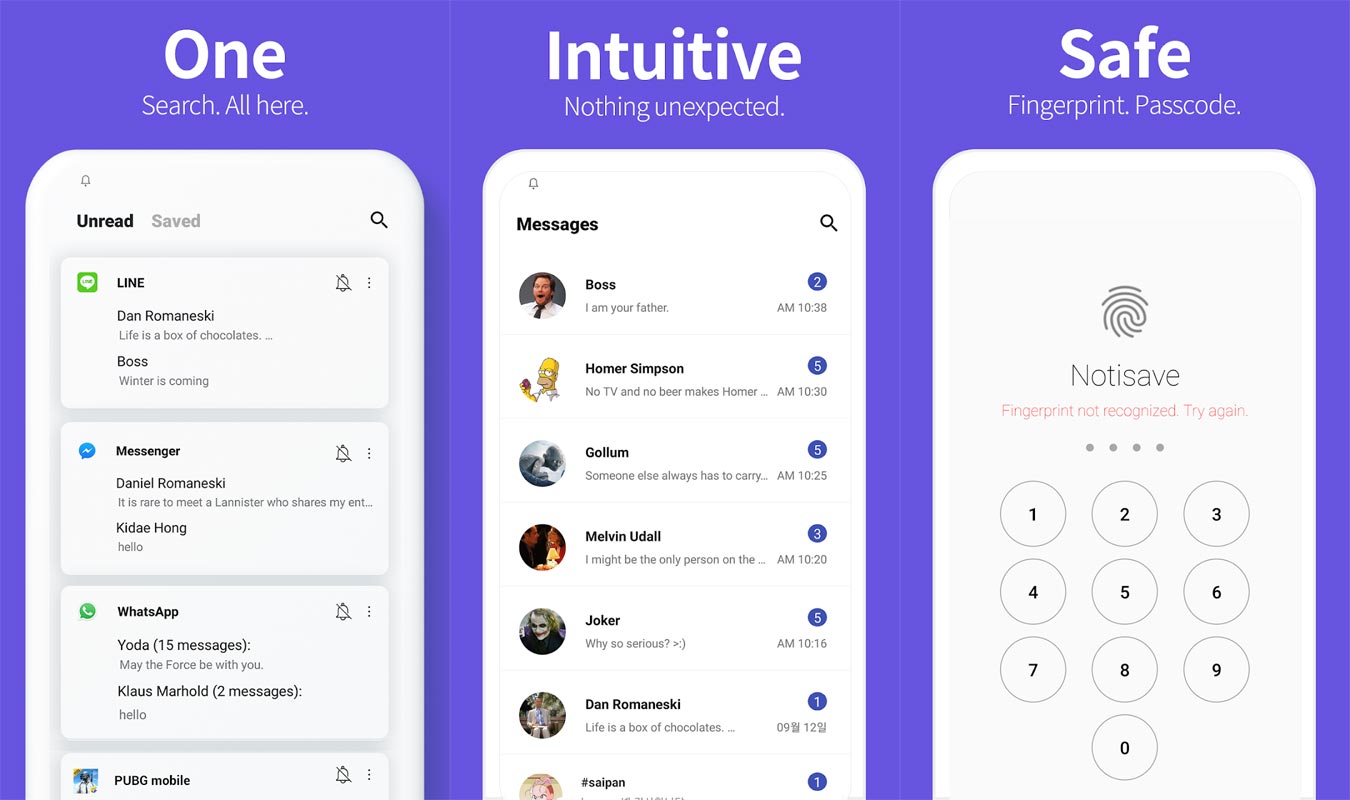
Steps
- Visit the Google Play Store, search for the Notification Log application, and then download it to the Android smartphone.
- Give the necessary permission for the application. After that, you’ll be asked to choose the app you want to save notifications or detect changes.
- From the menu, choose WhatsApp and then click Next. Click on it, and follow the on-screen directions. There will be an option to save your files.
How do you use Notification Log?
Notification Log. There are two methods you could access the Notification Log. The easiest method is downloading a Notification Log application from the Play Store. Once it is downloaded, give It the rights it requires, and you’ll be good to go.
The alternative method doesn’t need you to download any software. It is necessary to press long to the empty screen on your home screen. Select widgets and then click Settings, then Notification Log. A notification icon will appear on the home screen. Click on it, locate WhatsApp, and tap it once you are in the notification logs. You will then see whether you deleted or not deleted Messages.
Restrictions
- It is necessary to read or engage with the Messages for it to be recorded into the logs of notifications. This means that once you’ve read the statement and deleted it later, it will be recorded within the notifications log. If you don’t open the Messages, you should at the very least delete the news notification on the notifications bar or in the floating window. After you have discarded the notification Messages, it will be noted in the notification logs.
- The first 100 characters in deleted Messages will be displayed.
- The logs of notifications aren’t kept for long, and they disappear after a few hours or if you restart your phone.
- It is only possible to retrieve text only, not videos, images, or audio.
- There must have been a notification generated. If you were on the chat when it was developed, but there was no notification, there won’t be an entry in the notification logs.
Notisave
Similar to the two other apps, the Notisave app is also identical to the other two apps. In comparison to other apps, Notisave is preferred by the majority of users.
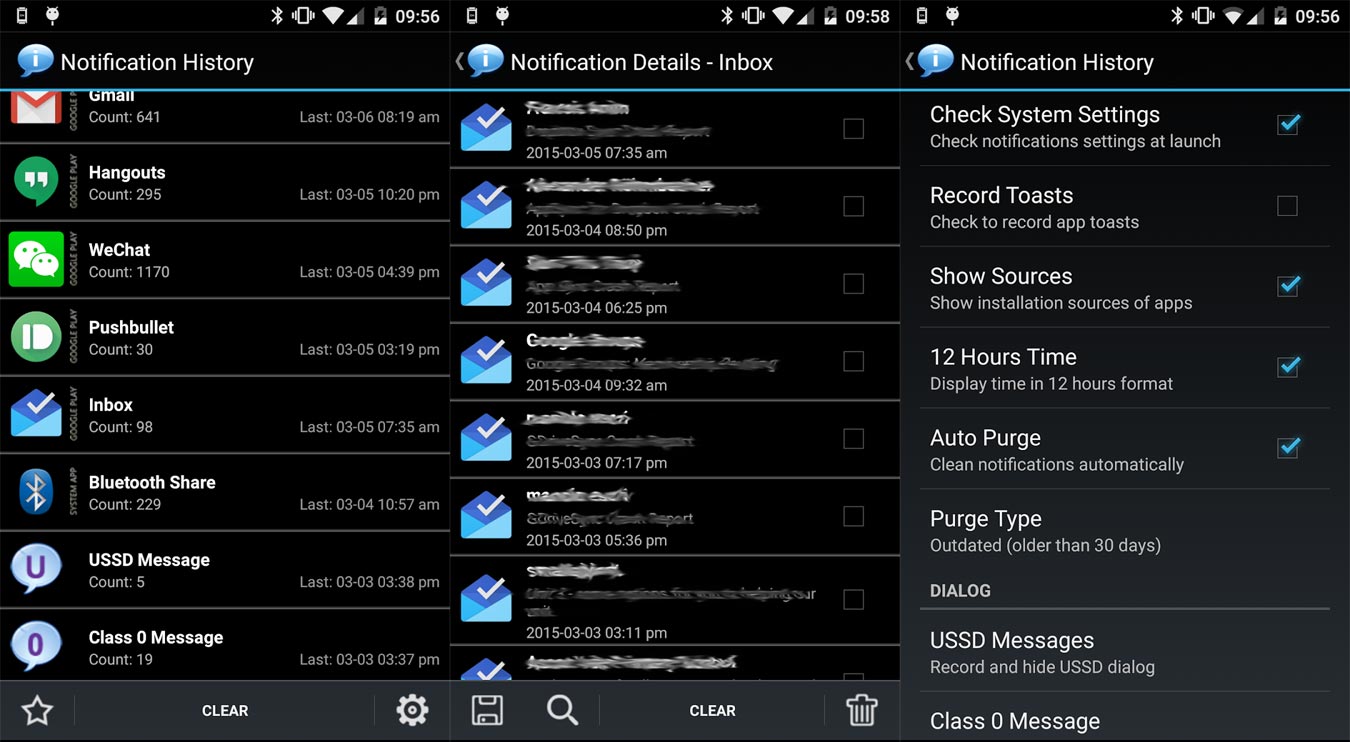
Steps
- Log on to Google Play Store, search for the application Notisave and download it to the Android smartphone.
- Give the necessary permission for the application. Once done, you will be asked to choose the app you want to save notifications or detect any changes.
- From the dropdown, select WhatsApp and then click Next. There will be the option to save files. Please fix it and follow the on-screen directions.
How do you use Notisave?
After the setup is complete, the app will be able to store all the Messages sent to WhatsApp, including deleted Messages; when someone deletes a text Messages, it is possible to open the Notisave application and tap WhatsApp to empty the deleted Messages.
Wrap Up
Even though the purpose of Notification record apps affects the intention of the leading apps, It is necessary to store that information for all challenging situations in real-time. That’s why third-party apps are there to use. You can use one of the apps based on your need and comfort. Did you try out any apps that retrieve Deleted For Everone Messages In WhatsApp? Share your experience below.

Selva Ganesh is a Computer Science Engineer, Android Developer, and Tech Enthusiast. As the Chief Editor of this blog, he brings over 10 years of experience in Android development and professional blogging. He has completed multiple courses under the Google News Initiative, enhancing his expertise in digital journalism and content accuracy. Selva also manages Android Infotech, a globally recognized platform known for its practical, solution-focused articles that help users resolve Android-related issues.




Leave a Reply