
Google Home products are way better and Smart compared with any other alternatives. Since it works well with Google Assistant and is available on most Smart Home devices and our mobile, it is always easy for us to control the device in our homes. To add further Improvements, Google recently announced an Improved Presence in your Google Home App. With this new feature, google can detect you are nearby and works better as per the environment. It is an entirely optional feature. You can either enable or disable it based on your comfort.
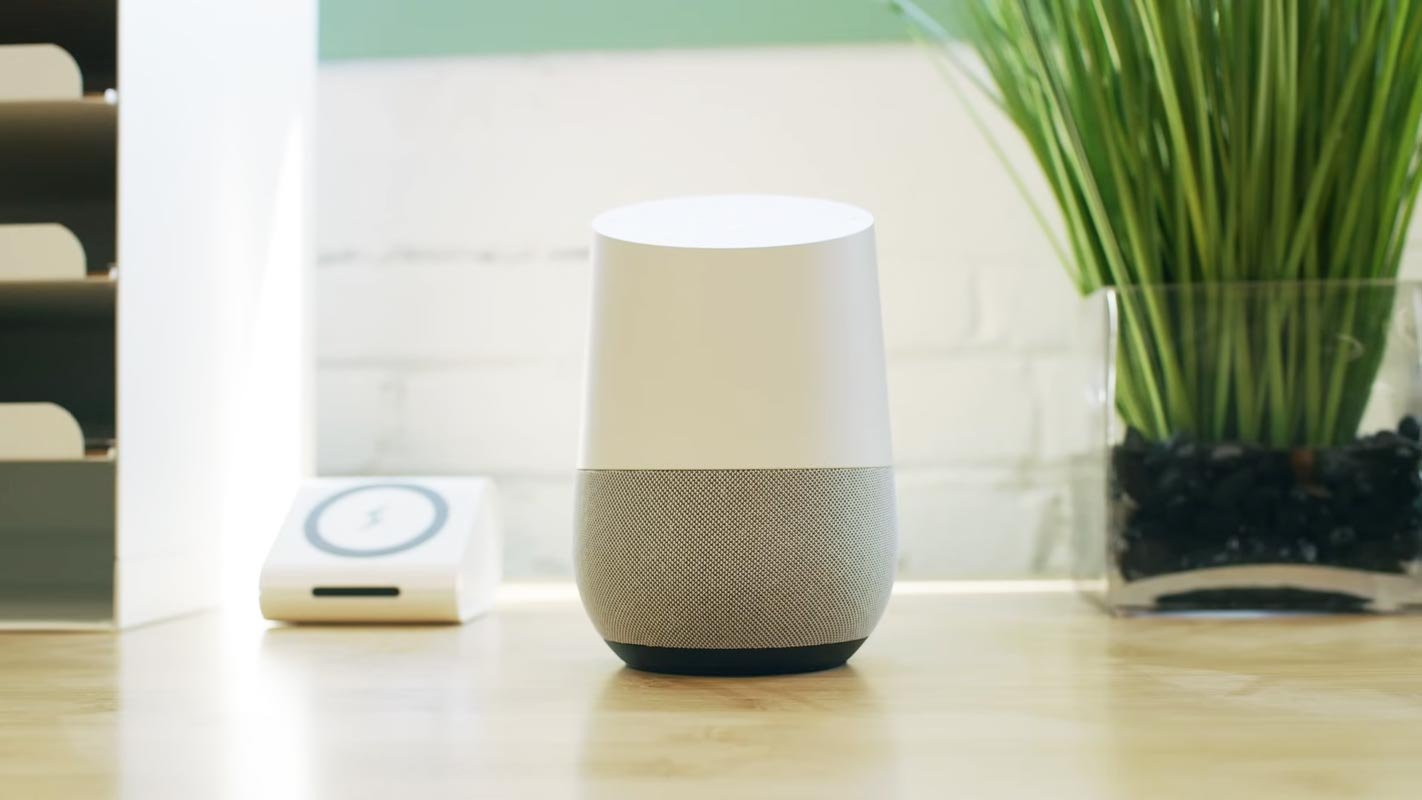
Improved Presence in your Google Home App
In the Google tweet, enhanced presence sensing is an option that users can turn on for every device in their home. Google says that choosing this new feature will enable you to set your Nest speakers or screens to sense your presence through your voice or touch. This technology allows devices to act automatically if they feel you’re in your home. This includes devices such as The Nest Thermostat that can regulate the temperature because you’re in the house to help conserve energy.
A variety of other sensors are part of Google’s Nest range of products that the company explains on its Help page regarding presence sense. Google provides information on how the Soli Sensor assists its products with enhanced detection. This sensor is found in Nest Thermostat. Nest Thermostat, and now the Nest Hub 2nd Gen, can detect whether someone is in the vicinity.
Support and Availability
This Made By Google Twitter account also addressed a few user issues regarding this update. When asked whether or not the new feature can be utilized with first-gen devices, Google said you could use the unique feature of the presence sensor with any of its devices regardless of the generation. This applies to Google Home Max, Home Mini, and Home devices.
How does the Google Home devices Sensor work to detect the presence?
Nest Learning Thermostat and Nest Thermostat E: An occupancy sensor detects that someone is within the space. The thermostat will notify you if you manually adjust the temperature within the thermostat. NOTE: Google Nest Temperature Sensors do not have sensors for activity, which means they don’t aid in detecting presence.
A Nest Thermostat Sensor called Soli detects whether there is a person in the vicinity. Nest Thermostat also notes if you manually alter the temperature within the device.
The Nest Protect sensors determine when someone is in the room. Note that battery-powered Protects can check in less frequently to extend your battery life; however, they can be used in conjunction with the other Nest products to improve the accuracy of presence sensors.
Nest Guard The motion detector detects movement close to. As per the new updates, Nest Guard will also note when someone has either been armed or disarmed with Nest Tag or the Nest app or password.
Nest Yale Lock: An optical sensor determines whether the bolt is open or closed.
Google Nest display or speaker Notes are displayed if anyone interacts with the device through gestures or vocal commands.
Google Nest Hub (2nd generation): In addition to voice or touch control, the Soli sensor detects whether there is a person in the vicinity.
How do I activate Improved Presence in Google Home App?
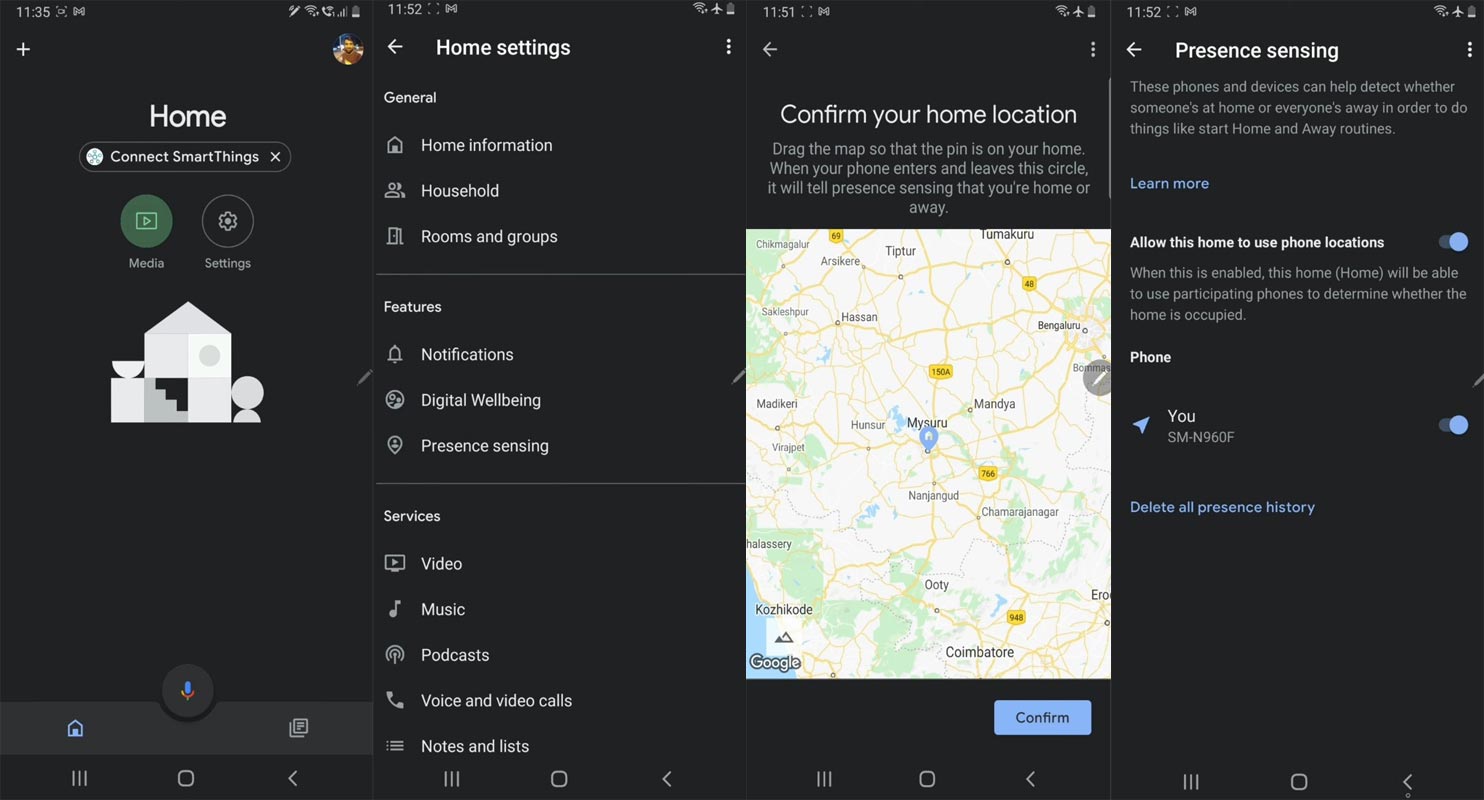
- Start Google Home. Open the Google Home app.
- Select Settings > Presence sense.
- It can be turned off or on. This home can utilize phone locations.
Home and Away Routines
Alongside Presence, Sensing Routines can enhance functionality even more.
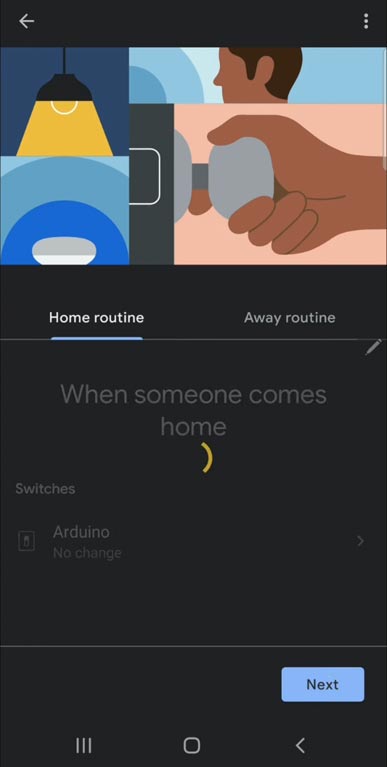
- Start Google Home. Open the Google Home app and tap Set up Home and Away routines.
- Click Home and Away or Go.
- Choose your devices, settings, and other options you’d like to change the routines for.
- Select the ones you’d like to alter before the person who is the first to come home.
- Choose the ones you’d like to change after everyone’s gone.
- (Optional) Choose the device you’d like to use to determine if someone is at home.
- (Optional) Configure your phone’s location to detect presence.
- It is necessary to enter the address of your home and verify it by placing a pin on the map.
Advantages of Presence Sensing- Save Energy
The Home and Away functions could assist you in saving energy and power consumption on smart devices they manage.
Nest thermostats- “Away” program can set the thermostat to save energy after everyone has left home. The Home routine will restore comfortable temperatures once one person is back.
Smart switches, smart plugs, and lights: The Away routine will automatically shut off these devices once the person who is home for the last time leaves.
Wrap Up
Smart Home devices should work primarily on their own. That’s what makes it Smart. When we have to do most of the job by ourselves, Then there is no use for those devices, and we can use manual Switch and other devices. Presence Sensing will help Google find whether you are at a particular place. So, instead of regular Home and Away Routines, the Presence feature can further improve the Smartness of the devices. Did you try out Improved Presence in your Google Home App? How was it? Share your experience.

Selva Ganesh is a Computer Science Engineer, Android Developer, and Tech Enthusiast. As the Chief Editor of this blog, he brings over 10 years of experience in Android development and professional blogging. He has completed multiple courses under the Google News Initiative, enhancing his expertise in digital journalism and content accuracy. Selva also manages Android Infotech, a globally recognized platform known for its practical, solution-focused articles that help users resolve Android-related issues.




Leave a Reply