
Apple TV 4K is a popular streaming device that provides access to various movies, TV shows, and other entertainment options. Nonetheless, a few users have complained of screen flickering or glitching problems in Apple TV 4K while watching the device’s 4K and High-Quality Content. This problem can be highly exasperating, especially during a crucial scene of your preferred movie or TV show. The good news is that several potential workarounds can help fix the issue. Before attempting any fixes, it’s essential to understand the possible causes of the problem. The case could be due to outdated firmware, an overheating device, or a faulty HDMI cable. Once you have identified the cause of the problem, you can try a few different solutions.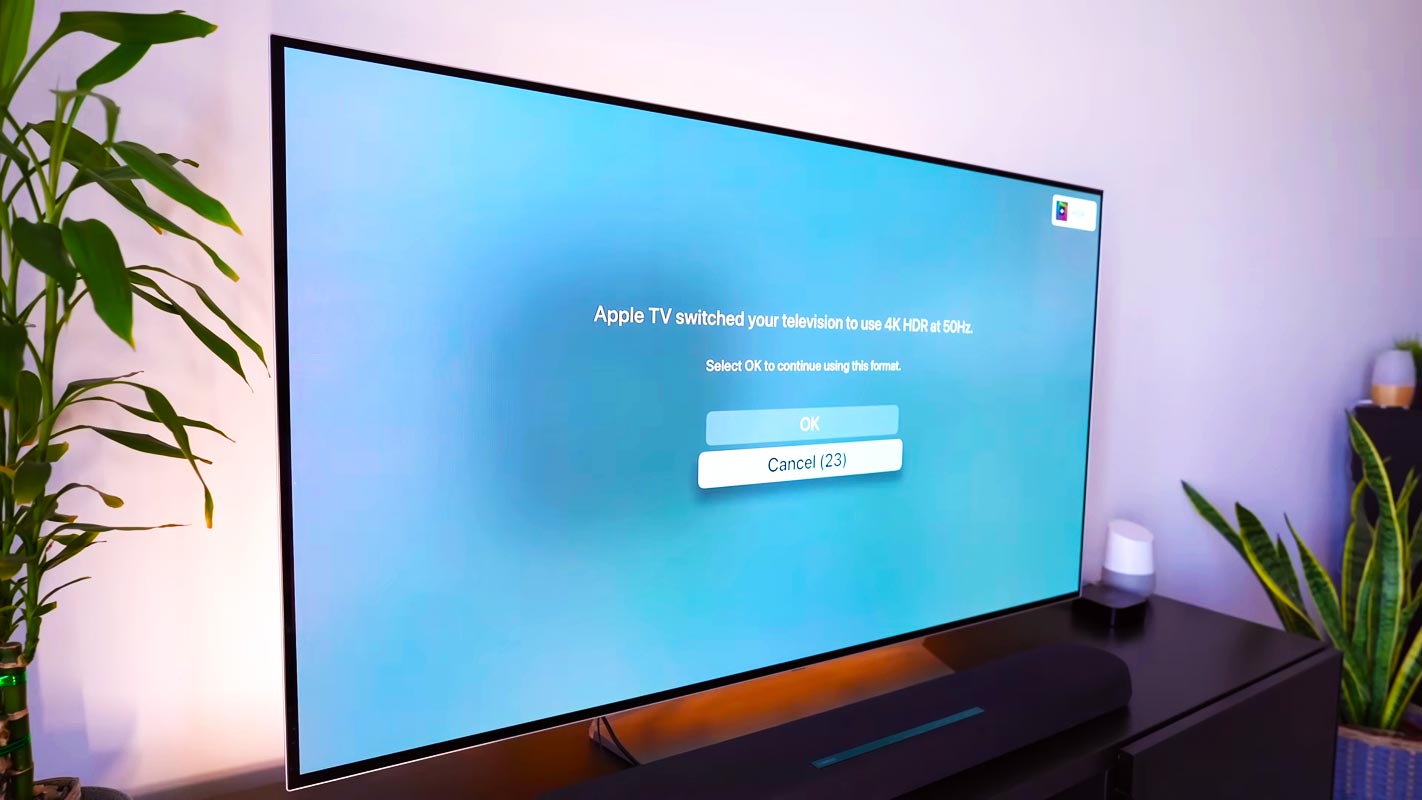
Apple TV 4K Flickering Issue
As mentioned earlier, the primary cause of Apple TV 4K flickering issues is usually a low-quality HDMI cable. A low-quality HDMI cable can’t handle the high data transfer rate required for 4K resolution. This can result in the screen flickering or glitching.
Upgrading Your HDMI Cable
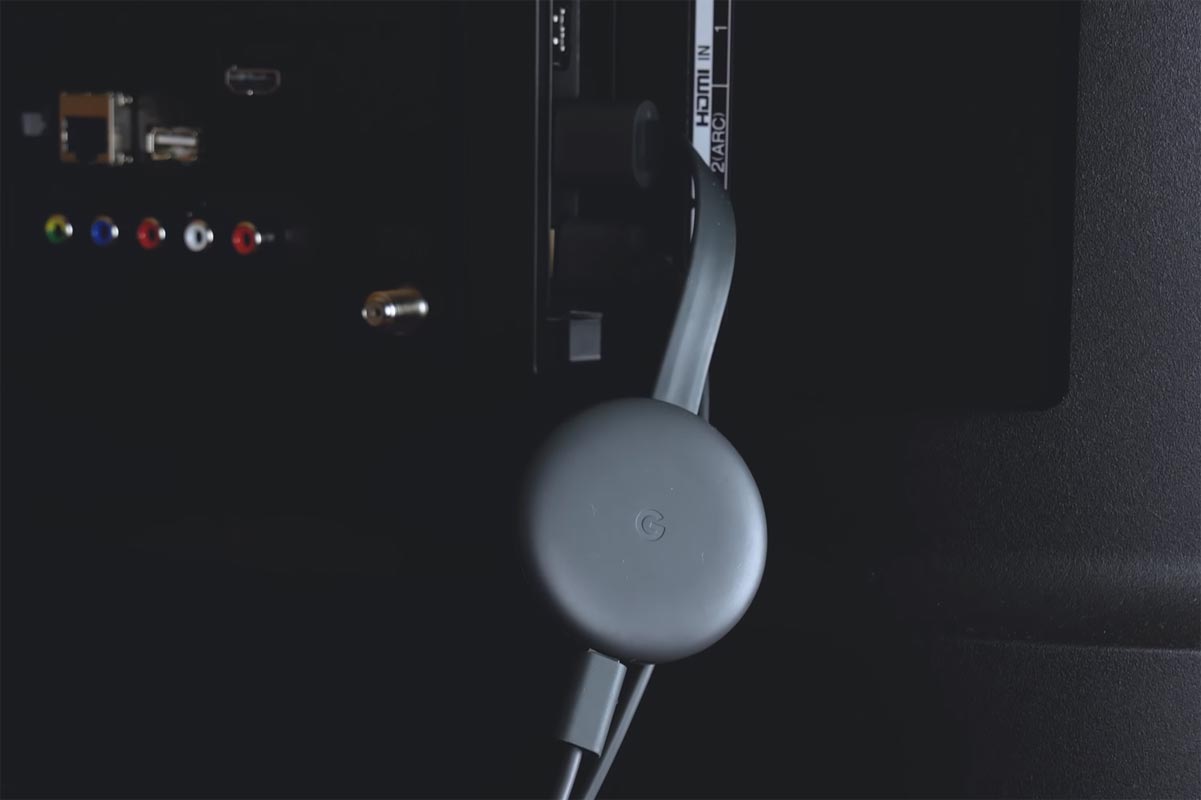
The first step is to upgrade your HDMI cable to resolve the issue. It would be best to consider purchasing a high-speed HDMI cable to handle the required data transfer rate. It would be best to plug the cable into the highest-rated HDMI port on your TV. This will help ensure a stable connection and prevent screen flickering or glitching.
Choosing the Right HDMI Cable
When selecting a new HDMI cable, looking for one capable of handling 4K@30Hz Dolby Vision is essential. This is the minimum requirement for a high-speed HDMI cable to support the high data transfer rate needed for 4K resolution.
Updating Your Apple TV 4K
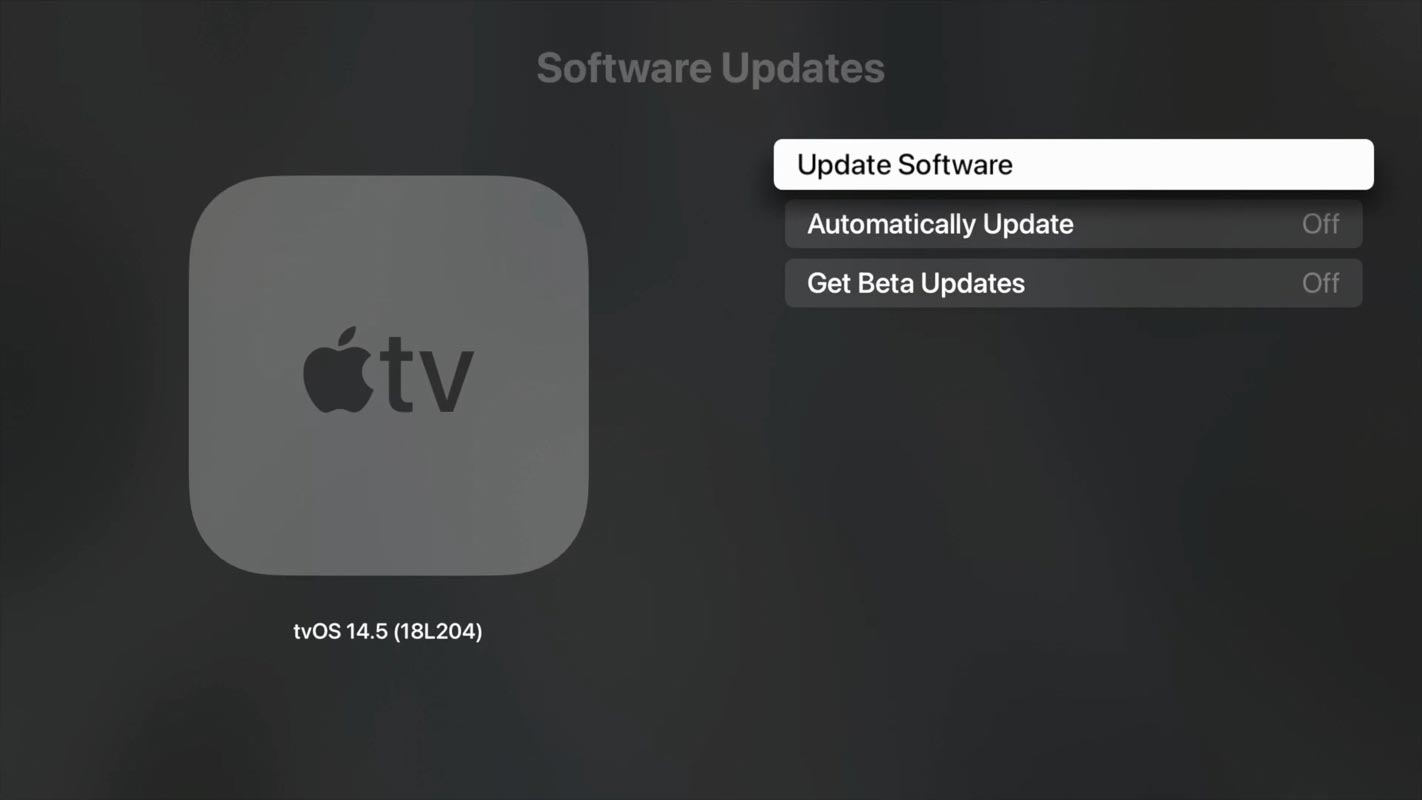
Another potential cause of flickering issues is an outdated Apple TV 4K. Ensure that your device is up to date with the latest software updates. You can check for updates by visiting Settings > System > Software Updates. This will ensure your device has all the latest features and bug fixes.
Ensuring Proper Internet Connection
Ensure that your device is correctly connected to the internet. An unstable internet connection can also cause screen flickering or glitching on Apple TV 4K. To ensure stability, navigate to Settings > Network and verify your Wi-Fi network’s or Ethernet connection’s strength.
Adjusting Display Settings
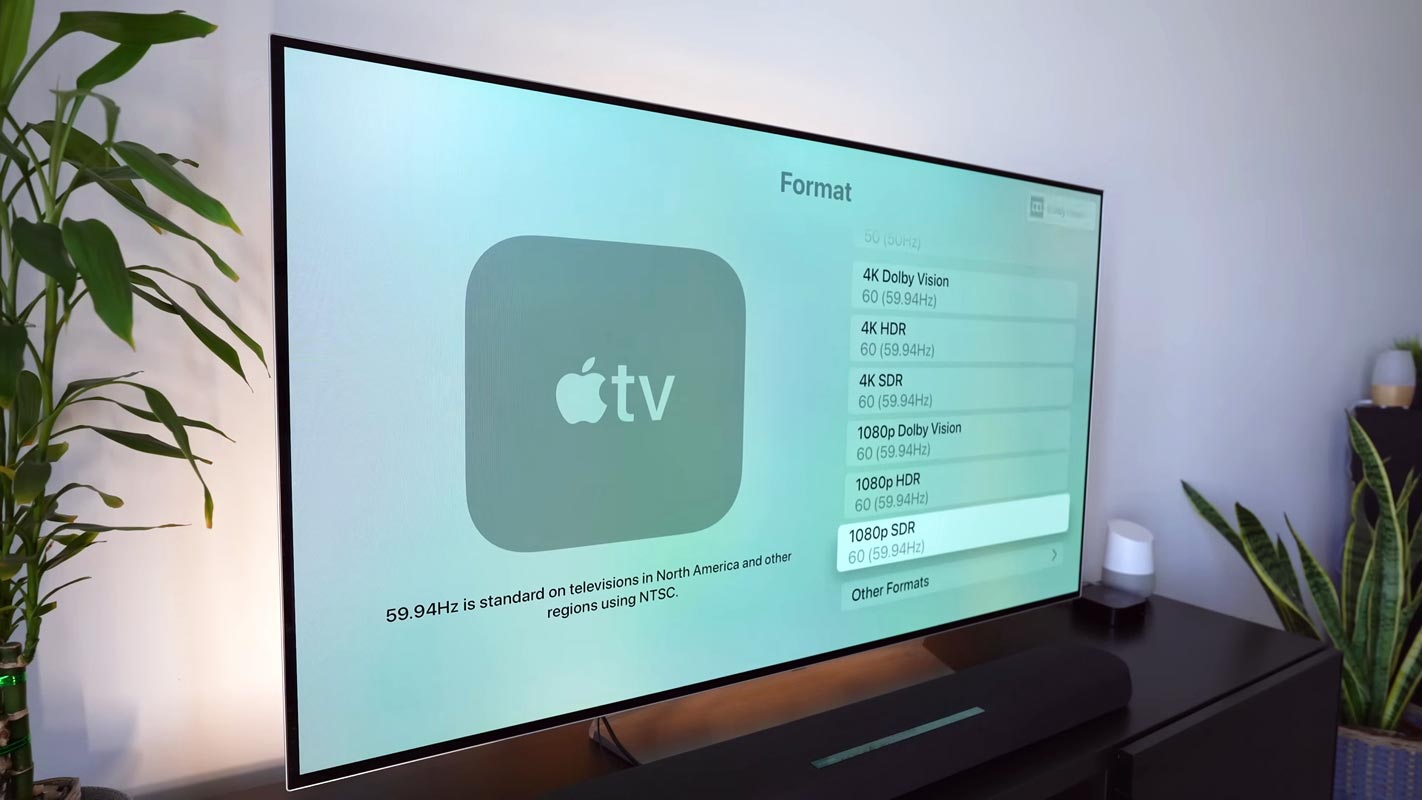
If the issue persists after upgrading your HDMI cable, updating your Apple TV 4K, and ensuring proper internet connectivity, you can try adjusting the display settings. This may help resolve the issue.
FAQs
Why is my Apple TV 4K flickering?
The primary cause of Apple TV 4K flickering issues is usually a low-quality HDMI cable. A low-quality HDMI cable can’t handle the high data transfer rate required for 4K resolution. This can result in the screen flickering or glitching.
How can I fix Apple TV 4K flickering issues?
The first step is to upgrade your HDMI cable to fix the issue. It would be best to consider purchasing a high-speed HDMI cable to handle the required data transfer rate. It would be best to plug the cable into the highest-rated HDMI port on your TV. This will help ensure a stable connection and prevent screen flickering or glitching.
How do I know if my HDMI cable is causing the issue?
If you are experiencing screen flickering or glitching issues while using your Apple TV 4K, your HDMI cable may cause the problem. Upgrading to a high-speed HDMI cable that can handle the required data transfer rate should fix the issue.
How do I adjust the display settings on my Apple TV 4K?
To adjust the display settings on your Apple TV 4K, go to Settings > Video and Audio > Resolution. From there, you can select the resolution and frame rate that is best suited for your TV.
Will upgrading my HDMI cable affect my Apple TV 4K audio quality?
No, upgrading your HDMI cable should not affect the audio quality of your Apple TV 4K. However, ensuring your new cable can handle 4K@30Hz Dolby Vision is essential.
Can I use any HDMI cable with my Apple TV 4K?
No, not all HDMI cables are created equal. To avoid screen flickering or glitching issues with your Apple TV 4K, it is recommended to use a high-speed HDMI cable that is capable of handling 4K@30Hz Dolby Vision.
What if upgrading my HDMI cable does not fix the issue?
If upgrading your HDMI cable does not fix the screen flickering or glitching issue with your Apple TV 4K, you can try adjusting the display settings or contacting Apple support for further assistance.
Wrap Up
Apple TV 4K flickering issues can be frustrating, but low-quality HDMI cables generally cause them. Upgrading your HDMI cable to a high-speed one and ensuring it can handle 4K resolution is the first step in fixing the issue. Additionally, ensure that your device is up to date with the latest software updates and correctly connected to the internet. Finally, if the problem persists, adjusting the display settings may also help to resolve the issue.

Selva Ganesh is a Computer Science Engineer, Android Developer, and Tech Enthusiast. As the Chief Editor of this blog, he brings over 10 years of experience in Android development and professional blogging. He has completed multiple courses under the Google News Initiative, enhancing his expertise in digital journalism and content accuracy. Selva also manages Android Infotech, a globally recognized platform known for its practical, solution-focused articles that help users resolve Android-related issues.




Leave a Reply