
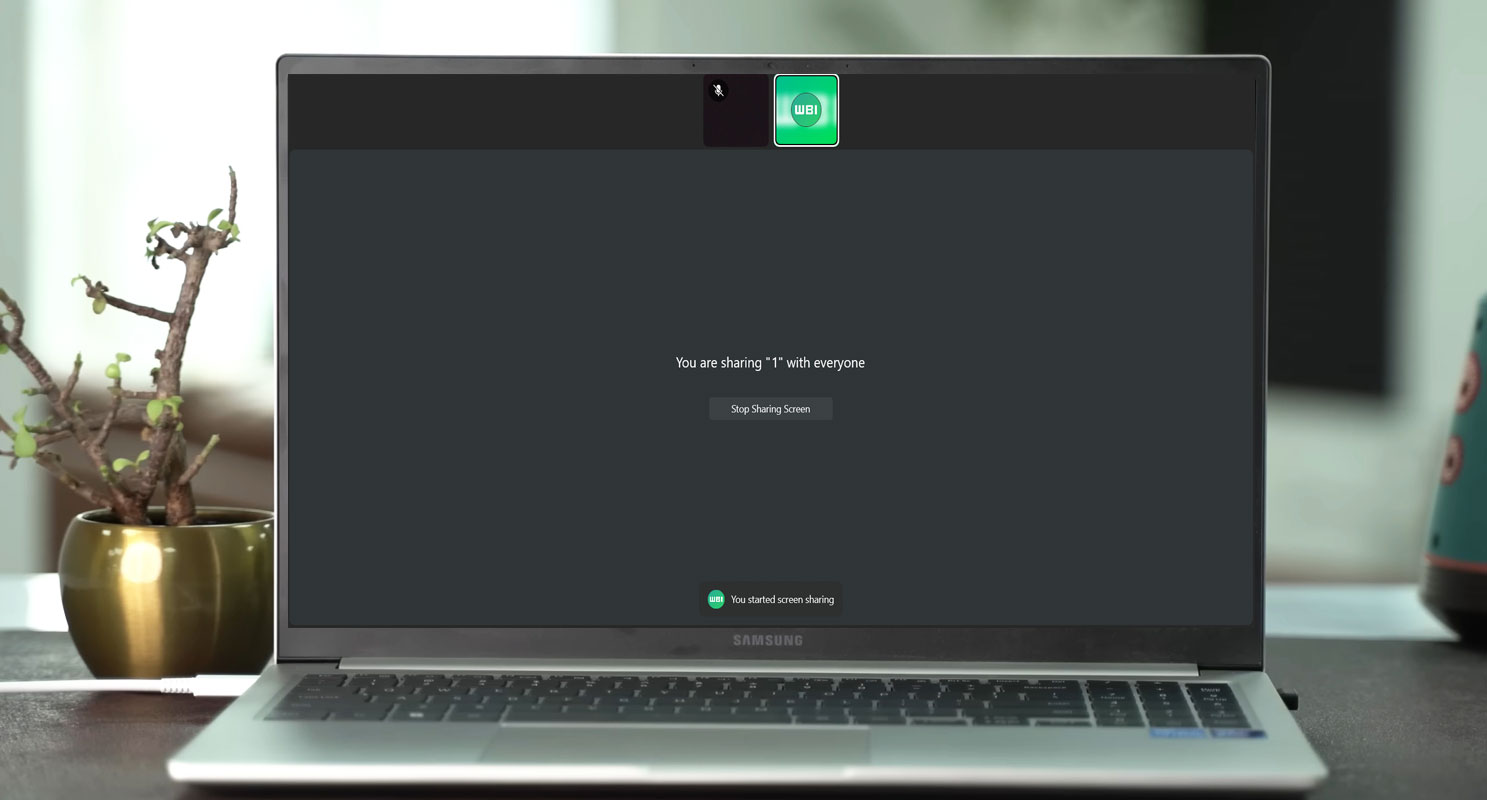
WhatsApp has consistently been a leader in offering innovative features to its users, which has contributed to its widespread adoption as a communication platform. One of the recent notable additions to its feature lineup is the capability to share screens. This functionality allows users to share the contents of their screens during video calls, introducing a whole new level of interaction and collaboration. By leveraging this feature, individuals can effectively showcase and discuss various digital content, enhancing the overall communication experience on WhatsApp. Whether for work-related presentations, sharing visual information, or simply demonstrating something to friends and family, the WhatsApp screen-sharing feature provides users a valuable tool to engage and connect more effectively.
Availability on Windows Platform
The screen-sharing feature is now accessible to beta testers on the Windows platform who have downloaded the WhatsApp app from the Microsoft Store. However, reports suggest that some users using the stable release of the app have also been able to access this feature.
If you cannot locate the latest version in the Microsoft Store immediately, be assured that it will be gradually made available to all users.
How to Enable Screen Sharing?
To utilize the screen-sharing feature, you must install the WhatsApp Windows app v2.2322.1.0 or a newer version on your Galaxy Book laptop. Once you are on a video call, the controls will display an option for screen sharing. When you choose this option, you will be prompted to select whether you want to share your whole screen or a particular window. This flexibility enables you to communicate the content you desire effectively.
Controlling Screen Sharing
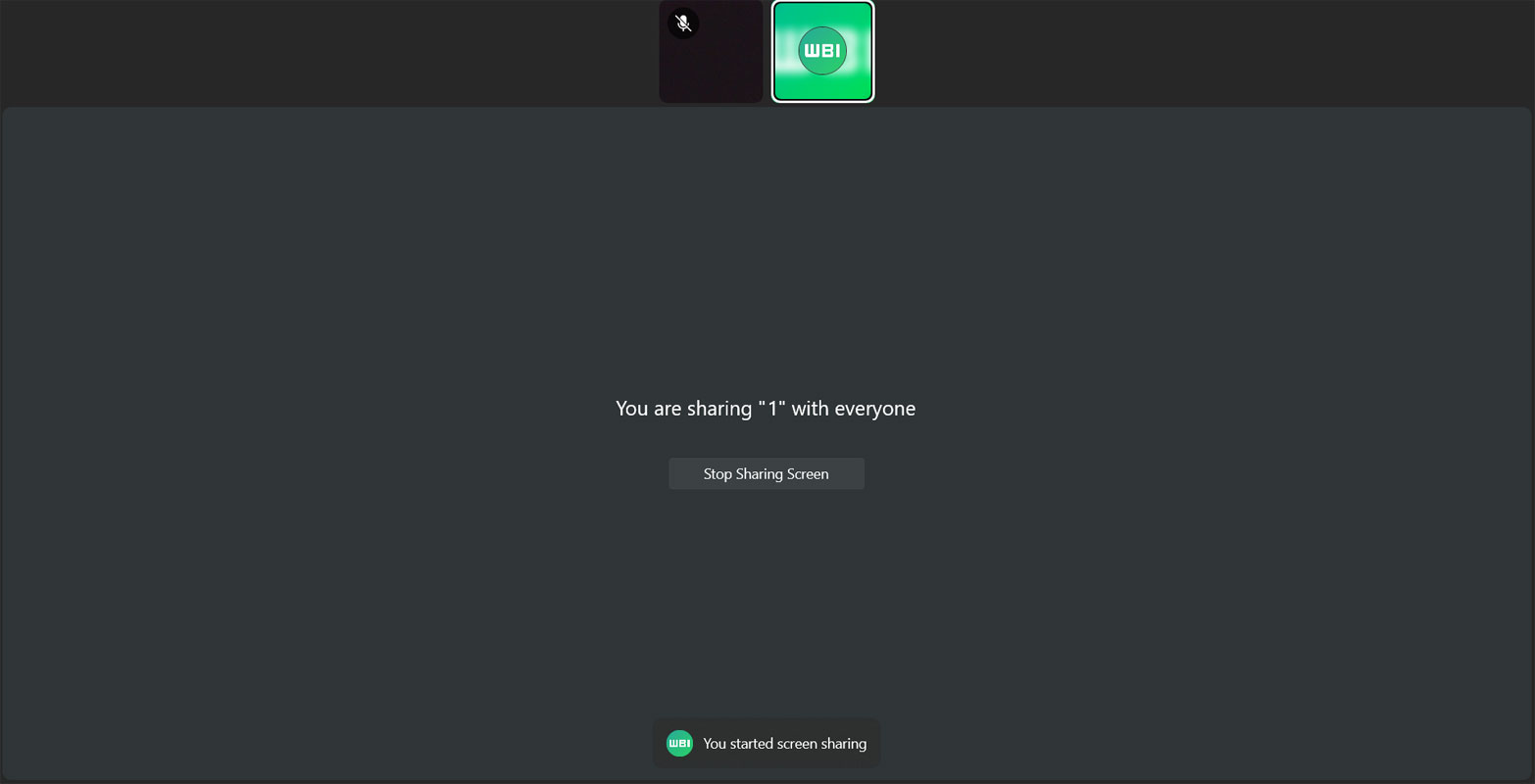
WhatsApp ensures that you have complete control over the screen-sharing experience. When you initiate screen sharing, you can decide when to stop the stream by clicking the ‘Stop Sharing Screen’ button. This feature allows you to share information for as long as needed and then quickly return to the regular video call.
Accessibility for Mobile Users
The screen-sharing feature on WhatsApp is not limited to Windows users. Individuals using mobile devices can also benefit from this functionality during a call with a Galaxy Book laptop user. This cross-platform compatibility enhances collaboration, allowing users to share their screens seamlessly regardless of their devices.
Compatibility with Stable Release
While the screen-sharing feature is currently available to beta testers, it is expected to be included in the stable release of the WhatsApp app. This means that all users will eventually be able to enjoy the screen-sharing functionality on their Galaxy Book laptops running Windows. WhatsApp consistently strives to improve its features and ensure they reach a wider audience.
FAQs
Can I use the screen-sharing feature on WhatsApp with any laptop running Windows?
Yes, the screen-sharing feature is available to WhatsApp users with the WhatsApp Windows app installed on their laptops. Specifically, Galaxy Book laptop users running Windows can enjoy this functionality.
Can I share my entire screen or only specific windows during a video call?
WhatsApp allows you to choose between sharing your entire screen or a particular window during a video call. This flexibility ensures that you can share the desired content effectively.
Can I share my screen with mobile users while on a video call?
Yes, WhatsApp’s screen-sharing feature extends to mobile users as well. If you are using a Galaxy Book laptop, you can share your screen with individuals using mobile devices during a call.
How do I stop sharing my screen once I’ve enabled the feature?
Click the ‘Stop Sharing Screen’ button within the video call controls to stop sharing your screen. This feature gives you complete control throughout the screen-sharing session.
When will the screen-sharing feature be available to all WhatsApp users on Windows?
The screen-sharing feature is gradually being rolled out to all WhatsApp users on the Windows platform. It will be available if you don’t find the updated version in the Microsoft Store immediately.
Wrap Up
With the introduction of the screen-sharing feature, WhatsApp brings an exciting new capability to its users. Whether you want to present information, collaborate on a project, or share your screen for better communication, this feature offers enhanced versatility. By enabling screen sharing on your Galaxy Book laptop, you can elevate your WhatsApp video calls to a new level of productivity and engagement.
WhatsApp’s screen-sharing feature on Samsung Galaxy Book laptops running Windows brings a new level of collaboration and communication to users. Users can share screens during video calls to enhance productivity, present information, and engage in meaningful discussions. Whether you are a beta tester or eagerly awaiting the stable release, WhatsApp ensures that this feature will soon be accessible to all, empowering users to connect and collaborate more effectively.

Selva Ganesh is a Computer Science Engineer, Android Developer, and Tech Enthusiast. As the Chief Editor of this blog, he brings over 10 years of experience in Android development and professional blogging. He has completed multiple courses under the Google News Initiative, enhancing his expertise in digital journalism and content accuracy. Selva also manages Android Infotech, a globally recognized platform known for its practical, solution-focused articles that help users resolve Android-related issues.




Leave a Reply