
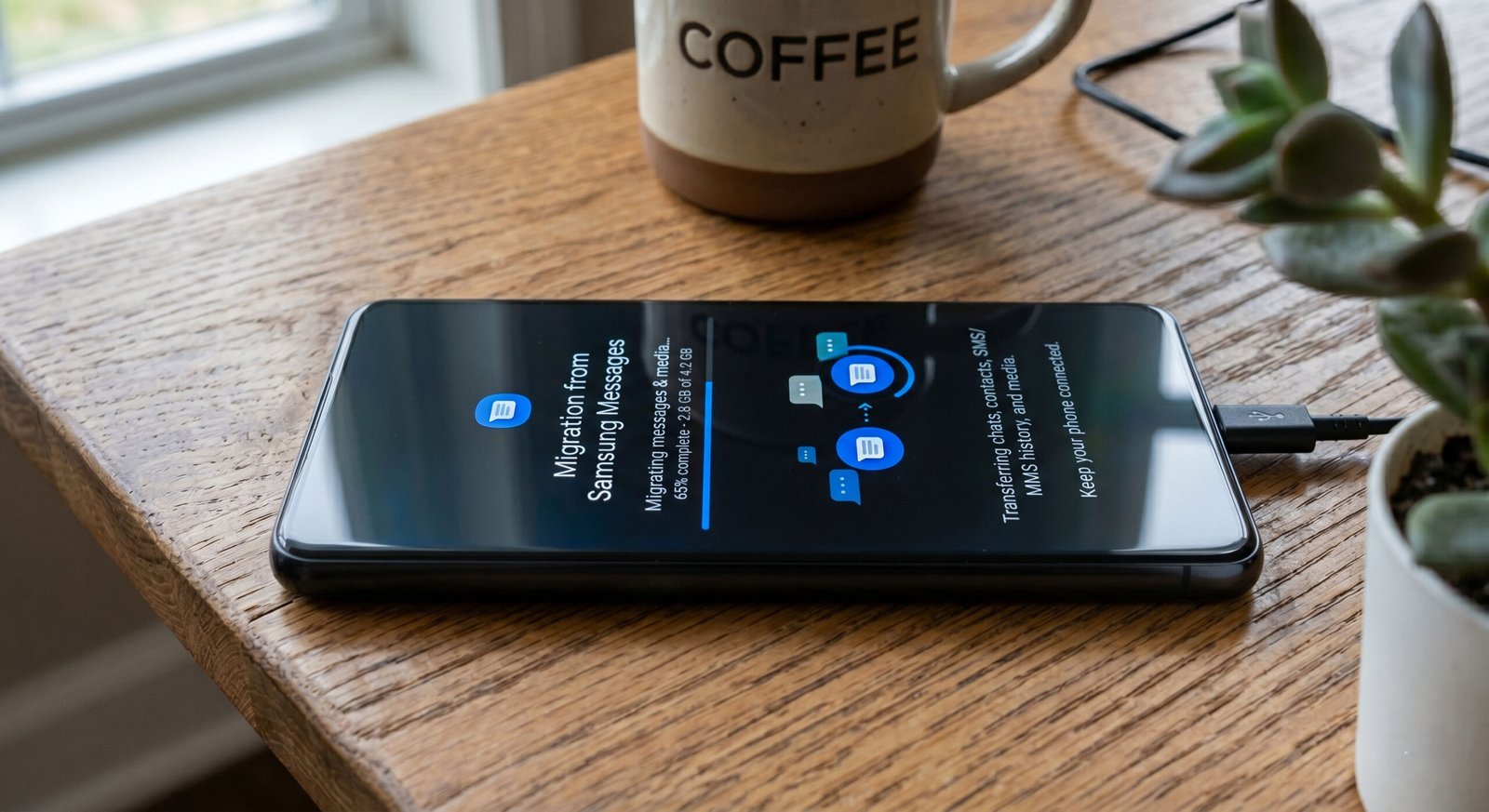
How to Migrate Samsung Messages to Google Messages? – We recognize that for many Samsung Galaxy users, the messaging app is the heart of daily communication. However, with the impending discontinuation of Samsung Messages in July 2026, the shift toward Google Messages is no longer just an option—it is a necessity for maintaining a modern, secure, and feature-rich experience. We have crafted this guide to ensure that your SMS, MMS, and RCS history remains intact during this transition, providing you with a seamless move to the industry-standard messaging platform on Android.

Why the Migration to Google Messages is Essential Now
The mobile landscape is shifting toward a unified standard known as Rich Communication Services (RCS). While Samsung has supported this for years, Google Messages is now the primary vehicle for RCS features globally. By switching early, we ensure that we stay ahead of software deprecation. Google Messages offers superior end-to-end encryption, better high-resolution media sharing, and a more consistent experience across the Android ecosystem. Furthermore, since One UI is increasingly integrating Google’s services at a system level, making the jump now prevents potential data loss when the Samsung app eventually hits its end-of-life.
Pre-Migration Checklist and Important Considerations
Before we dive into the technical steps, we must address several critical factors that influence how your data moves between these two environments.
-
Timeline of Discontinuation: Samsung has officially signaled that Samsung Messages will be discontinued in July 2026. Starting the migration today gives us time to troubleshoot any indexing issues without the pressure of a hard deadline.
-
Automatic Data Syncing: In most scenarios, Google Messages is designed to automatically “read” the existing SMS/MMS database stored on your Galaxy device. However, the time required for this to appear can vary. If you possess a massive archive of thousands of texts, it may take anywhere from a few minutes to 24 hours for the full history to index.
-
The RCS Transfer Limitation: It is vital to note that RCS/Chat messages (advanced messages containing typing indicators and high-res files) sometimes utilize proprietary Samsung headers. While your standard texts will move easily, some advanced chat features from the old app may not transfer perfectly. New chats started in Google Messages will function flawlessly.
-
The Power of Backups: We cannot stress enough the importance of a manual backup. Even though the process is usually smooth, having a local or cloud-based copy of your data ensures that no critical business or personal information is lost during the switch.
Method 1: The Seamless Direct Switch
For the vast majority of Samsung Galaxy owners, this is the most efficient path. This method relies on the Android system’s internal database to bridge the gap between the two applications.
Step-by-Step Implementation
-
Download and Initialize: If your device did not come with it pre-installed, navigate to the Google Play Store and download Google Messages. Look for the distinctive white speech bubble icon with blue horizontal lines.
-
Define the Default Handler: Upon launching the app, you will be prompted with a request to Set default SMS app. We must select Google Messages and confirm this change. This action tells the Android OS to route all incoming and outgoing traffic through the Google interface.
-
The Indexing Phase: Once the app is set as default, avoid the urge to force-close it. Wait patiently. We recommend keeping the phone connected to a charger and Wi-Fi. Your conversations will begin to populate the list sequentially.
-
Optimizing RCS Features: Navigate to the Google Messages settings, then select RCS chats. Ensure that the toggle for RCS is turned On. This unlocks the ability to see typing indicators, receive read receipts, and send uncompressed media to other RCS-enabled users.
Troubleshooting the Direct Switch
If you notice that your message threads are missing or incomplete after several hours, we recommend a “soft reset” of the app’s environment:
-
Restart the Device: A simple reboot can often trigger the Media Storage or Telephony provider to refresh the database.
-
Clear App Cache and Data: Go to Settings > Apps > Google Messages > Storage. Select Clear cache and then Clear data. Note that this does not delete your messages; it simply resets the app’s view of them. You will need to re-set it as the default app after doing this.
Method 2: The Robust Backup and Restore Protocol
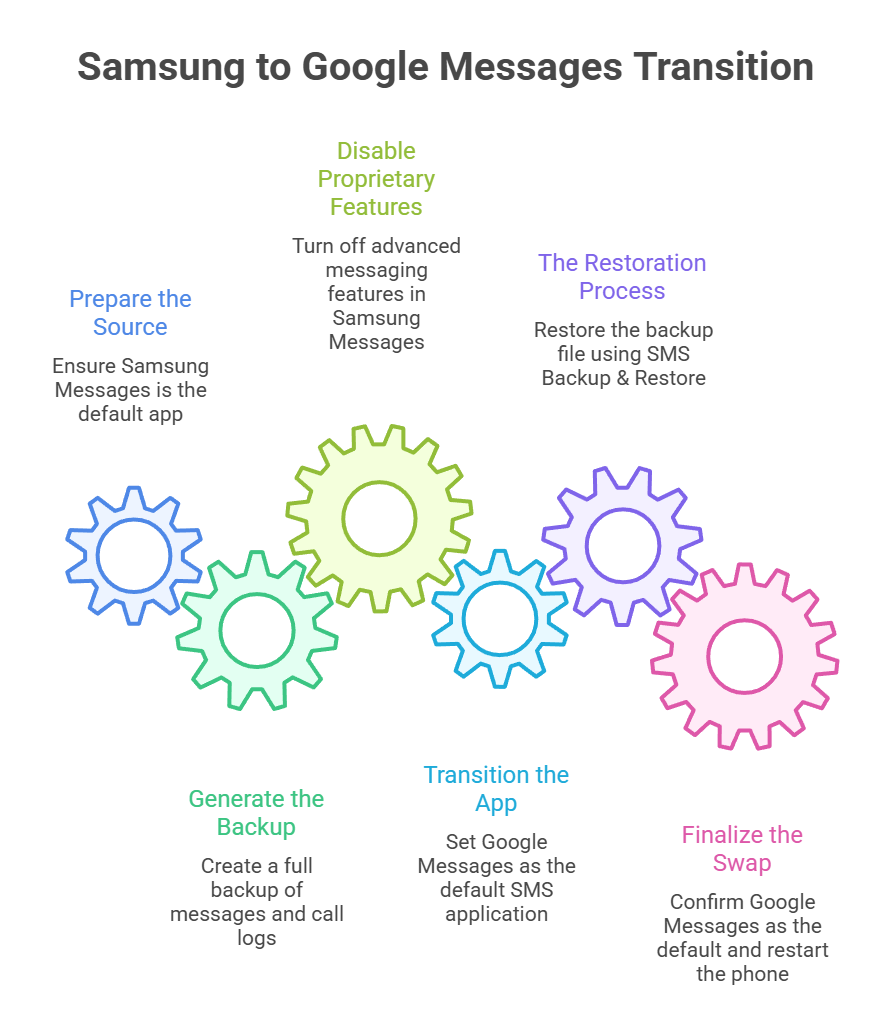
If the automatic transfer fails to capture all your legacy data, or if you are moving from an older Galaxy model with a massive database, we utilize a third-party bridge. This is the safest method to ensure data integrity.
The Role of SMS Backup & Restore
We recommend using the SMS Backup & Restore app by SyncTech. This utility acts as a neutral party, pulling data from the Samsung database and re-injecting it into the universal Android database that Google Messages uses.
Execution Steps
Optimizing Your Experience After the Migration
Now that your data has migrated, there are a few pro-tips we recommend to maximize the performance of your Galaxy phone’s new messaging hub.
Google Drive Integration
To prevent future data loss, we recommend enabling Google One backups. Go to Settings > Accounts and backup > Back up data. By linking your messages to your Google Account, transitioning to your next Samsung Galaxy device in the future will be instantaneous.
Managing Large Media Files
While MMS usually transfers well, very large video files or legacy attachments from years ago might occasionally show a placeholder. If a specific photo is vital, we recommend manually saving it to your Gallery from the old Samsung app before you stop using it entirely.
The “Read-Only” Samsung Messages State
It is important to understand that even after the switch, Samsung Messages remains on your phone. You can still open it to view old chats if you suspect something was missed. However, it will be in a read-only state; it cannot send or receive new messages as long as Google Messages is the system default.
Frequently Asked Questions
1. Will I lose my existing text messages during the switch? No. Your messages are stored in a system-level database that both apps can access. However, performing a manual backup is always recommended for safety.
2. Can I go back to Samsung Messages if I don’t like Google Messages? Yes, for now. You can switch back at any time by changing the Default SMS app in your settings, though keep in mind the July 2026 discontinuation.
3. Why are my group chats appearing as individual messages? This usually happens during the initial indexing period. Once Google Messages fully processes the MMS headers, the threads should group themselves correctly.
4. Does Google Messages work with Samsung Galaxy Watches? Absolutely. Google Messages has a dedicated Wear OS app that integrates perfectly with the Galaxy Watch series.
5. Do I need a Google Account to use Google Messages? While you can send standard SMS without one, a Google Account is required to use RCS features and cloud backups.
6. Will my blocked numbers list carry over? Generally, system-level blocks carry over, but we recommend double-checking your Blocked contacts list in the new app settings.
7. Does this switch affect my mobile data plan? SMS/MMS uses your cellular text plan. RCS/Chat features use Wi-Fi or mobile data, similar to WhatsApp or iMessage.
8. Can I use Google Messages on my tablet and phone simultaneously? Yes, using the Device Pairing feature, you can sync your Samsung phone messages to a tablet or a computer browser.
9. Why is the “Set as Default” button not working? This can occasionally be a UI glitch. Navigate to Settings > Apps > Choose default apps > SMS app to change it manually.
10. What happens to my Samsung Messages in July 2026? While the app may remain on the device, it will likely stop receiving security updates and may lose compatibility with carrier RCS standards.
Final Words of Advice: We believe that the Google Messages platform offers the most robust future for Android users. While any change to a primary app can feel daunting, following these Method 1 and Method 2 protocols ensures that your digital footprint remains secure and your conversations continue without interruption.

Selva Ganesh is a Computer Science Engineer, Android Developer, and Tech Enthusiast. As the Chief Editor of this blog, he brings over 10 years of experience in Android development and professional blogging. He has completed multiple courses under the Google News Initiative, enhancing his expertise in digital journalism and content accuracy. Selva also manages Android Infotech, a globally recognized platform known for its practical, solution-focused articles that help users resolve Android-related issues.




Thank you very much! Option 2 worked great!