
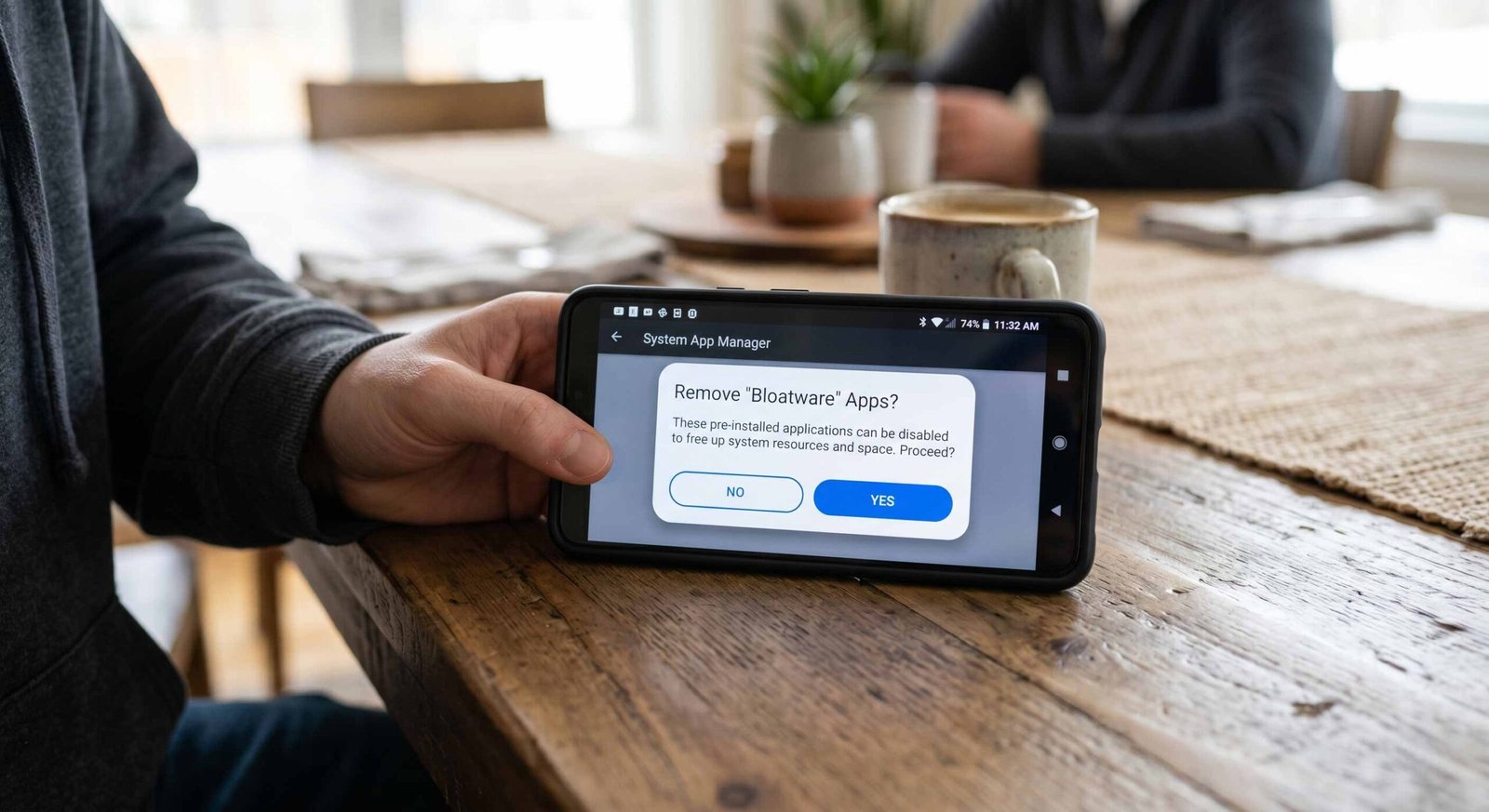
We understand the frustration of unboxing a brand-new Android smartphone only to find it cluttered with pre-installed applications that you neither want nor need. These bloatware apps consume valuable internal storage, drain your battery life, and often run background processes that slow down your system performance. While manufacturers often lock these apps to prevent removal, we have developed a sophisticated method to debloat Android devices without the risks of rooting. By leveraging the power of Shizuku, we can grant elevated permissions to specialized tools that safely strip away unwanted software.

Understanding the Power of Shizuku for System Optimization
Before we dive into the technical execution, we must define what makes Shizuku the gold standard for Android optimization. Unlike traditional methods that require a rooted device—which often void warranties and compromise security—Shizuku acts as a bridge. It uses the Android Debug Bridge (ADB) protocol to allow third-party apps to execute system-level commands. By operating within the Android security framework, we ensure that your device remains secure while gaining the authority to uninstall system apps that are otherwise protected.
Essential Requirements for a Successful Debloat
To ensure a seamless experience, we must prepare the necessary environment. While this process is highly effective, it requires specific system configurations. We recommend the following:
- Android Version: A device running Android 11 or higher is ideal for Wireless Debugging, which eliminates the need for a physical computer.
- Developer Options: You must be able to access the hidden Developer settings on your device.
- Stable Wi-Fi: Required for the initial pairing process between Shizuku and the System.
- Third-Party Manager: An application like Canta or App Manager that interfaces with Shizuku to handle the uninstallation logic.
Step 1: Enabling Developer Options and Debugging Protocols
We cannot interact with the system kernel through Shizuku without first unlocking the Developer Options. This is the gateway to advanced Android customization.
- Navigate to Settings and select About Phone.
- Locate the Build Number and tap it rapidly seven times until a toast message confirms that “You are now a developer.”
- Return to the main Settings menu, go to System, and enter Developer Options.
- Toggle on USB Debugging.
- Scroll down and enable Wireless Debugging. We must ensure the device is connected to a Wi-Fi network for this toggle to stay active.
Step 2: Initializing the Shizuku Service via Wireless Debugging
We prefer the Wireless Debugging method because it offers the most convenience. Once we have enabled the necessary toggles, follow these precise steps:
- Launch the Shizuku app.
- Locate the Start via Wireless Debugging section, then tap Pairing.
- Tap Developer Options from the prompt to return to system settings.
- Tap the text “Wireless Debugging” (not just the toggle) to open its sub-menu.
- Select the Pair device with the pairing code. A 6-digit code will appear on your screen.
- Pull down your notification shade and enter the code into the Shizuku notification box.
- Once the “Pairing successful” message appears, return to the Shizuku home screen and tap Start.
If the service fails to start, we recommend toggling Wireless Debugging off and on again. Once active, Shizuku will display a status message confirming it is “Running” with ADB permissions.
Step 3: Integrating Canta for Seamless Bloatware Removal
While Shizuku provides the permissions, we need a “worker” app to perform the actual app uninstallation. We highly recommend Canta, an open-source tool specifically designed to work with Shizuku for safe debloating.
- Download and install Canta (available via F-Droid or GitHub).
- Upon opening Canta, the System will prompt you to allow Shizuku to access Canta. We must select “Allow all the time.”
- Canta will then load a comprehensive list of every package installed on your device.
- The brilliance of Canta lies in its categorization. It often highlights apps that are safe to remove, helping us avoid critical system failures.
Step 4: Executing the Uninstallation of System Packages
Now that we have established the Shizuku-Canta pipeline, we can begin the cleanup. We advise a methodical approach to ensure system stability.
- In Canta, browse the “System” or “All” tab.
- Select the checkboxes for the apps you wish to discard. Common targets include Facebook Services, Netflix stubs, manufacturer-specific cloud services, and redundant browsers.
- Once selected, tap the Uninstall icon (usually a trash can).
- Canta will execute the pm uninstall -k –user 0 command via Shizuku. This removes the app for the current user, freeing up RAM and stopping background activity without modifying the/system partition—making it reversible via a factory reset if necessary.
Strategic List of Safe Apps to Remove
When we debloat a device, we target specific categories that yield the highest performance gains without compromising the user experience.
- Marketing & Analytics: Apps like Facebook App Installer, Facebook Manager, and Partner Bookmarks.
- Redundant Tools: Secondary Calendar apps, Clock apps, or Note-taking apps provided by the OEM that duplicate Google services.
- Media Junk: Pre-installed Music players, Video editors, and Theme stores that often push notifications.
- Carrier Bloat: If you purchased your Phone from a service provider, apps like My Verizon, AT&T Personal Cloud, or T-Mobile Play should be prioritized for removal.
Warning: Critical Apps to Never Uninstall
We must exercise caution. Removing the wrong package can lead to a bootloop or a broken user interface. Do not touch the following:
- System UI: Controls your status bar, notifications, and recent apps.
- Android System Intelligence: Powers smart features like live captions and text selection.
- Google Play Services: The backbone of app updates and security synchronization.
- Settings Storage: Removing this will prevent you from changing any device configurations.
- Phone & Messaging Storage: Essential for basic communication functions.
Frequently Asked Questions
1. Does removing bloatware via Shizuku void my warranty?
No. Since we are not tripping the Knox counter or unlocking the bootloader, this method is considered a software configuration and does not void hardware warranties.
2. Will I still receive OTA system updates?
Yes. Unlike rooting, using Shizuku to uninstall apps for the “user 0” profile does not interfere with the Over-The-Air (OTA) update mechanism.
3. Can I restore an app if I accidentally delete it?
Yes. You can either reinstall it via the Google Play Store or use an ADB command to re-enable the package for the current user.
4. Do I need to restart the Shizuku service every time I reboot?
Yes. Due to Android security protocols, the ADB service is killed upon restart. You will need to repeat the Start process in Shizuku after a reboot.
5. Is Shizuku safe to use?
Shizuku is open-source and widely trusted in the Android developer community. It does not collect personal data or perform unauthorized actions.
6. Can this brick my Phone?
While highly unlikely, removing core system apps (like the Launcher) without a backup can make the Phone difficult to use. Always ensure you have an alternative launcher installed.
7. Does this method save storage space?
It stops the app from using data and cache space, and removes it from your app drawer. However, the original APK remains in the read-only system partition.
8. Why can’t I just “Disable” these apps in Settings?
Many manufacturers “grey out” the Disable button for their bloatware. Shizuku bypasses this restriction entirely.
9. Does Shizuku work on Samsung devices?
Absolutely. It is particularly effective for removing Bixby and other One UI redundancies.
10. Do I need a PC for this?
If you are on Android 11 or newer, you can complete the entire process directly on your Phone using Wireless Debugging.

Selva Ganesh is a Computer Science Engineer, Android Developer, and Tech Enthusiast. As the Chief Editor of this blog, he brings over 10 years of experience in Android development and professional blogging. He has completed multiple courses under the Google News Initiative, enhancing his expertise in digital journalism and content accuracy. Selva also manages Android Infotech, a globally recognized platform known for its practical, solution-focused articles that help users resolve Android-related issues.




Leave a Reply