
We understand the pursuit of photographic perfection. While the Google Camera for Samsung Galaxy A57 is a formidable mid-range contender, equipped with a high-resolution 50MP primary sensor and the power of the Exynos 1680 chipset, the stock camera software often leaves professional-grade results on the table. To bridge the gap between hardware potential and software execution, we recommend the integration of the Google Camera (GCam) port. This application, originally exclusive to Pixel devices, utilizes HDR+ technology and computational photography to deliver images with superior dynamic range, natural skin tones, and industry-leading low-light performance.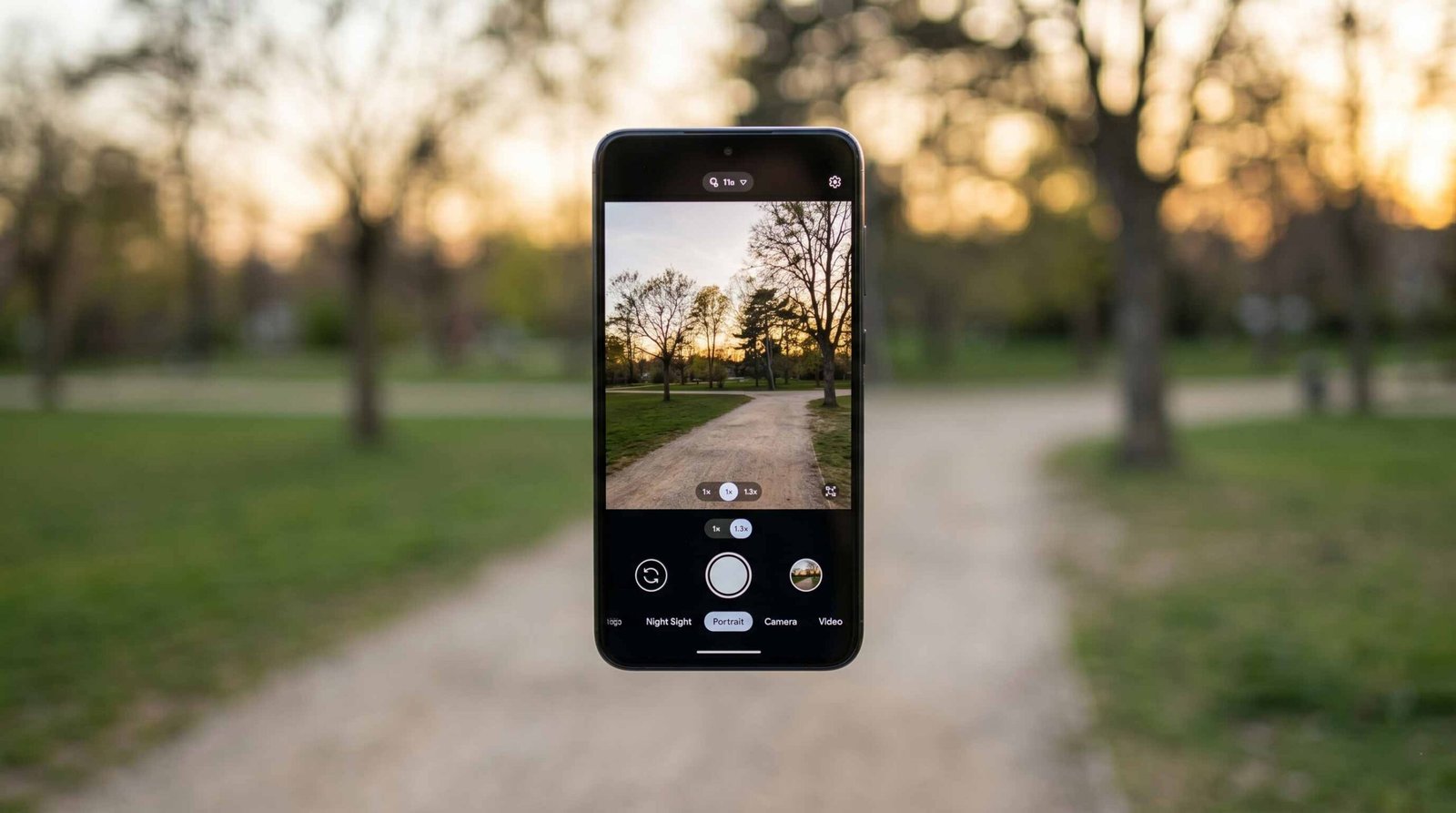
Advanced Features of the Latest GCam Port
The transition from a standard mobile photography experience to a professional one relies heavily on the features available within the viewfinder. Our latest build for the Samsung Galaxy A57 introduces several “quality of life” improvements and technical advancements that redefine how we capture moments.

Precise Subject Tracking with Focus-Tracking
We have integrated the Focus-Tracking item within the Advanced settings menu. This is a game-changer for those capturing moving subjects, such as children, pets, or athletes. Once you touch-focus on an object, the software locks onto the target. Even if the smartphone’s position changes or the subject moves slightly, the GCam algorithm ensures that the focus remains sharp on the initial point of interest.
Professional Control with RAW Format Resolution
For those who prefer to post-process their images in software like Adobe Lightroom or Capture One, the RAW format resolution option has been added under the Camera resolution (Photo) menu. Unlike standard JPEG files, which are compressed and lose data, the RAW format preserves all the information captured by the 50MP sensor. This allows us, as creators, to adjust exposure and white balance without introducing digital noise.
Seamless Low-Light Photography via Automatic Night Mode
Low-light environments are where the Samsung Galaxy A57 can truly shine with the right software. We have added the Automatic Night Mode option directly into the Camera Settings. When enabled, the app intelligently detects the lack of ambient light and triggers the Night Sight algorithm automatically. This eliminates the need to manually toggle modes, ensuring you never miss a shot in the dark.
Innovative Modes for the Modern Creator
Beyond standard photography, this Google Camera modification introduces experimental and advanced modes that were previously limited to high-end Google Pixel 9 and 10 series devices.
Expanding the Frame with the Add Me Mode
The Add me mode (referred to as “cottage” in the developer settings) has been successfully ported to this build. This feature allows a photographer to be part of a group photo by taking two separate shots and merging them seamlessly using Artificial Intelligence. While this is primarily a Pixel-centric feature, our testing on the Galaxy A57 shows impressive stability, though we recommend using a tripod for the best alignment results.
Optimized System Stability and Error Fixes
We prioritize reliability above all else. This version includes fixed errors that were identified in previous modifications. Specifically, we have resolved issues relating to shutter lag and application crashes during high-speed burst shooting. Additionally, the Disable logging item in the main settings now allows users to prevent the creation of log files in the Download folder, keeping your internal storage organized and clutter-free.
Technical Specifications and Hardware Synergy
The Samsung Galaxy A57 provides an excellent foundation for GCam. With its 6.7-inch Super AMOLED Plus display and 120Hz refresh rate, previewing your high-dynamic-range shots is a vivid experience. The Exynos 1680 processor, built on a 4nm architecture, handles the complex HDR+ processing with efficiency, reducing the wait time between shots.
Why GCam Outperforms Stock Software
- Dynamic Range: The Google Camera captures multiple frames at different exposures and merges them to ensure highlights aren’t blown out, and shadows retain detail.
- Color Science: Unlike the often oversaturated colors found in stock Samsung processing, GCam focuses on realistic color reproduction.
- Astrophotography: By utilizing long-exposure techniques and noise reduction, we can capture the night sky with startling clarity.
Installation and Safety Guidelines
We want to ensure that every user feels confident during the setup process. Please follow our guide below to install the Google Camera APK on your device successfully.
- Download the APK: Click the secure download link provided on our portal to obtain the latest Samsung A57 GCam build.
- Enable Unknown Sources: Navigate to your phone’s Settings > Security and allow installation from unknown sources.
- Install the Application: Locate the file in your Download folder and tap to install.
- Configuration: Upon the first launch, we suggest entering the Settings and enabling Google Lens suggestions and HDR+ Enhanced for the best results.
Google Camera For Samsung Galaxy A57
‼️ Installation Notice: You may receive a warning during installation due to the lower Target SDK Version, but rest assured, this is only a precaution. The app functions correctly and safely on Android 16 and One UI 8.5.
Frequently Asked Questions (FAQs)
1. Is Google Camera safe for my Samsung Galaxy A57?
Yes, we have verified the APK for security. The system warning regarding SDK versions is a standard Android protocol for apps not downloaded directly from the Play Store.
2. Does this version support the Ultra-Wide lens?
Yes, our modification allows you to toggle between the 50MP main sensor and the 12MP ultra-wide lens within the viewfinder.
3. Will GCam replace my original Samsung Camera app?
No, it installs as a separate application. You can use both side-by-side and decide which one fits your specific shooting scenario.
4. How do I enable Astrophotography mode?
Switch to Night Sight mode and keep your phone steady (preferably on a tripod). Once the phone detects it is stationary, the shutter icon will change to stars, signifying Astrophotography is active.
5. Why do my photos take a few seconds to process?
The HDR+ algorithm performs millions of calculations to merge multiple frames. This “Processing…” notification ensures you get the highest quality image possible.
6. What is the “Add me” mode used for?
It is designed for group photos where the person taking the picture also wants to be in the frame. You take one photo of the group, swap places with someone, and take a second photo.
7. Can I record 4K video with this GCam?
Absolutely. We have enabled 4K 60FPS support, provided the Exynos 1680 thermal overhead allows for it during extended recording sessions.
8. Does it support Portrait Mode?
Yes, the Google Camera is famous for its Portrait Mode, which provides a more natural “bokeh” or background blur than most stock applications.
9. How do I use Focus-Tracking?
Tap on the subject you want to keep in focus. A yellow circle or square will appear, indicating the lock is active.
10. Where are the GCam photos saved?
They are saved in your standard DCIM > Camera folder and will appear in your Samsung Gallery app alongside your other photos.

Selva Ganesh is a Computer Science Engineer, Android Developer, and Tech Enthusiast. As the Chief Editor of this blog, he brings over 10 years of experience in Android development and professional blogging. He has completed multiple courses under the Google News Initiative, enhancing his expertise in digital journalism and content accuracy. Selva also manages Android Infotech, a globally recognized platform known for its practical, solution-focused articles that help users resolve Android-related issues.




Leave a Reply