
How to Turn On Urgent Group Alerts in WhatsApp – Group chats are essential for staying connected with family, friends, work colleagues, and community organizations. However, as group chats grow larger and busier, critical messages frequently get buried under hundreds of casual texts, memes, and media files. To prevent important updates from being overlooked, many users choose to mute active group conversations entirely. While muting brings peace and quiet, it creates a major challenge: how do you ensure everyone sees an urgent update when the chat is muted?
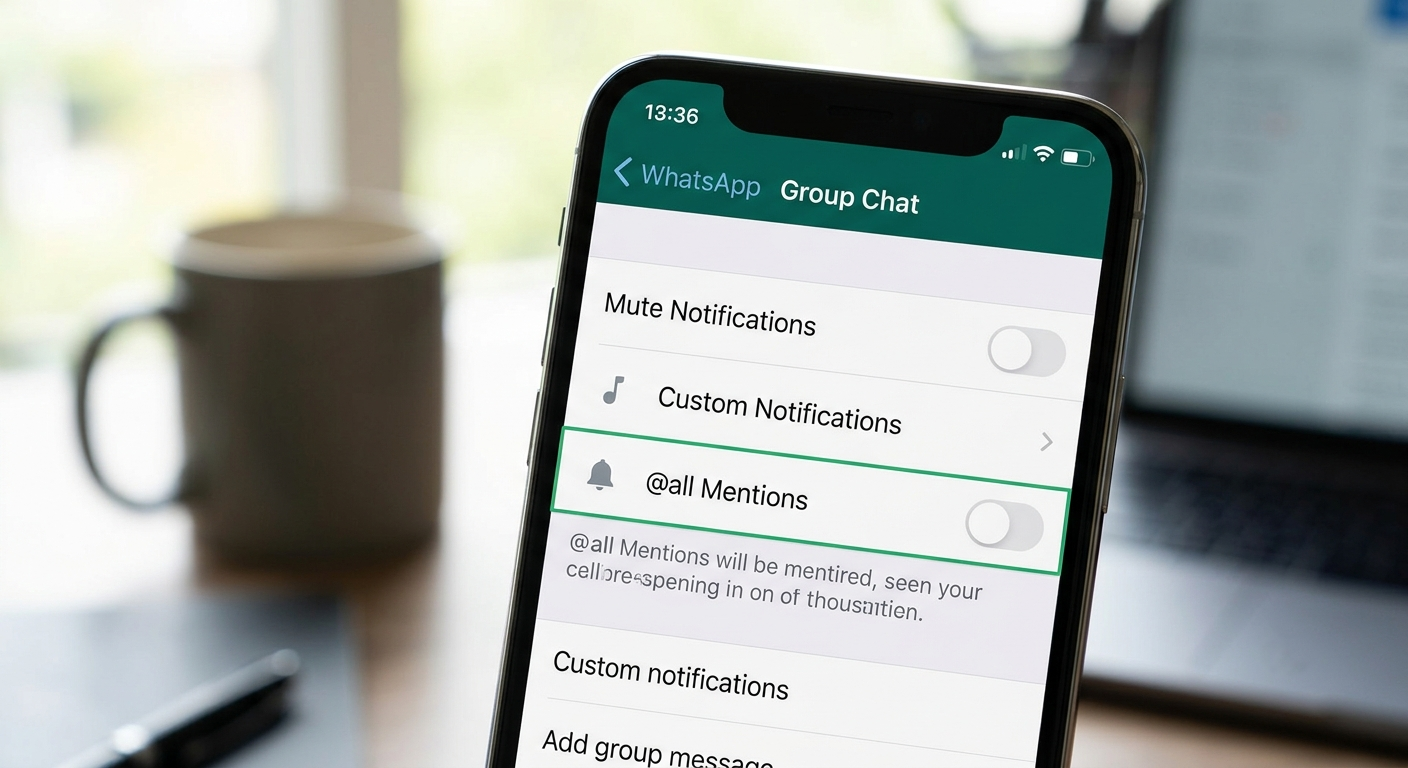

To solve this widespread communication bottleneck, WhatsApp introduced a dedicated @all mention feature, commonly known as Urgent Group Alerts. This tool allows members and group administrators to send priority notifications that capture immediate attention across an entire group.
In this comprehensive guide, we will explain everything you need to know about Urgent Group Alerts in WhatsApp. We cover how the feature works, step-by-step instructions for using it on iPhone and Android devices, important administrative safeguards, and how individual users can maintain full control over their notification settings.
What Are Urgent Group Alerts in WhatsApp?
An Urgent Group Alert is a specialized broadcasting mechanism built directly into WhatsApp group chats. By typing the symbol @all within a message, you trigger a high-priority notification that is delivered to every single participant in the group chat simultaneously.
In standard group interactions, tagging an individual requires typing the @ symbol followed by their specific contact name (for example, @JohnDoe). While effective for direct interactions, tagging dozens or hundreds of members individually is tedious and impractical.
The @all tag streamlines mass communication into a single action. It instantly alerts every member of the group, regardless of whether they have checked the conversation recently.
Key Benefits of Using the @all Mention Tag
-
Instant Visibility: Ensures time-sensitive announcements bypass standard chat noise.
-
Streamlined Mass Communication: Eliminates the need to tag members individually.
-
Emergency Readiness: Works as an immediate digital broadcast system for urgent situations.
-
Higher Engagement Rates: Guarantees that vital schedules, deadlines, or location updates reach every participant.
How to Send an Urgent Group Alert Using @all
Sending an urgent broadcast in a WhatsApp group is straightforward and requires no complex technical steps or additional software updates beyond keeping your WhatsApp application current.
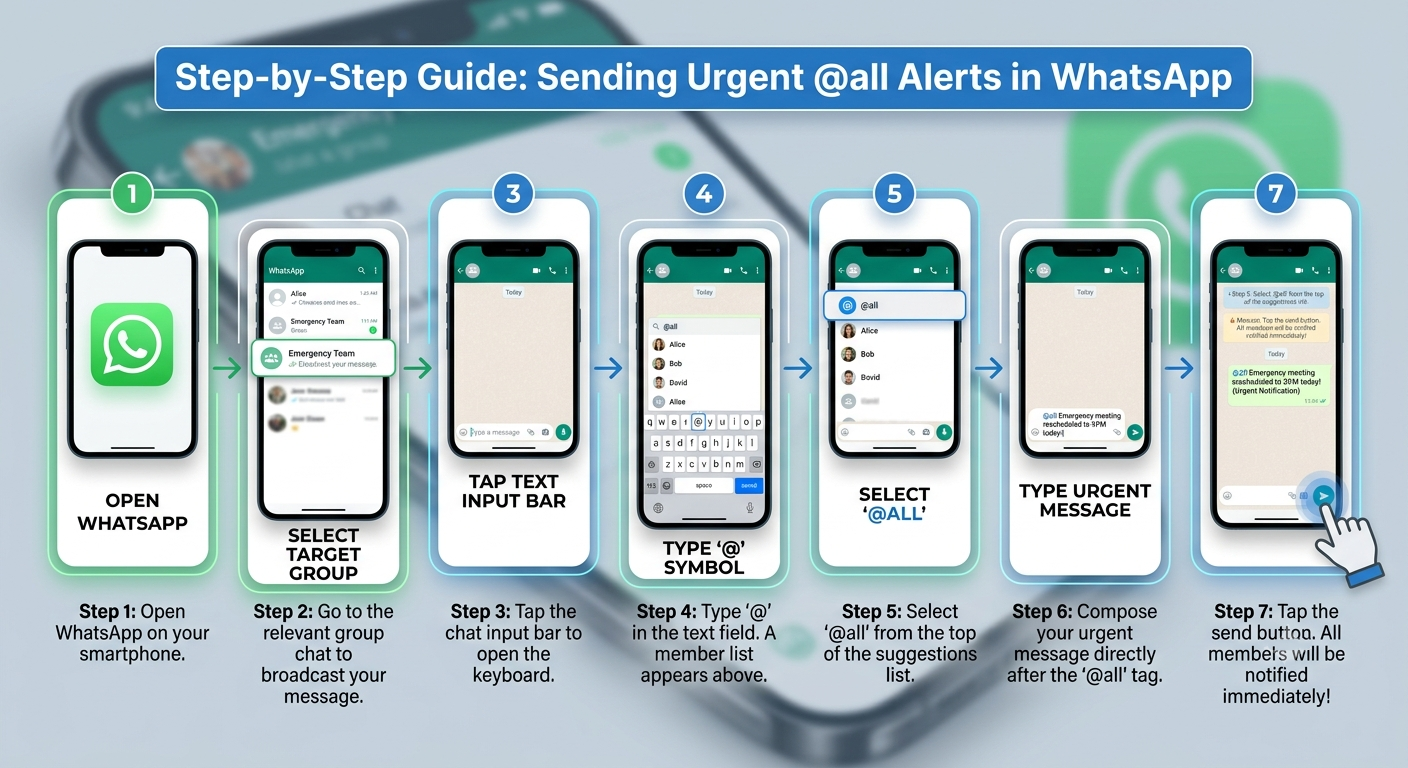
Once sent, WhatsApp immediately processes the tag and dispatches an immediate notification to all group participants.
When Should You Use the @all Tag?
Because Urgent Group Alerts notify every member in a group at once, using this feature responsibly maintains a healthy group dynamic. We recommend reserving the @all tag exclusively for high-priority or time-critical scenarios.
1. Emergency Notices and Urgent Safety Updates
In community groups, workplace chats, or school parents’ circles, unexpected events require rapid coordination. Examples include severe weather alerts, facility closures, or critical safety announcements.
2. Time-Sensitive Schedule Changes
When plans change on short notice—such as a shifted event start time, a venue modification, or a canceled flight—typing @all ensures that participants who muted the chat receive immediate notification before traveling or making incorrect arrangements.
3. Critical Deadlines and Action Requirements
For project teams or volunteer committees, key milestones often require immediate sign-offs or feedback. Using an urgent alert draws immediate eyes to key forms, polls, or documents.
Important Admin Safeguards in Large Groups
To protect users from notification fatigue and prevent spamming in large communities, WhatsApp includes built-in administrative safeguards.
The 32-Participant Threshold Rule
In smaller group chats (32 participants or fewer), any member of the group can typically use the @all tag to broadcast urgent updates. However, in larger group chats with more than 32 members, WhatsApp restricts the @all tag strictly to Group Administrators.
This rule prevents unintentional spam in massive public or community groups. If a regular member attempts to type @all in a group exceeding 32 participants, the tag will not trigger a mass notification.
How Group Admins Can Manage Permission Settings
Group administrators can further refine messaging permissions to maintain order in active groups:
-
Restricting Messaging Rights: Admins can adjust group settings so that only administrators can send messages in the group overall (Group Settings > Send Messages > Only Admins).
-
Adding or Removing Admins: To grant trusted members the ability to send group-wide alerts in groups larger than 32 members, existing admins can promote them by navigating to Group Info, tapping the participant’s name, and selecting Make Group Admin.
User Control: How to Mute or Disable @all Notifications
While Urgent Group Alerts are designed to override standard muted settings for critical updates, WhatsApp prioritizes individual privacy and peace of mind. If you find that a particular group is abusing the @all tag, you retain full control to explicitly mute these notifications on your device.
How to Mute @all Alerts for a Specific Group
If you want to silence all notifications from a group—including urgent @all mentions—follow these steps:
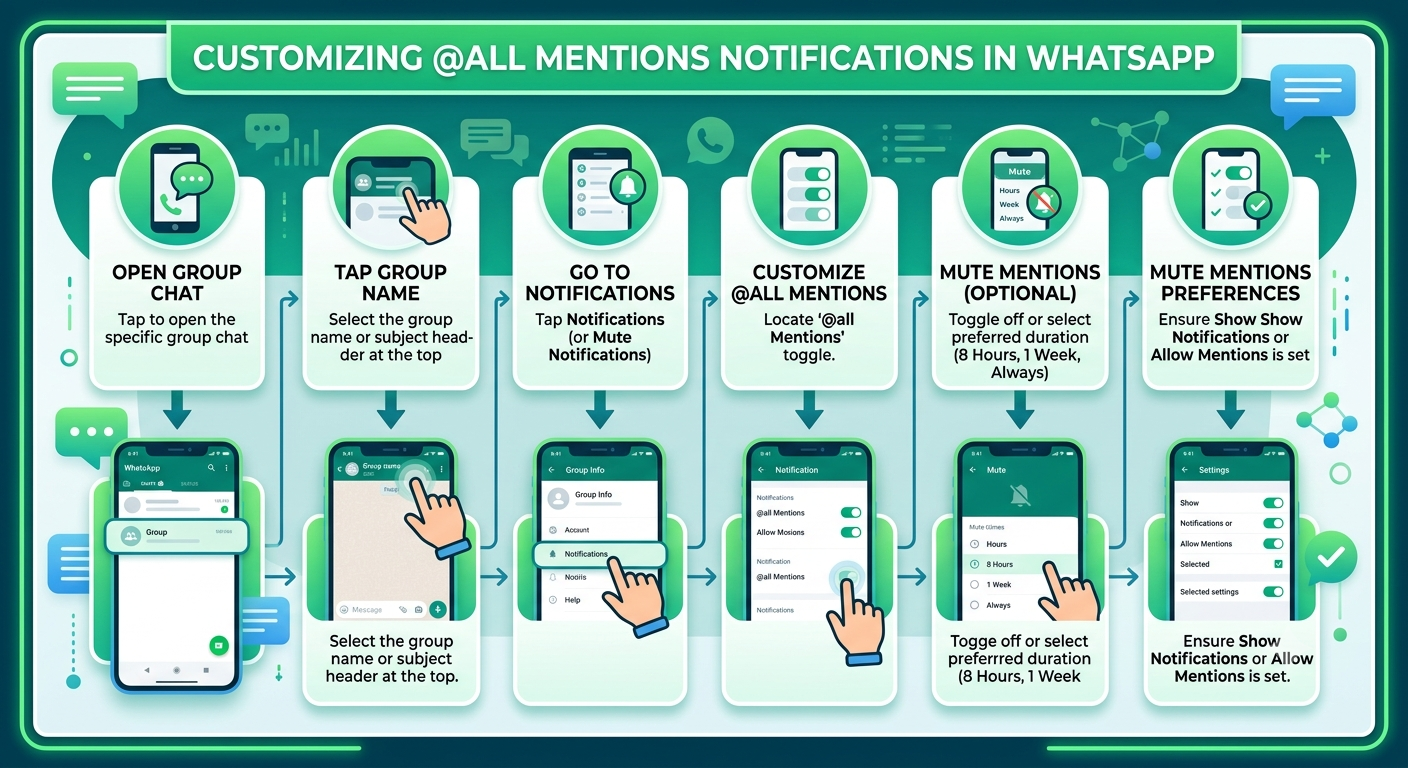
By adjusting these settings, you ensure that high-frequency or mismanaged group chats do not disrupt your day, while still keeping your general notification preferences intact for essential personal contacts.
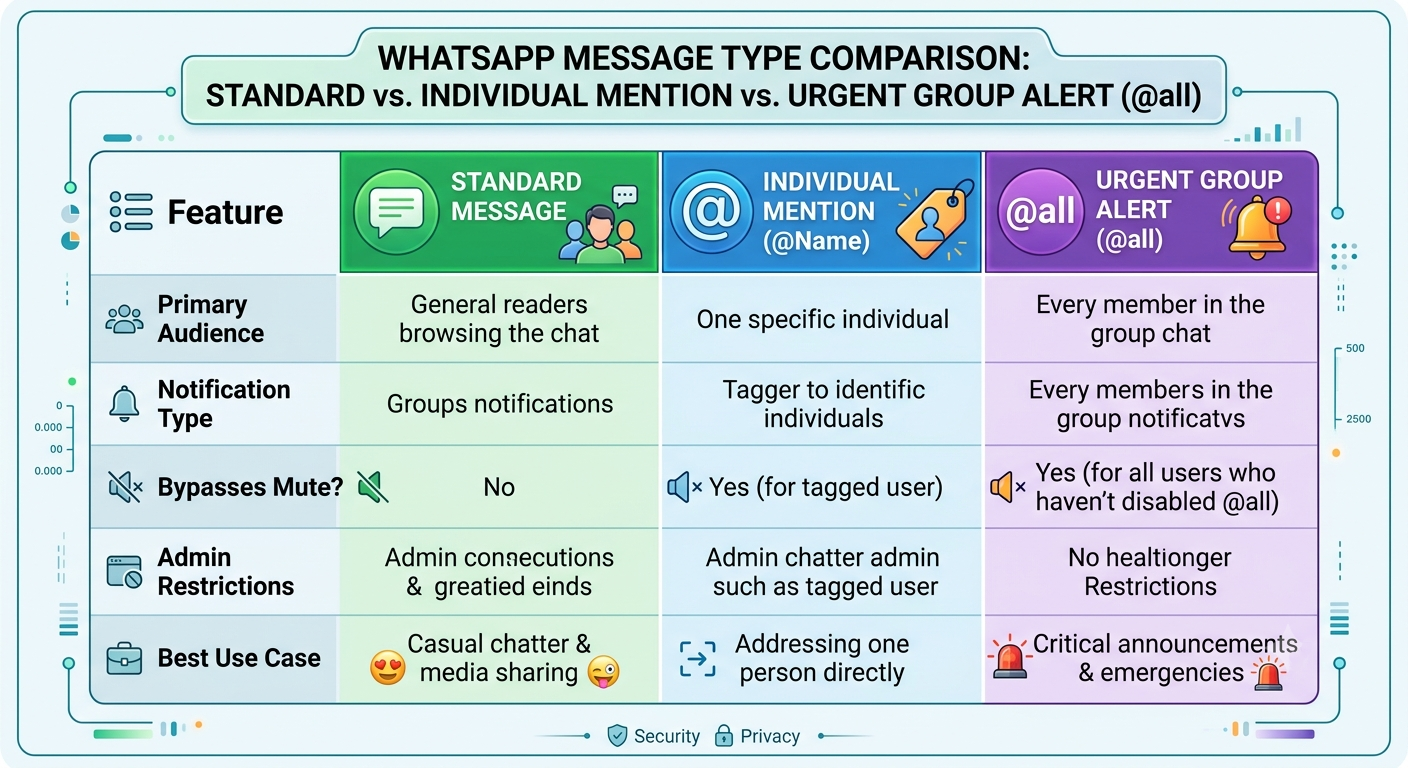
Comparing Standard Mentions vs. Urgent Group Alerts
To help clarify when to use each messaging tool in WhatsApp, we have summarized the differences below:
Best Practices for Group Communication
To keep group chats productive and prevent members from muting your alerts, we advise following a few communication best practices:
-
Keep Messages Concise: State the core information in the first sentence following the @all tag.
-
Avoid Overuse: Reserve the @all tag for genuine priorities. Overusing mass alerts leads members to turn off mention notifications entirely.
-
Combine with WhatsApp Polls or Pinning: For maximum visibility, send an @all alert and immediately pin the message to the top of the chat thread so latecomers can reference it easily.

Selva Ganesh is a Computer Science Engineer, Android Developer, and Tech Enthusiast. As the Chief Editor of this blog, he brings over 10 years of experience in Android development and professional blogging. He has completed multiple courses under the Google News Initiative, enhancing his expertise in digital journalism and content accuracy. Selva also manages Android Infotech, a globally recognized platform known for its practical, solution-focused articles that help users resolve Android-related issues.





Leave a Reply