
How to Create a Sub-Group in a WhatsApp Group – Managing digital communications can easily turn into organized chaos. Whether we are coordinating a large family reunion, overseeing multiple project tracks at work, or managing a neighborhood watch, large group chats often become overwhelming. Important updates get buried under hundreds of casual messages, and members quickly experience notification fatigue.
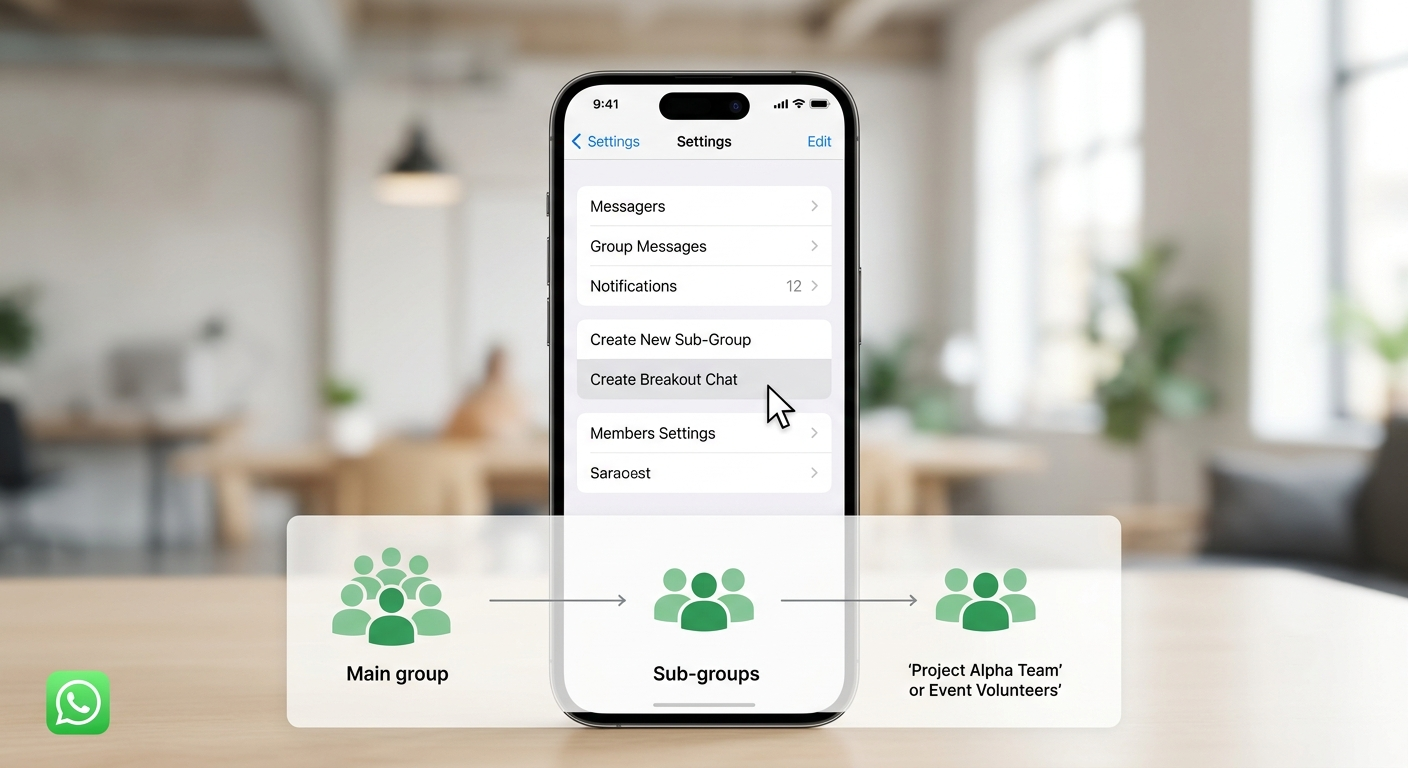

Fortunately, WhatsApp has introduced simple solutions to solve group chat clutter. With modern updates, we can now split large groups into focused smaller conversations in just a few taps.
In this comprehensive guide, we will walk through how to create sub-groups from existing WhatsApp chats, set up WhatsApp Communities for ultimate structure, and master these features without needing any technical background.
What is a Sub-Group in WhatsApp?
A sub-group is a smaller, focused group chat created using members from an existing, larger group. Instead of clogging the main chat with discussions that only interest a few people, we can break off into dedicated side chats.
Think of a primary WhatsApp group as a large conference room where everyone is listening to one speaker. A sub-group is like stepping into a breakout room next door to discuss a specific assignment before returning to the main room.
Historically, building a smaller group required searching through contact lists and manually adding each person one by one. WhatsApp’s streamlined features allow us to create a new group directly from an active chat screen in seconds.
Method 1: The One-Tap Quick Sub-Group Creation (Inside Existing Groups)
WhatsApp introduced a One-Tap Chat Creation feature that makes spinning off sub-groups instant and intuitive. This eliminates the tedious process of searching through contact lists and adding participants manually.
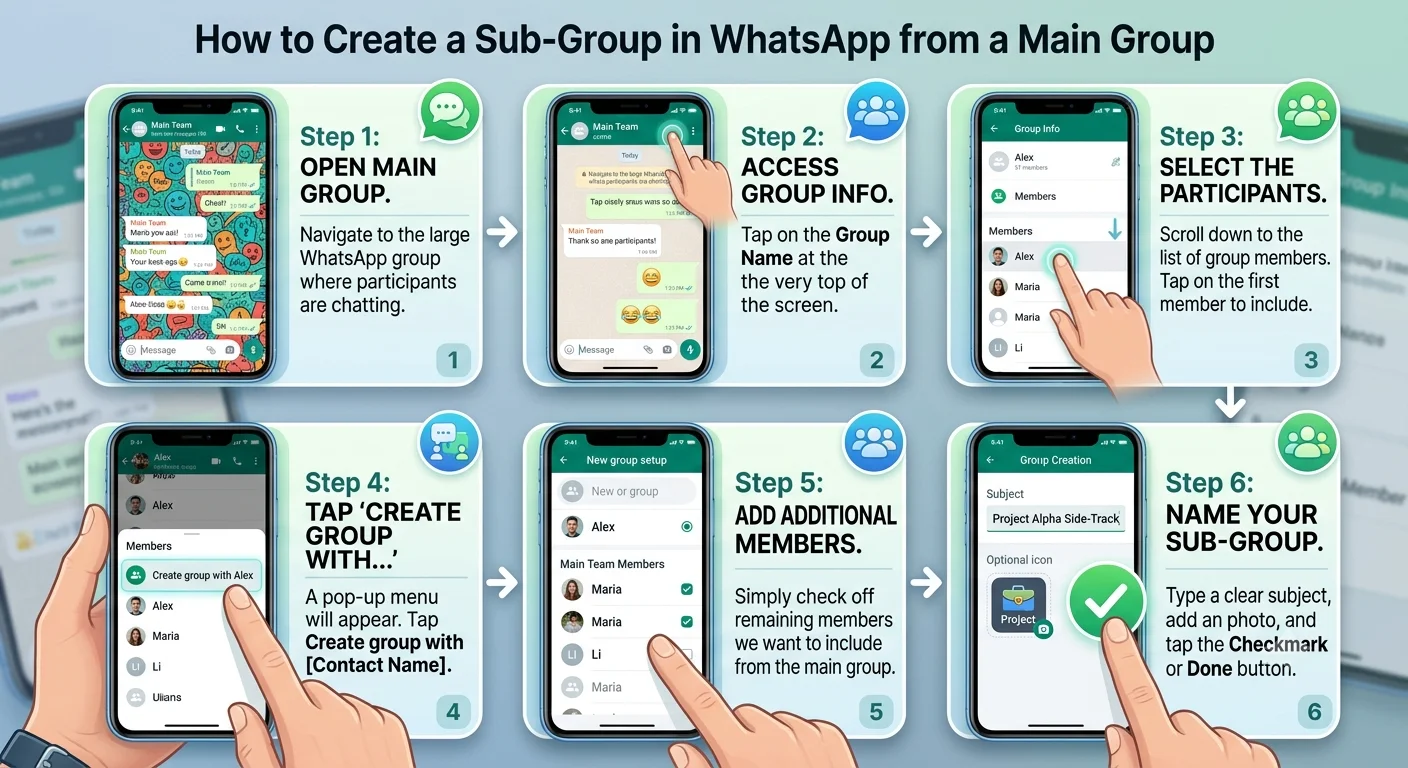
Your new sub-group is immediately active, and selected members will receive an invitation to chat without disrupting the main group thread.
Method 2: Creating Sub-Groups Using WhatsApp Communities
When we need a permanent umbrella structure for multiple related groups—such as a school with different grade levels, a company with different departments, or a apartment complex with different committee tracks—the WhatsApp Communities feature is the ultimate tool.
Communities act as a master folder where we can group up to 100 individual group chats under one overarching name, complete with a central Announcement Channel.
Step 1: Create a New Community
-
On Android: Tap the Community icon (looks like three people silhouettes) at the top or bottom of the main chats tab, then tap New Community.
-
On iPhone: Tap the Communities tab at the bottom of the screen, then tap New Community.
-
Enter a Community Name, a short description explaining its purpose, and upload an icon image.
Step 2: Add Existing Groups or Create New Sub-Groups
-
Once the Community is created, tap Add Group.
-
We can choose Create New Group to immediately build fresh sub-groups for specific topics.
-
Alternatively, select Add Existing Groups to bring your pre-existing team chats into the single organized umbrella.
Key Scenarios: When Should We Use Sub-Groups?
Knowing when to create a sub-group helps preserve communication clarity and respects everyone’s time. Here are the most common real-world use cases:
-
Managing Project Tracks: When a master project group contains designers, writers, and developers, creating sub-groups allows technical teams to hash out details without spamming the entire team.
-
Planning Surprise Events: Organizing a birthday present or retirement party for someone inside the primary family or office group requires a side channel to keep secrets safe.
-
Specialized Logistics: On group trips, creating sub-groups for side activities—like a golf outing or a spa day—keeps itinerary discussions relevant only to those participating.
-
Committee Tasks: In sports clubs or neighborhood associations, sub-groups allow event planners, treasurers, and equipment managers to work in parallel.
Sub-Group Best Practices for Group Administrators
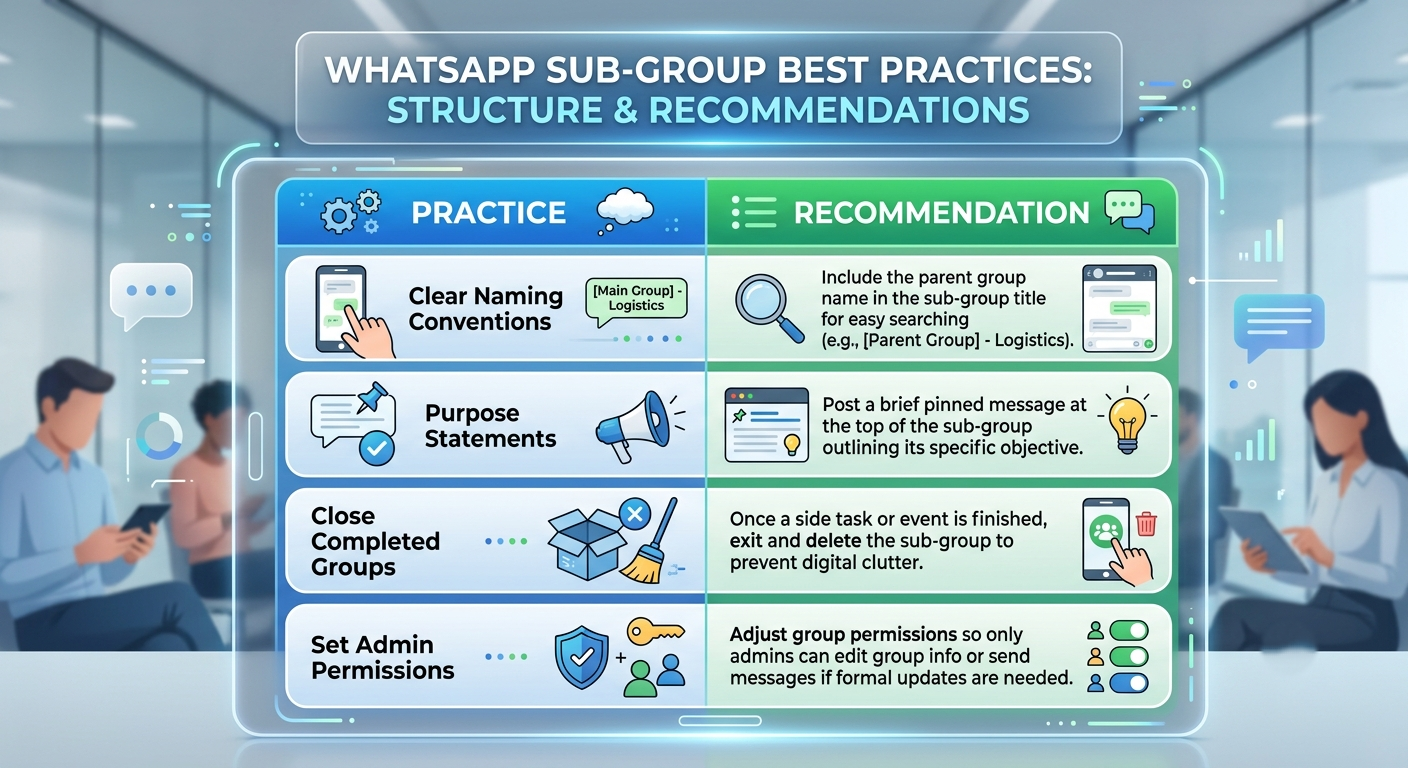
To keep sub-groups functional and enjoyable for all participants, we recommend following a few basic administrative practices:
Frequently Asked Questions
Will members of the main group know a sub-group was created?
No. Creating a sub-group using the quick-creation method or standard group setup only alerts the specific contacts who are added to the new sub-group. Members of the main group who are not invited will not see or receive notifications about the sub-group.
Do we need to be a group admin to create a sub-group?
To use the One-Tap Chat Creation method from a member list, you do not need to be an admin of the original group. Any member can start a new side conversation with other members. However, to add existing groups to a WhatsApp Community, you must be a Community Admin.
How many members can we add to a WhatsApp sub-group?
Standard WhatsApp groups and sub-groups support up to 1,024 members, making them suitable for both small task forces and large organizational branches.

Selva Ganesh is a Computer Science Engineer, Android Developer, and Tech Enthusiast. As the Chief Editor of this blog, he brings over 10 years of experience in Android development and professional blogging. He has completed multiple courses under the Google News Initiative, enhancing his expertise in digital journalism and content accuracy. Selva also manages Android Infotech, a globally recognized platform known for its practical, solution-focused articles that help users resolve Android-related issues.





This is a practical idea for keeping large WhatsApp discussions organized. I can see it being useful when different members need to discuss separate topics.
This is a useful read for WhatsApp group admins. Keeping discussions focused should help reduce noise while making important updates easier to notice.
The idea of separating related conversations is quite practical. This article gives a clear explanation of why it can be beneficial for large groups.
I like how the article connects organization with better communication. This could be especially helpful when a group has several parallel activities.
The guide is easy to understand and addresses a problem many users face. Smaller focused conversations could make WhatsApp groups much more useful.
Notification overload is a genuine issue with large groups. I found the suggestions here practical for keeping conversations organized.
This is a useful idea for reducing clutter in busy WhatsApp communities. The examples make it easier to see where a sub-group structure could help.
The article explains the communication challenge clearly. I think this would be especially useful for work groups with multiple teams.
Large chats can become difficult to manage when several topics are discussed at once. This approach could help members focus on the conversations they actually need.
I enjoyed the practical angle of this article. It shows how better group organization can reduce distractions and improve communication.
The problem of important updates getting buried is very familiar. A structured sub-group approach could make it easier for members to find relevant information.