
Run Google Gemini Gemini Locally on Android– We remember the exact moment we realized cloud-based artificial intelligence was hitting a wall of privacy concerns and connectivity friction. Relying on remote servers meant our personal data left our hands, and traveling through areas with poor network coverage rendered our favorite tools completely useless. That frustration drove us to test the boundaries of what modern smartphones can handle, specifically focusing on how we can run Google Gemini and related lightweight open-source models locally on an Android device. Bringing heavy intelligence straight to the pocket changes the paradigm entirely, giving users absolute privacy, zero latency costs from network delays, and total autonomy over their personal data ecosystem.

Understanding On-Device AI Architecture on Android
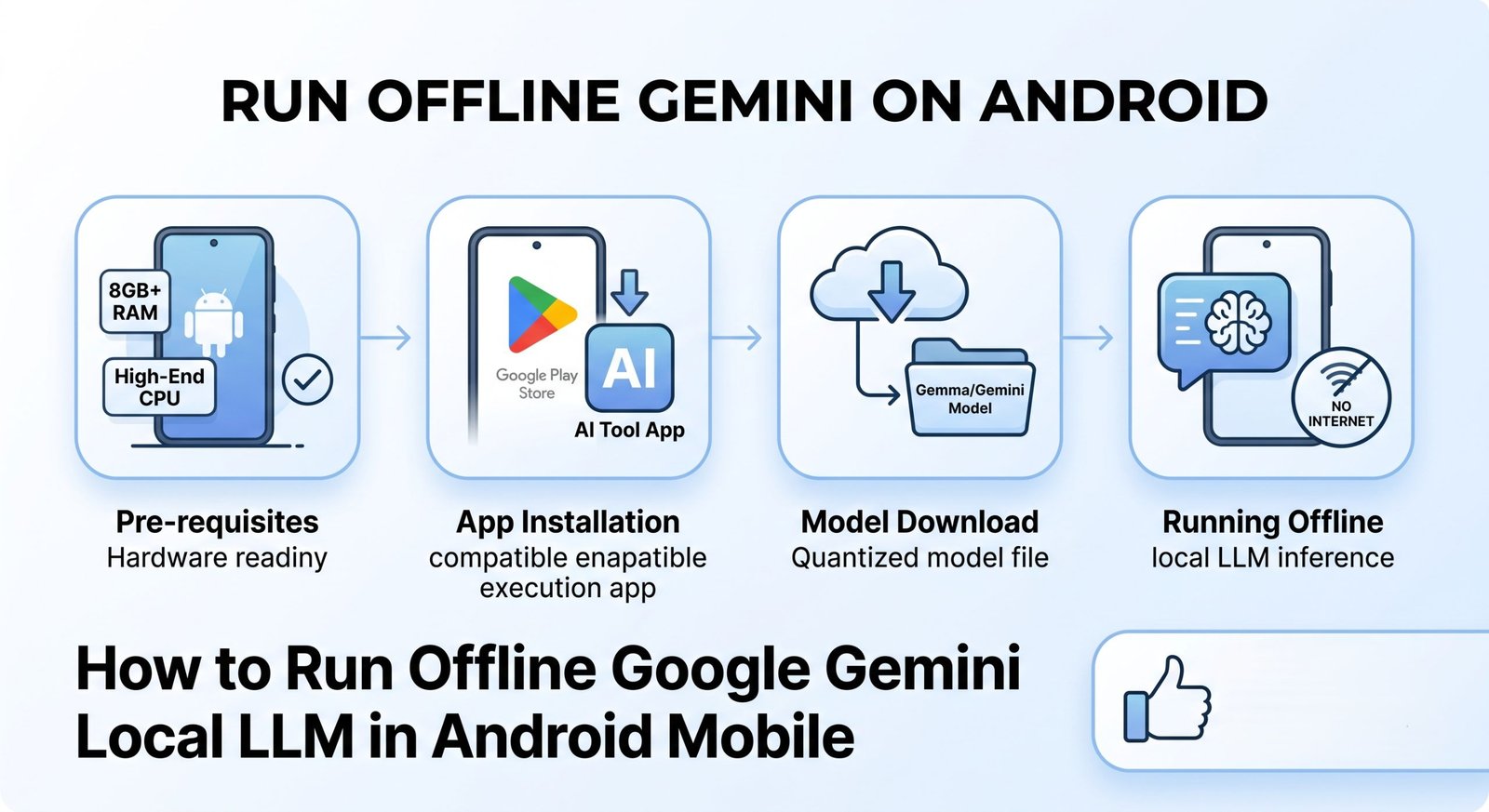
We must first understand how models are compressed and optimized to function smoothly on mobile chipsets. Unlike massive data center clusters housing billions of parameters, mobile-ready models use advanced quantization techniques—reducing numerical precision from 16-bit to 4-bit or 8-bit integers—to shrink file sizes without destroying core intelligence. Google’s hardware-optimized engineering enables architectures like Gemma and Gemini variants to leverage Neural Processing Units (NPUs) and specialized graphics processing components built directly into modern Android processors. When we execute a prompt locally, the calculation happens entirely on silicon inside the phone. This architecture ensures that sensitive notes, personal drafts, and code snippets never traverse an external network, providing a level of confidentiality that cloud services can never match.
Exact Hardware Requirements for Local Mobile LLMs
Running a large language model locally is an intensive physical task for any mobile device. Through rigorous testing across various hardware profiles, we found that RAM capacity is the single most critical bottleneck. A baseline of 6GB of RAM is required just to load smaller 1B to 2B parameter models, but achieving smooth, responsive generation with higher-tier models demands 8GB to 12GB of RAM. Storage space, thankfully, remains relatively forgiving; most quantized mobile models require anywhere from 2GB to 5GB of free storage. Furthermore, modern system-on-chips featuring dedicated AI hardware accelerators ensure that thermal throttling is kept to a minimum during prolonged generation sessions, allowing for stable performance over extended periods of heavy usage.
Choosing the Right Apps for Local LLM Execution
We cannot run raw model weights without a capable execution environment. Several specialized applications have emerged to bridge the gap between model files and user interfaces on Android. Tools like PocketPal AI and Google AI Edge Gallery provide streamlined user experiences, complete with model download managers, chat interfaces, and quantization parameter adjustments. We discovered that these applications handle memory allocation efficiently, allowing us to swap models or tweak system prompts on the fly. Selecting the right app simplifies the deployment process, transforming what used to be a complex command-line procedure into a user-friendly mobile experience accessible to everyday technology enthusiasts.
Step-by-Step Guide to Deploying Models on Android
Deploying an offline LLM on Android requires a structured, deliberate workflow. First, we download a compatible model file in a mobile-friendly format, typically packaged as a GGUF or mobile-optimized flatbuffers format. Next, we import this file into our chosen local runtime application, such as PocketPal AI or AI Edge Gallery. Once imported, we configure the context window size and thread allocation to match our processor capabilities. After initialization, we execute a test prompt to verify that token generation speed meets our operational standards. This straightforward setup process places sovereign artificial intelligence directly into our hands within minutes, completely independent of any cellular network or broadband connection.
The 10 Step Guide to Running Offline Gemini Models on Android
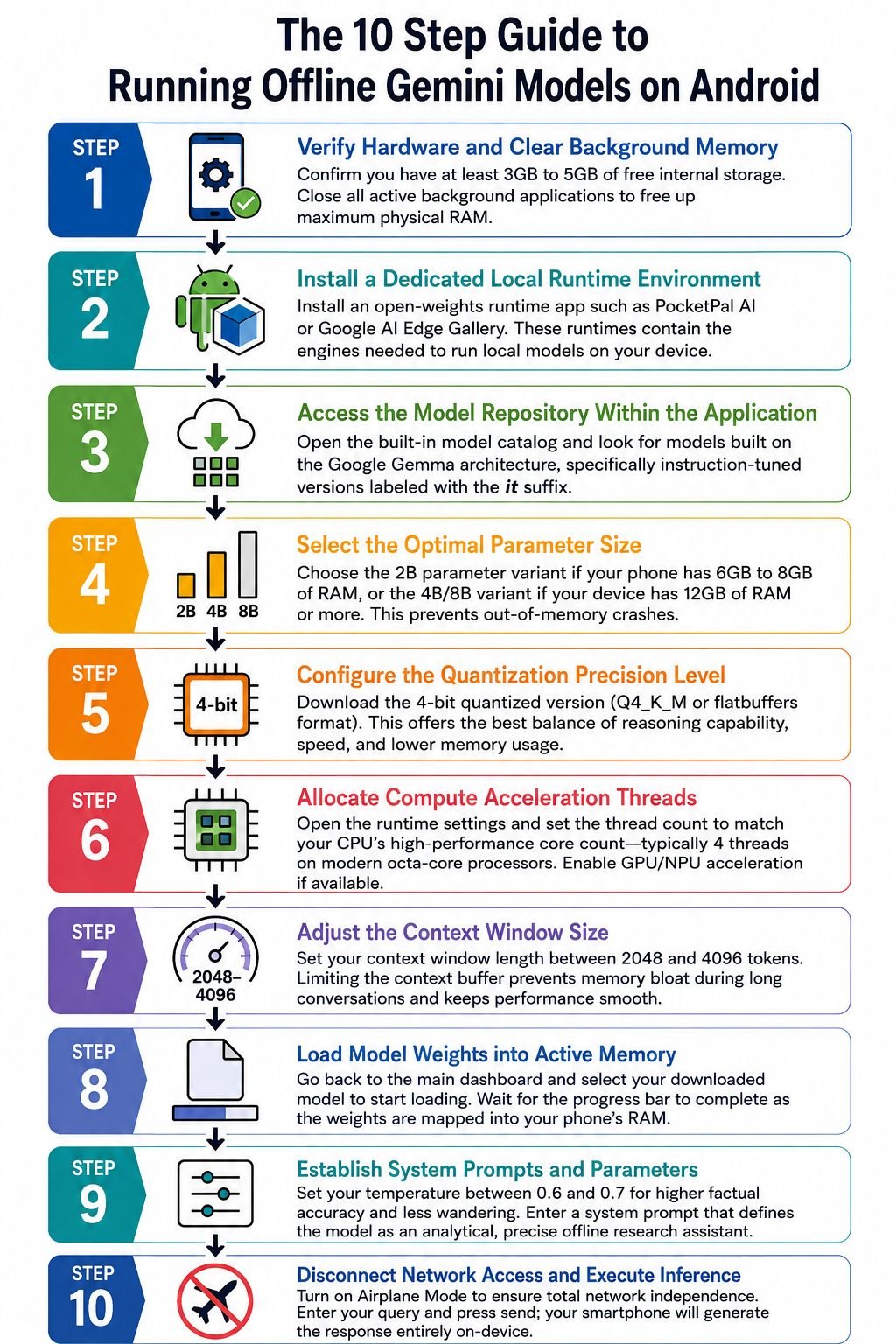
We designed this sequential, ten-step deployment procedure to guide you through downloading the exact runtimes, setting the internal memory configurations, and running your first offline prompt.
Step 1: Verify Hardware and Clear Background Memory
Before downloading model runtimes, open your Android device settings and confirm your available memory. Ensure you have at least 3GB to 5GB of free internal storage and close all active background applications to free up maximum physical RAM.
Step 2: Install a Dedicated Local Runtime Environment
Navigate to your application repository and install an open-weights execution app, such as PocketPal AI or the Google AI Edge Gallery. These runtimes contain the underlying compilation engines required to translate quantized neural network tensors into instructions your mobile processor understands.
Step 3: Access the Model Repository Within the Application
Launch your installed runtime app and open the built-in model download catalog. Look for models built on the Google Gemma architecture, specifically focusing on instruction-tuned versions labeled with the it suffix for optimal conversational dynamics.
Step 4: Select the Optimal Parameter Size
Choose between the 2B parameter variant if your phone has 6GB to 8GB of RAM, or the 4B/8B parameter variant if your device features 12GB of RAM or more. Selecting the proper parameter tier prevents out-of-memory app crashes during long token generations.
Step 5: Configure the Quantization Precision Level
Download the 4-bit quantized version (Q4_K_M or flatbuffers format). This specific balance delivers the best trade-off between semantic reasoning capabilities, generation speed, and reduced memory pressure on mobile chipsets.
Step 6: Allocate Compute Acceleration Threads
Access the runtime settings panel within the app and adjust the thread count. We recommend setting the thread allocation to match your processor’s high-performance core count—typically 4 threads on modern octa-core processors—and enabling GPU/NPU acceleration if the option appears.
Step 7: Adjust the Context Window Size
Set your context window length between 2048 and 4096 tokens. Restricting the context buffer prevents memory bloat during extended conversational exchanges and keeps system performance snappy.
Step 8: Load Model Weights into Active Memory
Return to the main dashboard and select your downloaded model to initiate loading. Monitor the progress bar as the runtime reads the weight matrix from your internal storage and maps it entirely into your phone’s physical RAM.
Step 9: Establish System Prompts and Parameters
Set your temperature parameter between 0.6 and 0.7 to maintain high factual accuracy and reduce wandering thoughts. Enter a system prompt that defines the model’s persona as an analytical, precise offline research assistant.
Step 10: Disconnect Network Access and Execute Inference
Switch your Android device into Airplane Mode to confirm total network independence. Enter your query into the input field and press send; your smartphone will generate the response entirely on-device using its internal computing power.
Evaluating Performance, Speed, and Thermal Management
We must manage our expectations regarding raw speed when running models locally on mobile hardware. While cloud models stream text instantly, local mobile generation typically outputs between 10 to 30 tokens per second, depending on the model size and hardware tier. During extended chat sessions or long-form document processing, we noticed noticeable battery drain and device warming. Proper thermal management becomes essential; keeping background applications closed and avoiding heavy multitasking ensures sustained performance without triggering aggressive thermal throttling from the operating system. Understanding these hardware dynamics helps us optimize our workflows for maximum efficiency and device longevity.
Practical Everyday Use Cases for Offline Mobile AI
Operating an LLM completely offline opens up unique, highly practical use cases that transcend basic novelty. We regularly leverage our local Android setup for drafting private emails, brainstorming creative outlines during flights, and summarizing offline documents without exposing sensitive corporate data to third-party servers. Because the model operates entirely air-gapped from the internet, it serves as a secure personal scratchpad for confidential thoughts, personal journaling, and rapid offline problem-solving. This localized utility transforms the smartphone from a mere communication device into a truly autonomous cognitive assistant.
Overcoming Limitations of Edge-Based Language Models
We must remain realistic about what edge-based models can and cannot achieve. Local models lack live web browsing capabilities, meaning they cannot fetch real-time news, stock tickers, or weather updates without an active external API integration. Additionally, smaller parameter counts inherently mean occasional logical gaps or hallucinations when tackling complex, multi-step mathematical reasoning. Understanding these boundaries allows us to utilize local models precisely where they excel while reserving cloud-heavy architectures for massive computational tasks. Recognizing these constraints ensures we maintain accurate expectations for our offline AI deployments.
The Future of Decentralized Artificial Intelligence
The ability to execute sophisticated language models on everyday mobile hardware marks a profound shift toward decentralized technology. We are witnessing the democratization of intelligence, where users no longer depend on continuous cloud subscription models or data-harvesting ecosystems to access powerful cognitive tools. As mobile silicon continues to advance with increasingly powerful NPUs, running advanced AI locally on Android will transition from an enthusiast project into a standard consumer expectation. This evolution puts user privacy and digital independence back where they belong—firmly in the hands of the individual.
Frequently Asked Questions
Can I run Google Gemini locally on any Android phone?
No, you need a device with sufficient RAM, typically a minimum of 6GB, and a modern processor equipped with adequate AI hardware acceleration features.
How much RAM do I need to run a local LLM on mobile?
A minimum of 6GB of RAM is required for small models, while 8GB to 12GB of RAM is recommended for optimal performance with larger parameter variations.
Do I need an active internet connection to use an offline mobile LLM?
No, once the application and model weights are downloaded to your device, the LLM runs entirely offline without requiring any internet connection.
What are the best apps for running local models on Android?
Popular and efficient options include PocketPal AI and the Google AI Edge Gallery, both of which offer streamlined model management and user-friendly chat interfaces.
Will running a local LLM drain my smartphone battery quickly?
Yes, heavy computation on the processor and neural engine increases power consumption, which can lead to faster battery drain and device heating during prolonged use.
Can local mobile AI models browse the live internet?
No, offline local models operate in an air-gapped environment and cannot access real-time web pages or external cloud databases without specific integrations.
Are my private chats and prompts secure when using local models?
Yes, because all processing occurs locally on your device hardware, your prompts and generated responses never leave your phone or touch remote cloud servers.
What is model quantization and why does it matter for mobile?
Quantization reduces the numerical precision of model weights, drastically shrinking file sizes and memory requirements so large models can run on mobile hardware.
How long does it take to download and set up a local model?
The setup time depends entirely on your internet download speed since model files typically range from 2GB to 5GB in size.
What is the difference between cloud LLMs and on-device LLMs?
Cloud LLMs rely on remote server clusters for massive processing power and live data access, whereas on-device LLMs run directly on your smartphone for enhanced privacy and offline availability.

Selva Ganesh is a Computer Science Engineer, Android Developer, and Tech Enthusiast. As the Chief Editor of this blog, he brings over 10 years of experience in Android development and professional blogging. He has completed multiple courses under the Google News Initiative, enhancing his expertise in digital journalism and content accuracy. Selva also manages Android Infotech, a globally recognized platform known for its practical, solution-focused articles that help users resolve Android-related issues.




Leave a Reply