
How to Integrate Google Photos into Your Samsung Gallery – For years, Samsung Galaxy users faced a major dilemma when organizing their memories: use the beautifully designed, ultra-responsive Samsung Gallery app for daily browsing or rely on Google Photos for seamless cloud backup and cross-device access. Switching between two separate photo apps often meant duplicated pictures, missing albums, and constant manual uploads.
With the latest official integration between Samsung and Google, we can now directly sync Samsung Gallery with Google Photos. This means our photos and videos back up automatically to our Google Account straight from the built-in Samsung Gallery app.

In this comprehensive guide, we will walk through how to set up Google Photos integration in Samsung Gallery step by step, explain how cloud editing works, highlight custom folder backups, and explore cutting-edge AI features—including smart glass multimodal camera integration—that elevate our digital photo experience.
Pre-requisite Requirements Before You Begin
Before we initiate the synchronization process, we must ensure our Samsung Galaxy phone or tablet meets the basic system requirements:
-
Compatible Samsung Galaxy Device: A smartphone or tablet running Android 13 or higher (including One UI 5, One UI 6, One UI 7, and later).
-
Updated Samsung Gallery App: Ensure our Samsung Gallery app is updated to version 15.9.01.7 or later through the Galaxy Store.
-
Personal Google Account: The integration requires a standard personal Google account. Managed corporate accounts (Google Workspace) and child accounts supervised by Google Family Link are not supported for direct cloud sync.
-
Google Cloud Storage: Ensure we have available storage space in our Google Account (Google One) to hold new photo and video uploads.
Step-by-Step Guide: Connecting Samsung Gallery to Google Photos
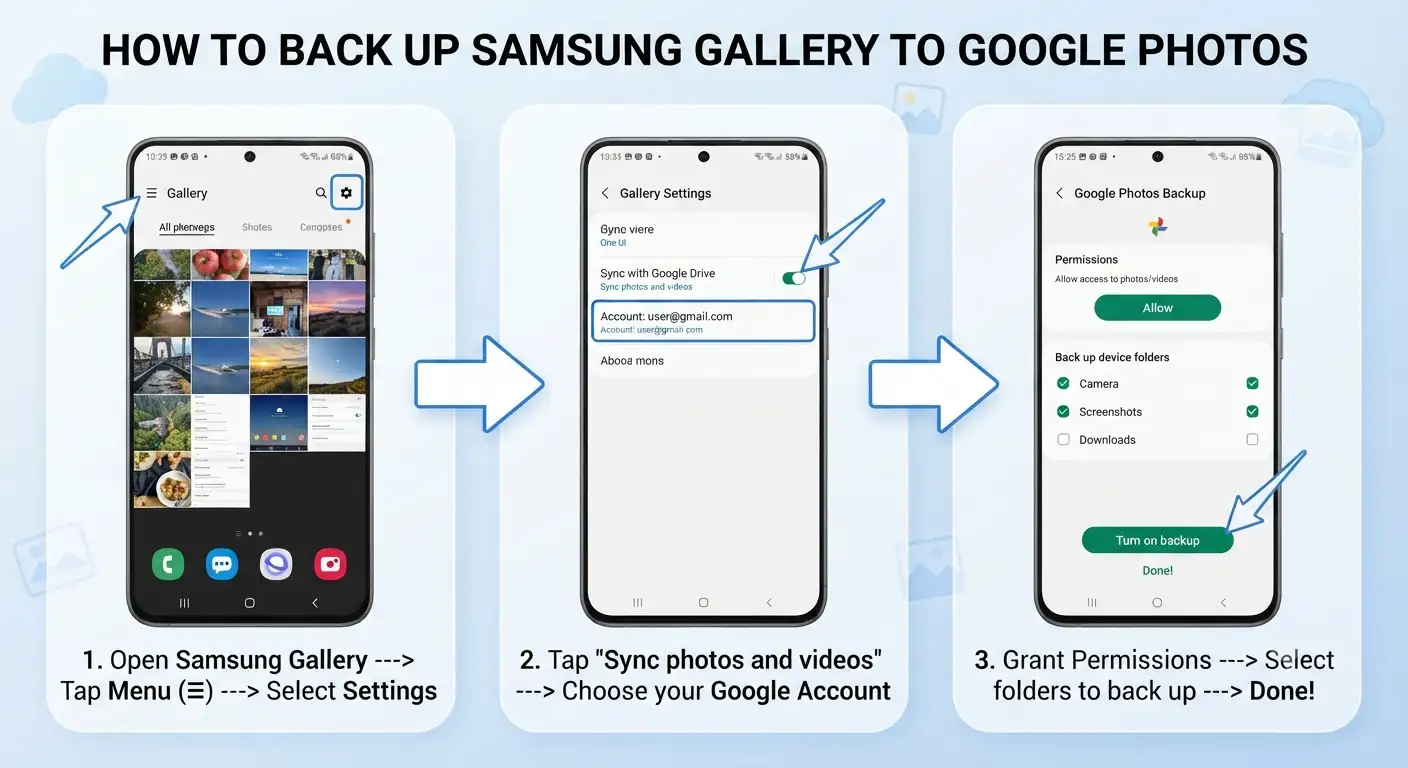
Setting up the direct connection takes less than two minutes and requires no technical expertise. Follow these exact steps on your Samsung Galaxy device:
-
Open the Samsung Gallery App: Locate and tap the native Gallery icon on our home screen or app drawer.
-
Access Gallery Settings: Tap the Menu icon (three horizontal lines) located in the bottom-right corner of the screen, then select Settings.
-
Select Sync Option: Look for the option labeled Sync photos and videos (or Gallery Cloud Sync) and tap it.
-
Choose Your Google Account: A prompt will display our active Google Accounts. Select the personal account we want to use for cloud backup.
-
Grant Cross-App Permissions: Follow the on-screen prompts to allow Samsung and Google to securely exchange necessary account details, such as available Google One cloud storage.
-
Confirm Activation: Once authorized, the toggle switch next to Sync photos and videos will turn on, and our device will begin syncing photos in the background.
How to Customize Specific Folder and Album Backups
One of the greatest benefits of this integration is granular folder management. Unlike older backup setups that uploaded everything indiscriminately, we can choose precisely which albums get uploaded to Google Photos.
Managing Local Device Folders
By default, our main Camera roll backs up automatically. However, we can individually choose to back up or exclude additional device folders:
-
Screenshots: Keep utility grabs out of the main cloud feed or include them if needed.
-
Downloads: Prevent meme downloads from eating up cloud space.
-
App Folders: Selectively sync photos saved from social media, messaging apps, or third-party editing tools.
To adjust these preferences:
-
Return to Samsung Gallery > Settings > Sync photos and videos.
-
Tap Albums to sync.
-
Toggle individual local folders ON or OFF according to our storage preferences.
Pro Tip: We can even disable syncing for the main camera roll while keeping specific project folders actively synced, giving us total control over cloud storage consumption.
Understanding Cloud Sync Rules, Photo Edits, and Deletions
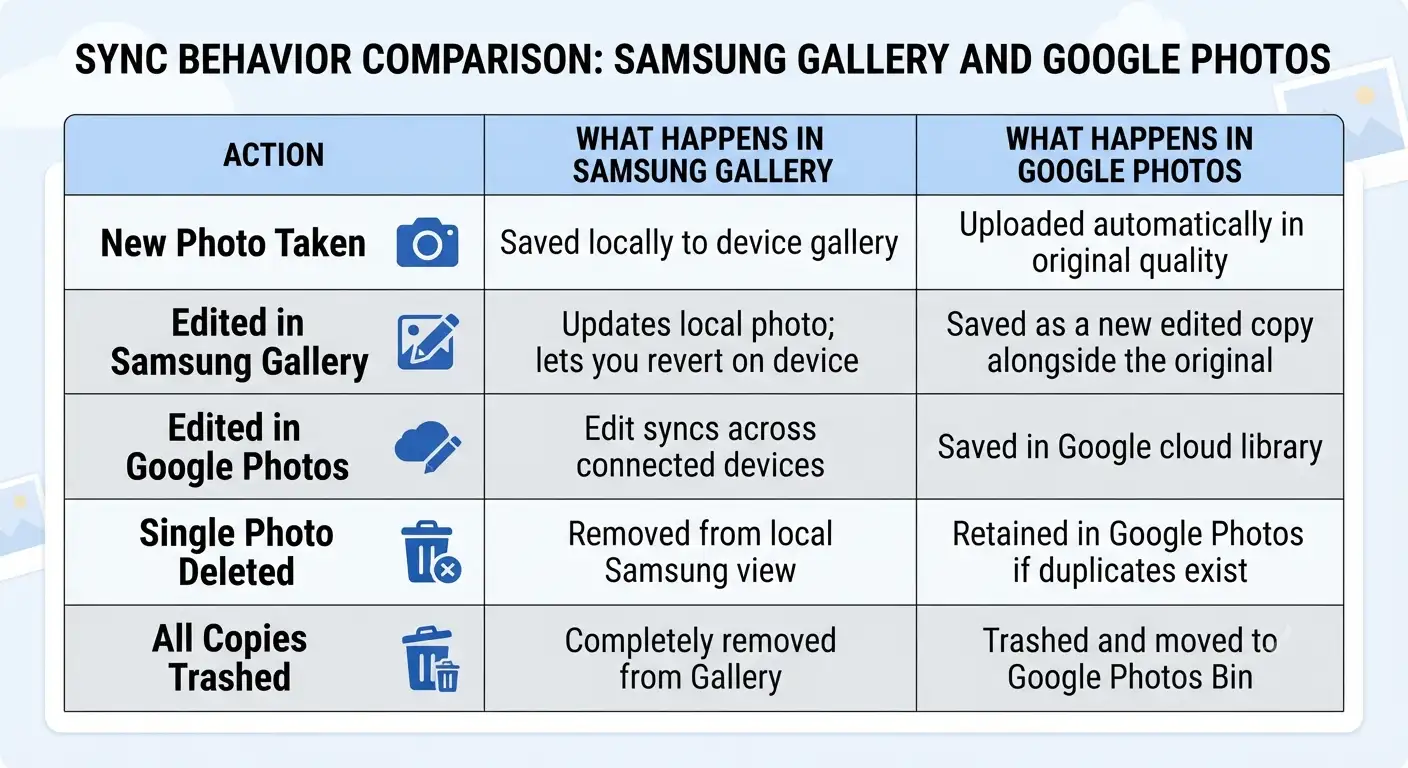
To ensure we never lose an important memory or create unnecessary duplicate files, we need to understand how edits and deletions sync between Samsung Gallery and Google Photos.
How Photo Edits Work Across Cloud Services
When we make edits in the Samsung Gallery app (such as cropping or applying color filters), Samsung updates the original file locally while Google Photos saves the edit as a new picture. This safeguard ensures our original unedited photo remains safely preserved in Google Cloud Storage at all times.
AI Innovations: Smart Glasses and Next-Gen Visual Intelligence
Beyond basic photo backups, the combination of Samsung Galaxy hardware and Google’s artificial intelligence ecosystem unlocks powerful multimodal AI features that we cannot find in standard smart glasses or third-party apps.
Visual Search and Object Recognition
With Google AI deeply embedded into Samsung’s ecosystem, we can highlight any item, object, or text within our photos using simple gestures like Circle to Search. The AI immediately analyzes visual patterns, identifies landmarks, extracts foreign text for real-time translation, and provides shopping links without leaving our gallery view.
Hands-Free Smart Glass Camera Integration
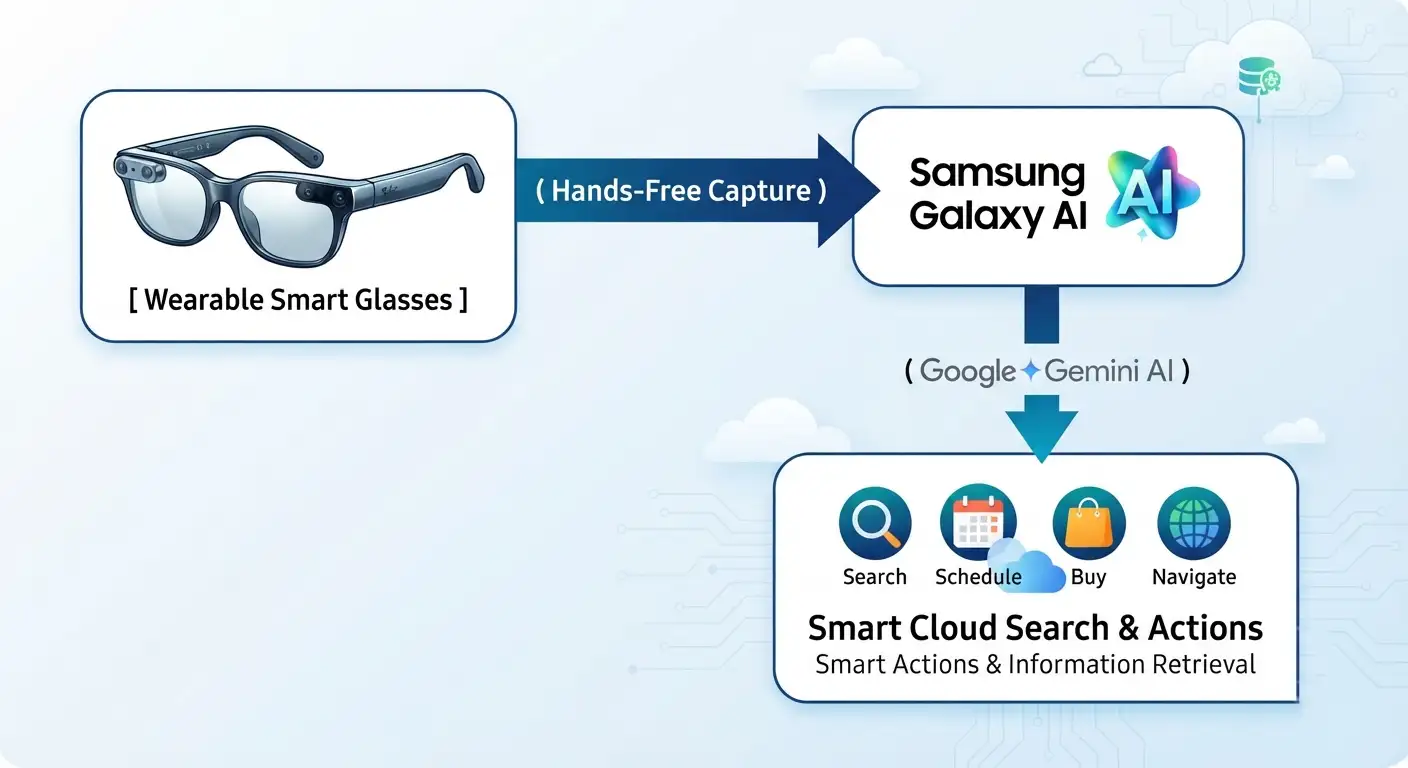
While standard smart glasses only take basic photos or stream audio, next-generation wearable smart glasses powered by Android and Google AI offer seamless multimodal intelligence:
-
Hands-Free Contextual Snapping: We can point our smart glasses at a complex object—like a plant leaf, a mathematical equation, or a museum artifact—and ask our AI assistant what we are looking at.
-
Instant Sync to Cloud Gallery: Images captured through our smart glasses automatically sync through our Samsung Galaxy device directly into our Google Photos library, eliminating manual transfer steps.
-
Multimodal Memory Querying: Unlike competitor smart glasses that treat every snapshot as an isolated image file, Google AI indexes smart glass photos based on location, context, and recognized objects. We can simply speak to our device (“Find the blueprint I looked at yesterday afternoon“) and instantly locate the exact capture taken through our glasses.
Troubleshooting Common Sync Issues
If our photos stop syncing between Samsung Gallery and Google Photos, we can resolve the issue quickly using these simple steps:
-
Check Storage Quota: Open Google Photos and tap our profile icon to check if our Google Account storage is full. If storage limits are reached, we must free up space or upgrade our Google One plan.
-
Verify Wi-Fi Connection: By default, large video files and high-resolution images only upload over Wi-Fi. Check our network connection or adjust cellular data settings under Gallery > Settings > Sync settings.
-
Re-authorize Google Permissions: If sync halts, navigate to Samsung Gallery > Settings > Sync photos and videos, toggle the feature OFF, wait 10 seconds, and turn it back ON to refresh the security token.
-
Disable Power Saver Mode: Extreme battery saver modes can pause background syncing services. Ensure our Samsung Galaxy device allows background activity for both Gallery and Google services.
Conclusion
By integrating Google Photos directly into the Samsung Gallery app, we get the best of both worlds: the ultra-fast local management of Samsung’s native interface combined with the reliable, AI-powered cloud storage of Google. Setting up this connection takes only a few simple taps, ensuring our precious family photos, project documents, and smart-glass memories are safely backed up, effortlessly organized, and accessible anytime across all our connected devices.

Selva Ganesh is a Computer Science Engineer, Android Developer, and Tech Enthusiast. As the Chief Editor of this blog, he brings over 10 years of experience in Android development and professional blogging. He has completed multiple courses under the Google News Initiative, enhancing his expertise in digital journalism and content accuracy. Selva also manages Android Infotech, a globally recognized platform known for its practical, solution-focused articles that help users resolve Android-related issues.




Leave a Reply