
How to Edit PDF Using Google Gemini – Working with documents doesn’t have to feel like a chore anymore. For years, editing a Portable Document Format file meant dealing with clunky software, mismatched fonts, and locked text layers that refused to cooperate. Whether you needed to update a resume, fix a typo in a contract, or pull information out of a report, the process was often frustratingly tedious. Today, artificial intelligence has completely transformed this experience, turning what used to be a technical hurdle into a simple conversation.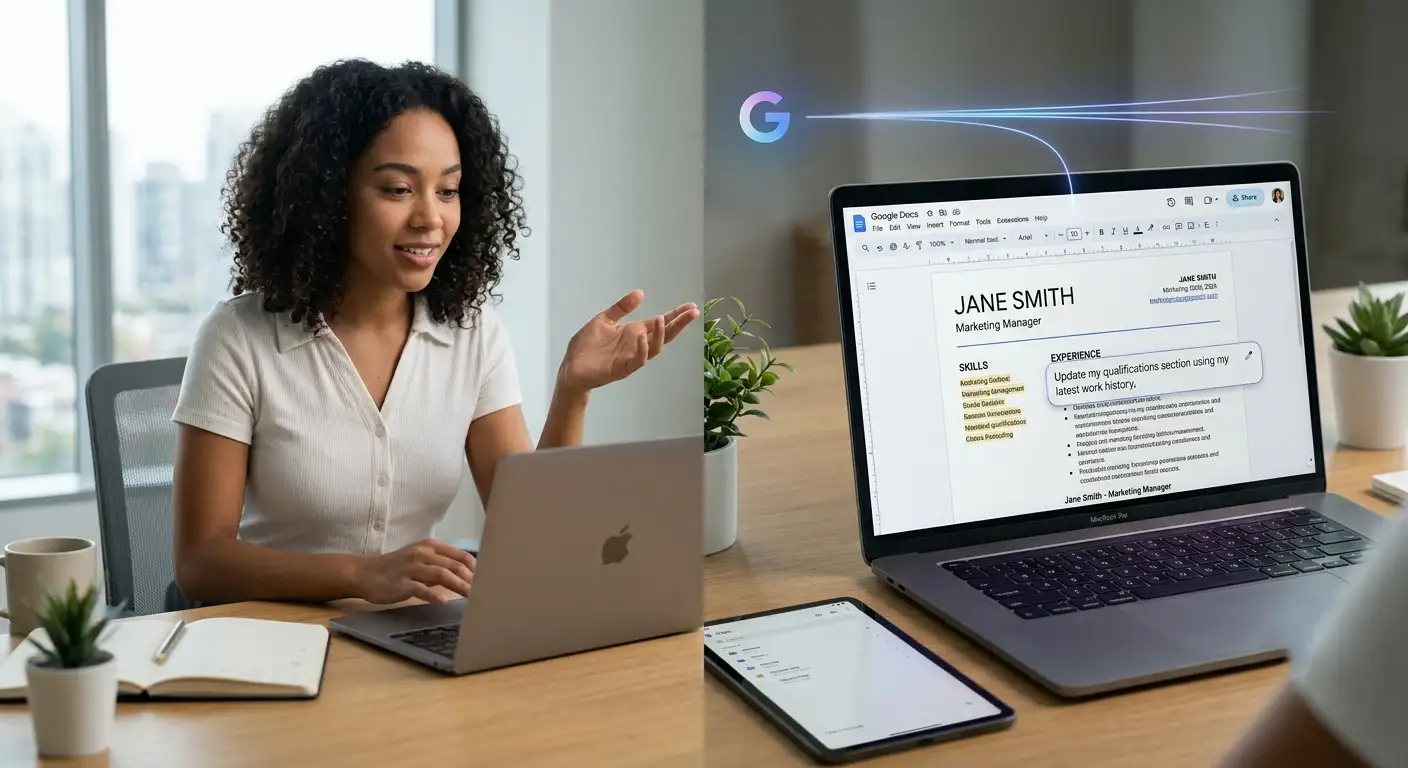
With modern tools like Google Gemini, managing and refining your paperwork is as easy as typing a quick sentence. You no longer need to hunt down specialized converters or struggle with confusing design layouts. Everything happens naturally, making advanced document editing accessible to everyone, regardless of technical background.

Why Traditional PDF Editing Felt So Broken
Before the integration of smart assistants into everyday productivity tools, changing a PDF was notoriously difficult. Because these files are designed to preserve an exact visual layout across different devices, they act more like digital snapshots than flexible text documents.
If you wanted to change a sentence, you usually had to:
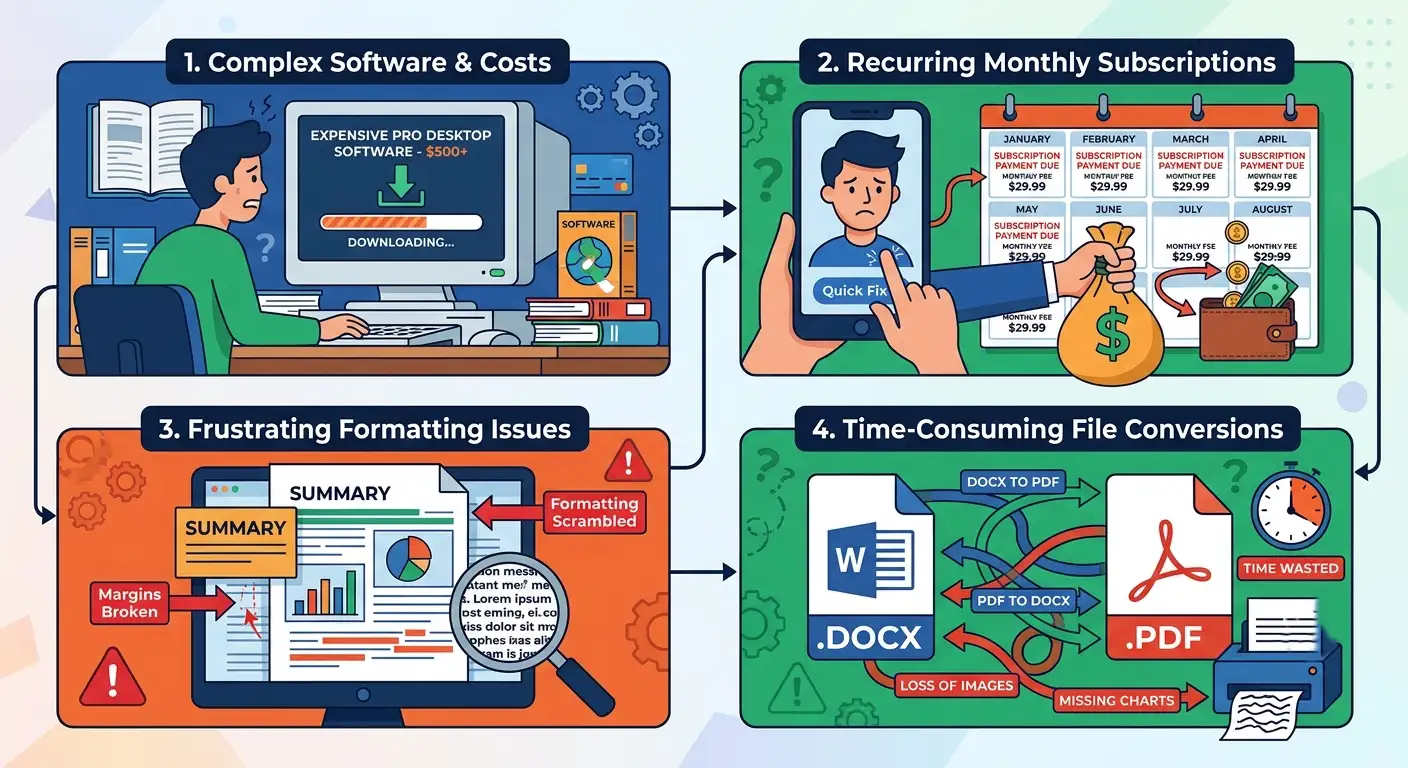
For non-technical users, these obstacles turned simple administrative tasks into major roadblocks. People needed a way to interact with their documents naturally—just like asking a colleague or an assistant to make a correction.
How Google Gemini Changes the Way We Handle Documents
Google Gemini brings a conversational approach to file management. Instead of forcing you to navigate complex menus, find specific tools, or manually highlight text, Gemini understands the context of what you are trying to achieve.
When you bring a document into the Google ecosystem—such as working with integrated features in Google Docs or managing files directly through the Gemini app—the assistant acts as a collaborative partner. You give it an objective rather than a rigid set of mechanical instructions.
For example, if you upload a report or a resume, you can simply tell the assistant what you want changed using plain everyday language. You might ask it to rewrite a specific paragraph to sound more professional, condense a lengthy section into clear bullet points, or update a project timeline based on new notes. The system interprets your request, applies the changes intelligently, and lets you review everything before saving.
Step-by-Step: Editing Your Files with Gemini
Getting started requires no prior experience with coding or graphic design. The workflow is designed to fit right into the habits you already have.
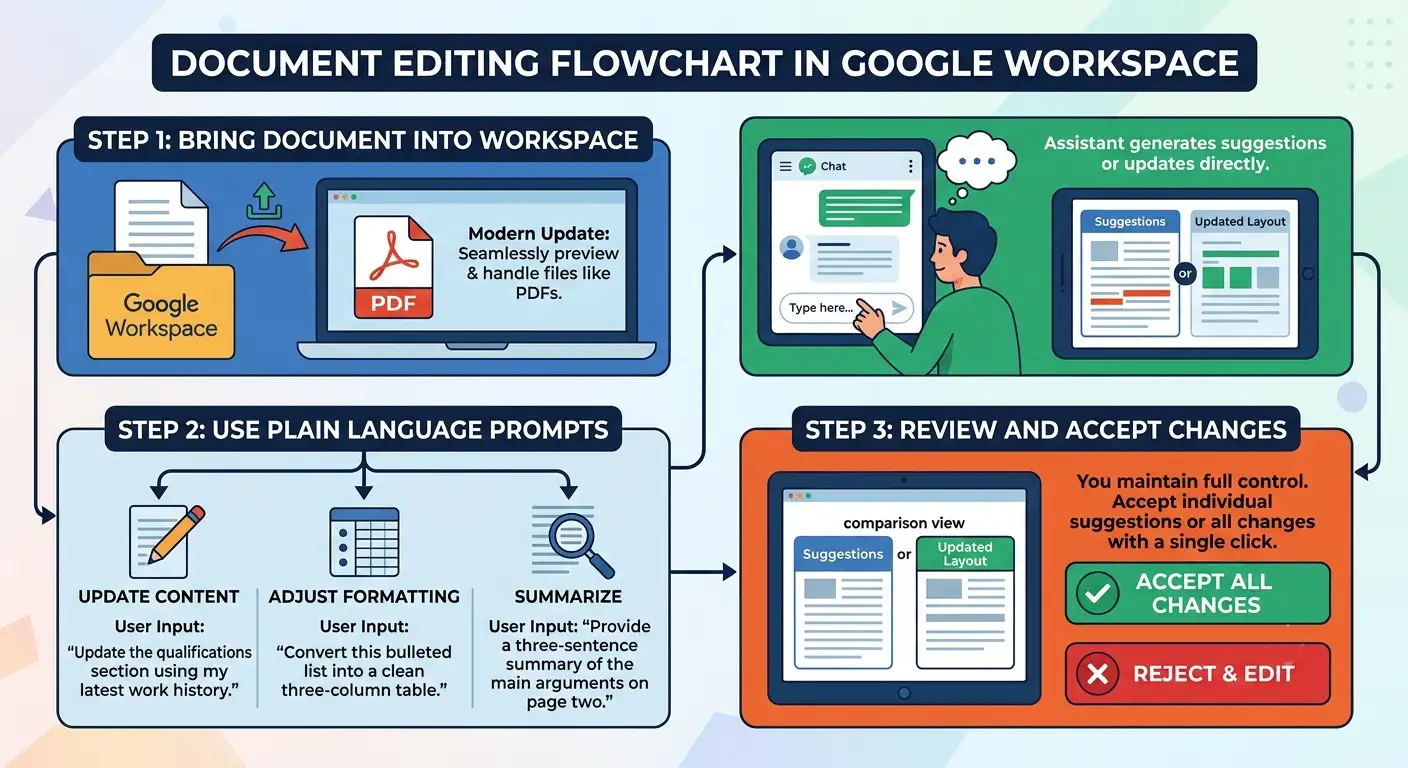
Step 1: Bring Your Document Into the Workspace
Start by opening your document or uploading your file into your Google workspace environment. Modern updates allow you to seamlessly preview and handle files like PDFs right where you need them.
Step 2: Use Plain Language Prompts
Instead of searching for a “replace text” button, open the assistant interface and type what you need. You can be as broad or as specific as you like.
-
To update content: “Update the qualifications section using my latest work history.”
-
To adjust formatting: “Convert this bulleted list into a clean three-column table.”
-
To summarize: “Provide a three-sentence summary of the main arguments on page two.”
Step 3: Review and Accept Changes
The assistant will generate suggestions or update the layout directly in front of you. You maintain full control over the final product. You can review individual suggestions, accept all changes at once, or reject anything that does not fit your vision with a single click.
Practical Benefits for Everyday Users
Adopting an AI-driven approach to file editing offers several clear advantages for everyday productivity:
-
No Learning Curve: You do not need to memorize keyboard shortcuts or learn how vector graphics work. If you can type a message, you can edit your files.
-
Significant Time Savings: Tasks that used to take twenty minutes of hunting for the right formatting tool now happen in seconds.
-
Preserved Quality Layouts: Intelligent document handling ensures that text, spacing, and images remain clean and professional.
-
Seamless Collaboration: Because these tools live in the cloud, you can easily share your updated files, track version history, and collaborate with others in real time.
Frequently Asked Questions
1. Do I need technical skills to edit a PDF with Gemini?
Not at all. The entire system is built around natural conversation. You simply type what you want to change in plain English, and the assistant handles the technical execution behind the scenes.
2. Can I use Gemini to edit scanned PDF files?
Yes. Modern text-recognition capabilities allow the system to read text from scanned documents or images, converting them into formats that you can easily review, update, and refine.
3. Do I need to install separate software on my computer?
No heavy software downloads are required. Everything operates smoothly through your browser and connected workspace apps, keeping your computer light and clutter-free.
4. How do I change specific sections without affecting the rest of the file?
You can target your instructions by mentioning specific sections in your prompt. For example, telling the assistant to rewrite only the introduction or update a specific table keeps the rest of your document untouched.
5. Can Gemini help me summarize long PDF reports?
Absolutely. You can ask the assistant to review lengthy files, extract key takeaways, or generate concise bulleted summaries to help you grasp the material quickly.
6. Are my documents secure when uploaded?
Google applies robust security measures, encryption, and privacy controls to protect your files from the moment you upload them within the Workspace ecosystem.
7. Can I change the styling or formatting of my text?
Yes. You can issue formatting commands in plain text, such as asking to restructure lists, adjust headings, or reorganize paragraphs into tables.
8. What happens if I don’t like the changes the AI suggests?
You are always in control. The interface provides clear options to accept or reject individual suggestions or discard all changes entirely before saving your final file.
9. Can I add new images or elements to my documents?
Yes, modern document assistants help streamline the inclusion of new visual elements, formatting adjustments, and layout refinements directly within your workflow.
10. Is this feature available on mobile devices as well as computers?
Yes. With integrated mobile experiences, you can preview, manage, and prompt updates to your documents while on the go from your phone or tablet.

Selva Ganesh is a Computer Science Engineer, Android Developer, and Tech Enthusiast. As the Chief Editor of this blog, he brings over 10 years of experience in Android development and professional blogging. He has completed multiple courses under the Google News Initiative, enhancing his expertise in digital journalism and content accuracy. Selva also manages Android Infotech, a globally recognized platform known for its practical, solution-focused articles that help users resolve Android-related issues.




Fixing typos and pulling information from reports used to test my patience daily. Gemini’s conversational editing tool has completely simplified my work routine.
The comparison between old clunky software and modern AI chat is spot on. Working with PDFs is finally a pleasant experience instead of a grueling chore.
Updating my resume used to involve endless formatting frustration with stubborn layers. Now, editing feels entirely natural and completely stress-free.
Document management was long overdue for a major technological overhaul. Letting AI handle the frustrating parts of PDF editing is a massive win for efficiency.
Clunky programs and mismatched fonts used to ruin the polish of important documents. This new conversational method ensures everything stays neat and professional.
Pulling data out of reports used to require tedious manual transcription. Gemini’s approach turns a frustrating technical hurdle into a smooth conversation.
It is amazing how artificial intelligence eliminates the steep learning curve of old editing tools. Fixing contract typos is now as easy as sending a quick text message.
Dealing with locked PDFs and formatting errors wasted countless hours in our office. Moving to a conversational editing style is the best productivity upgrade yet.
Traditional software made basic document editing feel like a tedious programming task. Gemini changes the game by letting us simply talk to our documents.
Resume tailoring is infinitely easier when you do not have to fight the underlying file structure. Artificial intelligence has truly revolutionized everyday paperwork.
Extracting key metrics from dense industry reports used to drain all my energy. This new workflow makes gathering insights feel surprisingly conversational and light.