
Enable Real Time Translation in Google Meet– Effective communication across language barriers is essential for modern global organizations, remote teams, and cross-border academic institutions. Traditional video conferencing workflows often rely on disjointed third-party interpretation services or static translated captions that fail to capture the nuance of natural dialogue. Google addresses this challenge by integrating advanced Gemini-powered speech translation directly into Google Meet. This native capability supports speech translation across sixty-three languages on web browsers, Android devices, iOS applications, and dedicated Google Meet hardware systems.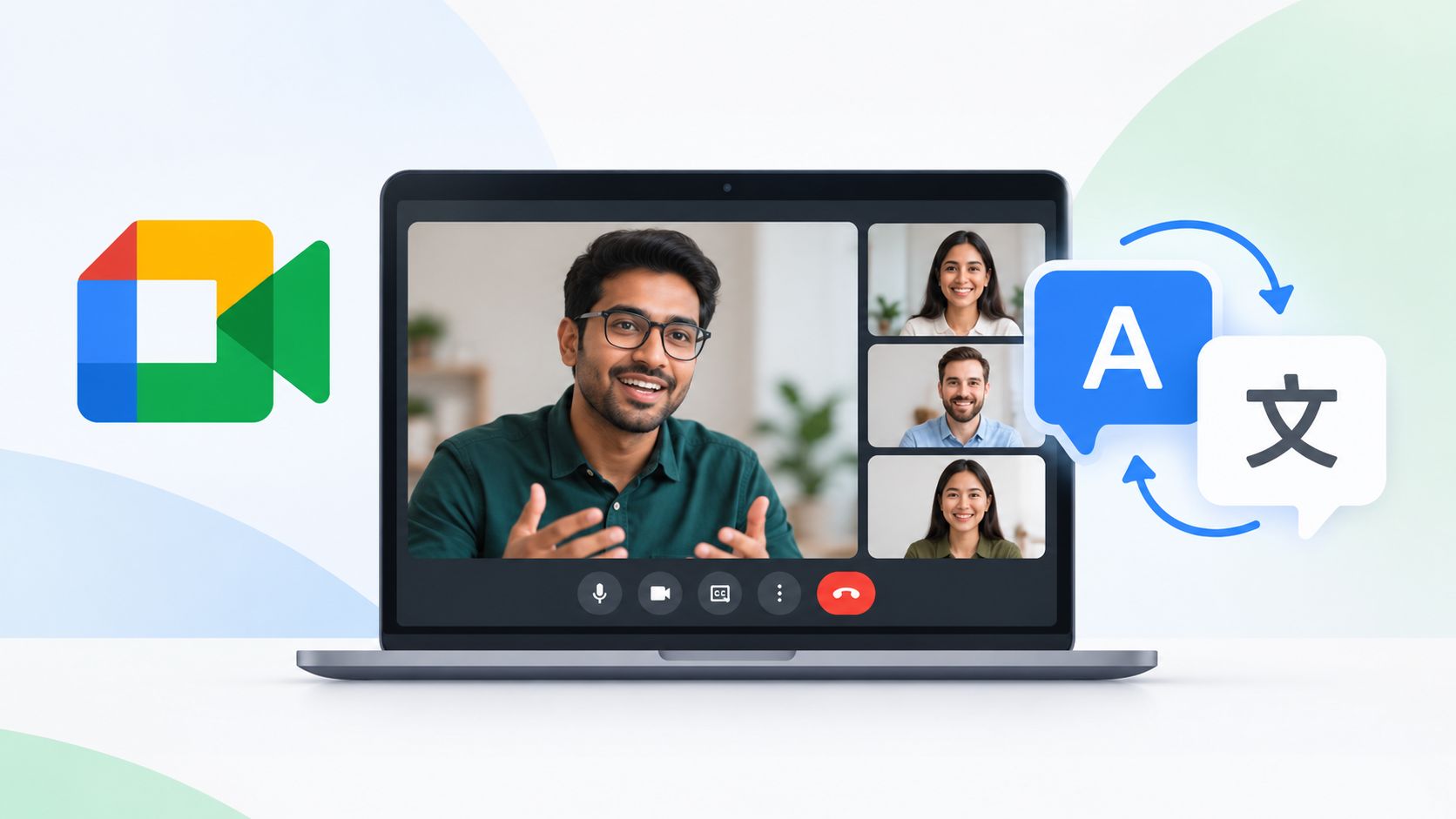
Deploying this capability allows participants to converse naturally in their native tongues while listeners receive synchronized audio and captions in their preferred languages. Below, we examine the core mechanics of this feature, plan eligibility requirements, step-by-step activation workflows, and crucial technical limitations.

Understanding Gemini-Powered Speech Translation
The architecture behind Google Meet’s speech translation leverages cutting-edge artificial intelligence models to process audio streams in near real-time. Unlike legacy translation tools that require manual language pair configuration for an entire session, the system utilizes automatic language detection.
When multiple participants speak different languages or even switch languages mid-sentence, the underlying engine identifies the spoken input and converts it dynamically. This removes the administrative friction traditionally associated with international webinars, multinational client pitches, and cross-functional team syncs. Every attendee retains individual control over their listening experience, ensuring that diverse multilingual groups can collaborate seamlessly without imposing a single lingua franca on the entire call.
Core Capabilities and Functional Features
To maximize utility in fast-paced corporate and educational environments, Google has engineered several distinctive capabilities into the translation framework:
-
Automatic Language Detection: The system continuously evaluates spoken audio streams, identifying shifts in language instantly and translating speech into each listener’s preferred language without manual toggling.
-
Participant-Centric Control: Individual users activate translation directly from their meeting toolbar. Host intervention is unnecessary, allowing attendees to manage their own language preferences independently.
-
Known Language Exclusion: Users can designate languages they already understand to bypass translation for those specific streams, preserving natural audio where appropriate.
-
Synchronized Captions: Live closed captions match the translated audio output in real time, delivering a dual reading and listening experience that reinforces comprehension.
-
Conference Room Hardware Support: Meeting rooms equipped with Google Meet hardware can receive translated audio from remote participants.
Step-by-Step Guide on How to Enable Translation
Activating real-time speech translation during an active call is straightforward, provided the user’s account meets the necessary prerequisites and the application is up to date. We recommend verifying your software version before joining high-stakes calls.
-
Update Your Application: Ensure your mobile application is running the latest version via the Google Play Store or Apple App Store. Desktop web users do not require separate client updates.
-
Join an Eligible Meeting: Enter a Google Meet session organized by a user holding an eligible workspace or consumer AI plan.
-
Access Meeting Controls: Locate and open the dedicated translation menu or settings panel from the meeting toolbar.
-
Select Your Target Language: Choose the language you wish to hear and read from the available list of supported options.
-
Configure Known Languages: Optionally mark any languages you already fluent in so the system skips translating those specific inputs.
-
Activate Translation: Toggle the feature on. Note that translation is disabled by default at the start of each session and must be turned on individually by each participant.
Plan Eligibility and Meeting Duration Limits
Because advanced AI processing demands substantial computational resources, real-time speech translation is restricted to specific paid Google Workspace tiers and consumer subscription plans.
When a meeting organizer holds an eligible plan, access extends automatically to all meeting participants and invited guests, including external participants joining from other domains. For one-to-one calls, translation becomes available if at least one participant possesses an eligible plan.
Eligible Subscription Tiers
-
Business Editions: Business Standard and Business Plus.
-
Enterprise Editions: Enterprise Standard and Enterprise Plus.
-
Frontline Plans: Frontline Plus.
-
Consumer Plans: Google AI Pro and Google AI Ultra.
-
Education Add-ons: Google AI Pro for Education.
-
Platform Add-ons: AI Expanded Access and AI Ultra Access.
Meeting Duration Ceilings
Meeting length limits are strictly enforced based on the organizer’s subscription tier:
-
Ninety-Minute Limit: Base Workspace editions and Google AI Pro tiers cap translation usage at ninety minutes per meeting. Extended workshops or long interview sessions exceeding this duration will experience translation cutoffs.
-
Eight-Hour Limit: Premium tiers including AI Expanded Access, AI Ultra Access, and Google AI Ultra extend the maximum translation duration up to eight hours per meeting.
Exclusions, Restrictions, and Technical Limitations
While the feature handles standard video conferences efficiently, several technical exclusions apply. Real-time speech translation is currently unsupported in the following environments and session types:
-
Live streams and recorded meeting sessions.
-
Client-side encrypted meetings.
-
Traditional dial-in phone audio calls.
-
Third-party interoperability calls.
-
Conference sessions utilizing adaptive audio configurations.
-
User accounts subject to regional regulatory limits or age restrictions.
Additionally, while remote participants can broadcast translated audio into conference rooms equipped with Google Meet hardware, audio originating directly from inside a conference room cannot be translated outward to remote listeners. Administrators should review organization-level defaults in the Google Workspace console, where Gemini features for Meet may be enabled by default depending on internal policy configurations.
Frequently Asked Questions
1. How many languages does Google Meet speech translation support?
The system supports real-time speech translation across sixty-three distinct languages, offering automatic detection and dynamic switching during active conversations.
2. Do all participants need a paid subscription to use translation?
No. Only the meeting organizer or host requires an eligible Workspace or Google AI plan. Once an eligible organizer hosts the session, all participants and external guests can use translation.
3. Can free Google account users initiate translated meetings?
Free personal Google account users cannot start a meeting with speech translation enabled, as the feature requires an active professional or AI subscription tier.
4. Is translation turned on automatically when joining a call?
No. Translation is disabled by default at the beginning of every meeting and must be manually enabled by individual participants from the toolbar.
5. What happens when meetings exceed the 90-minute limit?
Meetings organized under base Workspace plans or Google AI Pro are capped at 90 minutes of translation. Upgrading to AI Expanded or Ultra tiers extends this limit to eight hours.
6. Can conference rooms translate their outgoing speech?
Conference room hardware can receive translated audio from remote attendees, but speech originating inside a conference room cannot be translated outward.
7. Does Google store voice data used for translation?
Google states that it does not store voice data or utilize meeting audio to train artificial intelligence models for this feature.
8. Why is translation unavailable in my recorded meeting?
Real-time speech translation is explicitly unsupported during active live streaming and meeting recording sessions due to processing architecture constraints.
9. How do I bypass translation for languages I already speak?
Users can configure their settings in the translation panel to mark specific known languages, instructing the system to leave those audio streams untranslated.
10. Does this feature work on mobile devices?
Yes. Supported versions of the Google Meet application on both Android and iOS devices provide full access to real-time speech translation after updating the app.

Selva Ganesh is a Computer Science Engineer, Android Developer, and Tech Enthusiast. As the Chief Editor of this blog, he brings over 10 years of experience in Android development and professional blogging. He has completed multiple courses under the Google News Initiative, enhancing his expertise in digital journalism and content accuracy. Selva also manages Android Infotech, a globally recognized platform known for its practical, solution-focused articles that help users resolve Android-related issues.




Leave a Reply