
Google Gemini with Apple CarPlay – Daily commutes often leave us spending an hour or more behind the wheel with our hands tied and our eyes locked on the road. While traditional voice assistants handle basic commands like playing a song or giving turn-by-turn directions, Google has officially brought the standalone Gemini app directly to Apple CarPlay, turning quiet driving time into an effortless, hands-free conversation.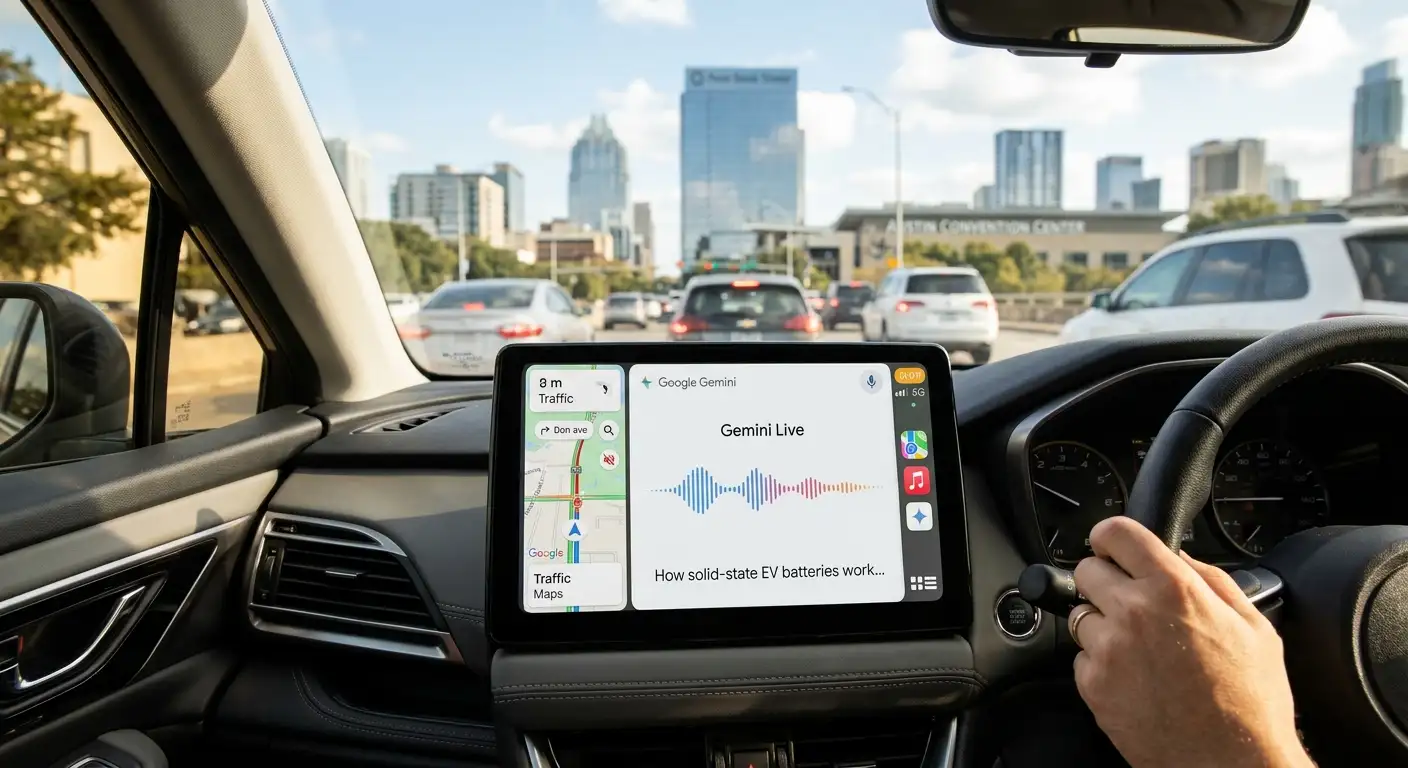
You do not need to be a technology expert to set this up or enjoy it. Everything works through natural speech, much like chatting with a helpful passenger sitting in the seat next to you. Below, we walk through how the feature works, how to prepare your iPhone in a couple of minutes, and practical ways to use it on your next drive.

What Google Gemini with Apple CarPlay Actually Does?
Think of Gemini on Apple CarPlay as a smart, conversational driving companion rather than a rigid voice command tool. Instead of memorizing specific trigger phrases or robotic commands, you simply speak in everyday sentences.
Powered by Gemini Live, the app lets you have back-and-forth voice conversations right through your car’s built-in speakers and microphone. If you remember a detail halfway through a thought, you can interrupt naturally. If traffic suddenly gets heavy and you need to focus on merging or taking an exit, you can pause speaking and pick the conversation back up whenever the road clears.
Even better, your car screen stays clean and distraction-free. Rather than filling the dashboard with walls of scrolling text that tempt you to look away from traffic, Gemini keeps the visual interface minimal so your attention stays safely on driving.
What You Need Before Getting Started
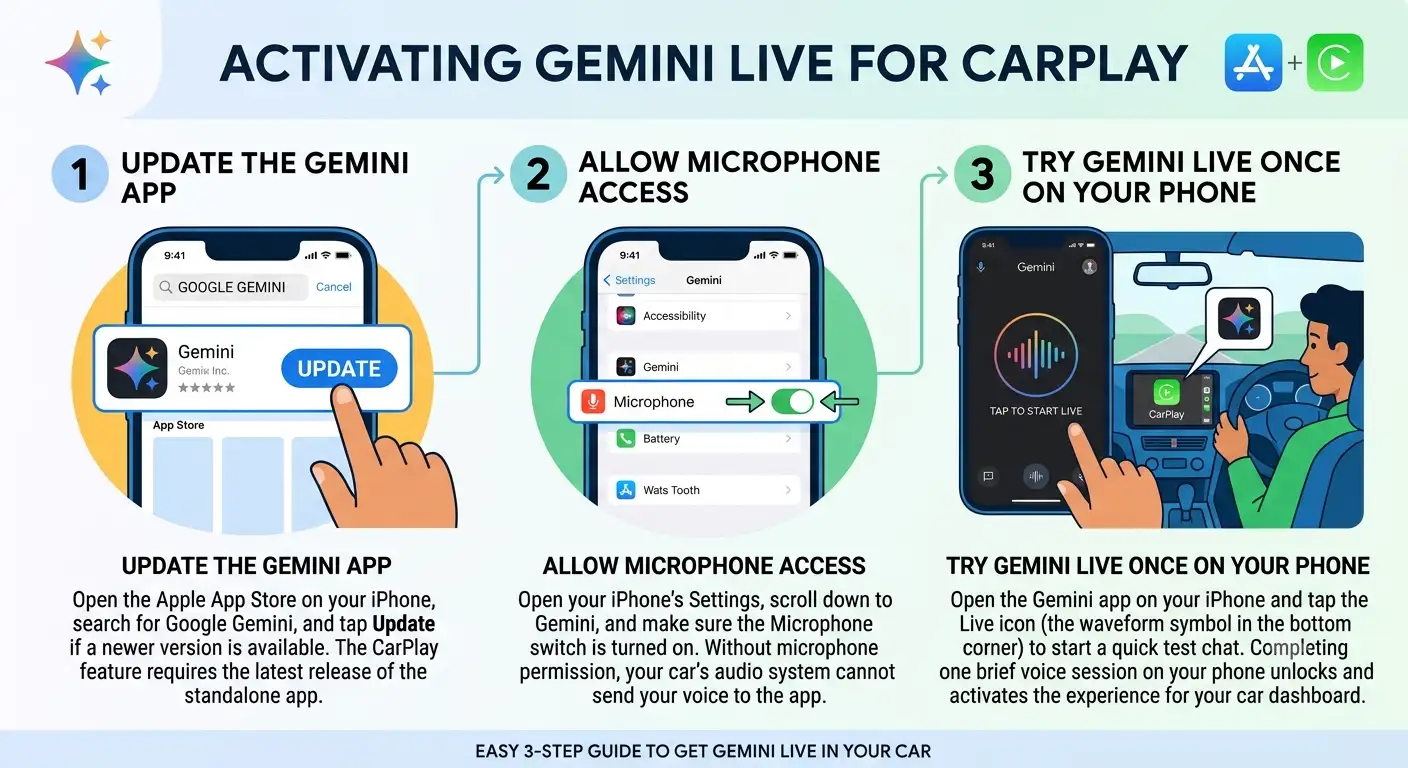
Before plugging your phone into your car or connecting wirelessly, take two minutes at home or while parked to make sure your iPhone is ready. Getting these three quick steps out of the way prevents confusion once you are in the driver’s seat:
Step by Step: Starting a Chat in Your Car
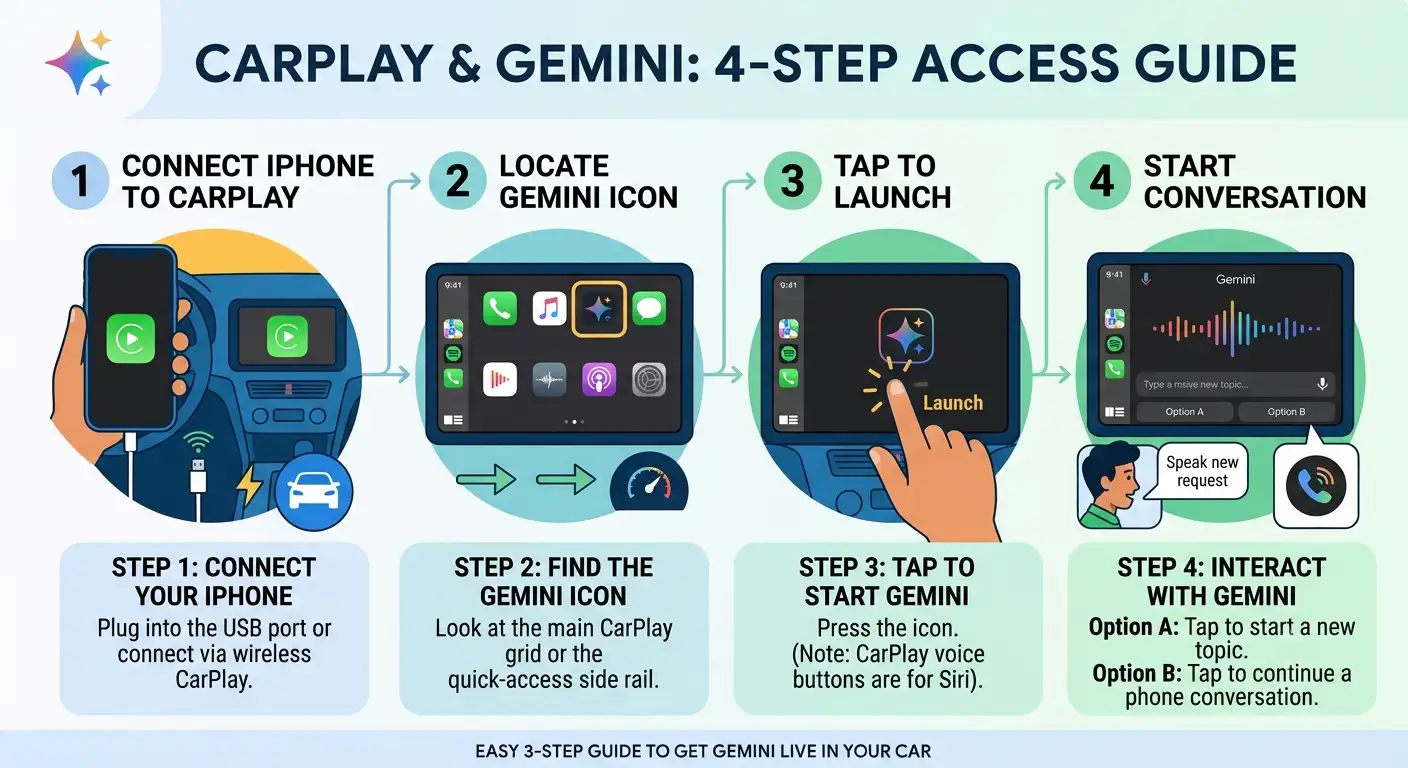
Once your iPhone is prepared, using Gemini in your vehicle takes just a few taps:
Practical Ways to Use Gemini While Driving
Whether you are running weekend errands, commuting to work, or heading out on a long highway trip, voice conversations make dead time behind the wheel genuinely productive.
Catch Up on Your Inbox and Schedule
When you connect your Google account, Gemini works alongside Gmail and Google Calendar. Instead of squinting at notifications at red lights, you can ask Gemini to read out your upcoming appointments, summarize long email threads, or help you think through a reply. If you have the Daily Brief feature turned on, you can even ask for an overview of your morning schedule and key updates before arriving at the office.
-
Try saying: “What does my schedule look like today?”
-
Try saying: “Summarize my unread emails and tell me what Sarah said about the budget.”
Rehearse Conversations and Brainstorm Out Loud
A quiet car cabin is an ideal private space to think out loud. You can treat Gemini like a sounding board to practice for a job interview, rehearse a presentation before walking into a meeting, or organize a grocery list.
-
Try saying: “Help me practice for my interview tomorrow. Ask me three tough questions one by one.”
-
Try saying: “I need to plan dinner for six people this Saturday. Give me three easy ideas.”
Learn Something New or Explore Your Destination
Long drives pass much faster when you have someone to answer curious questions. You can ask Gemini to explain complex news topics in plain English, share the history behind a town you are passing through, or suggest a quick place to grab lunch near where you are headed.
-
Try saying: “Explain how hybrid car batteries work in simple everyday terms.”
-
Try saying: “What is a good, quick lunch spot near downtown Austin that is easy to park at?”
Automatic Syncing When You Park
One of the most convenient details we noticed in everyday use is how seamlessly everything carries over once you reach your destination. Every idea you brainstormed, email summary you heard, or list you put together in the car saves automatically to your chat history inside the Gemini app on your iPhone. The moment you park, you can open your phone and read everything in writing.
Understanding What Gemini Can and Cannot Do in CarPlay
Because Apple CarPlay sets strict boundaries on how third-party apps interact with your vehicle, it helps to know what Gemini handles well and where your car’s built-in controls or Siri still take the lead.
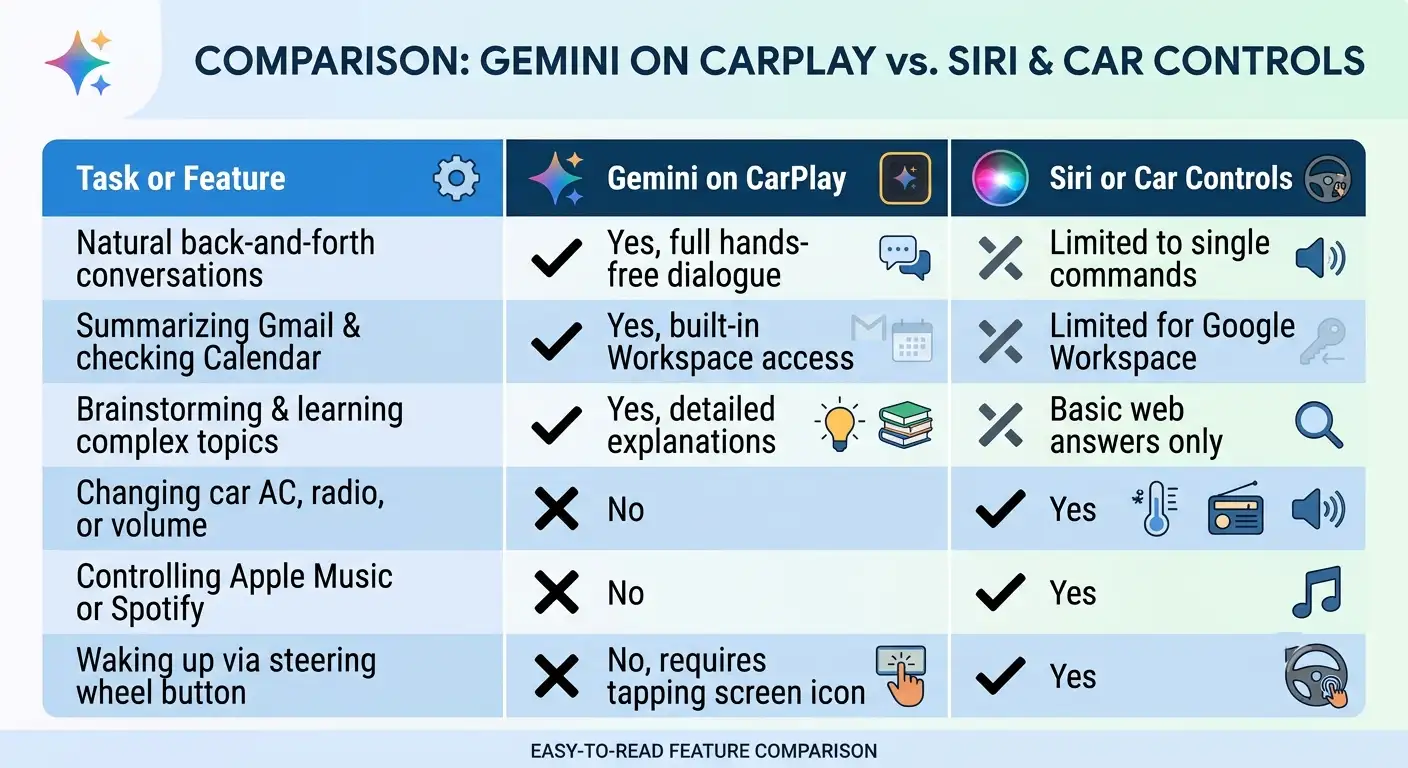
Keeping these boundaries in mind saves frustration. Use Gemini when you want to talk, think, plan, or catch up on Google emails and calendar events. Stick to Siri or your physical dashboard buttons when you want to turn up the air conditioning, skip a song, or place a quick phone call.
Simple Troubleshooting Tips
If you connect your iPhone and do not immediately see the Gemini icon on your dashboard, run through these quick checks:
-
Check Your CarPlay App Layout: On your iPhone, go to Settings > General > CarPlay, select your vehicle, and tap Customize. Make sure Gemini is listed under the active apps and drag it near the top so it appears on your first dashboard screen.
-
Verify the Global Rollout: Google began rolling out the CarPlay update globally in November 2026. Because app updates arrive in stages, check the App Store again over the next few days if the icon has not appeared yet.
-
Confirm Regional Availability: While voice conversations work across all supported Gemini Live languages worldwide, certain personalized features like Daily Brief require you to be 18 or older and are not currently available in the European Economic Area or Nigeria.
Frequently Asked Questions
1. Is Google Gemini free to use on Apple CarPlay?
Yes, using the Gemini app and having voice conversations through Gemini Live on Apple CarPlay is free for iPhone users. You only need a free Google account and a compatible iPhone.
2. Do I need a brand-new car to use Gemini on CarPlay?
No. Any vehicle or aftermarket stereo system that already supports wired or wireless Apple CarPlay will display the Gemini app once your iPhone is updated.
3. Can I wake up Gemini by saying “Hey Google” or pressing my steering wheel button?
No. Apple reserves the steering wheel voice button and hands-free wake words exclusively for Siri. To start talking with Gemini, simply tap the Gemini icon on your car’s touchscreen.
4. Why isn’t the Gemini icon showing up on my CarPlay screen?
First, ensure you have updated the Gemini app in the App Store, enabled microphone permissions, and started at least one Gemini Live chat on your iPhone. Also check Settings > General > CarPlay on your iPhone to verify the app is enabled for your car.
5. Can Gemini change my music or adjust my car’s temperature?
No. Third-party CarPlay apps cannot control vehicle hardware like air conditioning or other media apps. Use Siri or your dashboard dials for climate and audio controls.
6. Will text appear on my car screen while Gemini is talking?
No. To keep your eyes safely on the road, CarPlay hides live text transcripts during voice chats. You can read the full written record on your iPhone once you park.
7. Does Gemini on CarPlay work with my Gmail and Google Calendar?
Yes. When your Google Workspace apps are connected in your Gemini settings, you can ask Gemini to summarize unread emails, read threads, and check upcoming calendar events by voice.
8. Can I pause talking if I need to focus on traffic?
Yes. Gemini Live is designed for natural conversation pacing, so you can pause anytime you need to concentrate on merging, parking, or navigating intersections and resume whenever you are ready.
9. What happens to my conversation after I turn off my car?
Everything you discussed syncs automatically to the Gemini app on your iPhone. You can open your chat history on your phone after parking to review notes, summaries, or brainstormed ideas.
10. Can I use Gemini in languages other than English on CarPlay?
Yes. Gemini on Apple CarPlay works across every language currently supported by Gemini Live on iOS, using the language preference saved in your Gemini app settings.

Selva Ganesh is a Computer Science Engineer, Android Developer, and Tech Enthusiast. As the Chief Editor of this blog, he brings over 10 years of experience in Android development and professional blogging. He has completed multiple courses under the Google News Initiative, enhancing his expertise in digital journalism and content accuracy. Selva also manages Android Infotech, a globally recognized platform known for its practical, solution-focused articles that help users resolve Android-related issues.




Leave a Reply