
Use Google Gemini to Control Your MacBook– Google has introduced a computer use capability inside the dedicated Gemini app for Mac, allowing the AI assistant to interact directly with local files, desktop applications, and web browsers on Apple computers. Rather than acting solely as a text prompt window, Gemini now functions as a desktop agent that can navigate menus, click buttons, type text, and complete multi-step workflows across macOS while you continue working uninterrupted.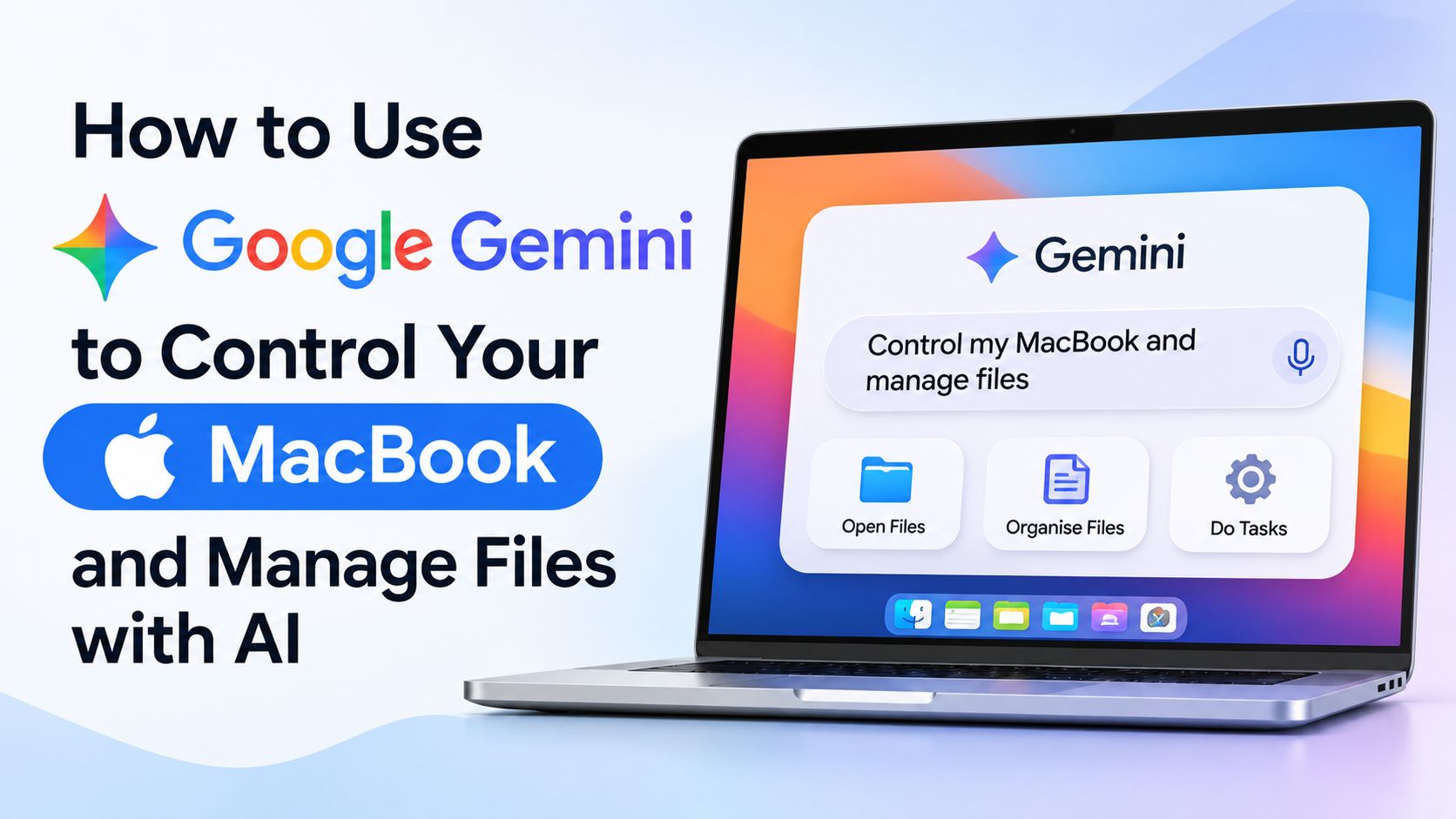
For MacBook, Mac Mini, and iMac owners, this update shifts artificial intelligence from a passive advisor into an active operator. Below, we examine how the feature works, what hardware and subscription tiers are required, how to configure permissions safely, and where this capability fits into everyday desktop workflows.

What Is Computer Use in the Gemini App for Mac
Computer use is an agentic desktop capability built directly into the native Gemini desktop application for macOS. When given a natural language instruction, Gemini interprets the goal, breaks it into sequential interface actions, and executes those actions across local folders, native Mac software, and websites.
Unlike browser-only extensions that remain confined to a single tab, the macOS integration bridges local storage with desktop software and online tools. For example, a single command can instruct Gemini to locate files in a local folder, extract data or visual details from them, open a separate desktop program or web dashboard, and populate forms or build a presentation.
How Background Execution Works
A major friction point with early desktop automation tools was screen hijacking, where an AI took over the mouse cursor and forced the user to wait until a task finished. Google solved this by running Gemini’s actions inside an isolated background window.
While Gemini clicks, types, and navigates through apps in that isolated environment, your primary screen and cursor remain completely free. Inside the Gemini chat interface, a live preview displays what the agent is doing in real time so you can monitor progress without losing control of your workspace.
System Requirements and Availability
Before downloading the desktop client, verify that your Mac and Google account meet the rollout criteria. Google has tied this feature to specific hardware architecture, operating system versions, and paid subscription tiers.
| Requirement Category | Specification Needed |
| Mac Hardware | Apple Silicon Mac (M1, M2, M3, M4, or newer chips) |
| Operating System | macOS Sequoia 15.0 or later |
| Memory & Storage | At least 8 GB of RAM and 200 MB of free disk space |
| Subscription Tier | Google AI Plus, Google AI Pro, or Google AI Ultra |
| Account Type | Personal Google Account for users aged 18 or older |
| Initial Rollout | English language in the United States |
The desktop app itself can be downloaded directly from gemini.google/mac, which provides a standard .dmg installer package. Note that while the basic Gemini Mac app supports general chat and voice features like Speak to Window, active computer control requires an eligible paid Google AI plan and a personal account rather than a managed school or enterprise Workspace profile.
Step by Step Guide to Setting Up and Using Gemini on Mac
Getting started takes only a few minutes, though configuring macOS permissions properly is essential so the assistant can interact with files and windows reliably.
1. Download and Install the Desktop App
-
Open Safari or your preferred browser and navigate to gemini.google/mac.
-
Select Download for Mac to save the
.dmginstaller file into your Downloads folder. -
Double-click the downloaded
.dmgfile and drag the Gemini icon into your Applications folder. -
Launch Gemini from Applications and sign in using your eligible personal Google Account.
-
Open the top menu bar, click Gemini, and select Check for Updates to confirm you are running the latest release containing computer use.
2. Configure App Access and Permissions
When you initiate your first computer-control request, macOS and the Gemini app will prompt you to authorize access. We recommend granting permissions selectively rather than enabling unrestricted access across your entire system at once.
-
App Selection: Choose specifically which desktop applications Gemini is allowed to open and operate.
-
Folder Scope: Direct the assistant to specific project folders rather than broad system directories whenever possible.
-
Action Approvals: Keep confirmation prompts active for sensitive steps such as submitting web forms, sending messages, or modifying important files.
3. Run Your First Multi Step Workflow
Once permissions are configured, open the Gemini chat window and describe the outcome you want in plain language. Clear, structured prompts yield much faster and cleaner execution than vague requests.
For example, instead of typing “Organize my desktop,” specify the exact folders and rules: “Look inside the Invoices folder on my Desktop, rename each PDF using the vendor name and invoice date, and move them into a subfolder named 2026 Receipts.”
Watch the live preview panel inside the Gemini window as it navigates Finder and processes the files. If the agent reaches a critical step or encounters an unexpected dialog box, you can pause execution, intervene manually, or approve the next move.
Practical Use Cases for Mac File Management and Automation
Because Gemini can read local files, operate creative or productivity software, and browse the web within a single workflow, the feature handles tasks that previously required manual switching between several windows.
-
Batch File Organization and Renaming: Gemini can inspect the contents of local PDFs, receipts, or screenshots, extract dates or project names, and rename or sort documents into structured Finder folders.
-
Creative Software Assistance: Users can feed a local image—such as a hand-drawn sketch—into a 3D modeling program like Blender, letting Gemini navigate the interface and build a foundational polygonal mesh.
-
Presentation and Reporting Decks: Gemini can pull metrics and capture screenshots from live web dashboards across multiple regions, then compile those assets directly into a formatted presentation in Google Slides.
-
Resale and Inventory Listing: If you have a local folder of product or clothing photos, Gemini can analyze each image, research comparable pricing online, log item details, and stage draft listings on resale marketplaces.
-
Cross Window Voice Dictation with Speak to Window: Alongside full background automation, holding the fn key activates Speak to Window, letting you highlight text or desktop files in one app and instruct Gemini by voice to summarize, refine, or insert content into another active window.
Privacy, Security, and User Safeguards
Granting an AI agent the ability to click and type on a personal computer naturally raises security questions. Google built several layered safeguards into the macOS implementation to keep the human operator in authority:
-
Granular App Whitelisting: Gemini cannot freely roam across every application on your Mac; you explicitly decide which apps it may access.
-
Real Time Visual Supervision: The live preview feed inside the Gemini app shows every click, menu selection, and text entry as it happens.
-
Instant Pause and Override: You can halt a running workflow at any moment if the agent takes an unintended path.
-
Mandatory Approval Gates: Before completing consequential actions—such as finalizing form submissions or executing high-impact changes—Gemini pauses and asks for your explicit approval.
In practice, treating Gemini like a junior assistant works best: let it handle repetitive sorting, drafting, and data entry in the background while you review final outputs before publishing or sending.
How Gemini Compares to Other Desktop AI Agents
Google’s release arrives amid rapid competition in agentic desktop computing. Anthropic pioneered desktop interface control with Claude’s computer use capabilities, while OpenAI and Meta have introduced competing agentic tools that navigate screens and execute multi-step software tasks.
Where Google differentiates its Mac implementation is the combination of isolated background execution and tight ecosystem integration. Running tasks in a separate background window prevents the cursor conflicts that make screen-sharing agents frustrating during active work. Furthermore, this desktop release pairs with Gemini Tasks—Google’s automated workflow feature for browser users—creating continuity between web-based automation and native macOS file control.
Best Practices and Common Mistakes to Avoid
To get reliable results from Gemini’s computer control on macOS, keep a few practical habits in mind:
-
Avoid Vague Destination Paths: Always name the exact folder (such as
Downloads/Client_Assets) rather than asking Gemini to search your entire hard drive. -
Keep Source Files Uncluttered: When running batch tasks like photo analysis or document renaming, place target files in a dedicated folder so the agent does not accidentally process unrelated items.
-
Monitor First Runs: The first time you automate a workflow in a complex app like Blender or a web portal, watch the live preview closely to see how Gemini interprets interface menus.
-
Maintain Updated Software: Both macOS and the Gemini desktop app receive frequent stability and security patches; check for app updates regularly via the macOS menu bar.
Frequently Asked Questions
1. Can Google Gemini control an Intel based MacBook?
No. The Gemini desktop app and its computer use feature require a Mac equipped with Apple Silicon (M1 chip or later). Intel-based MacBooks, Mac Minis, and iMacs are not supported.
2. Which macOS version is required for Gemini computer use?
Your Mac must run macOS Sequoia 15.0 or later. Newer macOS releases are also supported as long as the hardware uses Apple Silicon.
3. Is Gemini computer use free to use on Mac?
No. While the basic Gemini app can be downloaded at no cost, computer use requires an active Google AI Plus, Google AI Pro, or Google AI Ultra subscription.
4. Can I use my work or school Google Workspace account?
Currently, computer use on Mac requires a personal Google Account managed by a user aged 18 or older. Managed Workspace accounts are not eligible for this feature at launch.
5. Will Gemini take over my mouse cursor while working?
No. Gemini executes tasks inside an isolated background window, leaving your main screen, mouse pointer, and keyboard free for your own work.
6. How can I see what Gemini is doing in the background?
The Gemini chat window displays a live preview showing the agent’s clicks, typing, and screen navigation in real time. You can pause or stop the session at any point.
7. Can Gemini access every file and app on my Mac automatically?
No. You control app permissions directly and choose which specific applications Gemini is allowed to access. The assistant also requests approval before completing key actions.
8. What is the difference between Gemini computer use and Gemini Tasks?
Gemini Tasks automates workflows inside a web browser for general chatbot users, whereas computer use runs inside the native Gemini for Mac app and can control local files, desktop software, and websites together.
9. Where do I download the official Gemini app for Mac?
You can download the official .dmg installer directly from gemini.google/mac and drag the application into your Mac’s Applications folder.
10. Is Gemini computer use available worldwide?
At launch, the feature is rolling out in English in the United States. Google has not yet announced a specific timeline for expansion to additional regions or languages.

Selva Ganesh is a Computer Science Engineer, Android Developer, and Tech Enthusiast. As the Chief Editor of this blog, he brings over 10 years of experience in Android development and professional blogging. He has completed multiple courses under the Google News Initiative, enhancing his expertise in digital journalism and content accuracy. Selva also manages Android Infotech, a globally recognized platform known for its practical, solution-focused articles that help users resolve Android-related issues.




Leave a Reply