
How to Get Claude New Smooth Material 3 UI on Android – Anthropic has officially begun rolling out a refreshed, smoother interface for the Claude app on Android. Built around Google’s modern Material 3 Expressive design style, this update makes the app feel far more natural, responsive, and comfortable to use on Android phones. You do not need any advanced technical knowledge or special developer settings to get this new look. In most cases, updating your app through the Google Play Store and letting the gradual rollout reach your account is all it takes.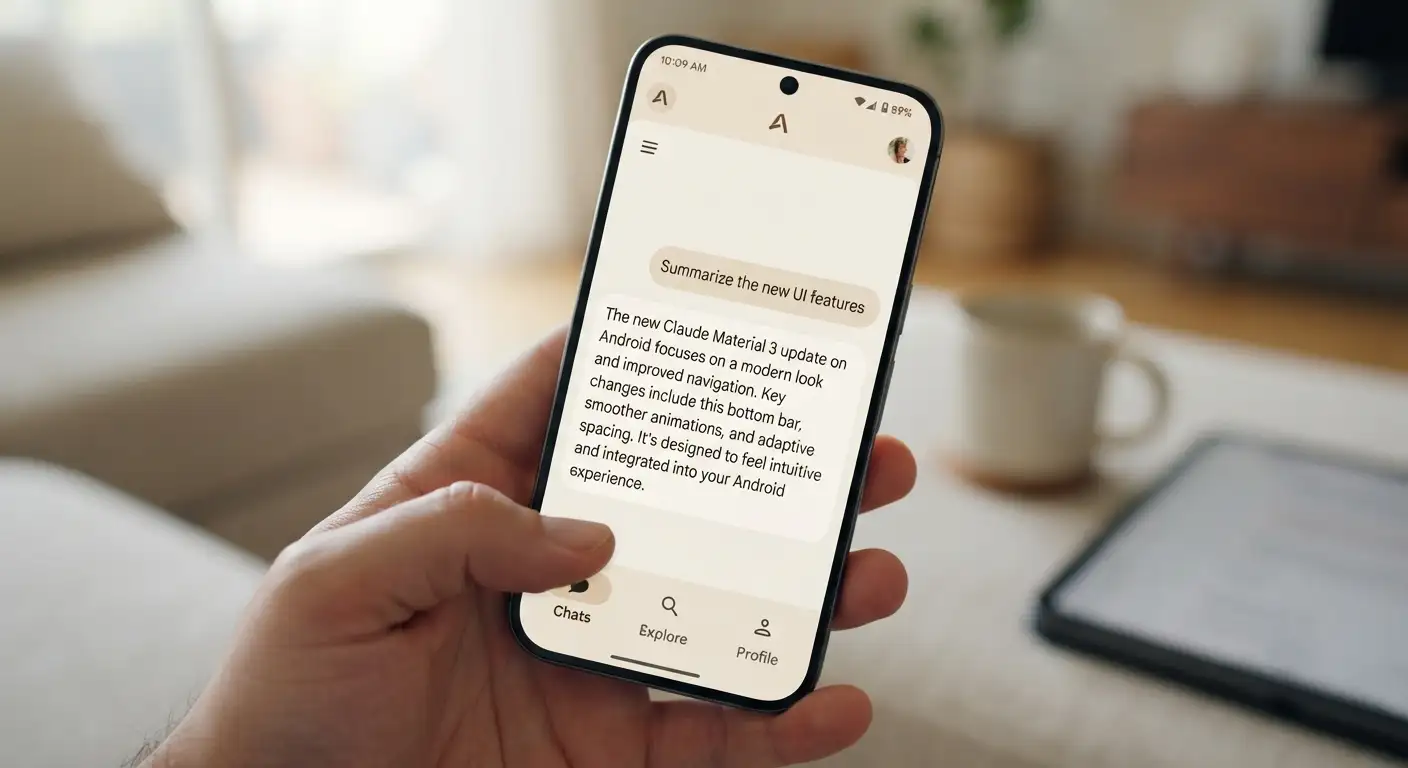
What Is the New Claude Material 3 Update?
For a long time, the Claude Android app felt slightly out of place compared to native Google apps. It relied heavily on a hidden side menu for basic navigation, which required extra taps and awkward thumb stretches on larger phone screens.

In late November 2026, Anthropic Product Manager Robert Bye confirmed on X (formerly Twitter) that a major visual refresh is rolling out to Android users. Rather than completely abandoning Anthropic’s signature warm, minimalist aesthetic, the update blends the brand’s familiar colors with Google’s Material 3 Expressive layout principles.
In plain terms, Material 3 is simply Google’s official visual rulebook for how modern Android apps should look, move, and respond to your touch. When an app follows these rules, buttons are easier to reach, menus slide smoothly, and the whole experience feels cohesive with the rest of your phone.
Key Visual and Navigation Improvements
When you open the updated Claude app on your Android phone, several practical improvements immediately stand out:
-
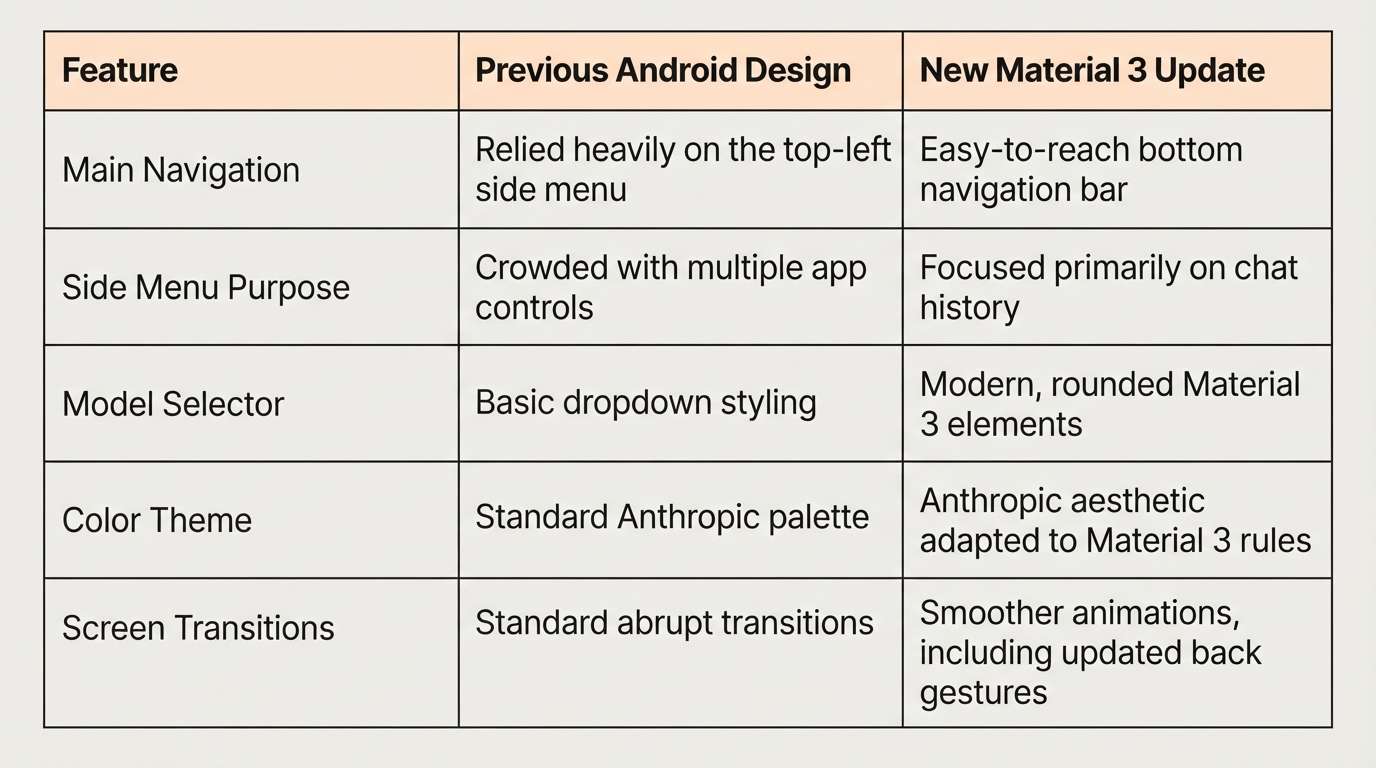
A Convenient Bottom Navigation Bar: Instead of burying essential tools inside a top-corner menu, Claude now features a clean bottom navigation bar. Putting primary controls at the bottom of the screen makes one-handed use effortless, especially on tall modern smartphones.
-
Cleaner Side Menu for Chat History: The classic three-line side menu (often called a hamburger menu) has not disappeared completely. However, its role is now much simpler and dedicated primarily to browsing your past conversations and chat history.
-
Redesigned Model Switcher: Switching between different Claude AI models now uses rounded, modern Material 3 visual elements. Tapping to change models feels cleaner, clearer, and more tactile.
-
Refreshed Chat Backgrounds and Shapes: The conversation screen itself features updated framing and background styling that aligns with modern Android design standards while keeping Anthropic’s recognizable warm color palette intact.
-
Updated Back Gesture Animation: Swiping from the edge of your screen to go back now triggers a smooth animation that moves the search bar neatly. While the preview of the previous screen is not fully implemented yet, the motion feels noticeably fluid compared to the older version.
Old Claude Android App vs. New Material 3 Update
Step by Step: How to Get the New Claude UI on Android
Because Anthropic is rolling out this update gradually, getting it on your device comes down to ensuring your app is completely up to date and refreshing your app session. Follow these simple steps:
1. Update Claude via the Google Play Store
Your first step is to grab the latest software version from the official app store:
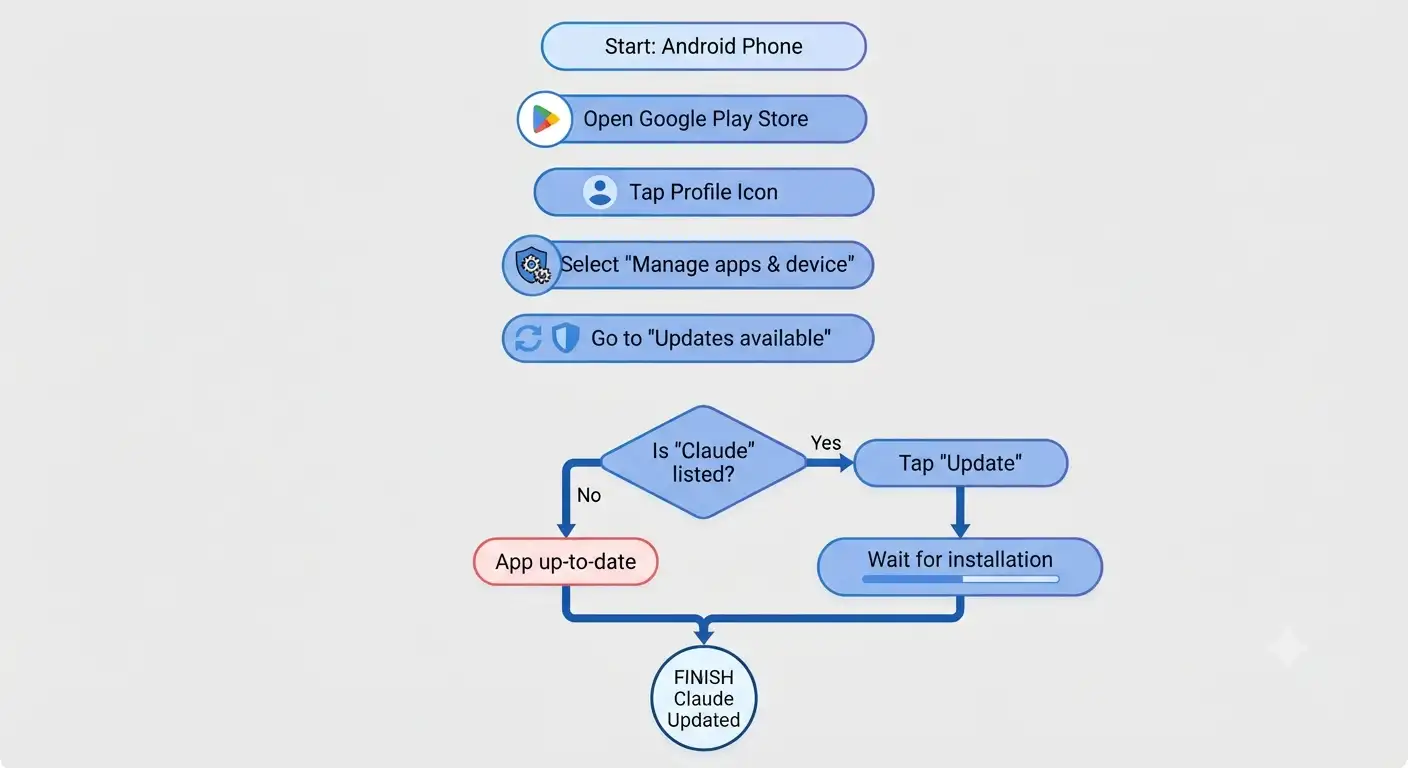
If you do not see an update button, you can also search for “Claude” directly in the Play Store search bar, open the app’s store page, and check whether it says Update or Open.
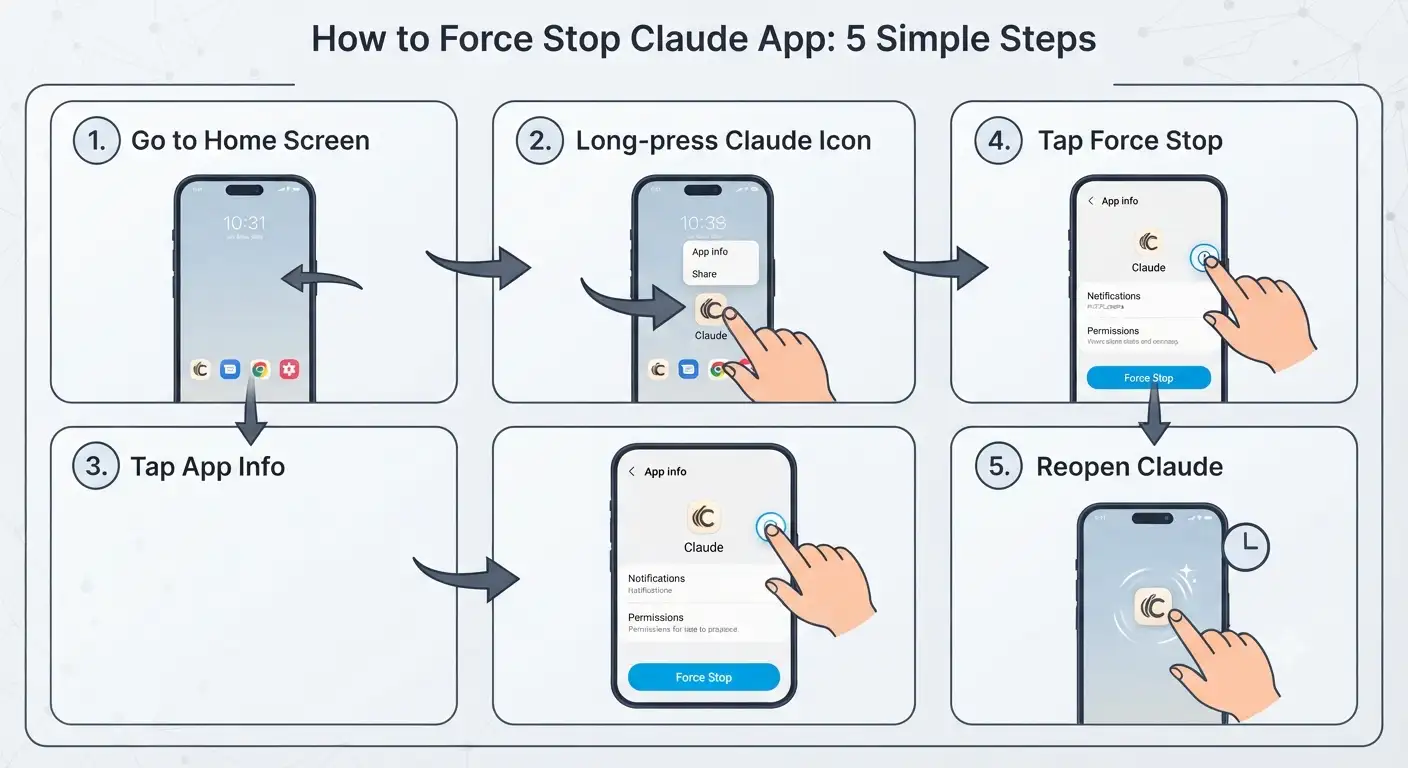
2. Force Close and Reopen the App
Many modern Android updates are activated remotely by the company’s servers once you have the right app version installed. If you updated the app but still see the old layout, restarting the app cleanly often triggers the new interface:
3. Check Your Android System Version
While Anthropic has not announced a strict cutoff for older Android phones, Material 3 Expressive features work best on recent versions of Android. Keeping your phone’s operating system updated ensures smooth animations and full compatibility. You can check for phone updates by opening your device’s Settings app, scrolling down to System (or Software update), and tapping System update.
4. Wait for the Server-Side Rollout
If you have updated the app and restarted it, yet the bottom bar still has not appeared, do not worry. Software companies almost always release visual redesigns in waves over several days or weeks to make sure there are no unexpected bugs. There is no hidden toggle or secret switch you need to flip inside the settings menu. Once your account is included in the active rollout wave, the new design will appear automatically the next time you open the app.
What About Dynamic Wallpaper Colors (Material You)?
If you are familiar with Android customization, you might wonder whether the new Claude app automatically changes its colors to match your phone’s wallpaper—a feature Google calls Material You.
Based on the current rollout, Claude does not adopt your wallpaper colors. Instead, Anthropic intentionally kept its signature warm cream, terracotta, and dark-mode tones. However, the shapes, spacing, buttons, and navigation bars follow Google’s Material 3 guidelines, giving you the smooth usability of a native Android app while preserving Claude’s distinct brand identity.
Helpful Tips While Waiting for the Update
-
Enable Automatic Updates: On the Claude page inside the Google Play Store, tap the three dots in the top-right corner and check Enable auto-update. This guarantees you receive the newest interface and bug fixes without having to check manually.
-
Avoid Unofficial App Downloads: Never download installation files from random third-party websites just to get a visual update a day or two early. Unofficial files can compromise your account security and private conversations. Sticking to the official Google Play Store keeps your data safe.
-
Your Chats Are Completely Safe: When the new interface arrives on your phone, all of your existing conversations, saved projects, and subscription settings remain exactly where you left them.
Frequently Asked Questions
1. Do I need to pay for Claude Pro to get the new Android design?
No. The Material 3 interface refresh is a general app update available to both free users and paid subscribers on Android.
2. Why do I still see the old interface after updating Claude in the Play Store?
Anthropic rolls out design updates gradually across accounts. Even with the newest version installed, it can take a few days for the new layout to activate on your specific account.
3. Is there a setting inside Claude to turn on the Material 3 UI?
No, there is no manual toggle in the settings menu. The redesign activates automatically once the update reaches your device.
4. Will updating the app delete my previous Claude conversations?
No. Your chat history, account details, and preferences stay intact during and after the interface update.
5. Does the new Claude Android app match my phone’s wallpaper colors?
Not at this time. While the app uses Google’s Material 3 shapes and navigation layout, it keeps Anthropic’s custom color theme rather than pulling colors from your wallpaper.
6. What is the main difference in how I use the app after the update?
The biggest everyday change is the new bottom navigation bar, which puts key actions within easy reach of your thumb instead of hiding everything inside the top corner menu.
7. Where did my old chat history go in the new layout?
Your chat history is still accessible through the side menu on the left. The side menu is now focused specifically on organizing your past chats.
8. Does this update make Claude answer questions faster?
This update focuses on visual design, smoother animations, and easier navigation rather than changing the speed or intelligence of the AI models themselves.
9. Is the new smooth interface available on Android tablets as well?
Yes, updates released through the Google Play Store apply to supported Android phones and tablets, though the rollout timing may vary slightly by device.
10. What should I do if the app feels laggy right after updating?
Close the app completely from your recent apps screen, or go to your phone’s App Info settings for Claude and tap Force Stop, then reopen it to clear temporary display glitches.

Selva Ganesh is a Computer Science Engineer, Android Developer, and Tech Enthusiast. As the Chief Editor of this blog, he brings over 10 years of experience in Android development and professional blogging. He has completed multiple courses under the Google News Initiative, enhancing his expertise in digital journalism and content accuracy. Selva also manages Android Infotech, a globally recognized platform known for its practical, solution-focused articles that help users resolve Android-related issues.



Leave a Reply