
How to Integrate Claude with Google Docs, Sheets & Slides – In today’s fast-paced digital environment, productivity tools and artificial intelligence are converging to reshape how we work. For professionals, creators, and students alike, managing documents, analyzing spreadsheets, and building presentations often consumes a massive portion of the workday. Fortunately, you no longer have to choose between your favorite office suite and advanced artificial intelligence. Integrating Claude with Google Docs, Sheets, and Slides transforms your daily workflow, allowing you to draft content, build complex data models, and design stunning presentations without ever leaving your workspace.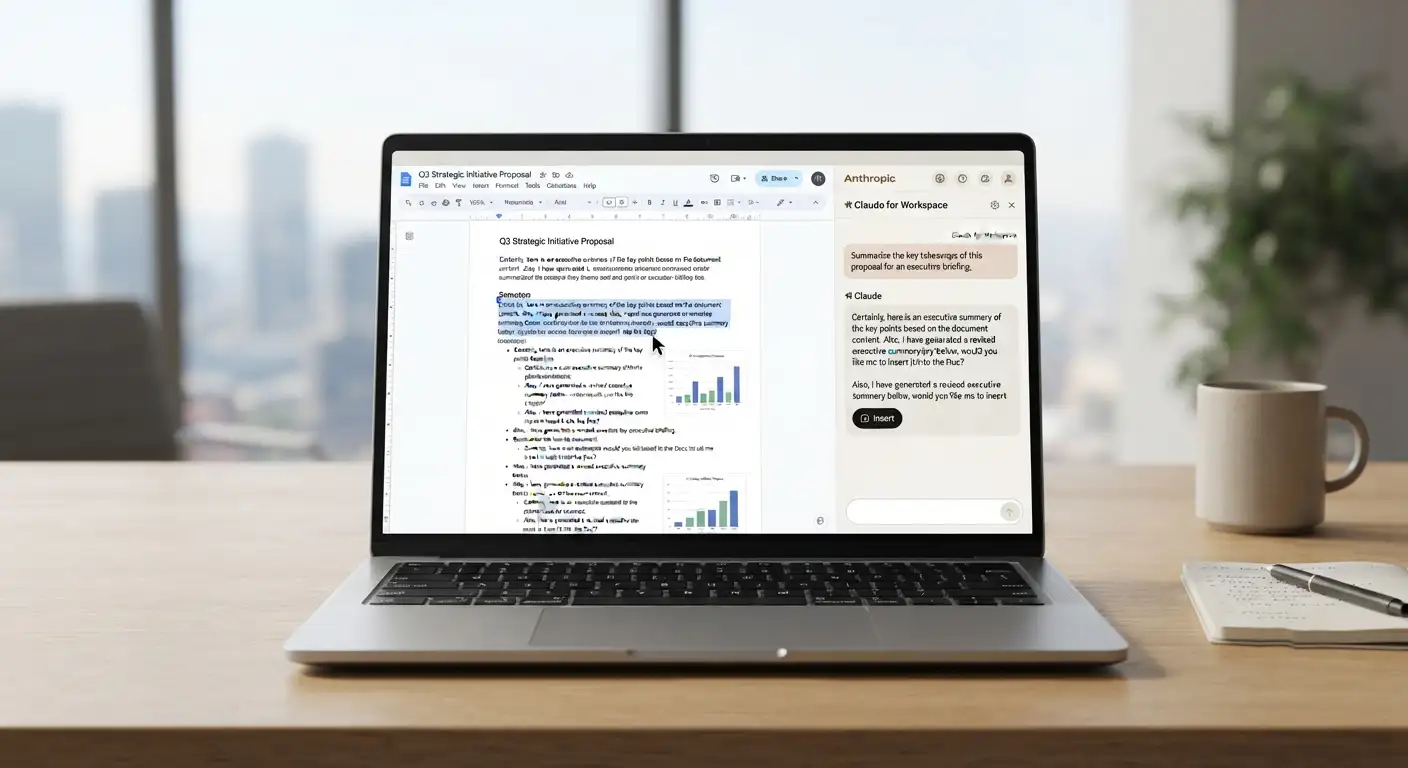
Whether you manage heavy data sets, draft extensive reports, or prepare pitch decks for clients, bringing Claude directly into Google Workspace bridges the gap between raw intelligence and everyday productivity. Below, we break down everything you need to know to set up, optimize, and leverage this powerful integration—designed to be completely accessible even if you are not a technical expert.

Why Connect Claude to Google Docs, Sheets, and Slides?
Modern productivity relies heavily on seamless collaboration. Historically, using an advanced language model meant constantly switching browser tabs, copying and pasting text, exporting data into files, and manually reformatting content. This constant context-switching wastes valuable time and introduces friction into creative and analytical processes.
By integrating Claude directly with Google Docs, Sheets, and Slides, you establish a unified workspace ecosystem. Claude acts as an intelligent co-pilot sitting right beside your files. It can read context, propose live modifications, write formulas, summarize sprawling text documents, and draft presentation layouts dynamically. Because the setup requires minimal effort and utilizes straightforward controls, non-tech users can harness enterprise-grade AI capabilities instantly.
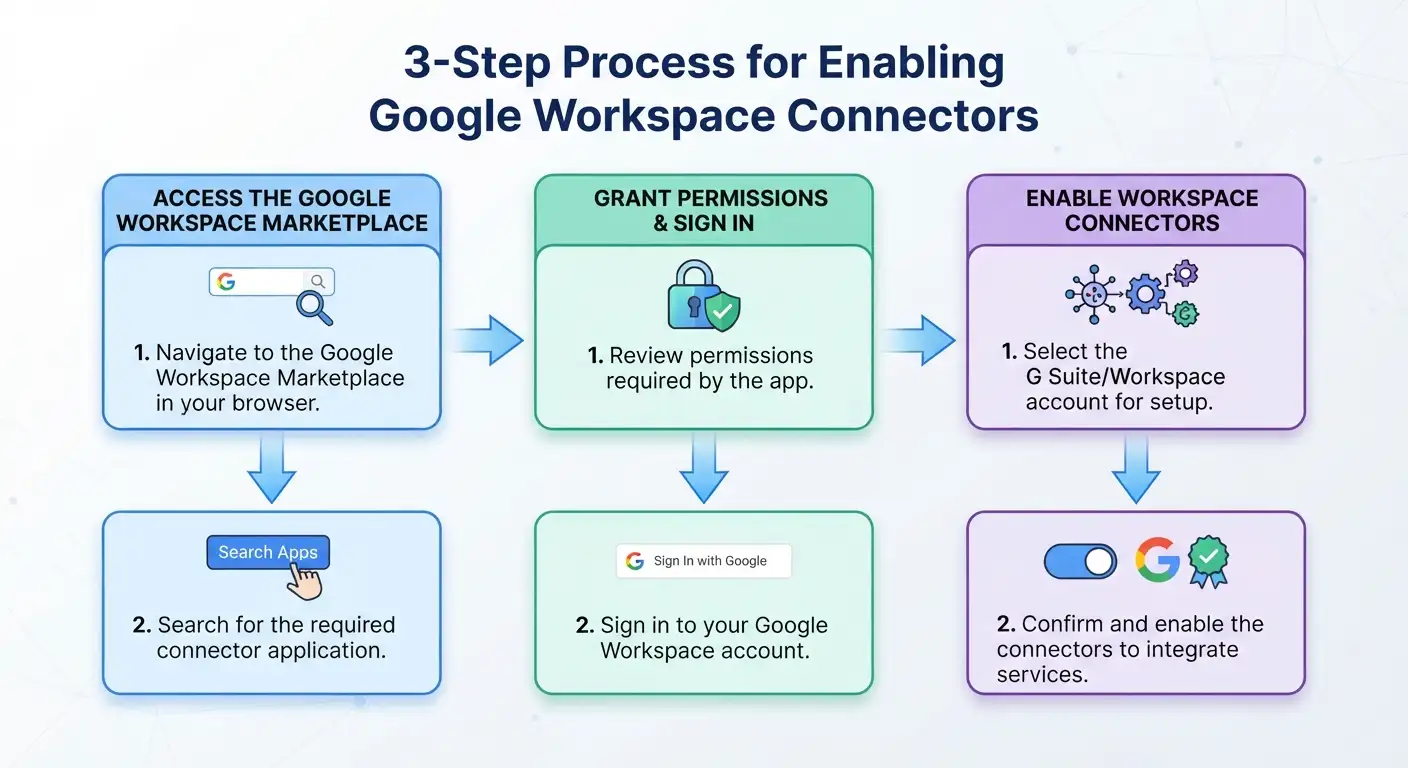
Step-by-Step Instructions: How to Install Claude for Google Workspace
Getting started is simple, requiring no coding knowledge or complex software configurations. You can install and activate the integration through official marketplace channels or direct sidebar features.
Supercharging Google Docs with Claude
Writing long reports, structuring essays, or redlining contracts can be mentally exhausting. The Claude integration for Google Docs turns blank-page syndrome into a streamlined editing experience.
-
Turning Outlines into Full Drafts: Paste your rough bullet points or meeting notes into the chat pane, and ask Claude to synthesize them into a polished, professional document.
-
Targeted Rewriting and Tone Adjustments: Highlight specific paragraphs and instruct Claude to rewrite them for a different audience, shorten them for clarity, or adjust the professional tone without altering your core message.
-
Smart Summarization and Restructuring: Ask Claude to review a massive document and summarize key takeaways into digestible bullet points, or reorder sections to improve logical flow.
-
Contract Redlining: Upload or reference agreements to let Claude spot clauses of interest, proposing redlines and changes that you can explicitly accept or reject.
With the live editing pane, you and Claude work in the same file simultaneously, offering a collaborative environment where changes appear cleanly and transparently.
Streamlining Data Analysis in Google Sheets
Spreadsheets intimidate many non-technical users, especially when complicated formulas, data cleaning, or financial models are involved. Claude for Google Sheets eliminates this barrier by translating plain-English descriptions into powerful spreadsheet operations.
-
Natural Language Formula Generation: Instead of memorizing syntax for complex logical checks or lookup functions, simply type what you want to calculate—such as “calculate the rolling three-month average revenue”—and let Claude write the exact formula.
-
Effortless Data Cleaning: Messy datasets full of duplicate entries, inconsistent capitalization, or stray spaces can ruin analytics. Instruct Claude to clean and normalize your columns instantly.
-
Automated Financial Modeling: Describe the parameters of a business model, budget forecast, or project tracker, and watch as Claude lays out the structure and math directly inside your spreadsheet.
-
Error Troubleshooting: When a formula returns an unexpected error code, Claude can inspect the cell logic, identify the mistake, and provide a corrected version instantly.
Crafting Engaging Presentations with Google Slides
Building presentation decks from scratch often takes hours of formatting, aligning text boxes, and searching for the right layout. Claude for Google Slides streamlines deck creation from concept to final polish.
-
Generating Whole Decks from Notes: Feed a project brief or research summary into Claude and ask it to structure an entire slide deck, complete with suggested slide titles, bullet points, and speaker notes.
-
Condensing Crowded Slides: If your slides contain too much text, Claude can trim excess verbiage down to punchy, high-impact takeaways that capture audience attention.
-
Adding and Restyling Content: Insert individual slides into an existing presentation or ask Claude to restyle elements so your overall deck maintains a consistent visual identity.
Advanced Flexibility: Using Direct Connectors and Link Pasting
Beyond the sidebar integration inside Google apps, you can also interact with your files directly from the main Claude interface. By turning on your Google Workspace connectors, you can simply paste a link to any Google Doc, Sheet, or Slide directly into your chat conversation.
Claude instantly recognizes the link, fetches the necessary context, and allows you to edit or query the file without manually opening tabs. Furthermore, you can instruct Claude to create brand-new Google files simply by naming them in your prompt, ensuring your documents are stored directly in your cloud ecosystem rather than as local downloads.
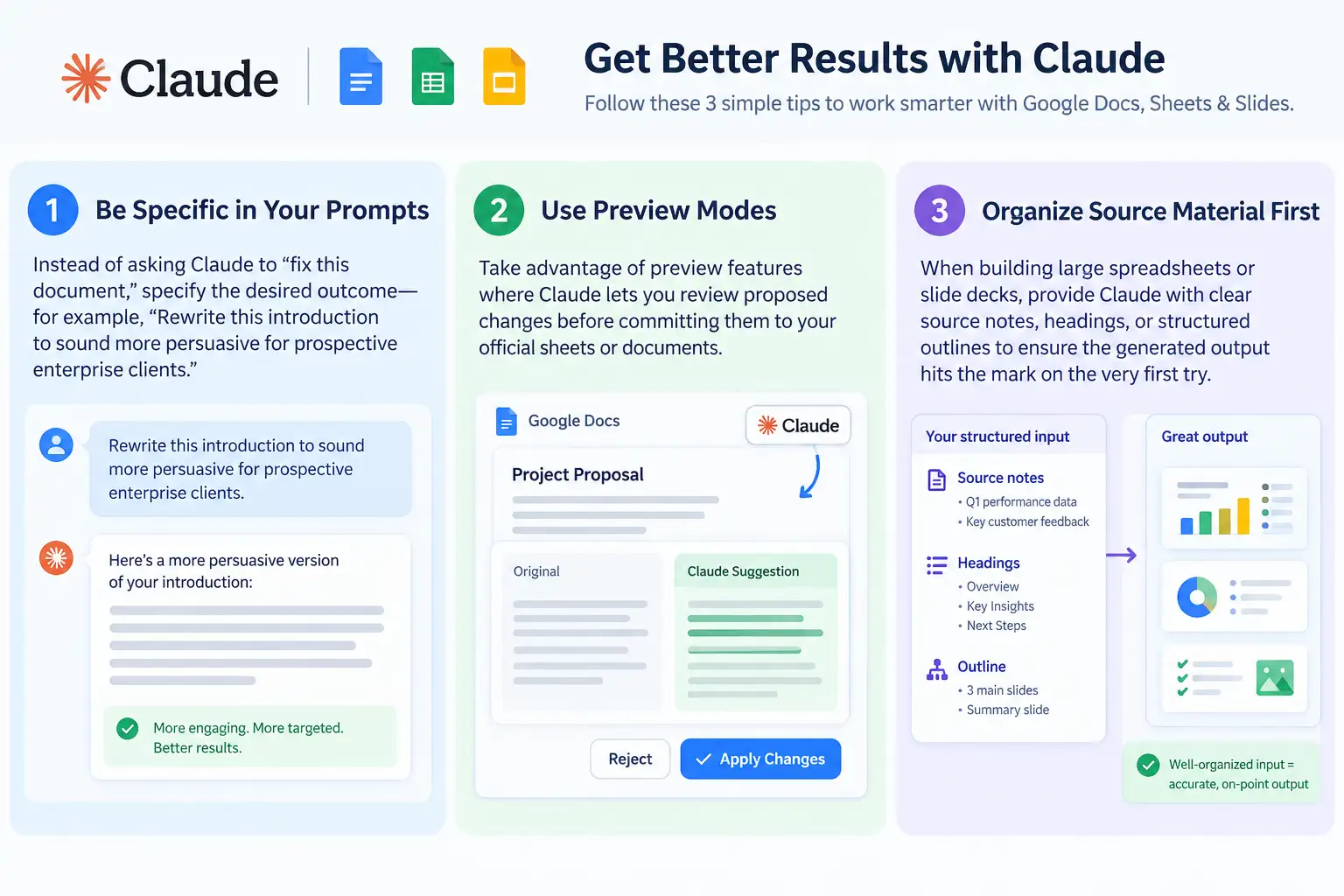
Best Practices for Maximizing Efficiency
To get the absolute best results out of your new workflow, keep these core strategies in mind:
FAQs
-
Can I integrate Claude with Google Docs, Sheets, and Slides for free?
Basic integrations and link-sharing features often work with standard accounts, but enterprise-grade marketplace connectors or high-volume API integrations typically require a paid tier, such as Claude Pro, Team, or an active Anthropic API key with billing enabled.
-
Does Claude overwrite my existing Google Workspace data automatically?
No. When using the sidebar extension or chat-based connector, Claude proposes edits, formula insertions, or text replacements that you must review and confirm. It does not overwrite files without explicit user action.
-
How do I connect Claude to a Google Doc via link pasting?
Enable Google Workspace connectors inside your Claude account settings. Once active, paste the full URL of your Google Doc, Sheet, or Slide directly into the prompt box. Ensure the file’s Google Drive sharing permissions allow view or edit access to the connected account.
-
Can Claude directly write and execute formulas in Google Sheets?
Yes. Claude can generate complex formulas (such as
INDEX/MATCH,XLOOKUP,QUERY, and array formulas) based on plain-English instructions. Depending on the connector setup, it can insert them into target cells directly or output the exact formula for you to paste. -
Is my company data used to train Claude models when connecting Google Workspace?
For commercial, Team, and Enterprise Anthropic plans (as well as API-driven workspace connectors), data submitted through business accounts is not used to train generative models. Always check your organization’s specific data privacy agreement with Anthropic before connecting proprietary corporate drives.
-
Can Claude generate a complete Google Slides presentation from a text outline?
Yes. If you provide meeting notes, project briefs, or an article draft, Claude can structure a multi-slide presentation complete with slide titles, bullet points, structural layouts, and speaker notes.
-
Why is Claude not recognizing my Google Drive link?
The most common cause is restrictive sharing settings in Google Drive. Make sure the Google account connected to Claude has access permissions, or update the file link to “Anyone with the link can view/edit” depending on your security policy.
-
Do I need coding knowledge or Google Apps Script to use Claude in Google Docs?
No coding is required if you are using official Google Workspace Marketplace add-ons or Claude’s native workspace connectors. Custom Apps Script setups are only necessary if you are building proprietary internal automation workflows.
-
What is the difference between Google Gemini in Workspace and integrating Claude?
Google Gemini comes natively embedded in Google Workspace subscriptions, whereas integrating Claude allows you to leverage Anthropic’s specific reasoning strengths, large context window handling, and nuanced prose drafting directly within your existing Google files.
-
Can Claude read and summarize entire multi-page Google Docs?
Yes. Thanks to Claude’s large context window, it can ingest long-form documents, manuals, and reports to produce concise executive summaries, extract action items, or restructure lengthy sections into streamlined outlines.
Conclusion
The integration of advanced artificial intelligence into everyday office applications represents a major leap forward for digital productivity. By connecting Claude with Google Docs, Sheets, and Slides, repetitive tasks like data entry, formatting, structural editing, and initial drafting become frictionless. Best of all, because the integration is designed with simplicity in mind, non-technical users can leverage sophisticated AI power instantly. Embrace this setup today to reclaim your schedule, elevate the quality of your work, and focus on what truly matters: high-level strategy and creative problem-solving.

Selva Ganesh is a Computer Science Engineer, Android Developer, and Tech Enthusiast. As the Chief Editor of this blog, he brings over 10 years of experience in Android development and professional blogging. He has completed multiple courses under the Google News Initiative, enhancing his expertise in digital journalism and content accuracy. Selva also manages Android Infotech, a globally recognized platform known for its practical, solution-focused articles that help users resolve Android-related issues.




Leave a Reply