
All Your Next Turns in One Place-Waze Maps Makes Travel Easier– We have all experienced the sudden anxiety of an unexpected highway split or a rapid succession of city maneuvers that leave little room for error. Driving across complex urban networks, sprawling multi-tier highway junctions, and unfamiliar territory demands constant situational awareness. When navigation tools offer fragmented instructions, motorists are often forced to take last-second exits, make risky lane changes, or make unwanted detours that ruin carefully planned schedules.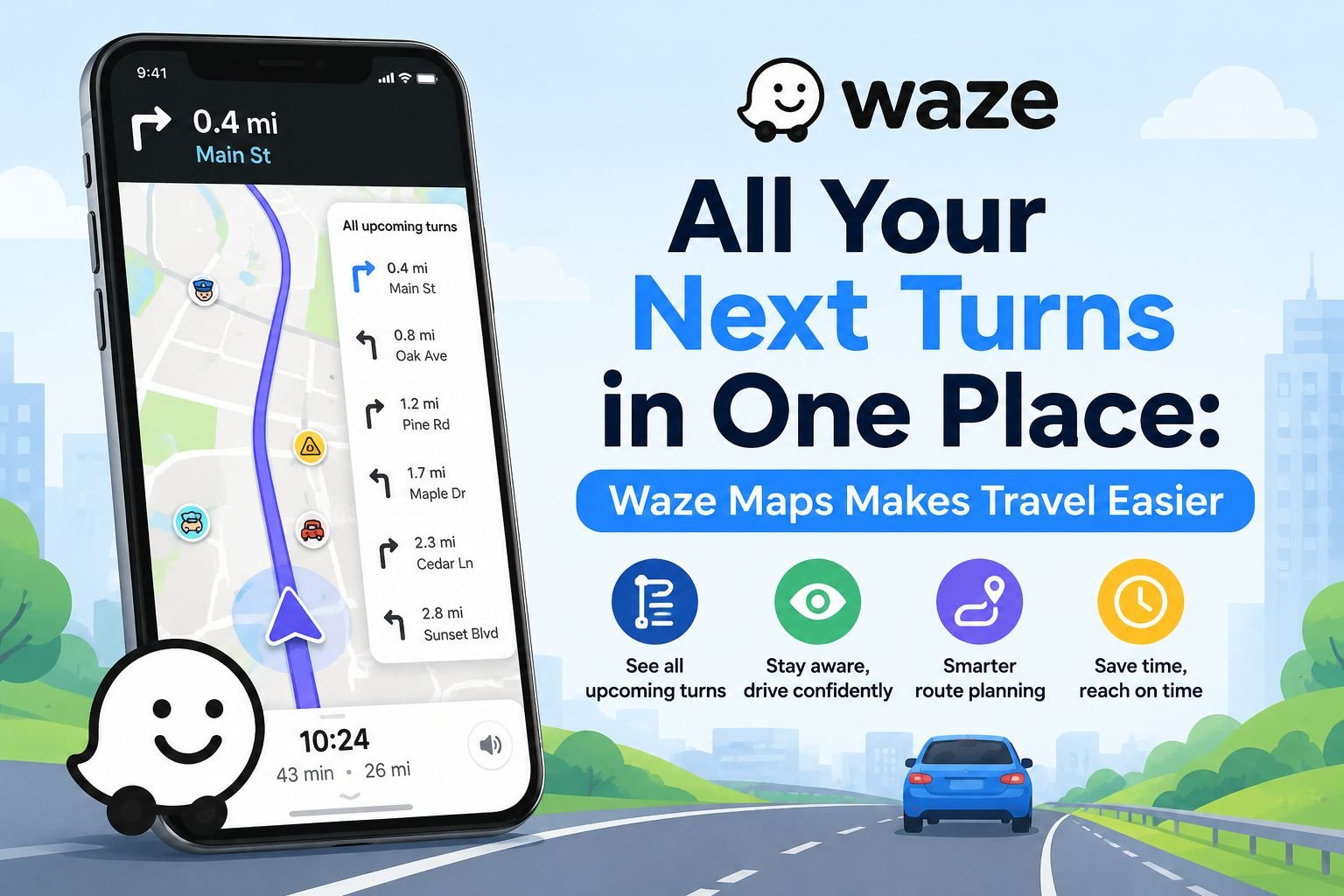
To solve this friction, we rely on the Next Turns in all in one place Waze feature, a dynamic navigation update that changes how motorists interpret turn-by-turn guidance. Instead of isolating maneuvers into single, disconnected prompts, this interface unifies upcoming directional stages into an intuitive, sequential dashboard. By consolidating immediate turns, secondary actions, lane positioning, and real-time roadway alerts into a unified visual stack, Waze enables drivers to plan multiple maneuvers ahead with complete confidence.

In this deep dive, we explore every functional layer of this system, demonstrating how it enhances road safety, eliminates commuter guesswork, and outpaces legacy satellite navigation workflows.
The Roadway Dilemma: Why Fragmented Navigation Fails Drivers
For years, digital GPS systems operated under a linear paradigm: announce the immediate upcoming turn and withhold subsequent instructions until that maneuver is executed. While this design works on straight rural roads, it fails in modern metropolitan traffic.
We frequently confront complex junctions where exiting a highway requires immediately crossing four lanes of heavy traffic to execute an instant left-hand turn under an overpass. Under legacy systems, drivers only learn about that critical secondary maneuver after exiting, leaving a mere 150 feet to fight through oncoming traffic. This design flaw leads to:
-
Sudden braking and erratic lane changes, increasing collision risks.
-
Driver cognitive overload, as commuters split focus between rapid road changes and disjointed visual prompts.
-
Missed connections and extended travel times, which trigger automated recalculations that cause further delays.
By aggregating upcoming maneuvers into a consolidated preview, the Next Turns in all in one place Waze interface removes the blind spot between consecutive driving steps.
Unpacking the Next Turns in All in One Place Waze Architecture
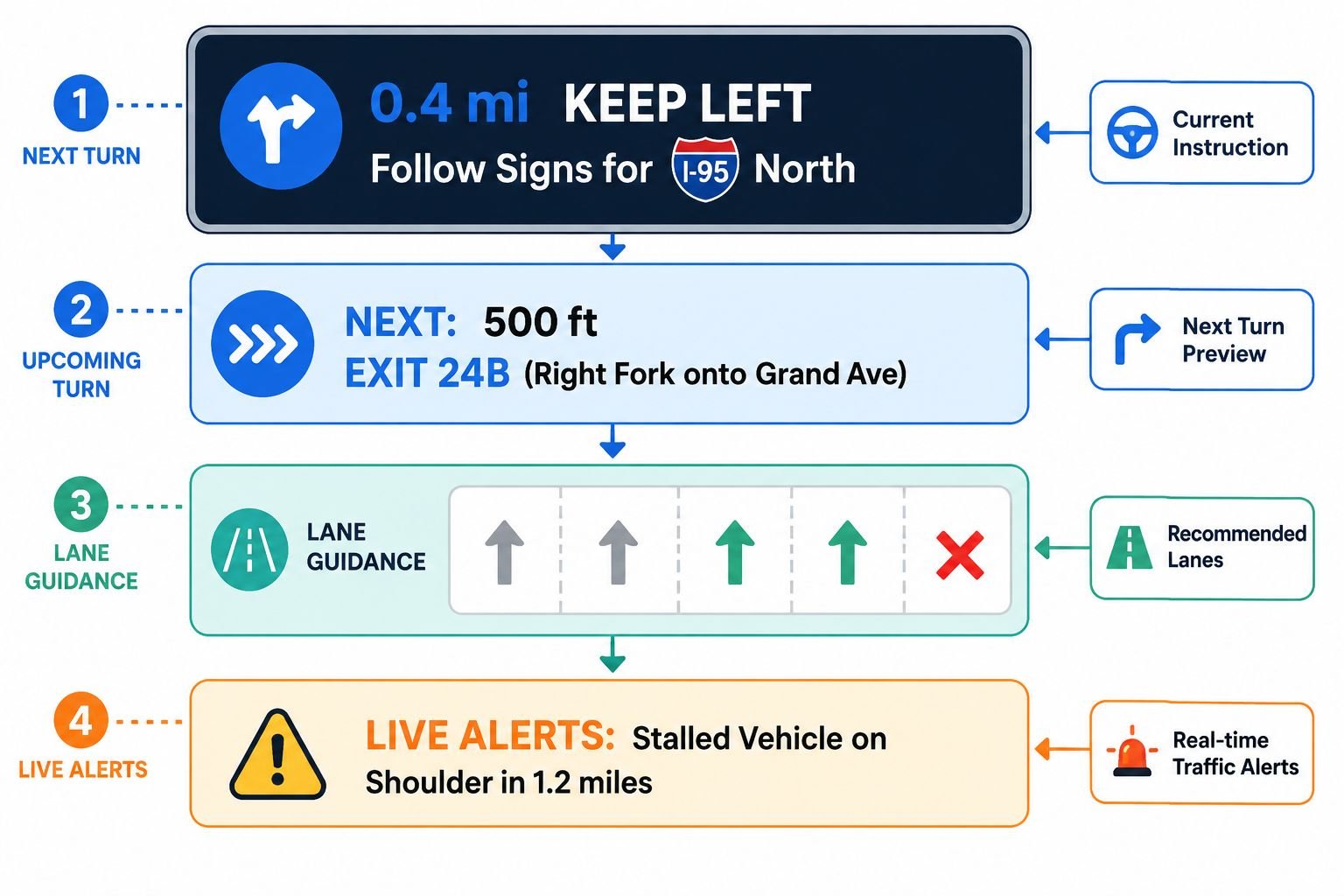
The core of this navigation update is its ability to organize consecutive actions into a prioritized visual hierarchy. Rather than showing a single arrow and street name, the interface presents a structured pipeline of upcoming driving milestones.
1. Primary and Secondary Directional Stacking
The display divides instructions into two synchronized tiers:
-
The Primary Action Banner: Occupying the top focal point, this card displays the immediate action, remaining distance down to tenth-of-a-mile or foot increments, street names, and directional compass headings.
-
The Follow-on Indicator (“Next Step”): Nested cleanly beneath the primary banner, this indicator reveals the turn that immediately follows. If your primary maneuver is an exit ramp and your secondary action is an immediate sharp right onto a frontage road, both are visible simultaneously.
2. Contextual Lane Selection Indicators
Maneuver stacking is paired with integrated lane guidance. Centered on the display, bold overhead arrows highlight the exact lanes you need to occupy. Lanes scheduled to diverge or close are grayed out or marked with directional indicators, ensuring you enter the correct lane well before heavy traffic locks your position.
3. Integrated Micro-Alert Overlays
While monitoring upcoming turns, the unified view preserves the community-driven warnings that define Waze. Hazard markers, speed trap alerts, potholes, and red-light camera notifications are dynamically mapped against your upcoming turns, keeping road hazards in view without cluttering the screen.
Real-World Impact: How Maneuver Previewing Improves Driving
To understand why this consolidated layout is a significant upgrade, consider how it performs across demanding driving scenarios.
| Driving Scenario | Legacy Turn-by-Turn Experience | Next Turns All-in-One Experience | Driver Benefit |
| Multi-lane Highway Interchanges | Drivers receive only the exit number; subsequent fork instructions remain hidden until entering the ramp. | Displays both the exit number and the subsequent ramp fork simultaneously. | Eliminates high-speed lane cutting across gore points. |
| Complex Roundabouts | Voice prompts announce the exit number; the entry lane is not clearly linked to the subsequent street turn. | Shows the roundabout exit alongside the immediate maneuver required upon exiting. | Positions vehicle in the correct entry lane ahead of time. |
| Dense City Grids | One-way street turns require immediate lane shifts that are announced too late. | Shows sequential turns (e.g., Left on 4th, immediate Right on Elm) in advance. | Smooth, predictable lane positioning in heavy traffic. |
| Active Construction Zones | Detour arrows conflict with sudden lane drop warnings. | Merges temporary lane configuration directly with the next required turn. | Mitigates bottleneck stress and sudden braking. |
Configuring the Next Turns Interface for Optimal Visibility
To take full advantage of this feature, we configure our device settings to match our daily driving habits and vehicle layouts.
Optimizing Display Settings
-
Open the Waze App and tap the My Waze search panel.
-
Select the Settings Gear in the top left corner.
-
Scroll down to Map Display.
-
Under Routing and Guidance, ensure that Lane Guidance and Next Turns Overview are toggled to Always On.
-
Set the Map View to 3D mode, which provides better visual depth when navigating multi-tiered flyovers and overlapping highway ramps.
Pairing with Apple CarPlay and Android Auto
On in-dash infotainment displays, screen real estate is significantly wider than on a smartphone. The all in one place layout utilizes this horizontal space by splitting the screen:
-
Left Pane: Dynamic turn-by-turn sequence showing primary maneuvers, follow-on actions, and lane diagrams.
-
Right Pane: Wide-angle topological map showing live congestion heat maps, speed traps, and your overall route progress bar.
Technical Advantages of Consolidated Navigation
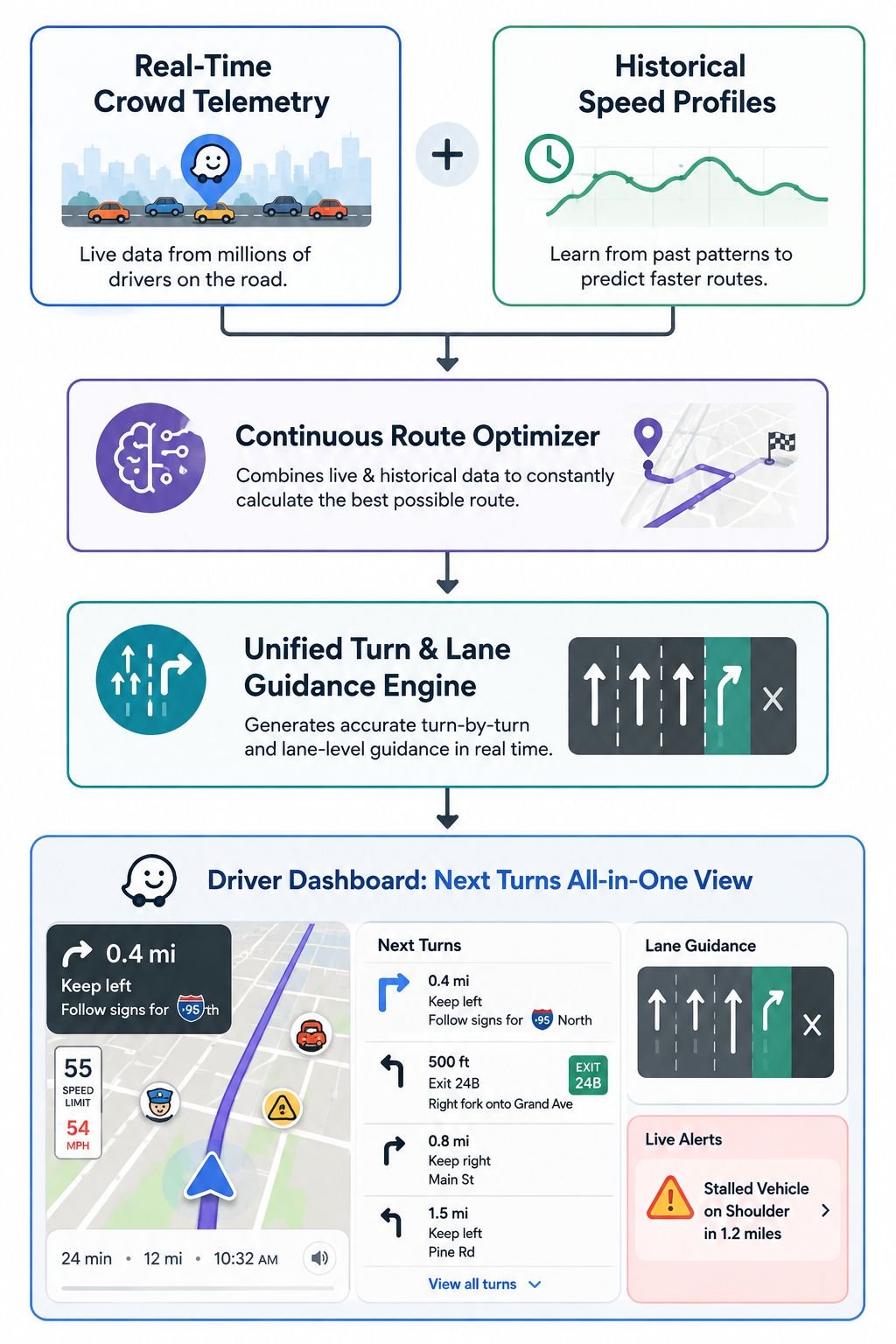
Waze handles navigation differently than standard algorithmic mapping engines. While traditional GPS systems precalculate a static path and display steps linearly, Waze continuously cross-references multiple real-time inputs to keep your route accurate:
-
Continuous Millisecond Recalculations: If a sudden deceleration wave is detected between your primary turn and secondary turn, Waze recalculates downstream actions on the fly, updating the secondary turn indicator before you even complete the first maneuver.
-
Crowdsourced Obstacle Syncing: If a fellow driver flags road debris right after an upcoming ramp, that alert is appended directly into your Next Turns workflow, preparing you to avoid the hazard as you turn.
-
Bandwidth-Efficient Map Caching: The turn-preview architecture pre-caches upcoming maneuvers locally. If your device temporarily loses cellular signal inside an urban tunnel or remote underpass, your sequential turns remain visible on screen without interruption.
Proven Tactics for Stress-Free Navigation
To get the most out of this navigation setup, we apply several key driving habits:
-
Verify the Secondary Turn Icon at Highway Splits: Whenever an exit approaches, glance at the secondary turn indicator. Knowing whether you need to bear left or right immediately after the ramp dictates which side of the ramp you should favor upon entry.
-
Use Lane Assist Arrows as Early Positioning Markers: Do not wait for the primary distance countdown to drop below 500 feet. Move into the designated lane as soon as the lane indicator turns green or solid white on your display.
-
Combine Visual Stacking with Voice Prompts: While visual turn previews provide clarity, enabling voice directions ensures you catch sudden changes while keeping your eyes focused on the road ahead.
Frequently Asked Questions
Does the Next Turns in all in one place feature drain more battery?
No. The interface reorganizes telemetry and map data that the application is already processing in the background, resulting in negligible impact on battery life and processor load.
Can I use this feature in offline mode?
Yes. If you lose cellular connection during a trip, cached routing data continues to display upcoming primary and secondary turns along your established route. However, live crowdsourced updates will pause until connectivity returns.
Why does the follow-up turn sometimes disappear from the screen?
The secondary turn indicator dynamically activates when consecutive maneuvers occur within close proximity. On extended highway stretches where the next turn is miles away, the screen simplifies to show only the primary maneuver, keeping the interface uncluttered.
Is this feature supported on both Android Auto and Apple CarPlay?
Yes. The unified interface is optimized for both platforms, automatically adjusting its layout to match widescreen, portrait, or split-screen vehicle displays.
How does Waze determine which lane I should be in?
Lane guidance data is continually mapped, validated, and updated by Waze volunteer community editors, cross-referenced with municipal road layouts, and refined using real-world vehicle tracking.
Does the all-in-one screen show upcoming toll booths?
Yes. When approaching a toll plaza, the primary instructions indicate the approaching plaza while the lane assist prompts point toward cash, electronic pass, or high-occupancy vehicle lanes.
Can I turn off the secondary turn preview if I prefer a simpler map view?
Yes. Under the Map Display preferences in the Settings menu, you can toggle off the extended turn previews to return to the legacy single-instruction display.
How far ahead does the next turn indicator look?
In dense city environments, the system looks ahead across immediate consecutive blocks (typically within 500 to 1,000 feet). On highways, secondary maneuvers are previewed anywhere from one-quarter to two miles in advance, depending on travel speed.
Does the new interface affect speed camera and police alerts?
No. Safety notifications remain fully active. Alerts appear either as unobtrusive badges within the navigation card or as warning banners along the bottom of the map display.
Why is lane guidance unavailable in some rural areas?
Lane guidance relies on detailed local road mapping. In smaller towns or rural roads, volunteer community editors may still be cataloging complex intersections, though standard turn-by-turn guidance remains active.

Selva Ganesh is a Computer Science Engineer, Android Developer, and Tech Enthusiast. As the Chief Editor of this blog, he brings over 10 years of experience in Android development and professional blogging. He has completed multiple courses under the Google News Initiative, enhancing his expertise in digital journalism and content accuracy. Selva also manages Android Infotech, a globally recognized platform known for its practical, solution-focused articles that help users resolve Android-related issues.




Leave a Reply