
Automate Active Mobile Data Schedules on Samsung Galaxy– In the modern landscape of digital connectivity, maintaining a consistent internet connection is no longer a luxury—it is a necessity for professional and personal communication. For Samsung Galaxy users, the risk of missing critical updates due to manually turning off mobile data or forgetting to re-enable it after a period of offline use is a significant hurdle. Fortunately, Samsung’s One UI ecosystem provides a robust solution through its Modes and Routines feature.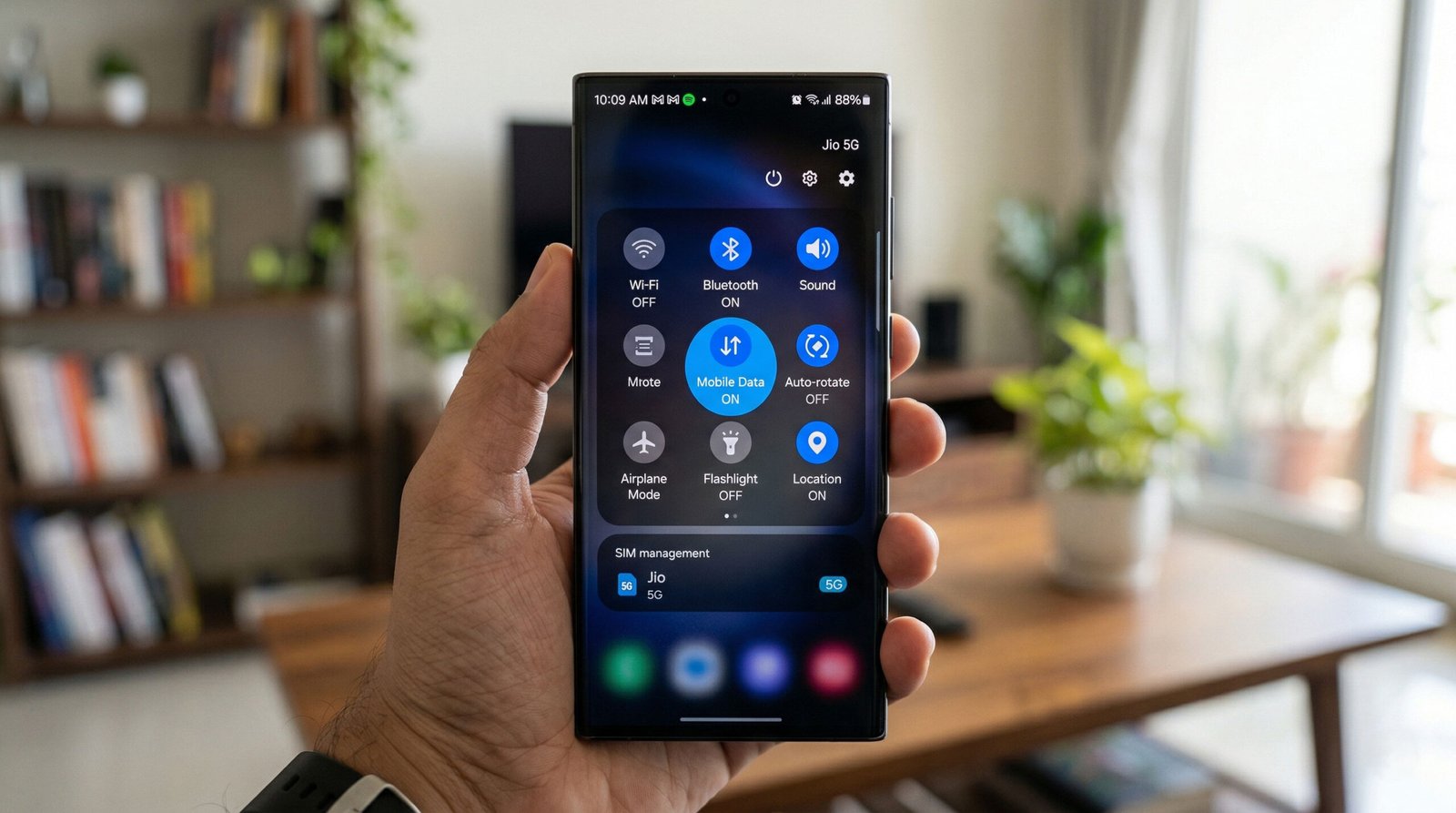
We have designed this comprehensive guide to help you master the art of automating mobile data connectivity. By leveraging built-in Samsung automation tools, you can ensure your data remains active during specific windows, preventing any lapses in WhatsApp notifications, email syncing, or VoIP calls.
Understanding the Power of Samsung Modes and Routines for Connectivity
Before we dive into the technical configuration, we must recognize that Modes and Routines (formerly known as Bixby Routines) is a sophisticated if-this-then-that (IFTTT) engine integrated directly into the Galaxy OS. Unlike third-party apps that drain battery life, this native tool operates with minimal system overhead while providing deep access to system-level toggles.

When we talk about “keeping mobile data active for a particular time,” we are essentially creating a digital guardrail. This ensures that even if you accidentally toggle the Quick Settings panel, the system will automatically override and enforce your connectivity preferences based on the schedule or conditions we define.
Step-by-Step Guide: Automating Mobile Data Activation via Schedule
To ensure your Samsung mobile data stays on during your peak work hours or specific communication windows, follow our detailed walkthrough below:
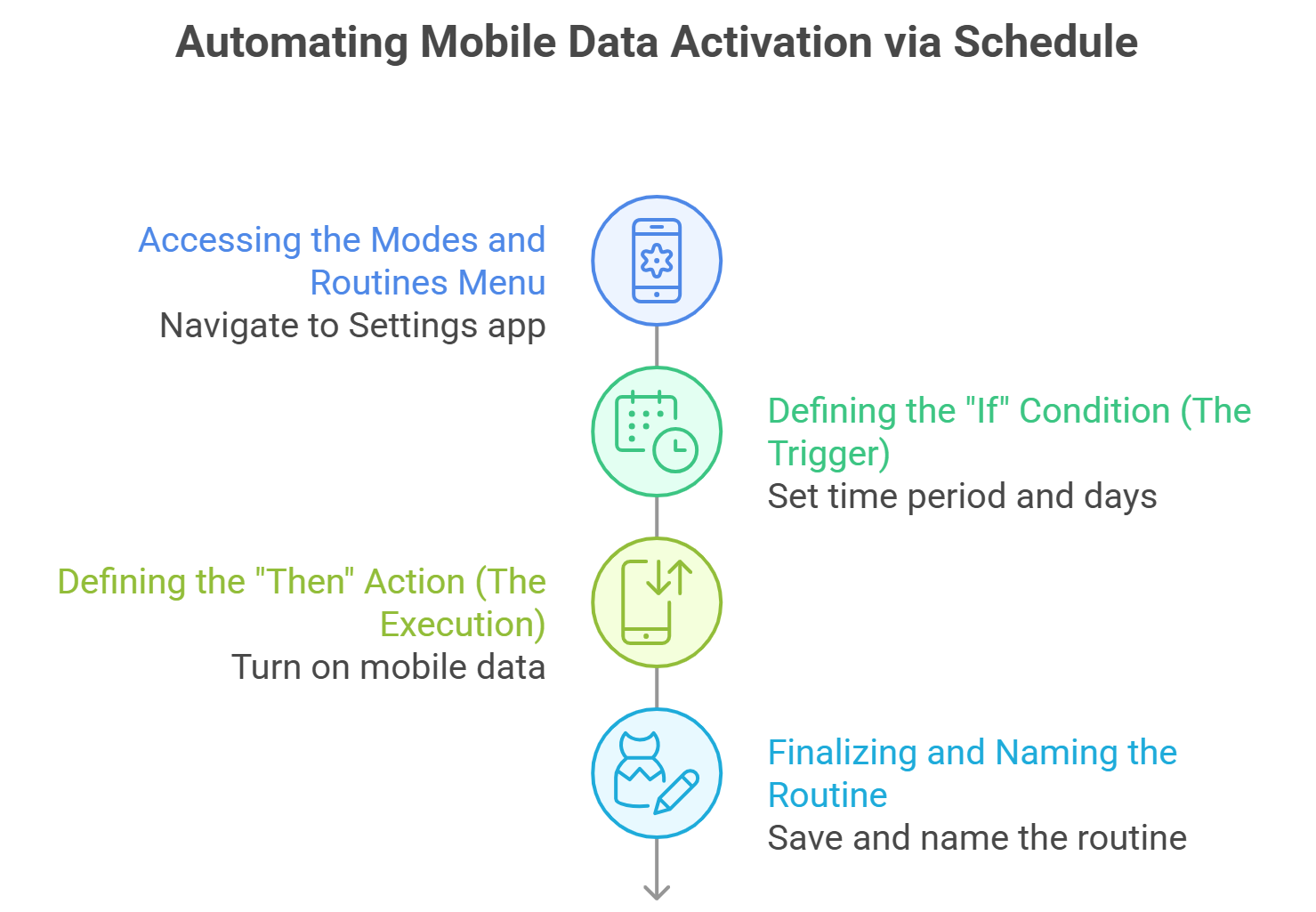
1. Accessing the Modes and Routines Menu
- Navigate to your Settings app.
- Scroll down and tap on Modes and Routines.
- Switch to the Routines tab located at the bottom right of the screen.
2. Defining the “If” Condition (The Trigger)
- Tap the plus (+) icon to create a new routine.
- Under the “If” section, select Add what will trigger this routine.
- Select the time period.
- Set your Start time (e.g., 09:00 AM) and End time (e.g., 06:00 PM).
- Choose the Days of the week you want this rule to apply (typically Monday through Friday for work-related communication uptime).
- Tap Done.
3. Defining the “Then” Action (The Execution)
- Under the “Then” section, tap Add what this routine will do.
- Select Connections.
- Tap on Mobile data.
- Set this to On.
- Tap Done.
4. Finalizing and Naming the Routine
- Tap Save.
- Give your routine a descriptive name, such as “Active Data Work Hours”.
- Select an icon and color to make it easily identifiable in your automation dashboard.
Advanced Configurations: Preventing Accidental Data Deactivation
Simply turning data “on” at a specific time is often not enough for power users. We recommend adding supplementary conditions to ensure that your mobile data connectivity remains persistent even if the device attempts to switch to a weak Wi-Fi signal.
The “Always-On” Mobile Data Override
In the same routine settings, we can add a secondary action to disable Wi-Fi during these hours if you find that your office Wi-Fi is unstable. This forces the device to rely solely on the 5G/LTE network, ensuring low-latency communication.
- In your “Then” actions, add Connections > Wi-Fi > Off.
- Enable Mobile Data Always Active in Developer Options (Optional).
- To do this, go to Settings > About Phone> Software Information > Tap Build Number 7 times.
- Go back to Settings > Developer Options.
- Toggle on Mobile data always active. This keeps the data pipe primed even when Wi-Fi is connected, allowing for an instantaneous failover.
Utilizing “Modes” for Contextual Data Management
While Routines are trigger-based, Modes are state-based environments. If you want your Samsung mobile to prioritize mobile data based on your activity—such as “Driving,” “Work,” or “Commuting”—the Modes feature is superior.
Setting Up a “Commute Mode” for Constant Sync
- Open Modes and Routines and select the Modes tab.
- Select Add Mode > Custom.
- Name it “High Priority Communication”.
- Under Turn on automatically, you can set it to trigger when your Phone connects to your Car Bluetooth.
- Under Change settings, add Mobile data: On.
This ensures that the moment you leave your home or office, your Galaxy device locks the mobile data toggle to the “On” position, preventing you from missing GPS updates or important messages due to a manual error.
Why This Matters for Professional Communication
We understand that for professionals using Samsung Galaxy S24 Ultra, Z Fold series, or A-series devices, a missed notification is more than an inconvenience—it can be a missed business opportunity. By using Modes and Routines, you solve three primary issues:
- Human Error: We often turn off data to save battery or avoid distractions and forget to turn it back on. Automation removes the cognitive load of remembering.
- Battery Optimization: By setting a “Particular Time Period,” you ensure the modem isn’t unnecessarily searching for signals during your sleep hours, thus extending battery longevity.
- Network Stability: Frequent switching between unstable Wi-Fi and Mobile Data can lead to “dead zones” in your communication. A dedicated routine provides a stable data environment.
Troubleshooting Common Routine Conflicts
Occasionally, your mobile data does not turn on as expected. We have identified the most common culprits:
- Power Saving Mode: If your device enters Maximum Power Saving Mode, it may override your Modes and Routines. We recommend adding an action in your routine to turn Power Saving Off during your active data window.
- Data Saver Settings: Ensure that Data Saver (found under Connections > Data Usage) is not restricting background apps; otherwise, even with active data, your notifications may be delayed.
- Routine Overlap: If you have two routines with conflicting “Then” actions (e.g., one turning data off at 5 PM and another turning it on for a specific app), the most recently activated routine takes precedence.
Optimizing for Global Roaming and Travel
If you are traveling, the need for persistent mobile data becomes even more critical for real-time translation and map navigation. We suggest creating a “Travel Mode” within the Samsung automation settings.
- Trigger: When International Roaming is on.
- Action: Keep Mobile Data On, and enable Sync for all accounts.
This specific configuration ensures that your Samsung device prioritizes keeping you connected to the local carrier without you having to navigate through complex sub-menus while on the move.
Conclusion: Reclaiming Control Over Your Connectivity
By implementing the strategies outlined above, you transform your Samsung smartphone from a passive tool into a proactive communication hub. Using Modes and Routines to control mobile data for a particular time period is the most effective way to eliminate connectivity gaps. We encourage you to experiment with different triggers—such as location-based activation or app-open triggers—to refine your automation workflow further.
Whether you are preventing missed Slack messages or ensuring your cloud backups run on time, the granular control offered by Samsung’s One UI ensures you are always one step ahead.

Selva Ganesh is a Computer Science Engineer, Android Developer, and Tech Enthusiast. As the Chief Editor of this blog, he brings over 10 years of experience in Android development and professional blogging. He has completed multiple courses under the Google News Initiative, enhancing his expertise in digital journalism and content accuracy. Selva also manages Android Infotech, a globally recognized platform known for its practical, solution-focused articles that help users resolve Android-related issues.




Leave a Reply