
Even though we love someone much, We have to show and express our love. Everyone may act like they don’t care about their important dates. But deep inside, They always expect someone to treat them happy in those days. Forgetting important ones birthday is not good. Along with the consumer-related product, Google’s success always thinks from real-time tasks. Most of the time, Google bond with our emotional related things and become a daily thing in our life. Google keeps releasing valuable features in Google Home-related products. Now, Birthday Counter is coming to Google Nest Displays.

Google Nest Displays Birthday Counter
Google has announced Birthday countdowns on its line-up of Smart displays. They’ll be coming to mobile devices in the coming few days. A fully-featured countdown feature for your Smart display appears to be the natural progression that pulls dates for you and your home members and all contacts who have a scheduled birthday. This isn’t the first time that we’ve seen Google Assistant begin to notify users of the upcoming festivities — back in the year 2020, birthday reminders came to mobile phones, which prompted users to start planning events or gatherings.
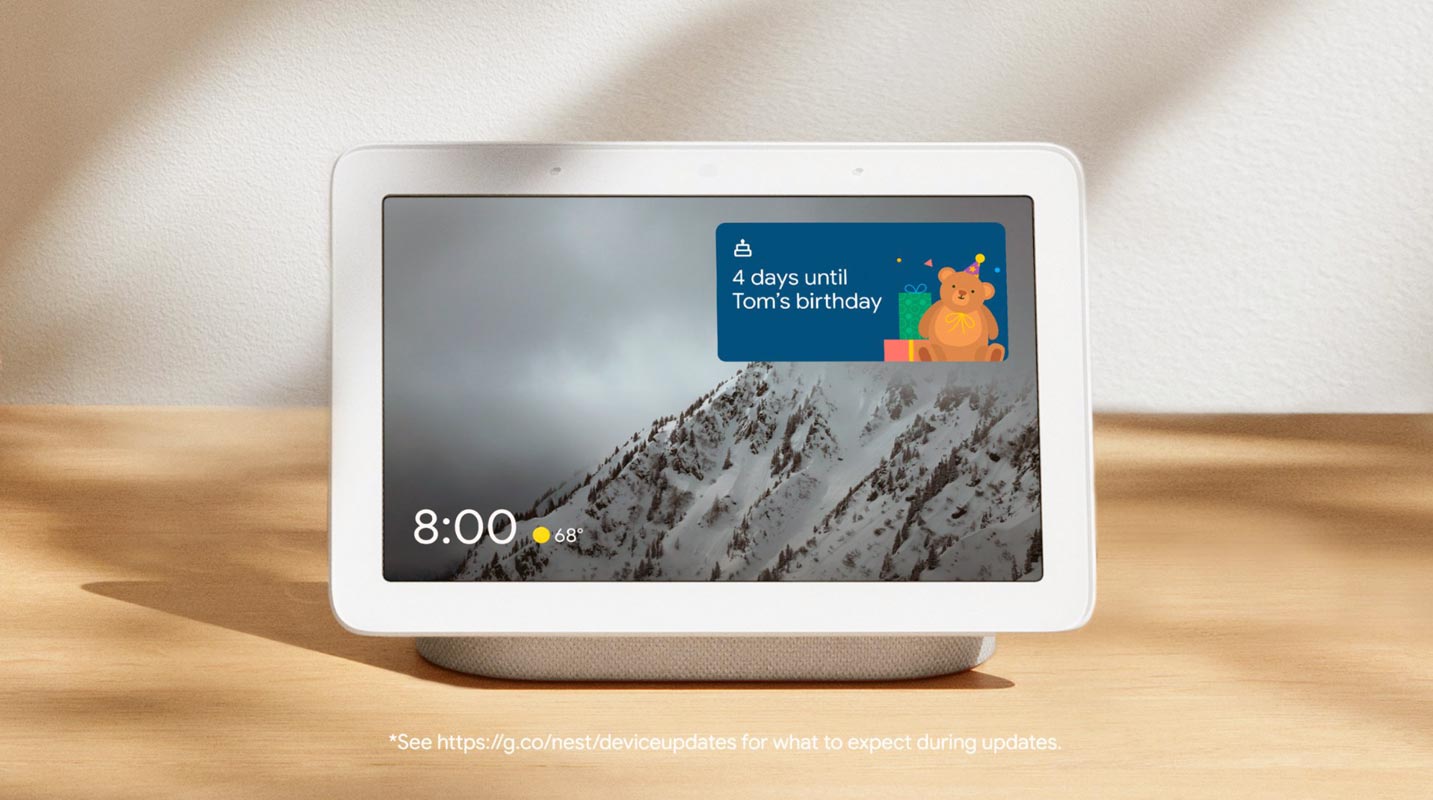

Features
You can change or set birthdays for beloved ones in your life by going to the “Your People” section under Settings for the Assistant within The Home application. If you’d like to conceal the birthday card, hold the button for the countdown until you can select Manage, then tap “Hide birthday.” It won’t display the birthday card until the following year.
To get birthday countdowns, you’ll need to ensure that your results are enabled for your mobile device. This feature is only available to English-speaking devices; however, Google may increase its regional support in the future.
Set or Alter birthdays
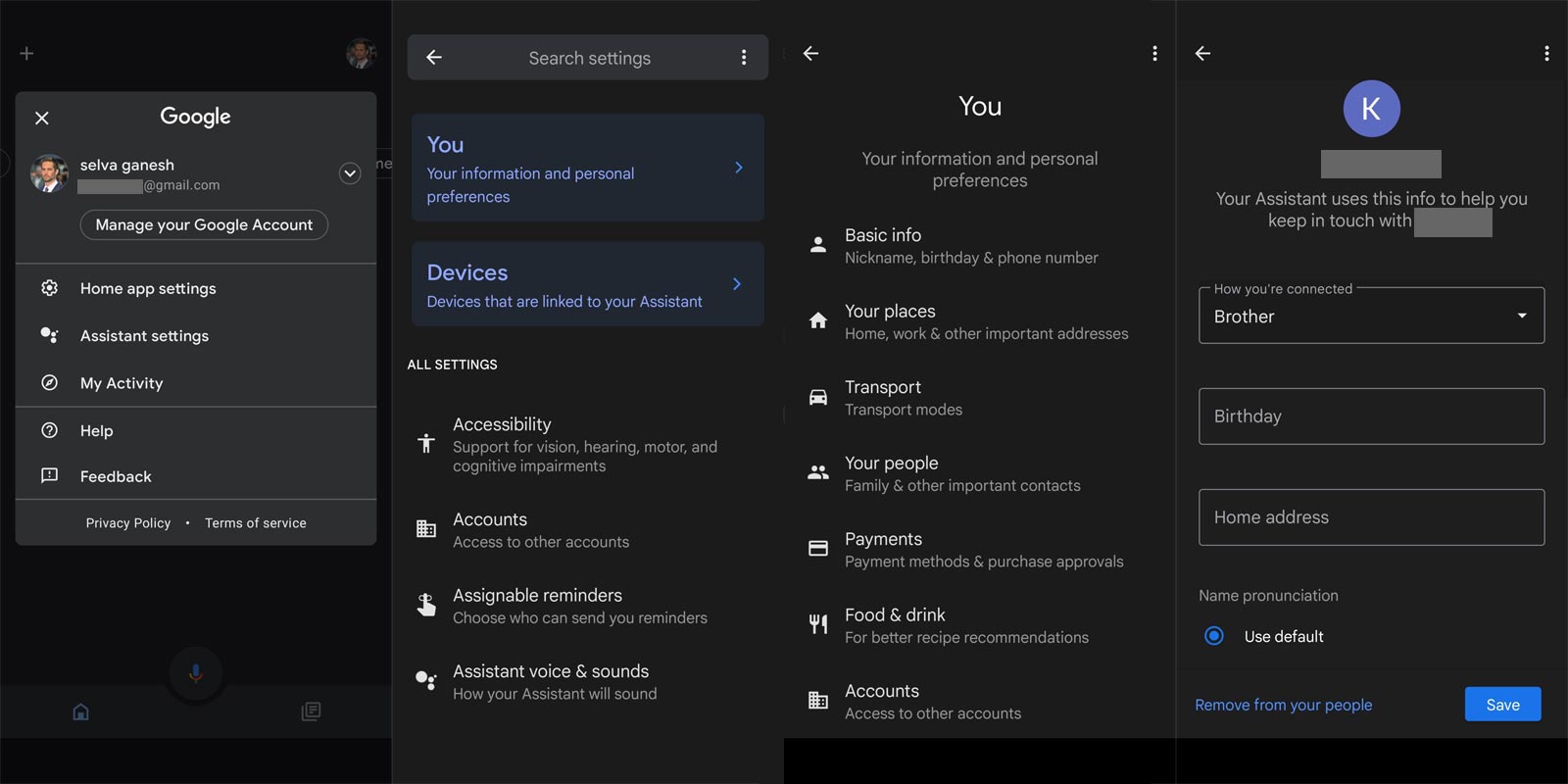
- Open the Google Home app.
- On the top, you can tap your account. Then Assistant settings, then You and Your people.
- Select the person you would like to create an anniversary date for.
- Near the top Tap Birthday.
- Select the date.
- Tap OK and save.
Remove Birthday countdowns in Nest Displays
To stop birthday countdowns, you can disable each individual’s birthday from your Assistant settings or block any birthday countdowns altogether by turning off individual results on your display.
- Launch Google Home.
- Open the Google Home app.
- In the upper right corner, click on your account, the Assistant settings, then You and Your People.
- Select the birthday of the person you’d like to take off.
- Next to their birthday, tap to remove on the day of their birthday.
How do you hide Nest Display Calendars for birthdays?
It is also possible to use the countdown feature on your screen and then manage and hide the birthday. To hide birthdays, hold and press the birthday notification and after which tap Dismiss. Then, hide. This will block that person’s birthday countdown until the following year.
Wrap Up
A birthday counter is an excellent idea since it relates to people’s daily lives. Since most users begin to make their home smart with Google Home solutions, Nest Displays become the central control hub for everything. So, Reminding the Birthday counter on the screen devices makes sense. Google didn’t mention third-party Google Assistant Displays. Since other displays use the same Google Assistant, That devices may get the update also. Did you set up and test the Birthday Counter on your Nest Display? Share your experience below.

Selva Ganesh is a Computer Science Engineer, Android Developer, and Tech Enthusiast. As the Chief Editor of this blog, he brings over 10 years of experience in Android development and professional blogging. He has completed multiple courses under the Google News Initiative, enhancing his expertise in digital journalism and content accuracy. Selva also manages Android Infotech, a globally recognized platform known for its practical, solution-focused articles that help users resolve Android-related issues.





Leave a Reply