
In this article, we will provide a step-by-step guide on editing a PDF using Google Drive, allowing you to make any necessary changes or corrections to your PDF documents quickly and efficiently without requiring specialized software or technical skills. PDFs have become the preferred file format for sharing documents, particularly in professional environments, due to their ability to maintain the document’s original formatting and appearance regardless of the device or software used to open them. However, one of the primary issues with PDFs is that once they are created, they are generally considered static, meaning that any subsequent changes or corrections must be made using specialized software, which can be costly or require technical expertise. Fortunately, there is a straightforward solution: Google Drive offers a free and easy way to edit PDFs online.

Benefits of Edit a PDF in Google Docs
Before proceeding with the steps, let’s talk about the benefits of mastering editing a PDF in Google Docs. One of the key benefits of using PDFs is their shareability and security, which are significant advantages. PDFs preserve your document’s formatting, ensuring that the final output looks the same regardless of the device or software used to view it. When you learn how to edit PDFs in Google Docs, you can easily make changes and collaborate with others without worrying about compatibility issues.

How to Edit a PDF Using Google Drive?
Now let’s get to the fun part and learn how to edit a PDF using Google Drive. Here are the steps:
Step 1: Upload the File to Google Drive
To begin, you must upload your PDF file to Google Drive. You must create an account if you’re new to Google Drive. Once you’ve signed in to your account, follow these steps:
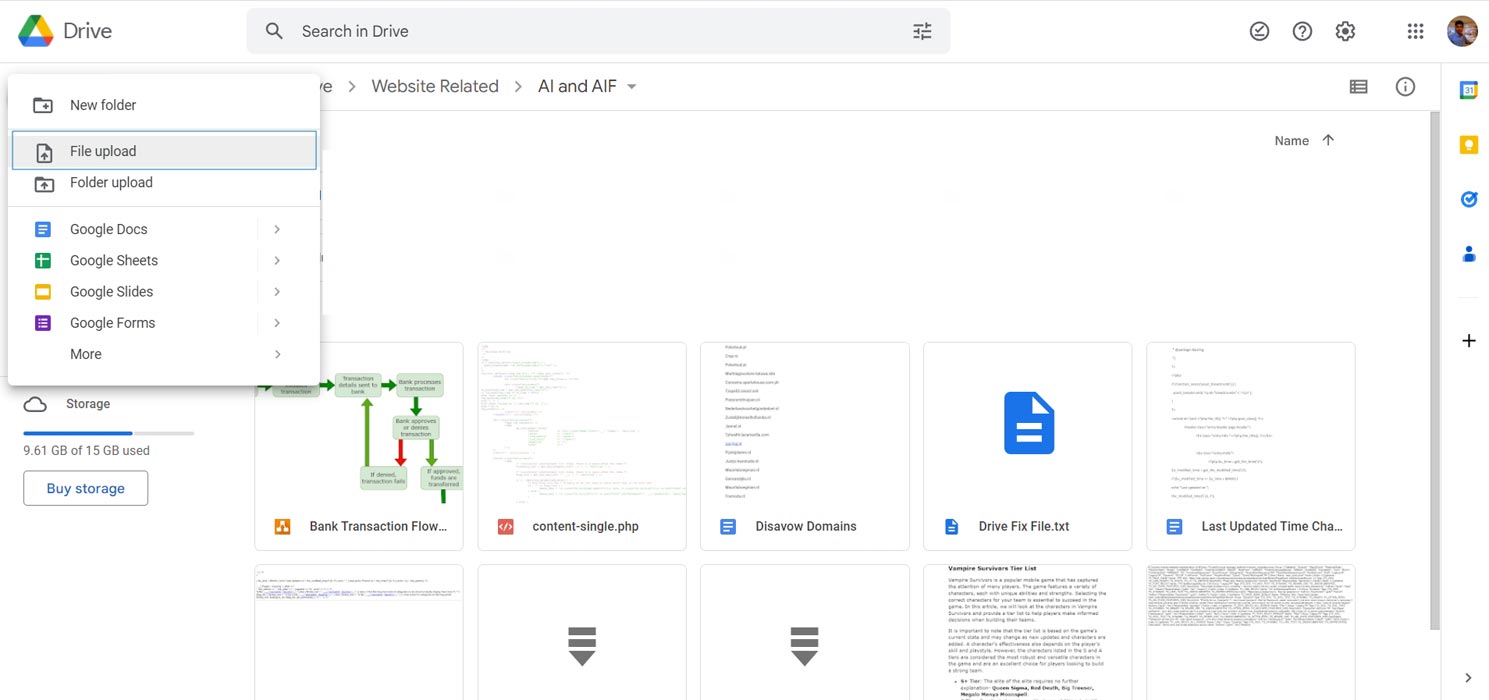
- Click on “New” in the top-left corner of the screen.
- Select “File Upload” and choose the PDF file you want to edit.
Step 2: Open the PDF with Google Docs
Once your PDF file is uploaded to Google Drive, the next step is to open it with Google Docs. Follow these steps:
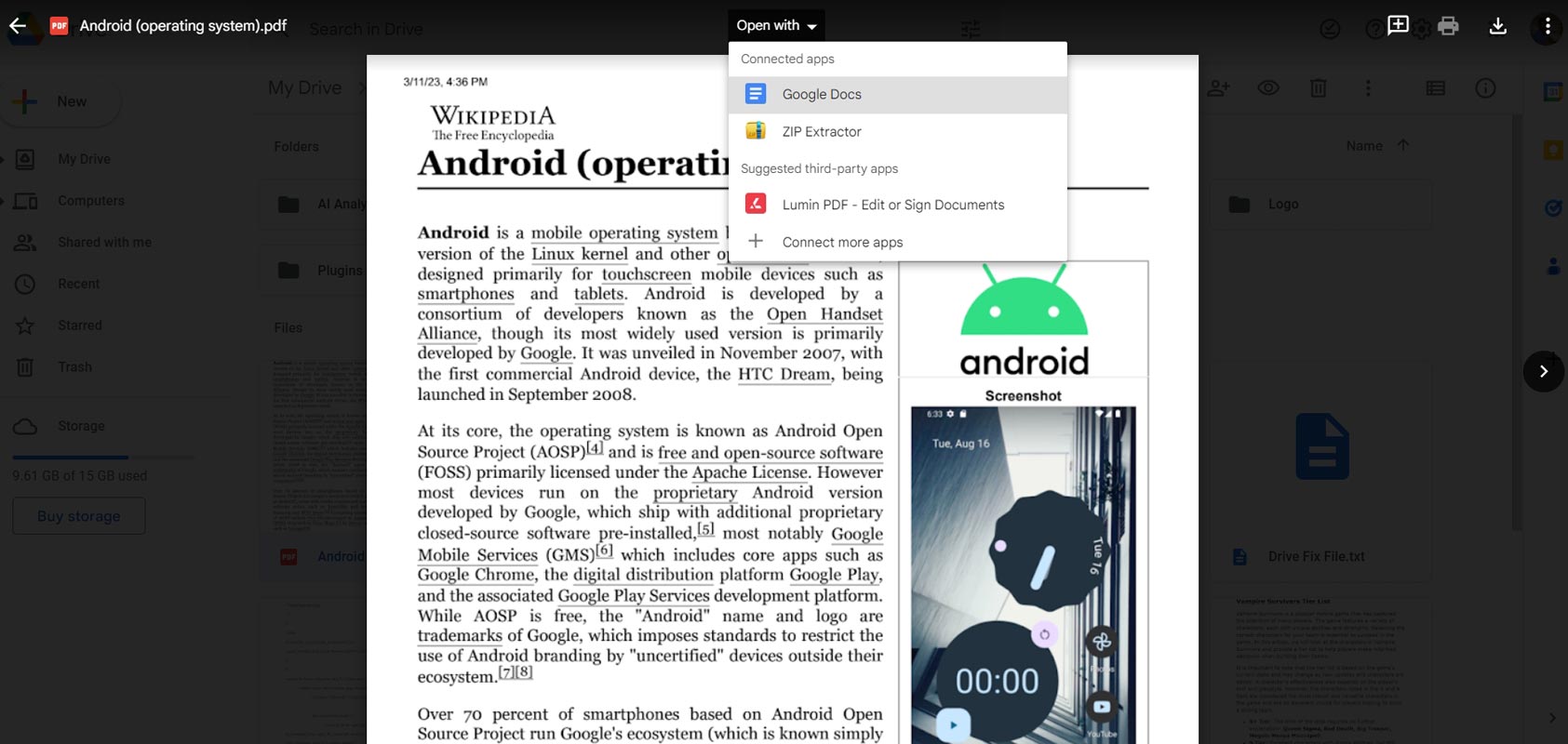
- Locate the PDF file in your Google Drive folder.
- Right-click on the file and select “Open with” and then “Google Docs.”
Step 3: Edit Your Document
Congratulations, you’ve successfully opened your PDF file in Google Docs! You have the freedom to modify your document to your liking. This includes adding or removing text, inserting images, and altering the font and text color.
Step 4: Save and Download Your Document
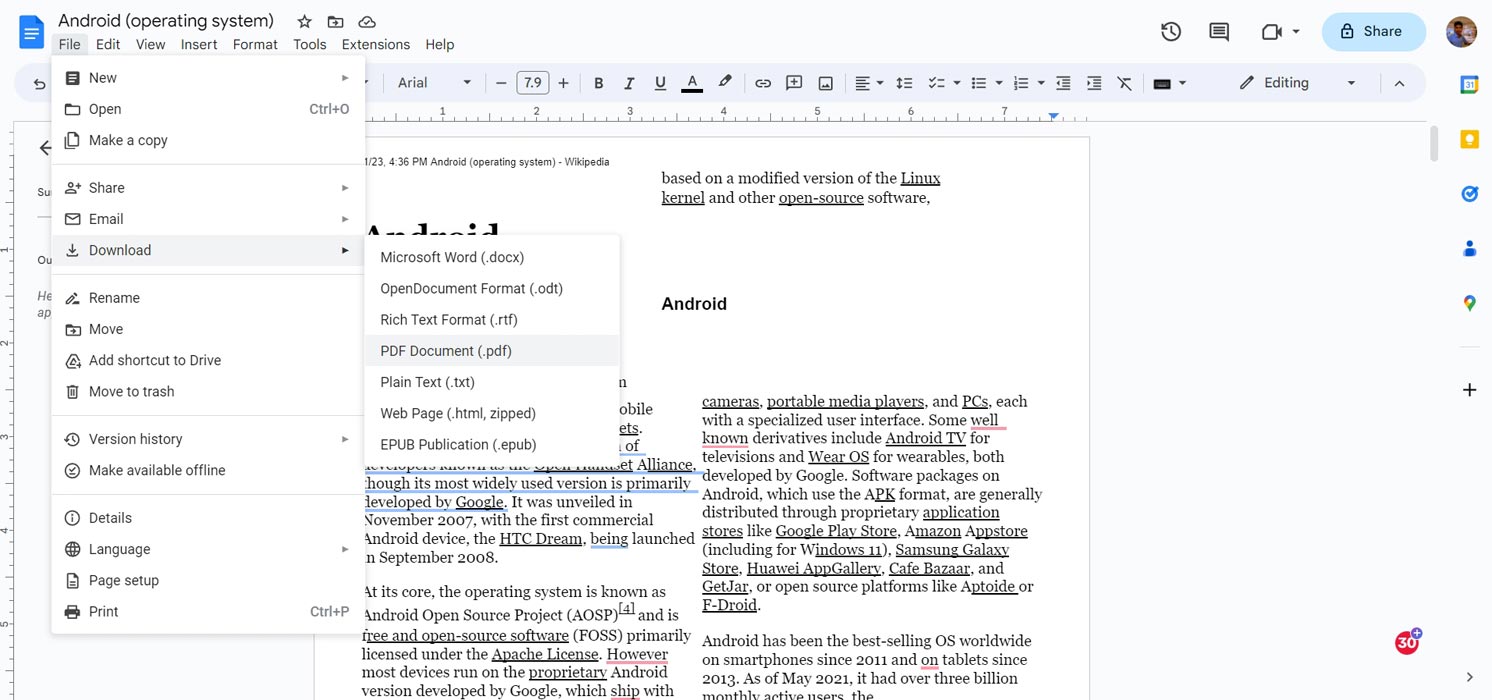
After you have made all the essential modifications to your PDF document, it’s time to save and download it. Here are the steps to follow:
- Select “File,” located at the top-left corner of the screen.
- Select “Download” and choose “PDF Document” from the dropdown menu.
- Choose a destination on your computer to store the updated PDF file, and voila! You’re finished.
Tips for Editing PDFs in Google Drive
Before we wrap up, here are some tips to keep in mind when editing PDFs in Google Drive:
- If your PDF has rich formatting, it’s best to use a dedicated PDF editor to preserve the original design of your document.
- Make sure to save your PDF document regularly while editing to avoid losing any changes.
- If you need to share your edited PDF document with others, provide them with the updated file to avoid confusion.
FAQs
Is it safe to edit sensitive documents using Google Drive?
Yes, Google Drive is secure and uses advanced encryption to protect your data. However, if you’re still concerned about the security of your files, you can use additional measures like two-factor authentication to safeguard your documents further.
Can I edit scanned PDFs using Google Drive?
Unfortunately, Google Drive doesn’t have built-in OCR (optical character recognition) technology, so it can’t directly edit scanned PDFs. However, you can still use Google Drive to convert scanned PDFs into editable formats like Google Docs or Microsoft Word.
How do I preserve my PDF’s formatting when I edit it using Google Drive?
To preserve formatting when editing a PDF in Google Drive, avoid using complex layouts, multiple columns, or images with embedded text. Additionally, you can use a dedicated PDF editor to make more complex formatting changes before uploading your document to Google Drive.
Can I edit a PDF using the Google Drive mobile app?
You can edit PDFs using the Google Drive mobile app on Android and iOS devices. Open the app’s PDF and tap the pencil icon to begin editing.
What happens if I accidentally delete or overwrite my original PDF file when editing it using Google Drive?
If you accidentally delete or overwrite your original PDF file when editing it using Google Drive, don’t worry! Google Drive automatically saves a copy of each version of your document so that you can restore an earlier version of the file from the revision history menu.
Wrap Up
Editing a PDF using Google Drive is efficient and accessible, which is a significant advantage over other specialized software that can be expensive. Following the simple steps outlined in our guide, you can easily make any necessary changes to your PDF documents, saving you time and effort. This method of editing PDFs is also highly collaborative, making it an excellent option for businesses and individuals who need to work on documents with others.
Furthermore, regular saving of the edited document is essential to avoid data loss due to technical issues, and it’s advisable to share the updated file with other collaborators to ensure that everyone is on the same page. Overall, editing PDFs using Google Drive is a game-changer that enables anyone to edit and collaborate on PDF documents without needing specialized software, making it an accessible solution for businesses and individuals.

Selva Ganesh is a Computer Science Engineer, Android Developer, and Tech Enthusiast. As the Chief Editor of this blog, he brings over 10 years of experience in Android development and professional blogging. He has completed multiple courses under the Google News Initiative, enhancing his expertise in digital journalism and content accuracy. Selva also manages Android Infotech, a globally recognized platform known for its practical, solution-focused articles that help users resolve Android-related issues.




Leave a Reply