
Find Google Accounts Linked to Your Mobile Number-Losing track of secondary email addresses happens frequently. Over the years, people create different accounts for work, personal correspondence, school projects, or online subscriptions. In most cases, these accounts share a single common anchor: a mobile telephone number. Google does not maintain a public directory or a single one-click dashboard displaying every account registered under a telephone line. However, Google provides an official username recovery flow that retrieves every account associated with your verified phone number, provided you know the profile name attached to it.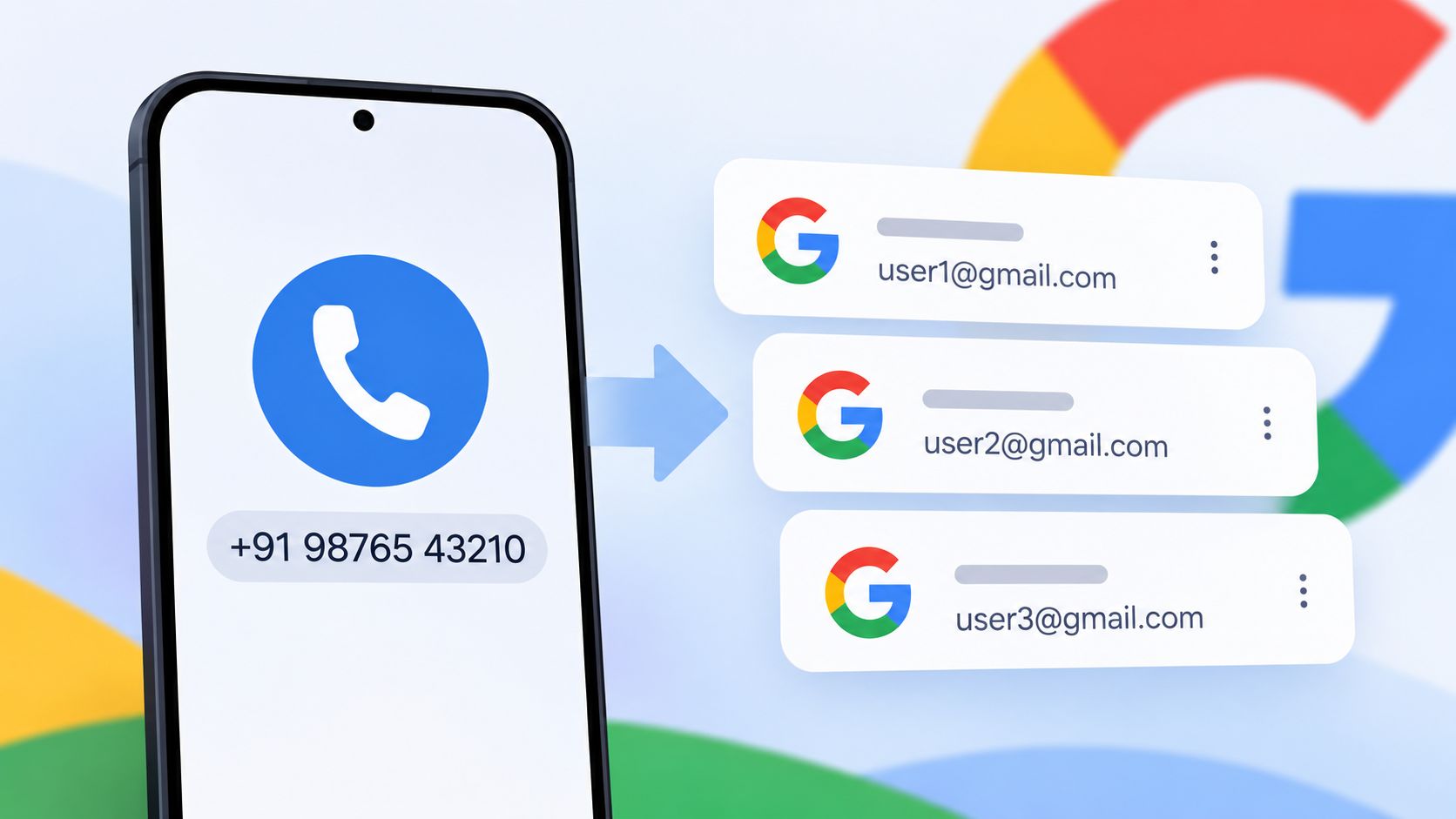
Below is an exhaustive walkthrough on how to uncover all active Google accounts linked to your mobile phone number, along with troubleshooting steps, device checks, and security practices to keep your profiles organized.

Understanding How Google Links Phone Numbers
Before starting the recovery workflow, understanding how Google stores phone numbers clarifies why certain addresses appear while others might not:
-
Recovery Phone Numbers: This is the primary recovery mechanism set within account security settings. When an account uses your number for password resets and identity verification, it is indexed directly to your line.
-
Account Creation Verification: Entering a phone number during initial sign-up to receive an SMS verification code confirms you are a real user. Unless explicitly designated as the recovery number, this creation log does not always automatically associate with the username recovery database.
-
Android Device Syncing: When you sign into an Android smartphone, Google can associate the active SIM card number with the device profile for services like Google Meet, Google Pay, and autofill.
The username recovery tool scans specifically for recovery phone numbers.
Step by Step Guide to Finding Linked Google Accounts
The most reliable, official method to retrieve forgotten addresses is Google’s username recovery tool.
Step 1: Open Google Username Recovery
Navigate to the official recovery portal:
-
Go directly to the Google Account Recovery Page ([accounts.google.com/signin/usernamerecovery](https://accounts.google.com/signin/usernamerecovery)).
-
Alternatively, visit the standard Google sign-in screen, click Sign in, and select the Forgot email? link located just below the email entry field.
Step 2: Enter Your Mobile Phone Number
On the initial screen, enter your complete mobile phone number.
-
Make sure to include the proper country calling code (for example, +1 for North America, +91 for India, or +44 for the United Kingdom).
-
Double-check that your phone is powered on, active, and able to receive standard SMS text messages.
-
Click Next.
Step 3: Enter the First and Last Name Used on the Account
Google requires the exact name associated with the account profile to prevent unauthorized individuals from scraping addresses linked to a phone number.
-
Type your First Name and Last Name into the respective boxes.
-
If you previously used nicknames, business names, or initials when creating specific accounts, you will need to repeat this process testing each name variation separately.
-
Click Next.
Step 4: Complete SMS Verification
Google sends a six-digit verification code to your phone to confirm ownership.
-
Tap Send when prompted.
-
Check your messages for an SMS containing a code formatted as G-XXXXXX.
-
Enter the six digits into the prompt and click Next.
Step 5: Review the List of Accounts
Once verified, Google displays a clean list of every Gmail address and Google account that matches both the verified phone number and the exact name combination you submitted.
-
Note down all visible email addresses.
-
Select any account from the list to proceed straight to password entry or initiate a password reset.
Finding Forgotten Name Variations
The primary hurdle with Google’s recovery process is remembering the profile name. If you receive an error message stating “No account found with this information”, the phone number is either not listed as the primary recovery method or the name entered does not match Google’s records.
To overcome this, run the recovery process across common naming combinations:
-
Legal Name Variations: Your full legal name, middle names, maiden names, or compound surnames.
-
Informal Names: Common nicknames, shortened first names (such as Dan instead of Daniel or Sam instead of Samantha), or preferred monikers.
-
Business or Project Names: If you created an account for freelance work, a blog, a sports team, or a hobby, check whether you put the brand name into the First and Last name fields (for example, First: Blue, Last: Studio).
-
Family Members: If your mobile number was used as a recovery line for children, parents, or a spouse, enter their respective names alongside your phone number.
Alternative Ways to Discover Associated Google Accounts
If username recovery fails to turn up all expected accounts, several secondary methods often reveal dormant email addresses.
1. Check Connected Mobile Devices and Browsers
Most users remain signed into their secondary accounts on at least one secondary device, browser profile, or mobile application:
-
Android System Settings: Go to your device’s Settings > Google or Settings > Passwords & Accounts. Android maintains a direct list of every active Google profile syncing contacts, mail, or Play Store services.
-
Apple iOS Settings: On iPhone or iPad, go to Settings > Mail > Accounts. Review the configured accounts; older Google accounts often linger here even after daily use drops off.
-
Google Chrome Profiles: Open Chrome on your desktop or laptop. Click the profile avatar icon in the top right corner. Scroll down to review the list of saved Chrome profiles and guest sessions.
-
Saved Passwords: Open Chrome’s Password Manager (chrome://password-manager/passwords) or Apple Keychain. Search for accounts.google.com. The list displays saved login credentials alongside their associated email usernames.
2. Search Existing Inboxes for Registration and Forwarding Footprints
Secondary accounts frequently interact with your primary inbox during setup or regular maintenance:
- Account Creation Confirmations: Open your primary email inbox and search for automated messages such as “Welcome to Google”, “Google Account created”, or “Your new Gmail address”.
- Forwarding Alerts: Many people set secondary accounts to forward incoming messages to their primary inbox. Search for “Google forwarding confirmation” to see which addresses configured forwarding to your main account.
- Security Alerts: When a security action occurs, Google sends a notification to linked recovery addresses. Search for “Security alert for linked account” or “Your account was recovered”.
Method Comparison: Recovery Techniques
The table below contrasts each recovery approach based on speed, success rate, and required inputs:
| Method | Primary Requirements | Success Rate | Best Used When |
| Google Username Recovery | Phone number, SMS access, profile name | Very High | Finding accounts where you know your legal or display name |
| Android Account Settings | Device physical access or screen lock | High | Auditing accounts currently syncing to your active smartphone |
| Browser Password Manager | Master password or biometric access | Moderate | Recovering accounts saved during past desktop sessions |
| Email Archive Search | Access to an older primary inbox | Moderate | Locating accounts set up with forwarding or verification links |
Managing and Securing Your Discovered Accounts
Once you have identified all Google accounts associated with your mobile number, clean up your profile footprint:
-
Remove Unused Accounts: Log into old accounts that serve no purpose and delete them permanently via Google Account > Data & Privacy > Delete your Google Account. This eliminates dormant data and reduces exposure risks.
-
Update Stale Recovery Details: If an account remains active, verify that your current phone number and secondary email address are up to date. Remove obsolete landlines or inactive secondary numbers.
-
Turn on Two-Factor Authentication (2FA): Ensure every account you intend to keep uses 2-Step Verification with an authenticator app or security keys rather than relying solely on SMS recovery.
-
Unlink Numbers from Inactive Profiles: If you find accounts created for temporary purposes that you cannot immediately delete, access the account settings and remove your mobile number under Personal Info > Contact Info > Phone to prevent verification limits on new accounts.
Frequently Asked Questions
1. Does Google allow me to see all linked accounts with just a phone number?
No. For privacy and security reasons, Google does not display accounts based solely on a telephone number. You must provide the exact first and last name registered on the profile and verify access via an SMS code before the accounts are displayed.
2. Why does Google say no account was found for my phone number?
This error occurs when the entered phone number was never designated as the formal recovery number, or when the first and last name typed does not match the profile name in Google’s database.
3. How many Google accounts can be linked to one phone number?
Google allows a single mobile phone number to serve as a recovery method for multiple accounts. However, Google limits how many accounts can be verified using the same phone number within a single calendar year to prevent automated abuse and spam registrations.
4. Can someone see my email address if they know my phone number?
No. Even if an unauthorized party knows your mobile phone number, they cannot view your associated email addresses without physically receiving the SMS verification code sent to your phone and correctly submitting your profile name.
5. What should I do if I forgot the name used on my old Google account?
Check your primary email inbox for original confirmation emails, examine your web browser’s saved password history, or check older mobile devices where the account might still be signed in. Google does not provide a recovery path if both the account name and email address are forgotten.
6. Does verifying my phone number at account setup make it my recovery phone?
Not always. Initial phone verification during registration confirms identity at that moment, but unless the phone is saved under the security tab as a designated recovery number, it may not populate in username recovery searches.
7. How do I remove my phone number from an old Google account?
Sign into the target account, navigate to Manage your Google Account, select Personal info, click on the phone number under Contact info, and click the trash can icon to delete it.
8. Will deleting a Google account free up my phone number immediately?
Removing a phone number or deleting an account updates recovery records relatively quickly, though Google’s internal verification counters for annual sign-up limits may take additional time to reset completely.
9. Can I find linked accounts if my phone number changed?
No. If you no longer have access to the old phone number, you cannot complete the SMS verification step required to view associated accounts. You will need to recover the account using a backup recovery email address instead.
10. Can I use a recovery email instead of a phone number to find my accounts?
Yes. Google’s username recovery tool accepts either a verified phone number or a recovery email address. Entering a recovery email follows the exact same process: submit the email, enter your name, verify the email code, and review the matching accounts.

Selva Ganesh is a Computer Science Engineer, Android Developer, and Tech Enthusiast. As the Chief Editor of this blog, he brings over 10 years of experience in Android development and professional blogging. He has completed multiple courses under the Google News Initiative, enhancing his expertise in digital journalism and content accuracy. Selva also manages Android Infotech, a globally recognized platform known for its practical, solution-focused articles that help users resolve Android-related issues.




Leave a Reply