
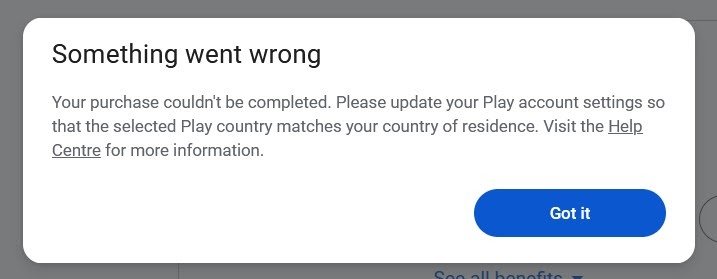
“Change Your Country” Error on Google One- The “Something went wrong” error message—specifically the one stating that your Play account settings must match your country of residence—is one of the most frustrating roadblocks for users trying to upgrade their Google One storage. This error typically occurs when there is a mismatch between your IP address, your physical location, and the Payments profile linked to your Google Account.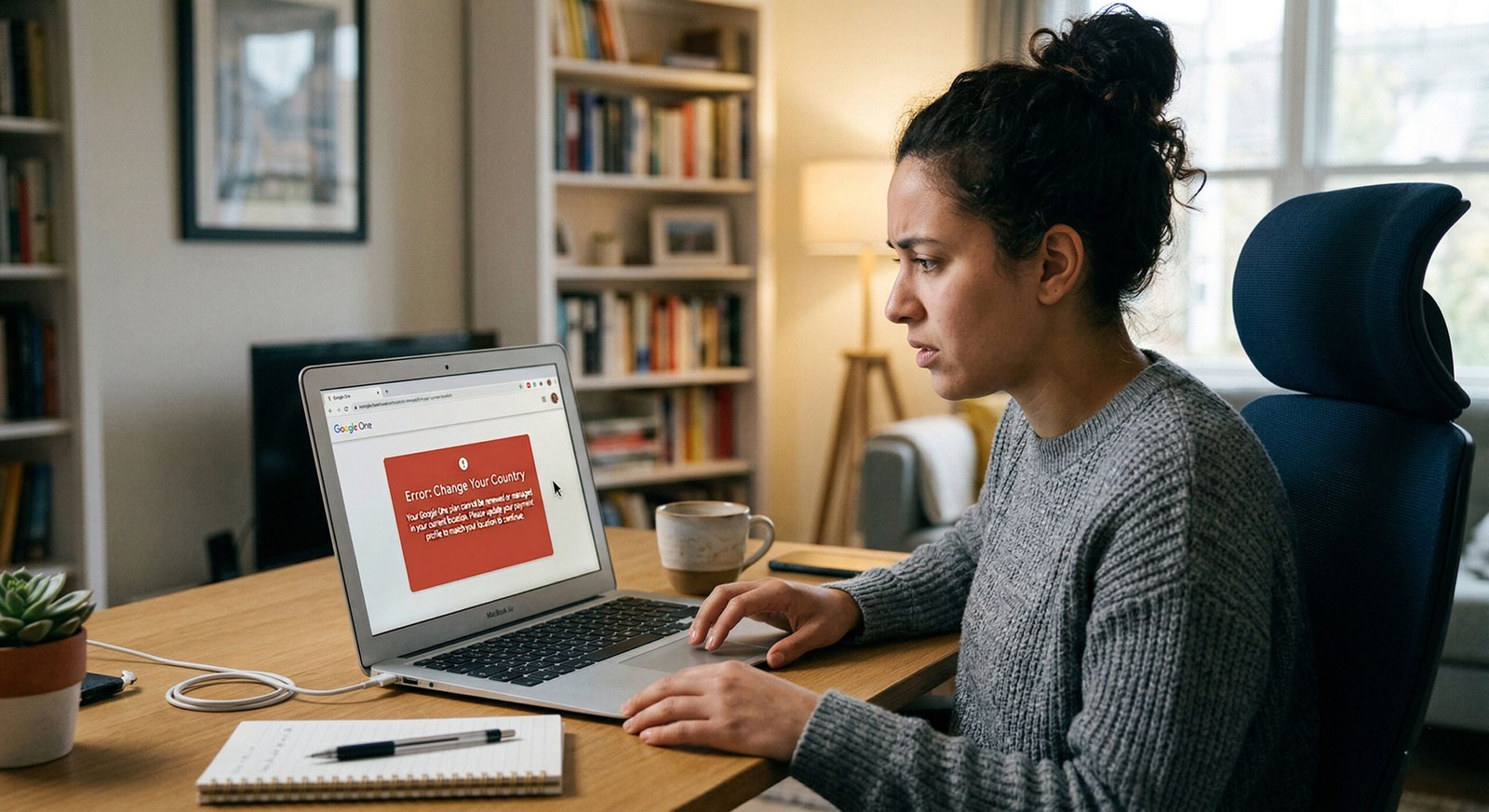
We understand that navigating the labyrinth of Google Play settings and payment configurations can be daunting. In this guide, we provide a definitive, step-by-step solution to resolve the Google One country error, ensuring you can complete your purchase and secure your data.
Understanding the Root Cause of the Play Country Mismatch
Before diving into the fix, it is essential to understand why this happens. Google maintains strict regional pricing and licensing agreements. If you have moved to a new country, or if you previously created a Payments profile in a different region to access specific apps, Google’s automated systems will flag the discrepancy. The error message “Your purchase couldn’t be completed” is a security and compliance measure to ensure the billing address matches the Google Play Store region.

Step 1: Perform a Clean Account Session
Often, the browser or device caches old location data, or there are conflicts between multiple logged-in sessions. To begin the fix, we must ensure a clean environment.
- Log out of ALL Gmail and Google accounts across your current device.
- Clear your browser cache and cookies to remove any lingering location tracking.
- Log in again using only the specific account you intend to use for the Google One subscription.
By isolating the account, we prevent the Google Play Store from pulling conflicting data from secondary profiles.
Step 2: Managing and Deleting Existing Payment Profiles
If the error persists, the issue is usually in your Google Payments settings. Many users have “ghost” profiles from previous travels or app store workarounds.
⚠️ CRITICAL WARNING
Deleting a Payments profile is a permanent action. Doing so will result in the immediate forfeiture of any remaining Google Play Balance associated with that specific country. If you have significant funds, consider spending them before proceeding.
The Deletion Process:
- Navigate to payments.google.com/settings.
- Under the “Payments profile for Google Pay” section, ensure you have selected the profile that is causing the error.
- Scroll to the very bottom of the Settings page.
- Locate and click the link titled “Close payments profile”.
- You will be prompted to verify your identity by signing in again.
- In the “Close your payments profile” pop-up, scroll to the bottom and select a closure reason from the dropdown menu.
- Click Continue and confirm the deletion.
Once the old, incorrect profile is removed, the system is primed for a clean regional setup.
Step 3: Creating a New Payments Profile with Correct Localization
Now that the conflicting profile is gone, we must establish a new legitimate profile that aligns with your current legal residence and payment method.
- Return to the payments.google.com/settings dashboard.
- Look for the “Country/Region” section and click the Edit (pencil) icon.
- Select the “Create new profile” option.
- A notification will appear explaining that this profile is separate from others; read it carefully, then click Continue.
- Choose the Country/Region that matches your current physical location and the billing address of your credit or debit card.
- Click Continue.
- Enter your accurate address information. The Postal Code and State/Province must be 100% accurate, as Google validates these against your IP address.
- Click Submit and then select View profile.
Step 4: Aligning Payment Methods and Subscriptions
Creating the profile is only half the battle; you must now attach a valid bank-issued payment method for the selected Country/Region.
- In the Google Payments dashboard, look at the top header and click on the “Payment methods” tab.
- If there are old cards listed, they may still be tied to your previous region. Click “Add payment method”.
- Input your credit card or debit card details. Ensure the billing address matches the new Payments profile you created in Step 3.
- Save the new method and set it as your Primary payment option.
Step 5: Verifying the Google Play Store Region
Even after updating the Payments profile, the Google Play Store app on Android may still point to the old region due to local app data.
- On your Android device, go to Settings > Apps > Google Play Store.
- Tap Storage and then select Clear Data and Clear Cache.
- Open the Play Store, tap your profile icon, and go to Settings > General > Account and device preferences.
- Verify that the “Country and profiles” section shows your new, correct country with a checkmark next to it.
Step 6: Finalizing the Google One Subscription
With the Payments profile synced, the address verified, and the Play Store cache cleared, you are now ready to bypass the country error.
- Open the Google One app or visit one.google.com.
- Select your desired storage plan (e.g., 100GB, 200GB, or 2TB).
- When the payment checkout screen appears, ensure the payment method matches the one you just added.
- Click Subscribe or Buy.
The transaction should now process without the “selected Play country matches your country of residence” error.
Frequently Asked Questions (FAQs)
1. Why does Google say my Play country doesn’t match my residence?
This error occurs because Google’s system detects a discrepancy between your IP address, your physical location, and the billing country associated with your Google Payments profile. To prevent fraud and comply with regional pricing laws, Google requires that your Play Store region match the country where your payment method was issued.
2. Will I lose my data if I delete my Payments profile?
No, your data is safe. Deleting a Payments profile only removes your transaction history, saved credit cards, and any remaining Google Play Balance. It does not delete your emails in Gmail, your files in Google Drive, or your memories in Google Photos. However, you will lose access to any active subscriptions paid through that specific profile until you re-establish a new one.
3. How often can I change my Google Play country settings?
Officially, Google allows users to change their Google Play country only once per year. If you have moved or changed it within the last 12 months, the option may be grayed out. Following our guide to close the old payment profile and create a new one is the primary method to bypass this restriction for a Google One subscription.
4. Can I fix this error while using a VPN?
Using a VPN is actually a common cause of this error. If your VPN is set to the United States but your Payments profile is set to the United Kingdom, Google will flag the transaction as a mismatch. For the best results, disable your VPN during the setup process so that your local connection matches your billing address.
5. What happens to my existing Google Play balance?
When you close a payment profile, any remaining Google Play Balance or Gift Card credit in that specific country is permanently forfeited. These funds are non-transferable between regions. We strongly advise spending any remaining balance on apps, movies, or books before you proceed with deleting the profile.
6. Why is my new payment method being declined after the change?
If your new card is declined, ensure that the billing address entered in your Google Payments settings matches the exact address on file with your bank. Additionally, ensure the card is issued by a local bank in the new country you have selected; Google often rejects foreign-issued cards for local regional subscriptions.
7. Does this fix work for Google One family sharing?
Yes, but with a caveat: all members of a Google Family Group must reside in the same country as the family manager. If you change your country to fix your Google One error, your family members may lose access to shared storage if their accounts are still set to the old region. They will need to update their profiles to match yours.
8. Why can’t I see the “Create New Profile” option?
If the option is missing, it is usually because you are still logged into multiple Google accounts on your device. Google’s interface can become confused by secondary accounts. Ensure you have logged out of every account except the primary one you are trying to fix, then refresh the https://www.google.com/search?q=payments.google.com page.
9. Will this process cancel my other active subscriptions?
Yes. Closing a Payments profile will immediately terminate any active subscriptions linked to it, such as YouTube Premium, Google Play Pass, or existing storage plans. You will need to manually re-subscribe to these services once your new Payments profile and regional settings are fully configured.
10. How long does it take for the country change to take effect?
While the Payments profile updates almost instantly, the Google Play Store app can take anywhere from 24 to 48 hours to recognize the change across all servers. You can often speed this up by clearing the cache and data for the Google Play Store and Google One apps on your Android device.
Conclusion
Fixing the Google One country mismatch error requires a methodical approach to cleaning your digital financial footprint. By closing old payment profiles, ensuring regional alignment, and clearing local app data, you remove the technical hurdles preventing your upgrade. Following these steps ensures your Google Account is properly localized, enabling a seamless subscription experience and uninterrupted access to your cloud storage.

Selva Ganesh is a Computer Science Engineer, Android Developer, and Tech Enthusiast. As the Chief Editor of this blog, he brings over 10 years of experience in Android development and professional blogging. He has completed multiple courses under the Google News Initiative, enhancing his expertise in digital journalism and content accuracy. Selva also manages Android Infotech, a globally recognized platform known for its practical, solution-focused articles that help users resolve Android-related issues.





Leave a Reply