
If you’re a OnePlus user experiencing difficulties with your Adaptive Refresh Rate, such as being unable to switch between 60Hz and 120Hz, don’t worry; you’re not alone. This is a common issue that many OnePlus users have reported. However, there is good news, as there is a straightforward solution to this problem. In this article, we will provide step-by-step instructions on resolving the issue of a 120Hz refresh rate stuck on your OnePlus device. By following these instructions, you’ll be able to regain control of your phone’s refresh rate and enjoy a smoother experience.
Understanding the Adaptive Refresh Rate
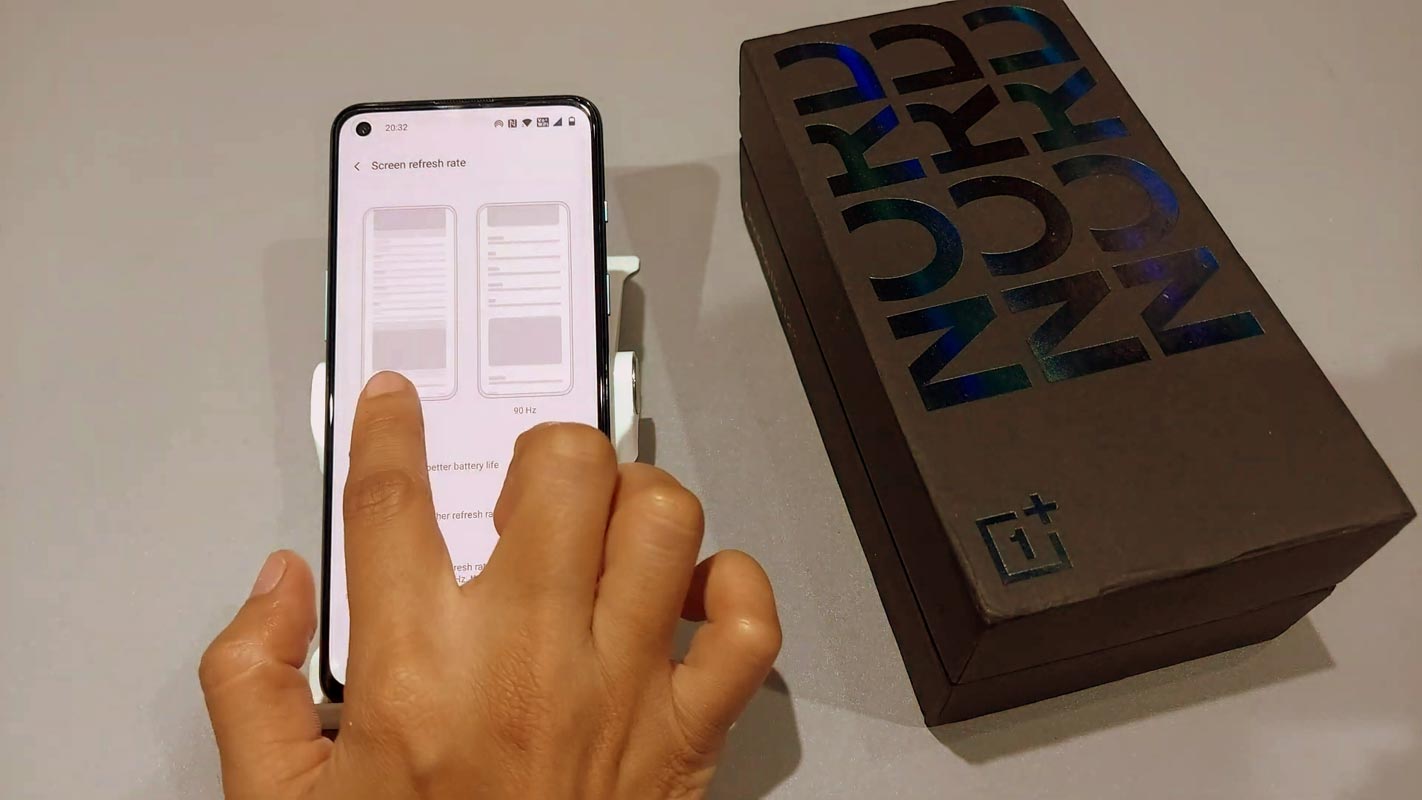
First, let’s understand what an adaptive refresh rate is. The feature is available on many Android devices, including OnePlus. Adaptive Refresh Rate adjusts the screen’s refresh rate based on the activity being performed on your phone. For instance, if you’re watching a video, the refresh rate will be lower to conserve battery life. However, the adaptive feature will adjust accordingly if you’re playing a game requiring higher refresh rates.

OnePlus Adaptive Refresh Rate Not Working
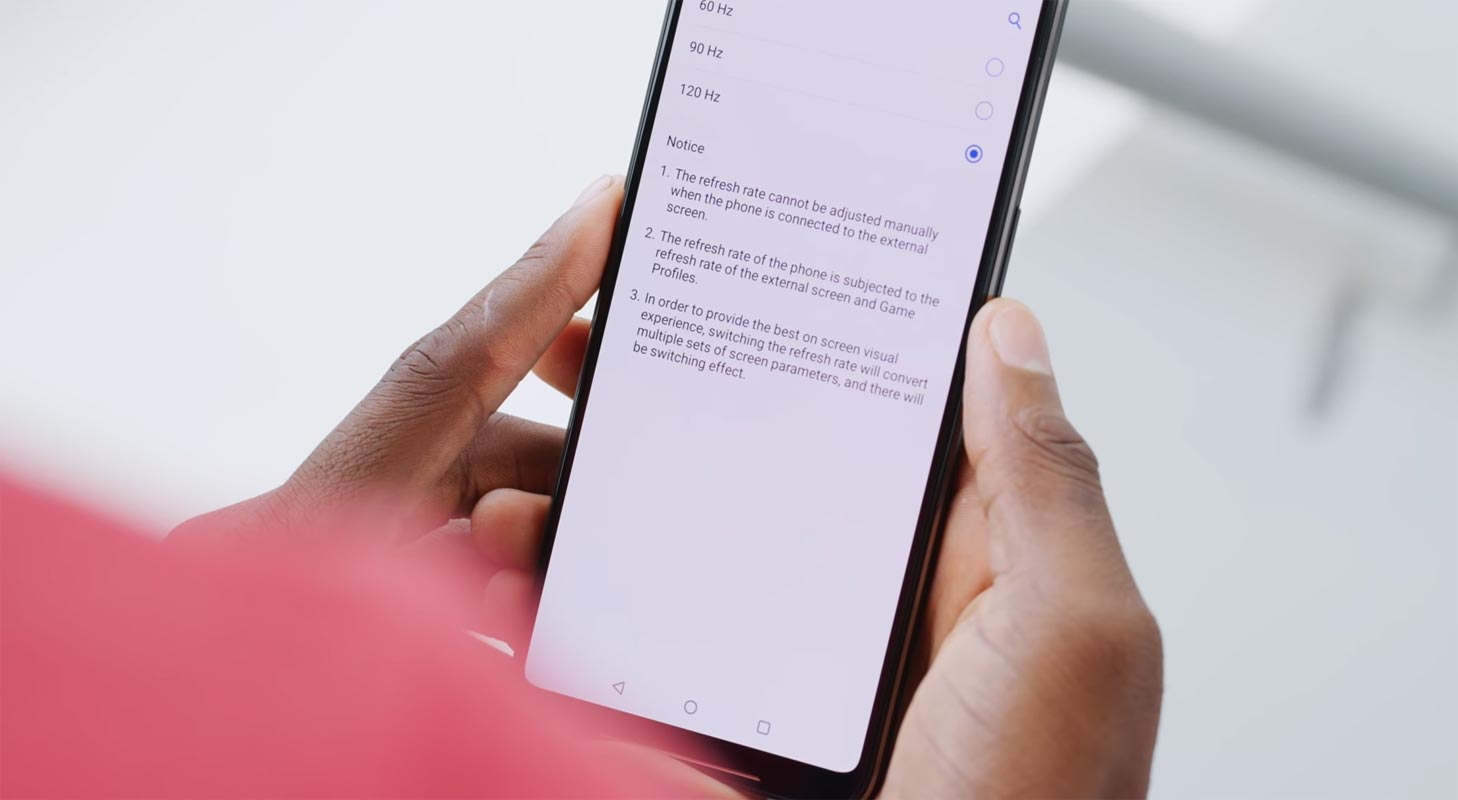
Despite the feature’s benefits, some OnePlus users have reported issues with the Adaptive Refresh Rate. The problem they face is that the refresh rate is stuck at 120Hz and doesn’t change, even when they switch to a different app. This issue not only drains the battery faster but can also affect the device’s performance.
How to Fix OnePlus Adaptive Refresh Rate Not Working?
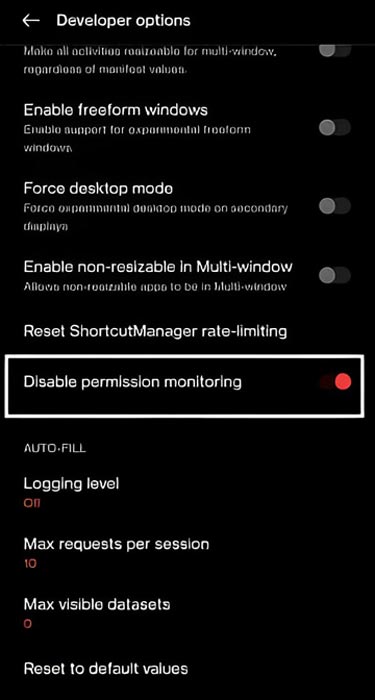
The solution to this problem is quite simple. You need to turn off the “Disable Permission Monitoring” option. Here’s how you can do it:
Method 1
- Go to Settings on your OnePlus device.
- Please scroll down to “About Phone” and tap on it.
- Look for Build Number and tap on it seven times to enable Developer Options.
- Now go back to Settings and scroll down to System.
- Tap on Developer Options.
- Look for Disable Permission Monitoring and turn off the toggle switch next to it.
That’s it! Once you turn off “Disable Permission Monitoring,” your Adaptive Refresh Rate should start working correctly.
Method 2
- Go to Settings on your OnePlus device.
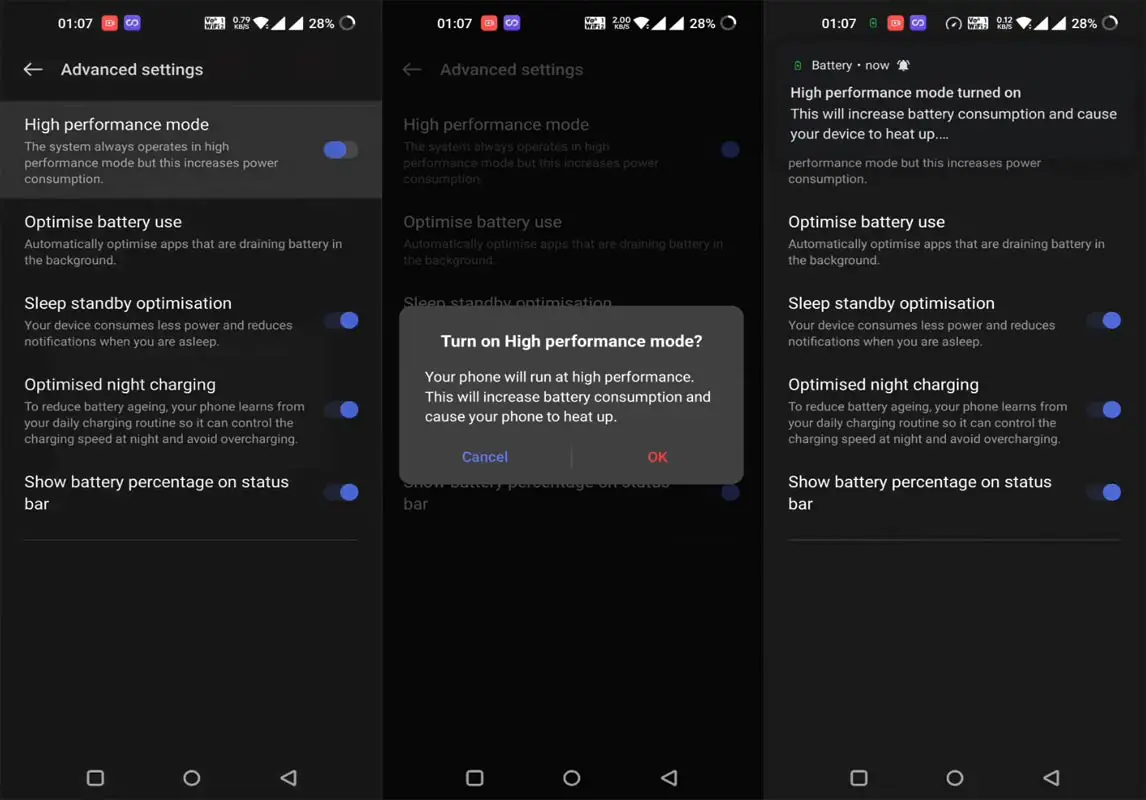
- Please scroll down to “Battery” and tap on it.
- Look for Advanced Settings and tap on it.
- Now select High-Performance Mode and disable it.
FAQs
What is Adaptive Refresh Rate?
Adaptive Refresh Rate is available on many Android devices, including OnePlus. It adjusts the screen’s refresh rate based on the activity being performed on your phone.
Why is my Adaptive Refresh Rate stuck at 120Hz on my OnePlus device?
This issue usually occurs when the “Disable Permission Monitoring” option is turned on. Turning it off should fix the problem.
Will turn off “Disable Permission Monitoring” affect my device’s security?
Turning off “Disable Permission Monitoring” will not affect your device’s security. It will only allow the Adaptive Refresh Rate to work correctly.
How do I enable Developer Options on my OnePlus device?
Go to Settings > About Phone > Build Number and tap on it seven times to help Developer Options.
How can I check if my Adaptive Refresh Rate is working correctly?
You can check your refresh rate by going to Settings > Display > Screen refresh rate.
Wrap Up
To summarize, if you’re experiencing trouble with your OnePlus adaptive refresh rate not functioning correctly, don’t panic. It’s a frequently occurring problem that can be resolved with ease. By following the simple steps mentioned in this article, you can troubleshoot this issue and restore the optimal performance of your device. Always remember to keep your phone up to date with the latest software updates, which often include bug fixes and improvements to the overall user experience. By doing this, you can ensure that your device is functioning smoothly and efficiently.
If you still have any questions or concerns, please get in touch with the OnePlus customer support team, who are always eager to assist you. With some effort and patience, you can quickly get your OnePlus device to operate at its optimal level again.

Selva Ganesh is a Computer Science Engineer, Android Developer, and Tech Enthusiast. As the Chief Editor of this blog, he brings over 10 years of experience in Android development and professional blogging. He has completed multiple courses under the Google News Initiative, enhancing his expertise in digital journalism and content accuracy. Selva also manages Android Infotech, a globally recognized platform known for its practical, solution-focused articles that help users resolve Android-related issues.




Leave a Reply