
How to use Google Gemini Nano Banana 2 Lite – The landscape of artificial intelligence is moving faster than ever, and Google has introduced a tool designed to completely change how we create, modify, and brainstorm visuals. Formally designated as Gemini 3.1 Flash-Lite Image, the Google Gemini Nano Banana 2 Lite model stands as the fastest and most cost-effective solution within Google’s creative AI lineup.
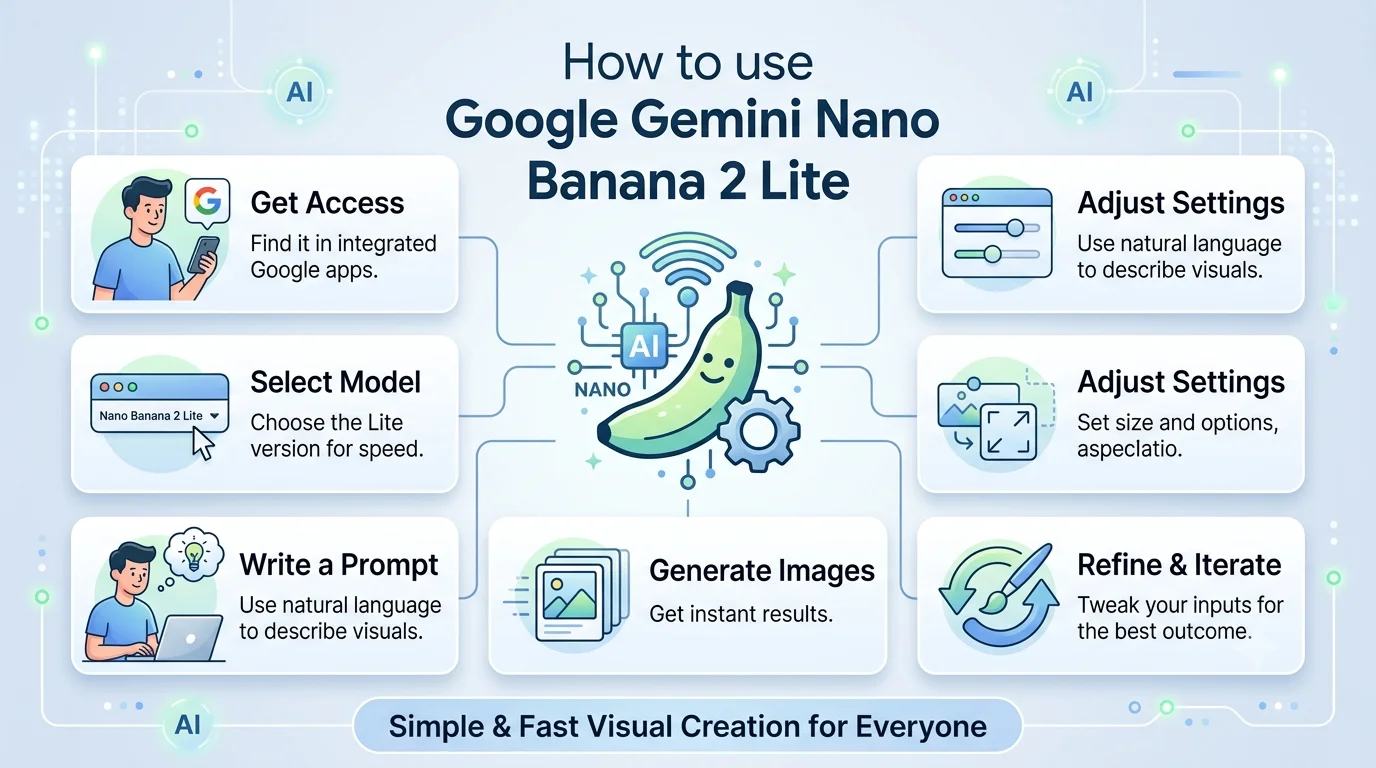

For a long time, generating images with AI felt restricted to tech experts, requiring expensive computers, complicated setups, or a deep understanding of software engineering. Google has broken down these barriers. This model brings rapid, high-quality, and accessible image creation directly to everyday users, small business owners, social media managers, and digital creators.
We have put together this extensive handbook to help you understand what this tool is, where you can find it, and exactly how to use it to its full potential without getting bogged down by complicated tech jargon.
What is Google Gemini Nano Banana 2 Lite?
To understand this tool, it helps to look at the name. The Nano Banana 2 Lite model is part of a larger family of visual AI tools built by Google. In everyday terms, it is an “invisible engine” that takes words you type and turns them into a brand-new digital picture in seconds.
Google designed this specific model with a core focus on speed and affordability. While high-end AI engines can sometimes take several minutes to think, compile, and deliver a single picture, this version does it near-instantfully. It acts as an ultra-fast digital sketchpad. If you are trying to brainstorm layout concepts, create a fast social media post, or test multiple design variations on the fly, this tool is built to keep up with your train of thought without making you stare at a loading bar.
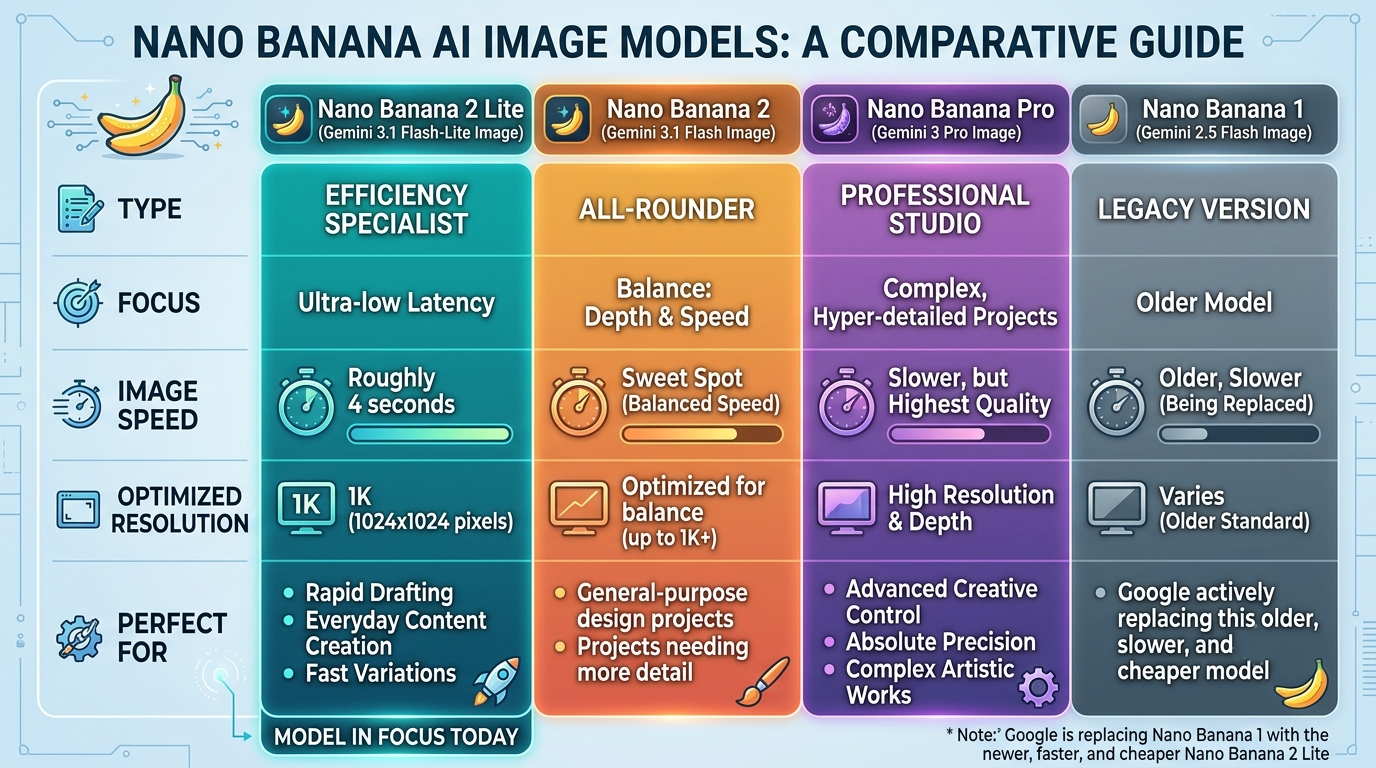
The Nano Banana Family: How the Models Compare
Google offers a few versions of this technology, each tailored for a different kind of task. To help you choose the best tool for your project, we can break the family down into simple categories:
Where to Find and Access Nano Banana 2 Lite
One of the best features of this new release is that you do not need to install complex code or buy specialized hardware to use it. Google is rolling out this high-speed engine across many of its everyday apps and consumer platforms. We can access it through the following spaces:
1. The Standard Gemini App
If you use Google’s main conversational AI assistant (the Gemini app or website), the Nano Banana 2 Lite engine is integrated into the background. When you ask the app to make a quick picture or draft a mockup, this model handles the visual generation behind the scenes to give you answers in seconds.
2. AI Mode in Google Search
Google is injecting this lightweight image model directly into search results. If you are looking for specific visual inspiration or trying to see a quick layout concept, you can prompt the search interface to materialize the image for you instantly.
3. Google Workspace and Productivity Apps
The engine is finding a home inside consumer and business platforms like NotebookLM, Google Photos, Google Flow, Stitch, and Google Ads. For instance, inside Google Ads, small business owners can use it to generate dozens of promotional visual layouts in real-time to find the one that fits their brand perfectly.
4. Third-Party Platforms and Creator Tools
Major creative ecosystems are plugging Google’s new model directly into their toolkits. You can find elements of this fast engine inside digital design programs like Figma Weave and creative asset libraries like Artlist, allowing you to generate illustrations without ever leaving your main workspace canvas.
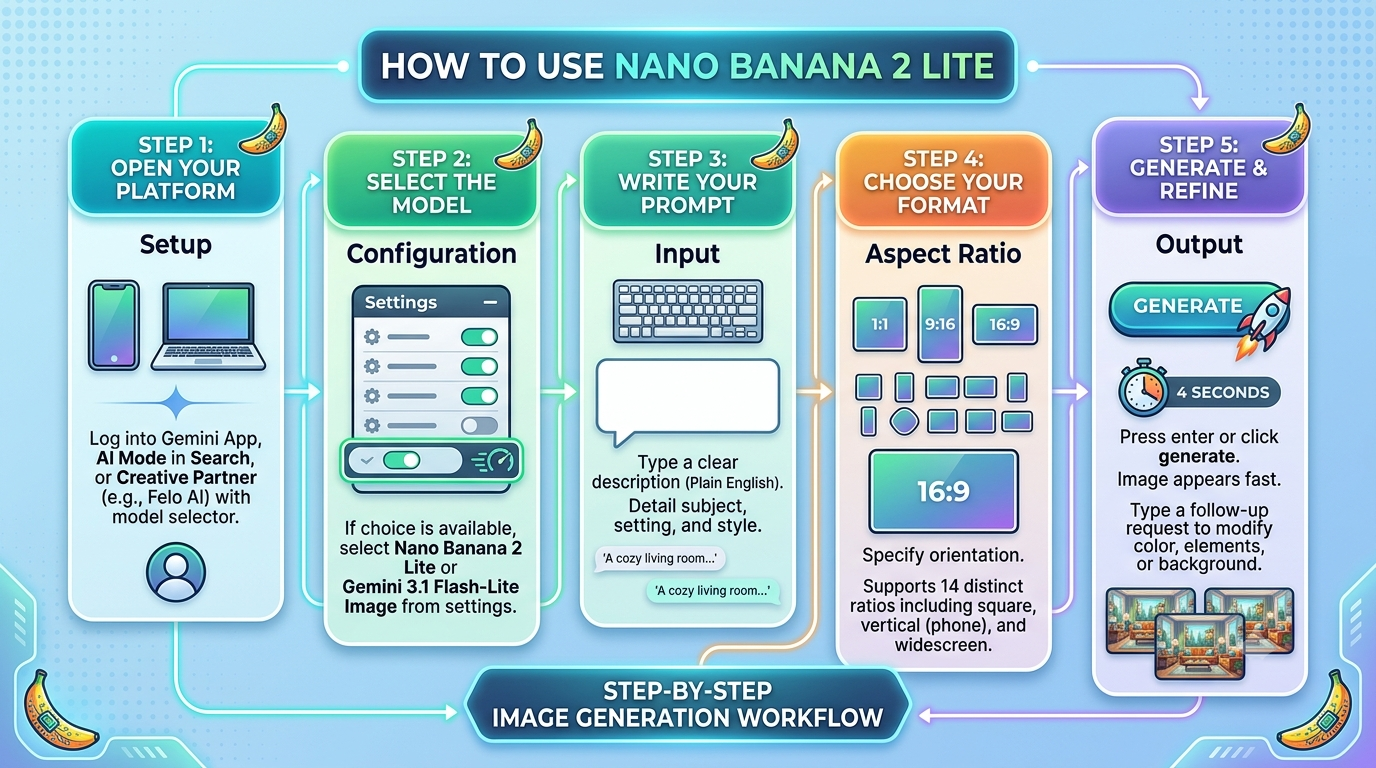
Step-by-Step: How to Use the Model for Everyday Tasks
Using this AI tool is as simple as having a conversation. Because it uses natural language processing, you do not need to write special code or formulas. You just describe what you want to see. Follow this easy workflow to start creating.
Best Practices for Writing Clear Prompts
To get the absolute best results from the Nano Banana 2 Lite model, you want to guide it using structured, natural instructions. Because this model focuses heavily on prompt adherence, the way you describe your idea matters. Here are our top tips for non-technical users:
-
Be Specific but Keep it Simple: Instead of writing “a dog,” try typing “a fluffy golden retriever sitting on a sunny park bench.” Giving the AI a specific subject and environment helps it build a clean layout.
-
Describe the Mood and Lighting: Words like “warm morning sunlight,” “moody neon lights,” or “bright corporate studio lighting” give the engine a clear blueprint for the atmosphere of the image.
-
State the Artistic Style Directly: Tell the model what medium you want. If you want a realistic photo, say “photorealistic photo.” If you want a drawing, use phrases like “clean digital illustration,” “watercolor painting,” or “flat vector graphic.”
-
Leverage Legible In-Image Text: Historically, AI image tools have struggled to spell words correctly inside pictures. The Nano Banana 2 Lite features significant upgrades in multilingual text rendering. If you need a sign, poster, or card, you can confidently include text instructions like: ‘A rustic wooden sign that clearly reads “Welcome Home” in clean black text.’
Maintaining Character Consistency Across Images
A common problem when using creative AI is that if you generate multiple images, the people or objects change completely from one picture to the next. Google has addressed this by optimizing character consistency within this lightweight model.
This is incredibly useful if you are trying to build a storyboard for a short story, map out a comic strip, or create consistent marketing materials for a brand. You can describe a specific character in your first prompt (for example, “a cartoon astronaut with a bright red helmet”). In your subsequent prompts, you can refer back to that exact character while changing the setting (such as “the same cartoon astronaut with a bright red helmet driving a rover on Mars”). The model does an excellent job of locking in those key visual markers across different generations.
Combining Images with Video via Gemini Omni Flash
Google designed the Nano Banana 2 Lite to act as a tag-team partner alongside its brand-new video model, Gemini Omni Flash. Together, they form an end-to-end creative workflow that lets you move from a written thought to a moving clip in moments.
How the Combined Workflow Works:
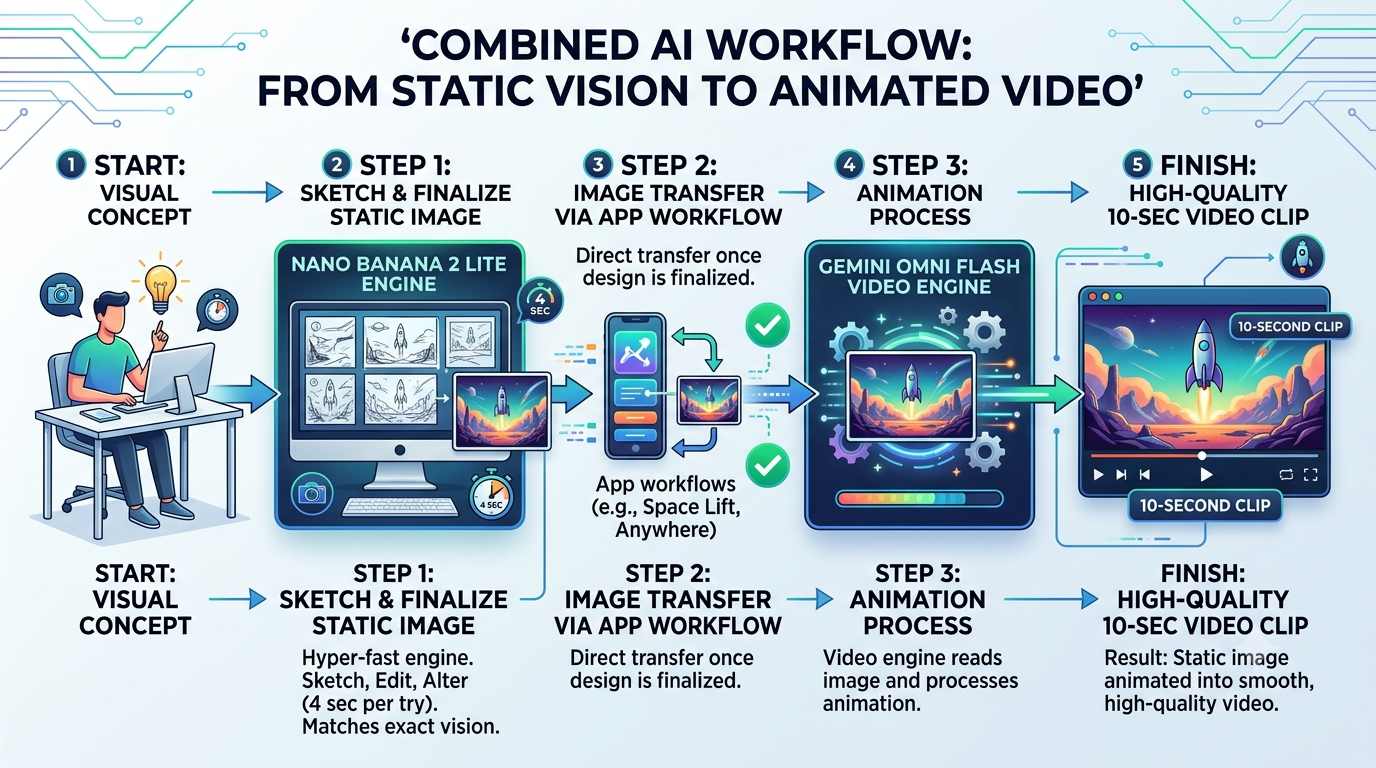
This allows everyday users to create cinematic product showcases, bring interior design ideas to life, or build personalized digital postcards without needing complex video editing software.
Understanding the Limitations
While this model is exceptionally fast and useful, we must keep its design constraints in mind so we can apply it to the right tasks.
-
Fixed Canvas Size: The model is optimized exclusively for a 1K resolution canvas (1024 pixels). It is not meant to export massive, print-ready raw poster files. It is a tool built for screens, layouts, and rapid digital mockups.
-
Good-Enough vs. High-End Art: Because it trades a small amount of deep reasoning for massive gains in speed, ultra-fine details (like microscopic textures or complex architectural blueprint lines) might sometimes lack the perfect polish found in the heavier Nano Banana Pro model.
-
Safety and Watermarking: Google builds safety checks and balances directly into the software. Every image generated automatically carries an invisible SynthID watermark and C2PA content credentials. These digital markers prove the asset was created with AI, ensuring helpful transparency and enterprise-grade governance across the web.

Selva Ganesh is a Computer Science Engineer, Android Developer, and Tech Enthusiast. As the Chief Editor of this blog, he brings over 10 years of experience in Android development and professional blogging. He has completed multiple courses under the Google News Initiative, enhancing his expertise in digital journalism and content accuracy. Selva also manages Android Infotech, a globally recognized platform known for its practical, solution-focused articles that help users resolve Android-related issues.




Leave a Reply