
We have witnessed a significant evolution in mobile photography, but Android 15 introduces a paradigm shift with the Low Light Boost feature. While traditional “Night Mode” or “Night Sight” has existed for years, it typically relies on post-processing—capturing a burst of images and stitching them together after you hit the shutter. Low Light Boost (LLB) is fundamentally different; it is a system-level hardware enhancement that brightens your camera preview and video streams in real-time.
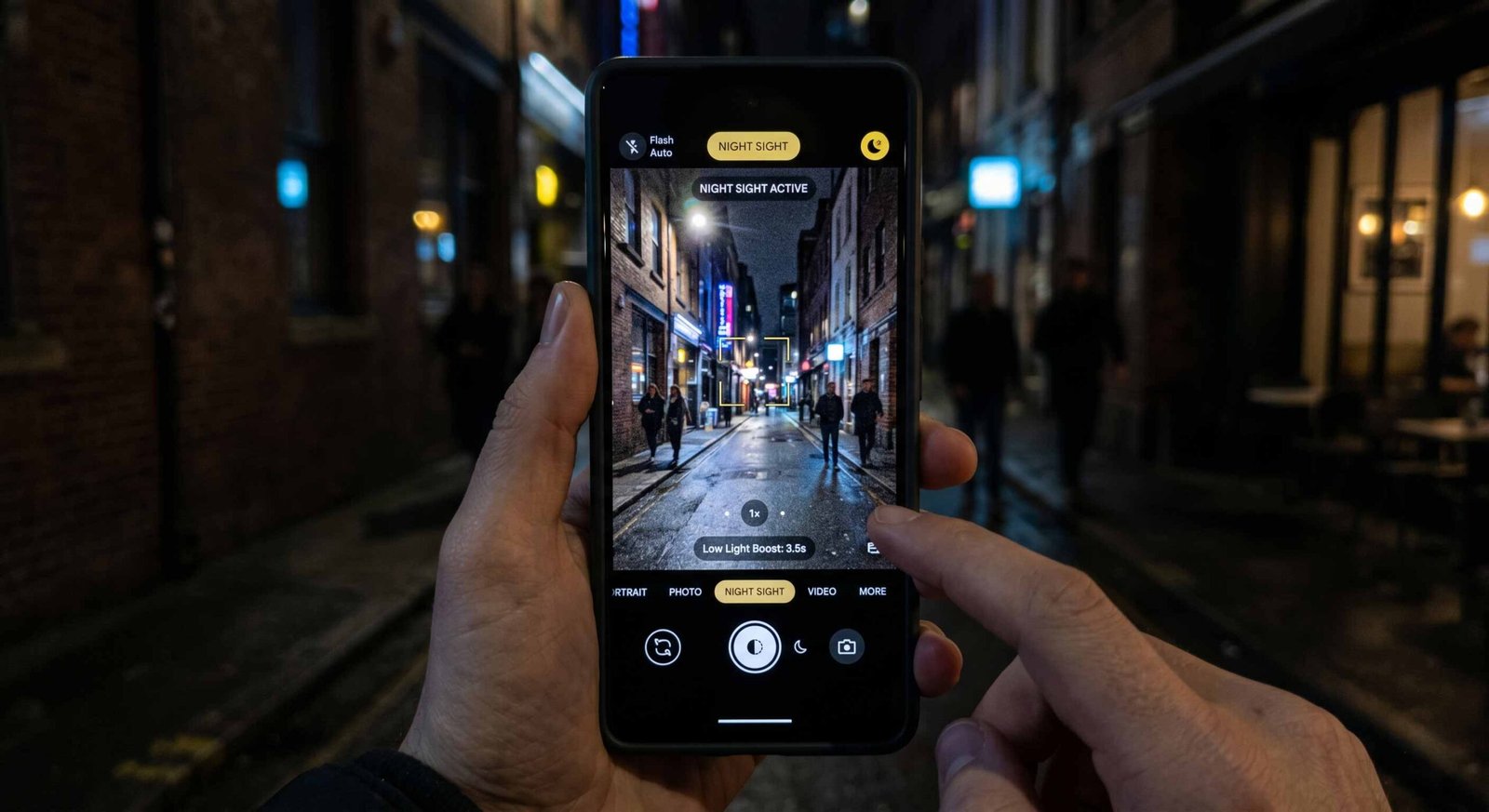

We will explore how to activate and master this feature across your device and within popular third-party apps like Instagram and Snapchat.
Understanding the Technology Behind Low Light Boost
To truly leverage this tool, we must understand what is happening under the hood. Unlike software-based filters, Low Light Boost functions as an Auto-Exposure (AE) mode. It leverages the Image Signal Processing (ISP) and specialized hardware pathways to enhance the light sensitivity of the sensor before the image is even processed.
When we enable Low Light Boost, the system performs Scene Analysis to estimate the true brightness of your environment. If the light levels fall below a specific lux threshold, the device activates HDRNet Processing. This applies a real-time model to brighten the frames, ensuring that what you see in the viewfinder is exactly what you get in the final capture. This is a massive leap for QR code scanning in dark restaurants or framing shots in near-total darkness where the screen would previously have been pitch black.
How to Enable Low Light Boost in Your Camera Settings?
While many users expect this to be a manual toggle in the main settings, Android 15 integrates it intelligently into the camera UI. Here is how we navigate the activation process:
- Open your Native Camera App: Ensure your device is updated to Android 15. This feature is currently most prominent on Pixel 10 and newer hardware, though it is rolling out to other flagship OEMs.
- Enter Low Light Environments: The mode is context-aware. It will not appear in broad daylight. We recommend testing this in a dimly lit room.
- Look for the Moon Icon: In the camera viewfinder, you will notice a hollow moon icon. This indicates that Low Light Boost is available but not yet active.
- Automatic Activation: Once the light level drops sufficiently, the icon will turn solid (often yellow or white), and the preview screen will instantly brighten.
- Manual Override: In most implementations, you can tap the icon to force the boost on or off, depending on your artistic preference.
Using Low Light Boost in Instagram and Snapchat
One of the biggest frustrations for Android users has been the “social media quality gap”—where photos look great in the native app but terrible in Instagram Stories or Snapchat. Android 15 solves this by allowing these apps to tap into the Low Light Boost API.
Activating LLB on Instagram
We have found that Instagram has integrated this directly into the Stories and Reels camera.
- When you open the Instagram camera in a dark setting, a Moon icon will appear on the screen.
- Tapping this icon activates the Android 15 system-level boost.
- This results in a much smoother, brighter video preview, allowing you to see your subjects clearly before recording.
Enhancing Snapchat Snaps
Snapchat utilizes the Camera2 API enhancements provided by Android 15.
- Ensure the Night Mode (moon icon) is toggled in the Snapchat interface.
- Because LLB works on the preview stream, your “Live” Snaps will no longer look grainy or dark. The hardware-level boost ensures the noise reduction happens in real-time.
Low Light Boost vs. Night Sight: When to Use Which?
It is vital to distinguish between these two features to get the best results. We categorize them based on the intent of the capture:
- Low Light Boost is optimized for Live Preview, Video, and QR Scanning by utilizing real-time ISP brightening and HDRNet technology to enhance visibility instantly.
- Night Sight is designed for capturing High-Quality Still Photos through the use of multi-frame exposure stacking during the post-capture processing phase.
We recommend using Low Light Boost when you need to see what you are shooting in real-time or when recording video in dark environments. If you are taking a stationary landscape photo, Night Sight remains the superior choice for absolute image clarity and detail.
Technical Advantages for Video and Scanning
The real-world applications of Low Light Boost extend beyond just “better selfies.”
- Video Recording: Previously, recording video in the dark resulted in “muddy” shadows. LLB provides a continuous stream of enhanced frames, making it the go-to mode for concert videos or nighttime vlogging.
- Scanning QR Codes: We have all struggled to scan a menu in a dark bar. Because LLB brightens the Viewfinder stream, the scanning algorithm can detect the contrast of a QR code much faster, eliminating the need to turn on your flashlight.
Frequently Asked Questions (FAQs)
1. Is Low Light Boost available on all Android phones?
No, it requires Android 15 and specific hardware support from the manufacturer. It is currently available on the latest Pixel devices and select flagship models from companies like Samsung and OPPO.
2. Does Low Light Boost drain more battery?
Because it utilizes the Image Signal Processor (ISP) and runs real-time HDRNet models, it does consume slightly more power than standard previewing. However, it is optimized for efficiency.
3. Can I use Low Light Boost for 4K video?
Support varies by device. Some hardware configurations may limit LLB to 1080p at 30fps due to the intense processing power required to brighten 60 frames per second in real-time.
4. Why don’t I see the moon icon in my camera app?
Ensure you are in a dark enough environment. If the scene is sufficiently lit, the system will not offer the boost. Also, check if your Camera app is updated to the latest version.
5. How is this different from just turning up the screen brightness?
Turning up the screen brightness only affects your display. Low Light Boost actually changes the data being captured by the sensor, resulting in more detail in the actual file, not just a brighter screen.
6. Does it work with the front-facing selfie camera?
Yes, most Android 15 devices support LLB on both the rear and front-facing sensors, significantly improving video call quality in low light.
7. Will it make my photos look “fake” or over-processed?
LLB aims for a “what you see is what you get” look. While it brightens the image, it tries to maintain a natural color balance using scene analysis.
8. Can third-party developers use this feature?
Yes, Google has released the Low Light Boost API, allowing any developer to integrate this into their app’s camera functionality.
9. Does it replace the flash?
It is an alternative to the flash. While flash provides its own light, LLB enhances the available ambient light, often resulting in more natural-looking shots without the harsh “deer in headlights” effect.
10. Do I need to hold the phone still, like in Night Mode?
No. This is one of the biggest benefits. Since it is a real-time boost, you don’t need to hold the phone still for several seconds.

Selva Ganesh is a Computer Science Engineer, Android Developer, and Tech Enthusiast. As the Chief Editor of this blog, he brings over 10 years of experience in Android development and professional blogging. He has completed multiple courses under the Google News Initiative, enhancing his expertise in digital journalism and content accuracy. Selva also manages Android Infotech, a globally recognized platform known for its practical, solution-focused articles that help users resolve Android-related issues.




Leave a Reply