
Small Nezuko Inspired Chrome Dino Game Using Python– Are you ready to build a lightweight, anime-themed side-scrolling game using Python? This comprehensive guide walks you through creating a Small Nezuko-inspired Chrome Dino game using Python and Pygame. With a chibi Nezuko running endlessly, dodging obstacles, and scoring points for each jump, this project is perfect for Python beginners and Demon Slayer fans.
What Is the Nezuko-Inspired Dino Game?
The Nezuko Dino Game is a Python-powered clone of the legendary Chrome Dino Game, enhanced with an anime twist. Instead of a pixel dinosaur, you guide a cute chibi Nezuko from Demon Slayer across an auto-scrolling terrain filled with dynamic obstacles. The mechanics are simple—press SPACE to jump, survive longer, and rack up a higher score.

Top Features of the Nezuko Dino Game
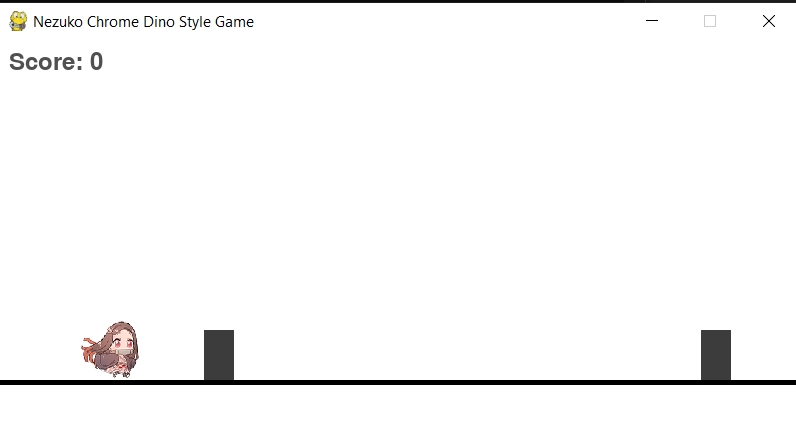
- Endless runner mechanics with infinite gameplay potential
- Nezuko sprite integration with custom image rendering
- ⬆️ Jumping via keyboard (SPACE or UP arrow)
- Random obstacle generation with increasing difficulty
- Score system that rewards every successful jump
- Smooth frame updates and animations with Pygame
System Requirements and Setup
To build this project, ensure the following are installed and configured:
Required Tools
- Python 3.x is installed on your machine
- Pygame library for rendering, events, and animation
Installation Command
- pip install pygame
Project Folder Structure
- Create a new directory, e.g., nezuko_dino_game
- Place the Nezuko sprite (nezuko_small.png) in this directory
- Create a script named nezuko_dino_game.py
- Copy the below script.
- Alternatively, you can simply download the .zip file and run the game.
import pygame
import sys
import random

# Initialize pygame
pygame.init()

# Screen dimensions
SCREEN_WIDTH, SCREEN_HEIGHT = 800, 400
screen = pygame.display.set_mode((SCREEN_WIDTH, SCREEN_HEIGHT))
pygame.display.set_caption("Nezuko Chrome Dino Style Game")

# Colors
WHITE = (255, 255, 255)
BLACK = (0, 0, 0)
GROUND_Y = SCREEN_HEIGHT - 60

# Load Nezuko image
try:
    nezuko_img = pygame.image.load("nezuko_small.png")
    nezuko_img = pygame.transform.scale(nezuko_img, (60, 60))
except Exception as e:
    print("Failed to load Nezuko image. Using placeholder.", e)
    nezuko_img = pygame.Surface((60, 60))
    nezuko_img.fill((255, 100, 100))

# Game variables
gravity = 0.8
jump_speed = -14

class Nezuko:
    def __init__(self):
        self.image = nezuko_img
        self.rect = self.image.get_rect()
        self.rect.x = 80
        self.rect.y = GROUND_Y - self.rect.height
        self.vel_y = 0
        self.is_jumping = False

    def jump(self):
        if not self.is_jumping:
            self.vel_y = jump_speed
            self.is_jumping = True

    def update(self):
        self.vel_y += gravity
        self.rect.y += self.vel_y

        if self.rect.y >= GROUND_Y - self.rect.height:
            self.rect.y = GROUND_Y - self.rect.height
            self.is_jumping = False

    def draw(self, surf):
        surf.blit(self.image, self.rect)

class Obstacle:
    def __init__(self):
        self.width = 30
        self.height = 50
        self.x = SCREEN_WIDTH
        self.image = pygame.Surface((self.width, self.height))
        self.image.fill((60, 60, 60))
        self.y = GROUND_Y - self.height

    def update(self, speed):
        self.x -= speed

    def draw(self, surf):
        surf.blit(self.image, (self.x, self.y))

    def off_screen(self):
        return self.x + self.width < 0

    def collides_with(self, rect):
        return pygame.Rect(self.x, self.y, self.width, self.height).colliderect(rect)

def game_loop():
    clock = pygame.time.Clock()
    font = pygame.font.SysFont(None, 36)
    running = True

    nezuko = Nezuko()
    obstacles = []
    obstacle_timer = 0
    game_speed = 7
    score = 0
    game_over = False

    while running:
        screen.fill(WHITE)
        pygame.draw.rect(screen, BLACK, [0, GROUND_Y, SCREEN_WIDTH, 5])

        for event in pygame.event.get():
            if event.type == pygame.QUIT:
                pygame.quit()
                sys.exit()
            if not game_over and event.type == pygame.KEYDOWN and (event.key == pygame.K_SPACE or event.key == pygame.K_UP):
                nezuko.jump()

        if not game_over:
            nezuko.update()

            # Obstacles
            obstacle_timer += 1
            if obstacle_timer > random.randint(60, 110):
                obstacles.append(Obstacle())
                obstacle_timer = 0

            for obstacle in list(obstacles):
                obstacle.update(game_speed)
                obstacle.draw(screen)
                if obstacle.off_screen():
                    obstacles.remove(obstacle)
                    score += 1
                elif obstacle.collides_with(nezuko.rect):
                    game_over = True

            nezuko.draw(screen)
            score_text = font.render(f"Score: {score}", True, (80, 80, 80))
            screen.blit(score_text, (10, 10))

            pygame.display.flip()
            clock.tick(60)

        else:
            # Display Game Over screen
            nezuko.draw(screen)
            for obs in obstacles:
                obs.draw(screen)
            pygame.draw.rect(screen, BLACK, [0, GROUND_Y, SCREEN_WIDTH, 5])

            score_text = font.render(f"Score: {score}", True, (80,80,80))
            over_text = font.render("Game Over!", True, (220, 30, 30))
            restart_text = font.render("Press 'R' to Restart or 'Q' to Quit", True, (50, 50, 150))
            screen.blit(score_text, (10, 10))
            screen.blit(over_text, (SCREEN_WIDTH // 2 - over_text.get_width() // 2, 140))
            screen.blit(restart_text, (SCREEN_WIDTH // 2 - restart_text.get_width() // 2, 200))
            pygame.display.flip()

            # Wait for input to restart or quit
            waiting = True
            while waiting:
                for event in pygame.event.get():
                    if event.type == pygame.QUIT:
                        pygame.quit()
                        sys.exit()
                    if event.type == pygame.KEYDOWN:
                        if event.key == pygame.K_r:
                            # Restart
                            nezuko = Nezuko()
                            obstacles = []
                            obstacle_timer = 0
                            score = 0
                            game_over = False
                            waiting = False
                        elif event.key == pygame.K_q:
                            pygame.quit()
                            sys.exit()
                clock.tick(16)


if __name__ == "__main__":
    game_loop()
How to Run the Nezuko Dino Game
Once your script is complete and saved, navigate to your project folder and double-click the .py file.
Enjoy your anime-themed endless runner game, with responsive controls and a fun scoring system.
Advanced Game Enhancements for Developers
To elevate your project further, consider these powerful upgrades:
- Add music and sound effects using pygame. Mixer.Sound
- Include varied obstacles like spikes, logs, and flying demons
- ️ Animate clouds and textured ground for visual flair
- Implement high score saving with file I/O
- ️ Use sprite sheets for animated Nezuko walking and jumping
- ️ Create a main menu and game over screen for a complete user experience
Why This Game is Worth Building
- Strengthens Python fundamentals through real-time object handling
- Enhances OOP and logic-building capabilities
- Hands-on Pygame practice with smooth UI interactions
- Portfolio-ready project that shows creativity and coding skill
- Replayable and scalable, ideal for long-term learning
Wrap Up
You’ve now built a fully functional, lightweight side-scrolling Python game starring Nezuko. This project combines anime visuals with solid coding fundamentals to deliver a compelling, hands-on game development experience using Python and Pygame. Whether you’re learning, showcasing, or just having fun—this game offers the perfect mix of simplicity and customization.

Selva Ganesh is a Computer Science Engineer, Android Developer, and Tech Enthusiast. As the Chief Editor of this blog, he brings over 10 years of experience in Android development and professional blogging. He has completed multiple courses under the Google News Initiative, enhancing his expertise in digital journalism and content accuracy. Selva also manages Android Infotech, a globally recognized platform known for its practical, solution-focused articles that help users resolve Android-related issues.




My friends challenged me to create this after reading your guide. It was a great experience and I’m proud of the end result!