
This extensive guide aims to provide a step-by-step exploration of How to Remove All Residual Files After Uninstalling an App on a Mac. Whether you lean towards the simplicity of a drag-and-drop technique or the precision of Terminal commands, we’ve compiled a comprehensive resource to cater to your preferences. Additionally, we’ll acquaint you with third-party tools that can significantly facilitate this process, enhancing the cleanup and optimization of your Mac. Our goal is to ensure you understand the uninstallation options available, empowering you to choose the most suitable one for a thorough and efficient decluttering of your system, leading to a seamless and organized Mac experience.
Remove All Residual Files on Mac- Using the Drag-and-Drop Method:
The simplest way to uninstall an app is by dragging its icon to the Trash in your Dock. Once the app’s icon is in the Trash, the system will prompt you to confirm the deletion. Click “Delete” to proceed.

Uninstalling via Launchpad
- Open the Launchpad on your Mac.
- Hold down the app icon until it enters “Jiggle Mode.”
- Select the ‘X’ button on the app you want to remove.
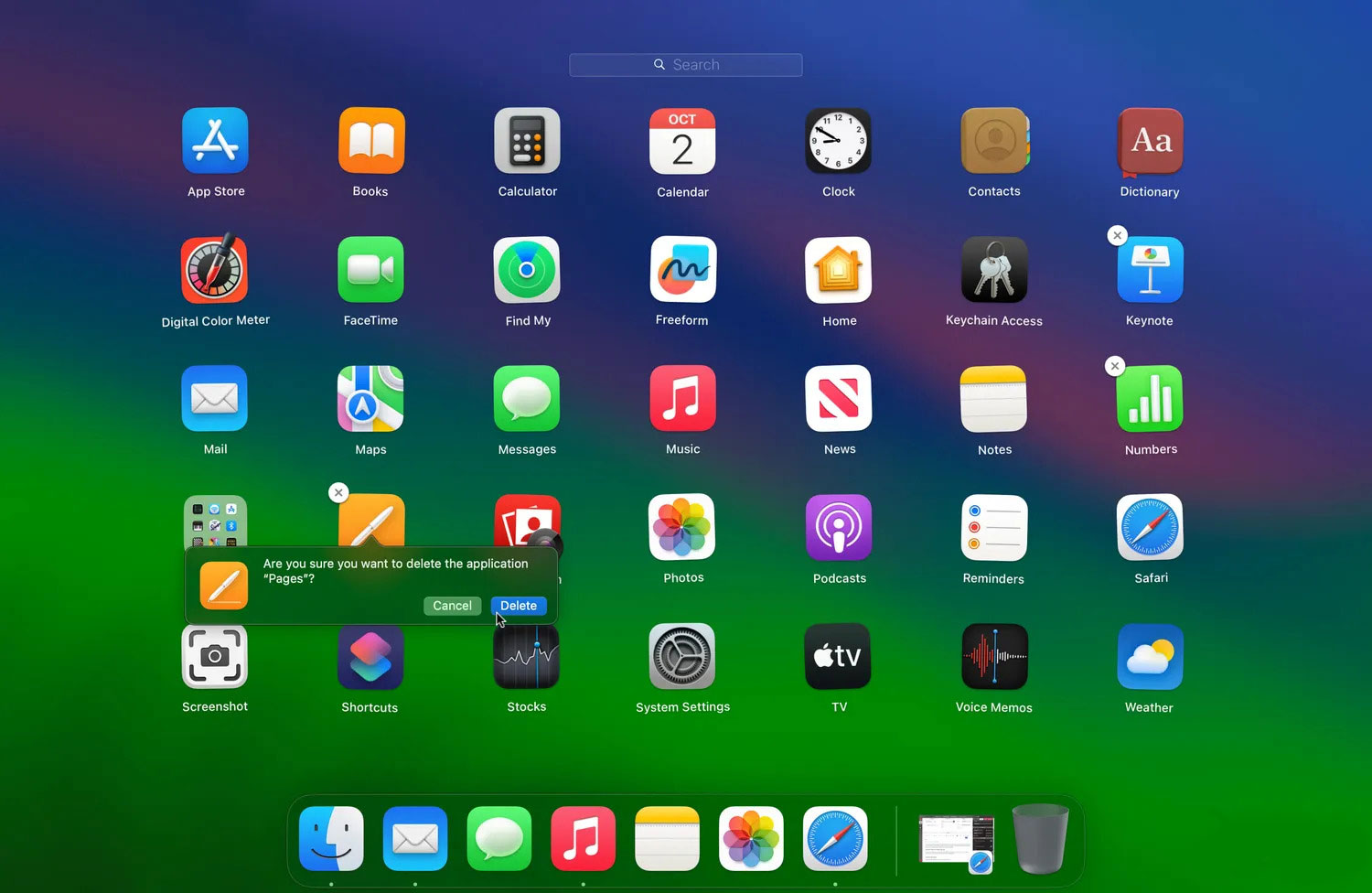
- Confirm the deletion by clicking “Delete.”
Utilizing Terminal Commands
- Launch the Terminal app on your Mac.
- Type the command: sudo uninstall file://
- Drag the app you want to uninstall into the Terminal window.
- Press “Return” and authenticate using your administrator password.
Third-Party Uninstallers
- Some third-party apps come with built-in uninstallers.
- Look for an “[app name] Uninstaller” app in your Applications folder.
- Launch it to uninstall the app and any bundled components.
Thorough Cleanup with AppCleaner
For a more comprehensive cleanup:
- Use AppCleaner, a free and efficient tool.
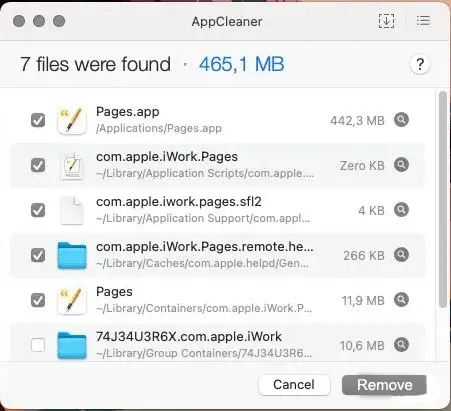
- Drag the app’s icon to AppCleaner in the Dock.
- Select all associated files and click “Remove.”
Removing Widgets and Plugins
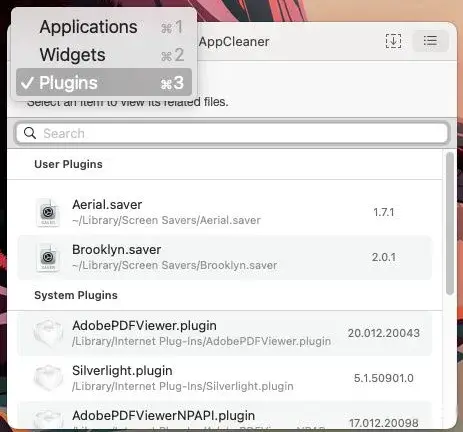
- AppCleaner also allows you to remove widgets and plugins associated with the app.
Addressing Malware Concerns
If you suspect malware:
- Use Malwarebytes, a reliable anti-malware tool for macOS.
- Perform a scan and eliminate any identified threats.
FAQs
Can I uninstall multiple apps simultaneously using these methods?
You can uninstall multiple apps using the drag-and-drop or Launchpad method.
Are third-party uninstallers safe to use?
Reputable third-party uninstallers like AppCleaner are safe and effective for removing apps and associated files.
Will uninstalling an app using these methods delete my data?
Uninstalling an app typically does not delete your data unless you choose to remove associated files during the process.
Can I reinstall an app after uninstalling it?
You can reinstall an app from its source or the Mac App Store after uninstalling it.
Is Malwarebytes for Mac effective against all types of malware?
Malwarebytes for Mac is effective against a wide range of malware, including viruses, adware, and spyware.
Wrap Up
Removing applications from your Mac and eradicating lingering files is vital to uphold optimal system performance and security. A streamlined and efficient Mac experience is contingent on judiciously choosing a method that aligns with your preferences and proficiency. Whether you opt for the simplicity of dragging an app to the Trash, the organized approach via the Launchpad, or the command-line precision through Terminal, each method seeks to achieve the common goal of decluttering your system. By doing so, you not only free up valuable storage space but also reduce the likelihood of potential security risks.
It’s imperative to prioritize this maintenance task, ensuring your Mac functions smoothly, unburdened by redundant files and unnecessary applications. Take the initiative to enhance your Mac’s performance and safeguard your digital realm by employing the uninstallation method that resonates with you.

Selva Ganesh is a Computer Science Engineer, Android Developer, and Tech Enthusiast. As the Chief Editor of this blog, he brings over 10 years of experience in Android development and professional blogging. He has completed multiple courses under the Google News Initiative, enhancing his expertise in digital journalism and content accuracy. Selva also manages Android Infotech, a globally recognized platform known for its practical, solution-focused articles that help users resolve Android-related issues.




Leave a Reply