
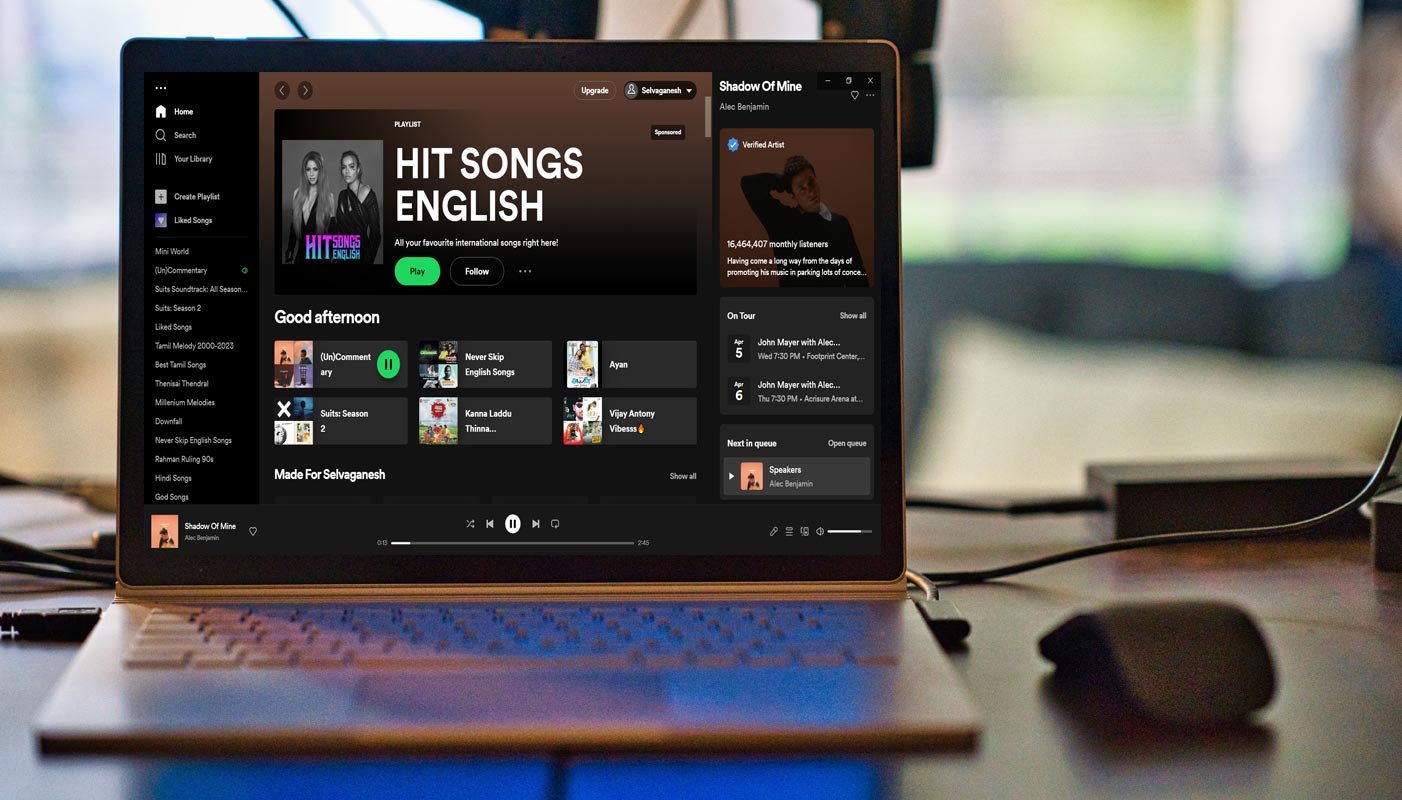
You can Remove the New Spotify Autoplay Feed on the Desktop using the below method. Spotify has always been a popular music streaming platform, but its latest feature is causing some uproar among its users. The new Autoplay feed elements on the homepage UI play automatically with the audio turned on by default, frustrating users who want to listen to music without interruptions. In this article, we’ll explore how you can remove the new Spotify Autoplay feed on the desktop app.

The Problem with Autoplay Feed on Spotify Desktop App
The Autoplay feed can be a hassle for those who want to listen to uninterrupted music. The Autoplay feed feature has been designed to resemble stories or reels and plays automatically every time a user opens Spotify. The problem is that this feature is turned on by default and cannot be turned off easily. To silence the feed, users must either click on the mute icon or scroll past it, which can be a hassle and take up valuable time. As a result, many users are frustrated and annoyed with the Autoplay feed playing in the background.

How to Turn Off Autoplay on Spotify Desktop App?
In response to user complaints, Spotify has suggested disabling Autoplay in the app’s settings. By doing so, users can prevent additional music from playing once their playlist ends. Here’s how you can turn it off on your desktop app:
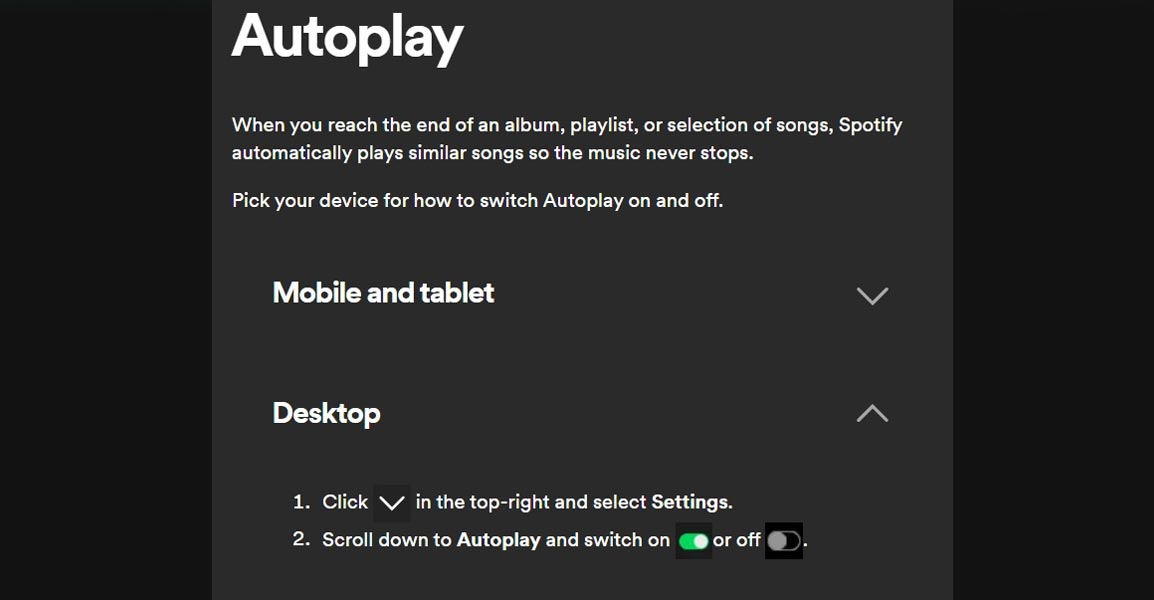
- Open the Spotify app on your Desktop.
- Click the “Settings” icon at the screen’s top right corner.
- Scroll down to the “Autoplay” section.
- Toggle off the “Autoplay” switch.
Once you turn off Autoplay, the Autoplay feed won’t play on your desktop app anymore.
Alternatives to the Desktop App
If you find the Autoplay feed too distracting, there are two alternatives to the desktop app that you can use.
- Revert to the old desktop version until Spotify fixes the issue or fixes a new UI update.
- Use Spotify Web Player. Spotify Web Player is a web-based version of Spotify that allows you to stream music directly from your web browser. It’s free to use, and you can access it from any internet-connected device.
FAQs
Is the Autoplay feed available on the mobile app?
Yes, the Autoplay feed is available on the mobile app as well.
Can I turn off the Autoplay feed on the mobile app?
You can turn off the Autoplay feed on the mobile app by following the same steps as turning it off on the Desktop.
Will turning off Autoplay affect my listening experience?
No, turning off Autoplay will not affect your listening experience. It will only prevent the Autoplay feed from playing on the desktop app.
Can I still use the Autoplay feature?
Yes, you can still use the Autoplay feature if you want to. You have to turn it on in the settings.
Is Spotify Web Player free?
Yes, Spotify Web Player is completely free to use.
Wrap Up
The Autoplay feed feature on the Spotify desktop app can frustrate users who want to listen to music without interruptions. Fortunately, you can turn off Autoplay in the settings, and if that doesn’t work, you can always revert to the old desktop version or use Spotify Web Player. We hope this article has helped you remove the Autoplay feed on your Spotify desktop app.

Selva Ganesh is a Computer Science Engineer, Android Developer, and Tech Enthusiast. As the Chief Editor of this blog, he brings over 10 years of experience in Android development and professional blogging. He has completed multiple courses under the Google News Initiative, enhancing his expertise in digital journalism and content accuracy. Selva also manages Android Infotech, a globally recognized platform known for its practical, solution-focused articles that help users resolve Android-related issues.




Leave a Reply