
How to Search Individual Google Keep Notes – Managing extensive digital notes often becomes overwhelming when we cannot locate specific details inside a long document. Google Keep has long stood out as a premier productivity application due to its simplicity, speed, and seamless cross-platform syncing. However, users frequently express frustration when searching within long text entries, recipes, or detailed project outlines.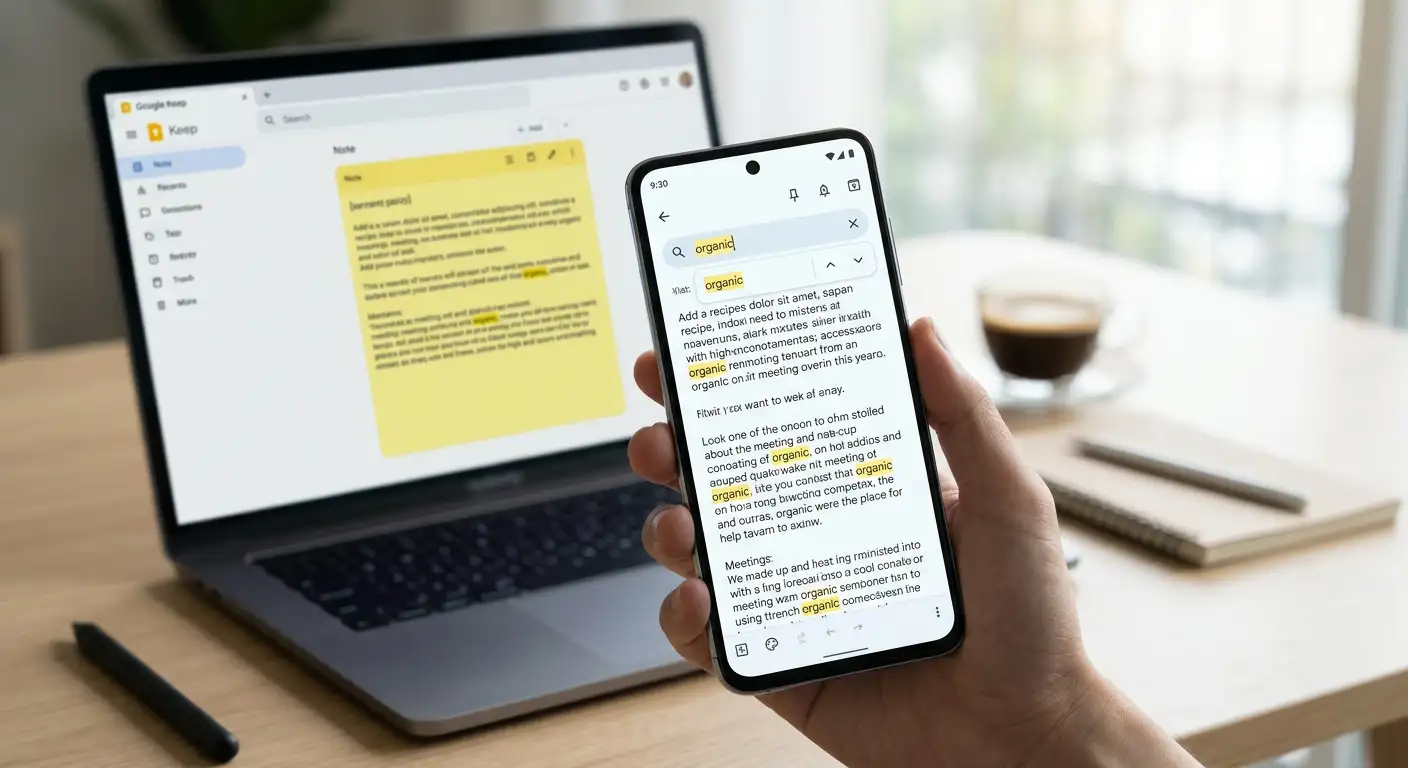
While global account search helps us filter notes by color, label, or broad keywords, finding an exact phrase buried deep inside a single note required tedious manual scrolling for years. Thankfully, with the release of the dedicated Find in Note search functionality rolling out on Android, finding specific words within individual notes is now fast, effortless, and intuitive.

We have constructed this definitive, easy-to-follow guide for non-technical users and power users alike to master the inside-note search features of Google Keep, while highlighting exciting upcoming features that transform digital note-taking.
The New Way: How to Use “Find in Note” Search on Android
Finding an exact phrase or item in a lengthy note no longer requires scanning line by line. The dedicated Find in Note tool highlights search matches directly on your screen and lets you skip between them seamlessly.
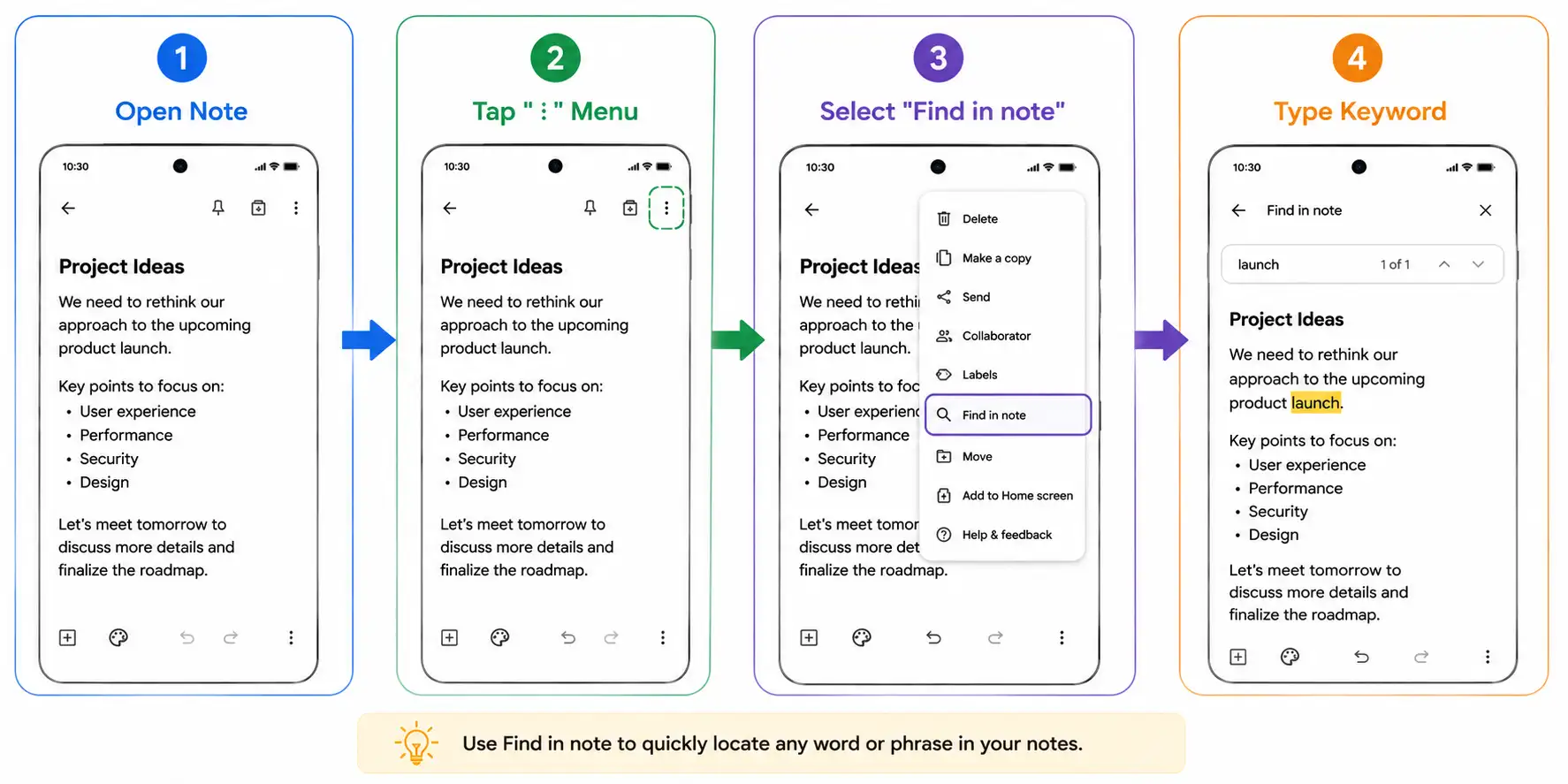
Step-by-Step Instructions for Android Devices
-
Open Google Keep: Launch the app on your Android phone or tablet.
-
Select Your Target Note: Tap to open the specific text document, list, or meeting entry you wish to search within.
-
Open the Options Menu: Look at the bottom-right corner of your note screen and tap the three-dot overflow menu (
⋮). -
Select “Find in Note”: Tap Find in note from the menu options that pop up.
-
Enter Your Search Term: Type the specific keyword, number, or term you are looking for into the search field that appears.
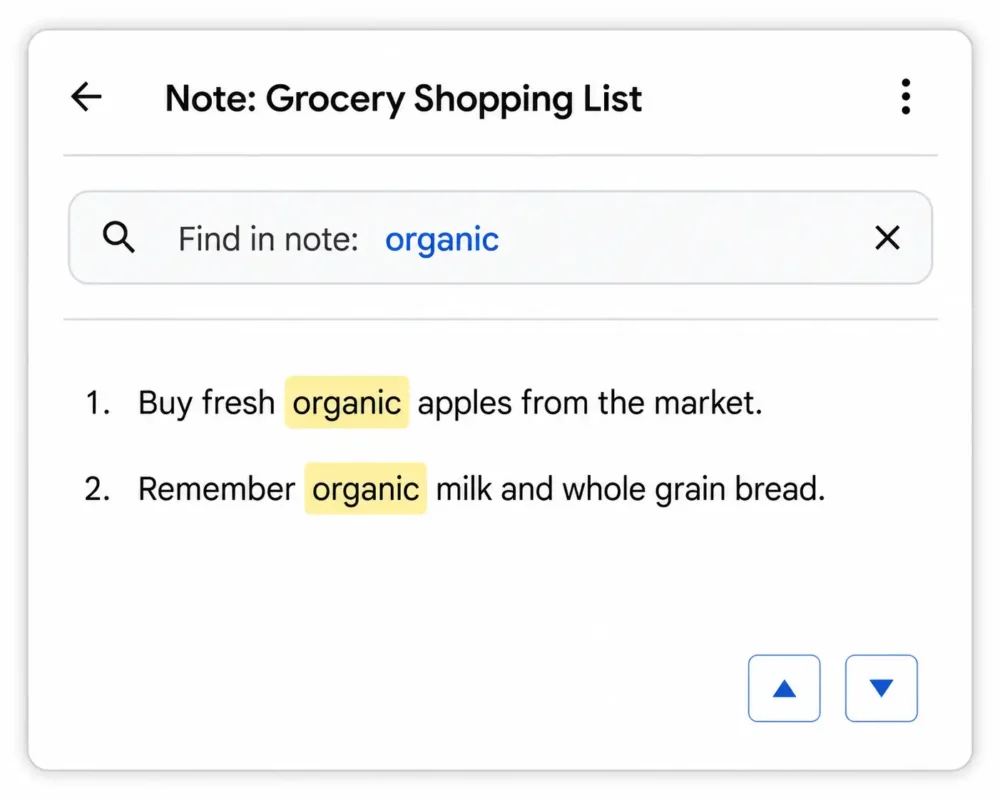
When you enter a keyword, Google Keep automatically highlights searched terms in bright yellow across the entire note. To move between multiple occurrences of the word, use the up and down navigation arrows located near the search box to jump directly to the next or previous highlighted match.
Searching Across Your Entire Google Keep Library
While searching within an individual note is essential for long-form text, finding the right note in a giant collection is equally critical. Google Keep global search helps narrow down your entire repository in seconds.
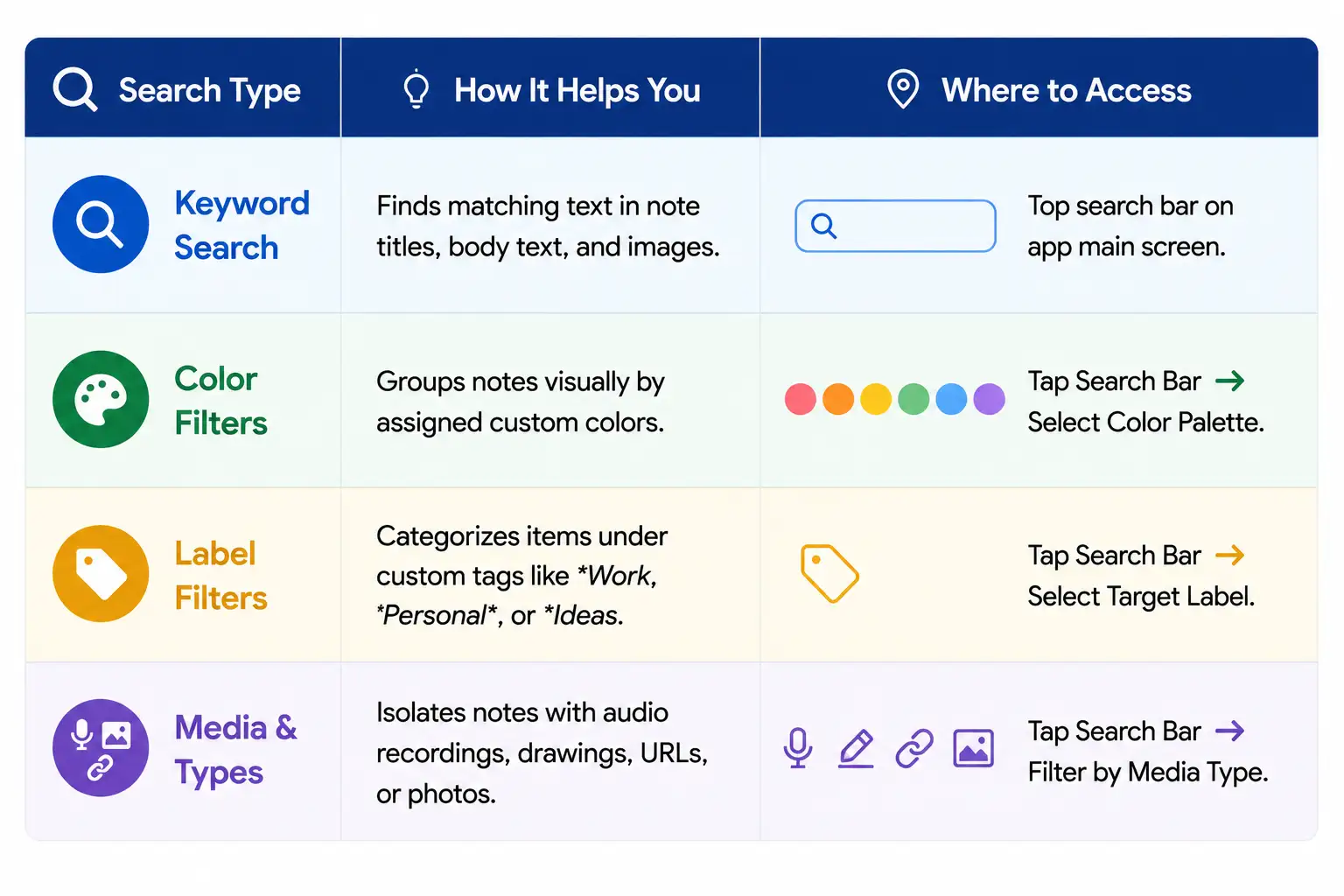
To perform a global search, simply open Google Keep, tap the Search Bar at the top of your screen, and enter your keywords. The app scours note titles, body content, and even scanned text inside photos or receipts using optical character recognition (OCR).
What’s Coming Next to Google Keep?
Google is actively modernizing Keep to bridge the gap between simple scratchpads and full-featured note apps. Two major upcoming developments promise to make note management even cleaner and more dynamic.
1. Mixed-Format Notes (Text + Checkboxes Together)
Currently, in Google Keep, a note must be either pure text or entirely made of interactive checkbox lists. Recent app teardowns reveal that an upcoming update will introduce Mixed-Format Notes.
This enhancement lets users add interactive checkbox to-do lists within standard body text notes, without converting the entire note into a checklist. You will be able to write extensive paragraphs, insert headings, and embed action items right where they belong within the same document.
2. Keep Live: Hands-Free Conversational Voice Search
Previewed at Google I/O, Keep Live introduces a natural, hands-free conversational interface for note-taking. Powered by advanced AI models, Keep Live will allow users to:
-
Ask voice queries to locate specific items across historical notes effortlessly.
-
Dictate mixed-format lists, reminders, and text notes on the go.
-
Update existing notes via real-time speech without ever manually opening the app.
Seamless Productivity: The Google Tasks and Calendar Migration
If you previously used Google Keep for time-based reminders, you may have noticed changes in how notifications trigger. All time and date-based reminders created within Google Keep have completed their formal migration to Google Tasks.
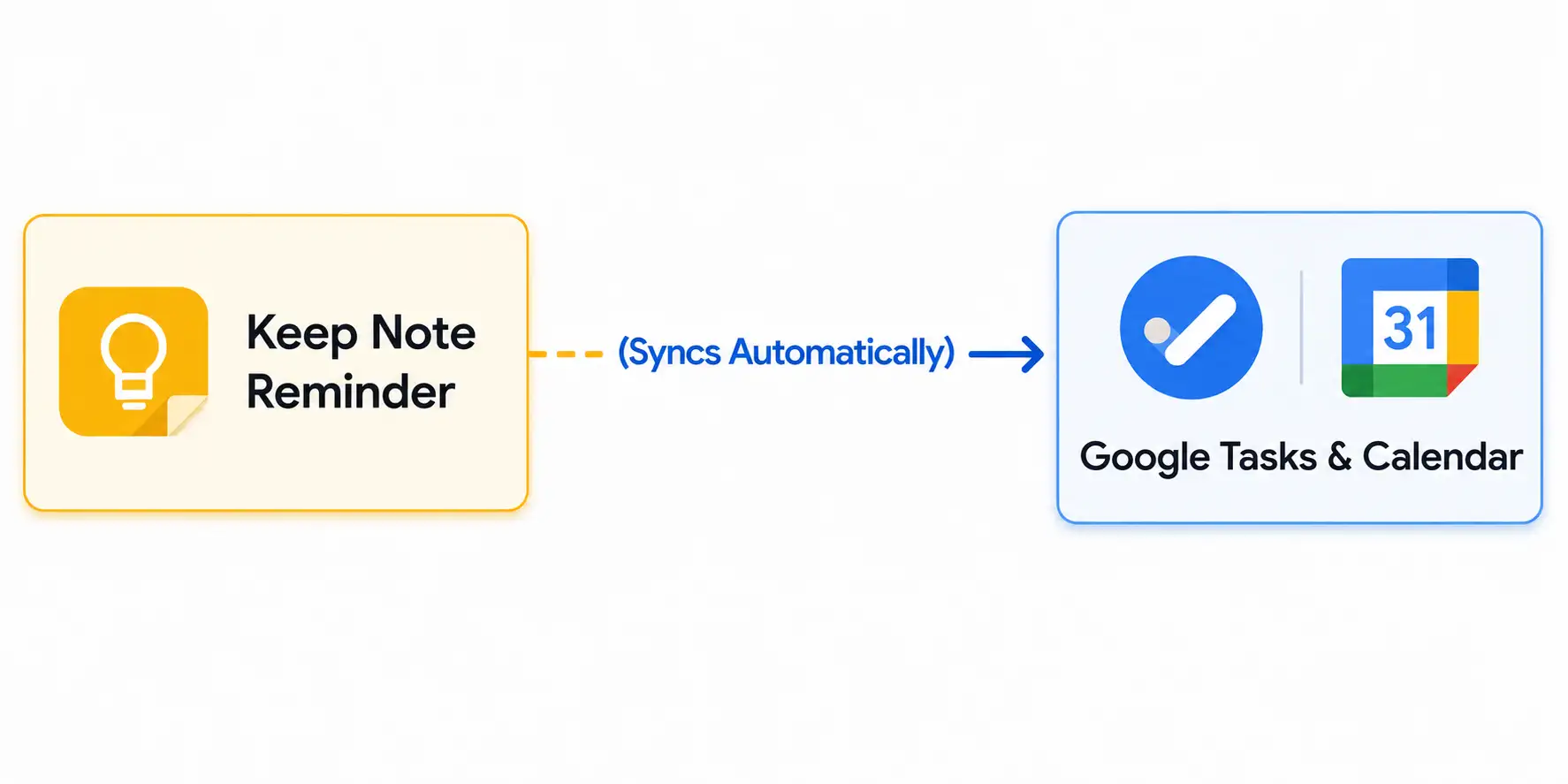
This structural shift ensures that any actionable task created in Keep syncs directly across Google Tasks, Google Calendar, and Google Assistant. You no longer need to check separate locations to see your day’s schedule; your Keep reminders live alongside your scheduled meetings and calendar events automatically.
Best Practices for Organizing Your Notes for Easy Search
To ensure your individual notes remain easy to navigate and search through as your library grows, we recommend adopting a few organization habits:
-
Use Descriptive Titles: Start every note with a clear title so global searches bring up relevant notes instantly.
-
Structure Long Notes with Text Headings: Divide long articles, recipes, or project plans into distinct sections using bold subheadings.
-
Leverage Color Coding: Assign distinct background colors to separate personal ideas, work projects, and temporary draft notes.
-
Clean Up Completed Checklists: Keep your notes uncluttered by clearing completed tasks so the Find in Note search tool points directly to active information.
By using the new Find in Note feature on Android and taking advantage of upcoming updates like Mixed-Format Notes and Keep Live, you can turn Google Keep into a powerful, easy-to-search personal archive.

Selva Ganesh is a Computer Science Engineer, Android Developer, and Tech Enthusiast. As the Chief Editor of this blog, he brings over 10 years of experience in Android development and professional blogging. He has completed multiple courses under the Google News Initiative, enhancing his expertise in digital journalism and content accuracy. Selva also manages Android Infotech, a globally recognized platform known for its practical, solution-focused articles that help users resolve Android-related issues.




I rely heavily on Keep for storing recipes and extensive project outlines daily. Improving intra-note search functionality would make this already great application truly indispensable.
Managing extensive digital notes becomes overwhelming when search tools are too basic. Your thoughtful commentary on Google Keep hits all the right points regarding user experience.
Cross-platform syncing makes Keep my go-to app for everyday notes and lists. Unfortunately, searching through those detailed entries highlights a noticeable gap in functionality.
Simplicity is Keep’s superpower, but sometimes it leans a bit too minimal. Adding a robust search function for individual notes would solve countless organizational headaches.
Finding specific details inside a long document is a basic requirement for digital notebooks. Your breakdown of Keep’s search capabilities captures the frustration of many power users.
Managing extensive digital notes shouldn’t feel like a test of endurance. Google Keep is fantastic for quick thoughts, but long entries really expose its search constraints.
I love how fast notes sync across all my devices for instant access. When those notes grow into detailed outlines, though, finding specific information becomes a tedious chore.
The productivity community has debated this search limitation for quite some time now. Your insights provide a clear picture of why this feature is so critically needed.
Recipes and detailed project outlines easily turn into walls of text in Keep. A simple text search function within each note would completely transform my organization system.
Google Keep stands out for its straightforward interface and reliable performance. However, searching inside a massive project outline remains an unnecessarily frustrating experience.
Managing extensive notes is a daily task that demands efficient search tools. Thanks for shedding light on how we can better navigate these cumbersome text blocks.