
Stop Auto Correct in Android Mobiles– The modern Android smartphone is an engineering marvel, yet nothing provokes immediate frustration quite like a malfunctioning autocorrect system. We have all been there: you type a professional message or a heartfelt note, only for your device to transform “spilled” into “spelled,” or more bizarrely, “cracked” into “Crack” and “perfect” into “purgatory.” When your phone begins to prioritize nonsensical substitutions over accurate typing, it is no longer a tool; it is a liability.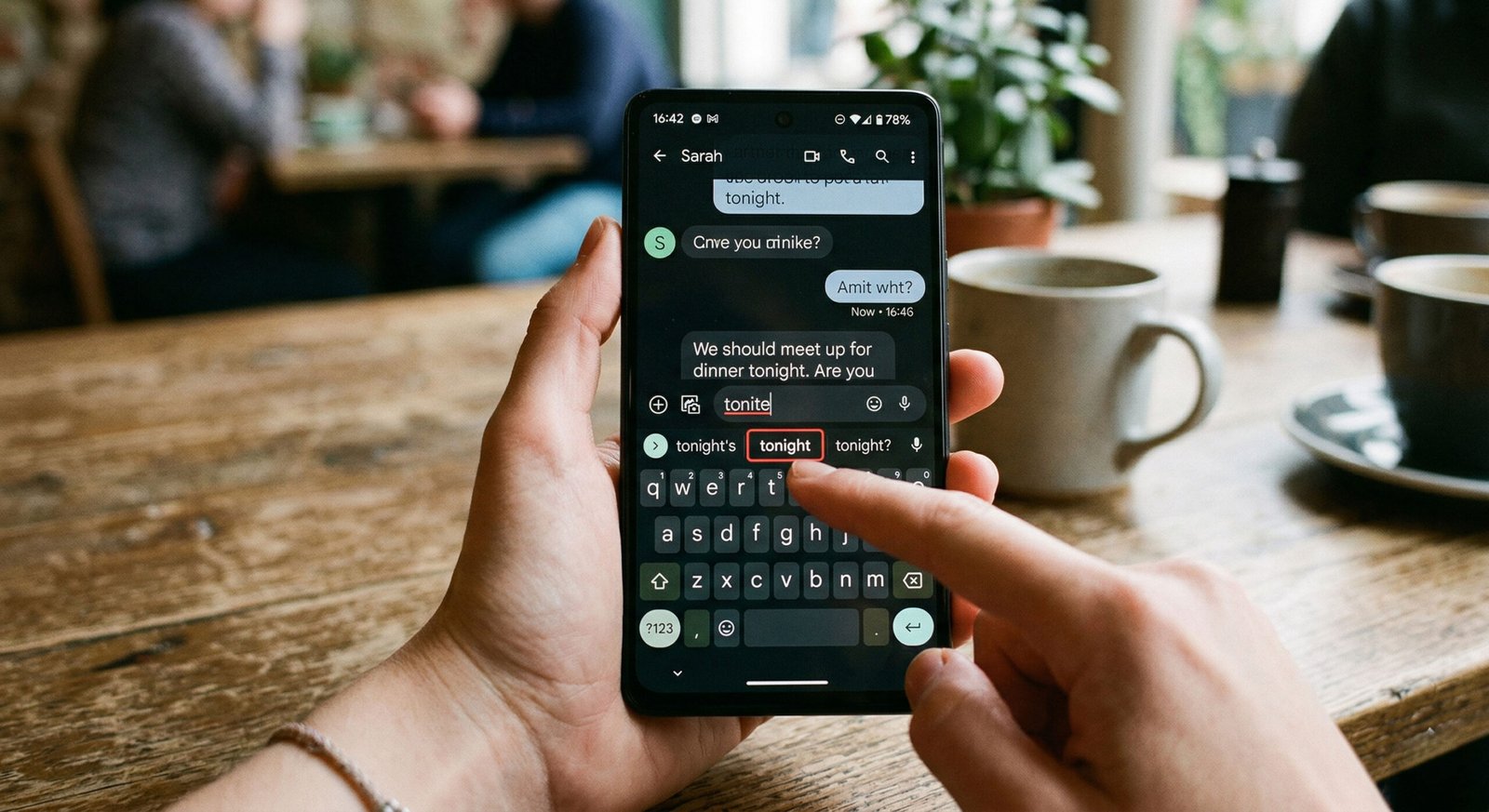
In this comprehensive guide, we will explore the underlying reasons why your Android autocorrect has seemingly lost its mind and provide a definitive, step-by-step roadmap to disabling, resetting, or refining your keyboard settings to ensure you never sound like an “idiot” in a text thread again.
The Anatomy of a Glitch: Why Autocorrect Fails So Spectacularly
Before we dive into the “how-to,” it is essential to understand the “why.” Autocorrect relies on machine learning algorithms and personal dictionaries. Over time, your phone attempts to learn your slang, shorthand, and frequent typos.

If you accidentally save a misspelled word to your user dictionary, or if the Gboard cache becomes corrupted, the AI begins to prioritize those errors. This results in the “bizarre things” users often report—such as changing “hisses” to “kisses” or “yelps” to “helps.” It isn’t a prank; it is a data processing error where the predictive text engine assigns a higher probability to the wrong word based on the proximity of keys or historical usage data.
How to Disable Autocorrect on Android: A Universal Approach
For many, the simplest solution is to turn off autocorrect entirely. While Android interfaces vary slightly between Samsung Galaxy, Google Pixel, and OnePlus devices, the core logic remains the same.
Disabling Autocorrect in Gboard (The Standard Android Keyboard)
Most modern Android devices utilize Gboard as the default input method. To stop it from interfering with your sentences, follow these steps:
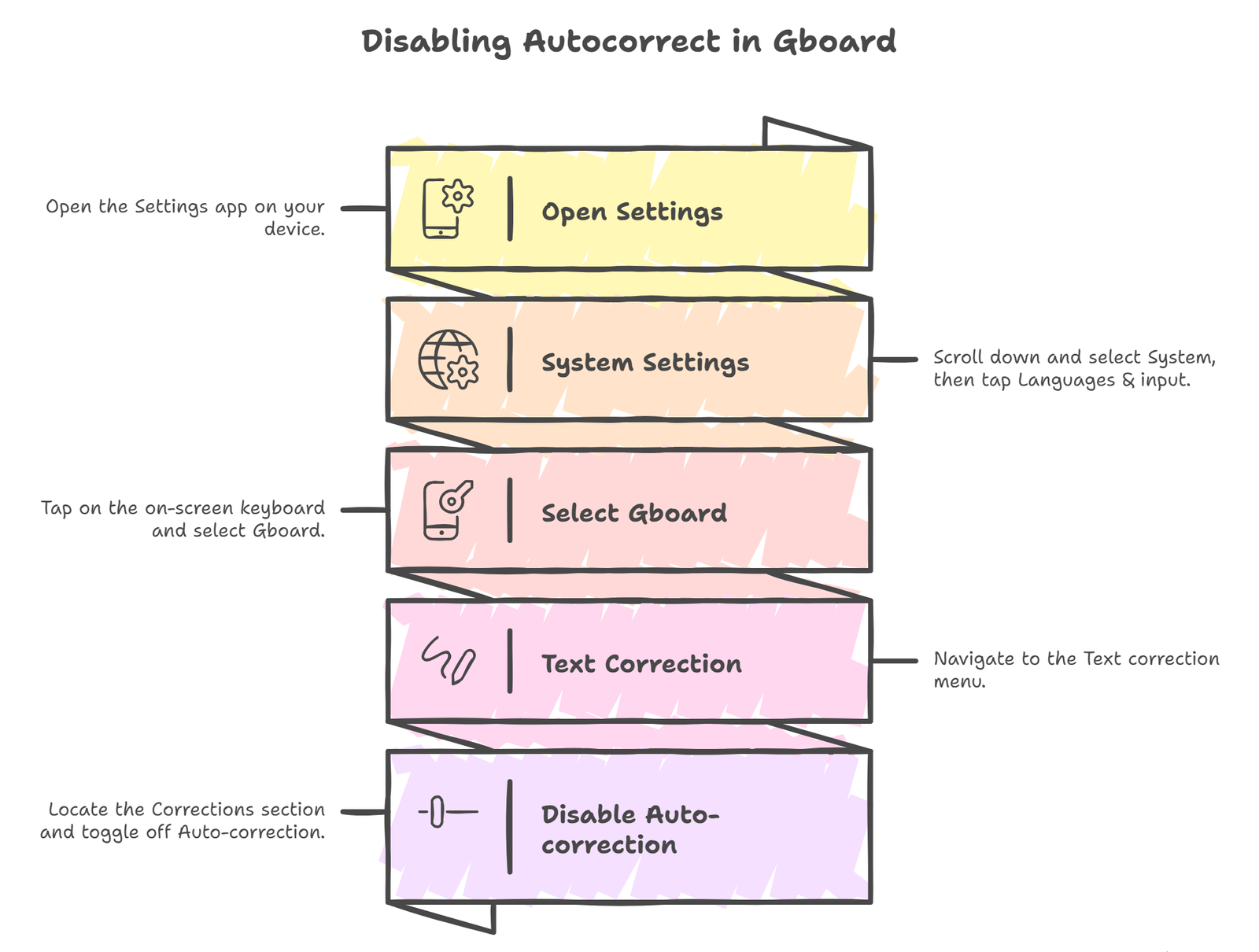
- Open the Settings app on your device.
- Scroll down and select System, then tap Languages & input.
- Tap on the on-screen keyboard and select Gboard.
- Navigate to the Text correction menu.
- Locate the Corrections section and toggle off Auto-correction.
By turning off this feature, your phone will still offer predictive text suggestions in the top bar, but it will no longer forcibly change your words when you hit the spacebar.
Disabling Autocorrect on Samsung Devices
Samsung uses its own proprietary keyboard software, which requires a slightly different path:
- Go to Settings and select General Management.
- Tap on Samsung Keyboard settings.
- Locate Auto replace.
- Toggle the switch to Off for your preferred language.
Refining the Predictive Engine: Alternatives to Total Deactivation
If you “love it when it works” but hate the current errors, you might not need to kill the feature entirely. Instead, we recommend fine-tuning the settings to make the AI more subservient to your actual intent.
Clearing Your Personalized Dictionary
Often, the reason your phone changes “pranking” to “praising” is that it has “learned” a pattern that doesn’t actually exist. Resetting your Dictionary can provide a fresh start.
- In Gboard settings, go to Dictionary> Delete learned words and data.
- You will be asked to enter a code to confirm. This wipes the slate clean, removing the erroneous associations the phone has built up.
Adjusting the Correction Intensity
Some keyboards allow you to set the aggression level of the correction. If you find the phone is too “eager” to swap words, check for Correction Sensitivity settings within your specific keyboard app and set it to “Modest” instead of “Very Aggressive.”
The Mystery of Capitalization and Proper Nouns
A common complaint involves the phone randomly capitalizing words (e.g., changing “cracked” to “Crack”). This usually occurs because the predictive engine mistakes a common verb for a proper noun or a brand name found in its global database.
To stop this:
- Navigate to Text correction settings.
- Toggle off Auto-capitalization.
- This prevents the phone from automatically capitalizing the first letter of sentences or words it perceives as names, giving you manual control over your grammar.
Advanced Troubleshooting: When Settings Aren’t Enough
If you have toggled every switch and your Android mobile is still changing “perfect” to “purgatory,” you may be dealing with a software bug or a corrupted app cache.
Clear Keyboard Cache and Data
Think of this as a “hard reset” for your typing experience.
- Go to Settings > Apps > See all apps.
- Find Gboard (or your specific keyboard app).
- Tap Storage & cache.
- Select Clear Cache, and if the problem persists, Clear Storage.
Note: Clearing storage will reset all keyboard settings to factory defaults.
Check for Third-Party App Interference
Sometimes, third-party grammar checkers (like Grammarly) or custom skins can override system settings. Ensure you aren’t running multiple input methods simultaneously that might be “fighting” for control over your text.
Leveraging the Personal Dictionary for Better Accuracy
Rather than letting the phone guess what you mean, you can manually program it. If you frequently use words that autocorrect dislikes, add them to your Personal Dictionary.
- Go to Gboard Settings > Dictionary > Personal Dictionary.
- Tap the “+” icon.
- Type the word exactly as you want it to appear (e.g., “pranking”).
- (Optional) Assign a shortcut.
By doing this, you “whitelist” the word, telling the Android OS that this specific spelling is intentional and should never be “corrected.”
The Benefits of Switching Keyboards
If Gboard or Samsung Keyboard continues to fail you, the Google Play Store offers several high-quality alternatives that may provide a much better semantic understanding of your unique writing style. Exploring these options allows you to find a predictive engine that aligns with your habits rather than fighting against them. Some of the most effective alternatives include:
- Microsoft SwiftKey (Advanced AI Predictions): We recommend this because it utilizes a sophisticated machine learning algorithm that often handles sentence context and long-term habits more effectively than the standard Gboard.
- Typewise (Hexagonal Layout): This is an excellent choice if your primary issue is physical typos; it is designed specifically to reduce mistyping by using a larger, non-traditional key shape that accommodates wider fingers.
- Fleksy (Speed & Privacy): This keyboard is ideal for those who want a robust gesture system, allowing you to delete or undo bizarre autocorrected words with a simple swipe, while also prioritizing your data privacy.
Summary of Key Steps to Reclaim Your Typing
To ensure your Android device stops making you “sound like an idiot,” we suggest following this priority list:
- Toggle off Auto-correction in the Text Correction menu for immediate relief.
- Clear learned data to remove “bad habits” the AI has picked up.
- Disable Auto-capitalization to stop random proper-noun substitutions.
- Add “problem words” to your Personal Dictionary to allow them.
- Update your Keyboard app via the Play Store to ensure you have the latest bug fixes and language models.
By taking these steps, you transition from being a victim of erratic software to a master of your own digital communication. No longer will “hisses” become “kisses” unless you specifically want them to. Precision typing on Android is entirely possible; it simply requires a few minutes of strategic configuration.

Selva Ganesh is a Computer Science Engineer, Android Developer, and Tech Enthusiast. As the Chief Editor of this blog, he brings over 10 years of experience in Android development and professional blogging. He has completed multiple courses under the Google News Initiative, enhancing his expertise in digital journalism and content accuracy. Selva also manages Android Infotech, a globally recognized platform known for its practical, solution-focused articles that help users resolve Android-related issues.




Leave a Reply