
Sync Samsung Gallery with Google Photos– Samsung has integrated Google Photos natively into the Samsung Gallery application, shifting away from its long-standing reliance on Microsoft OneDrive. For Galaxy users, this shift provides a unified cloud backup experience that connects Samsung mobile hardware directly to Google cloud storage. Instead of juggling separate cloud systems or relying on standalone background upload tools, you can manage cloud media, free up local device storage, and view assets across your Galaxy ecosystem directly through your native Gallery interface.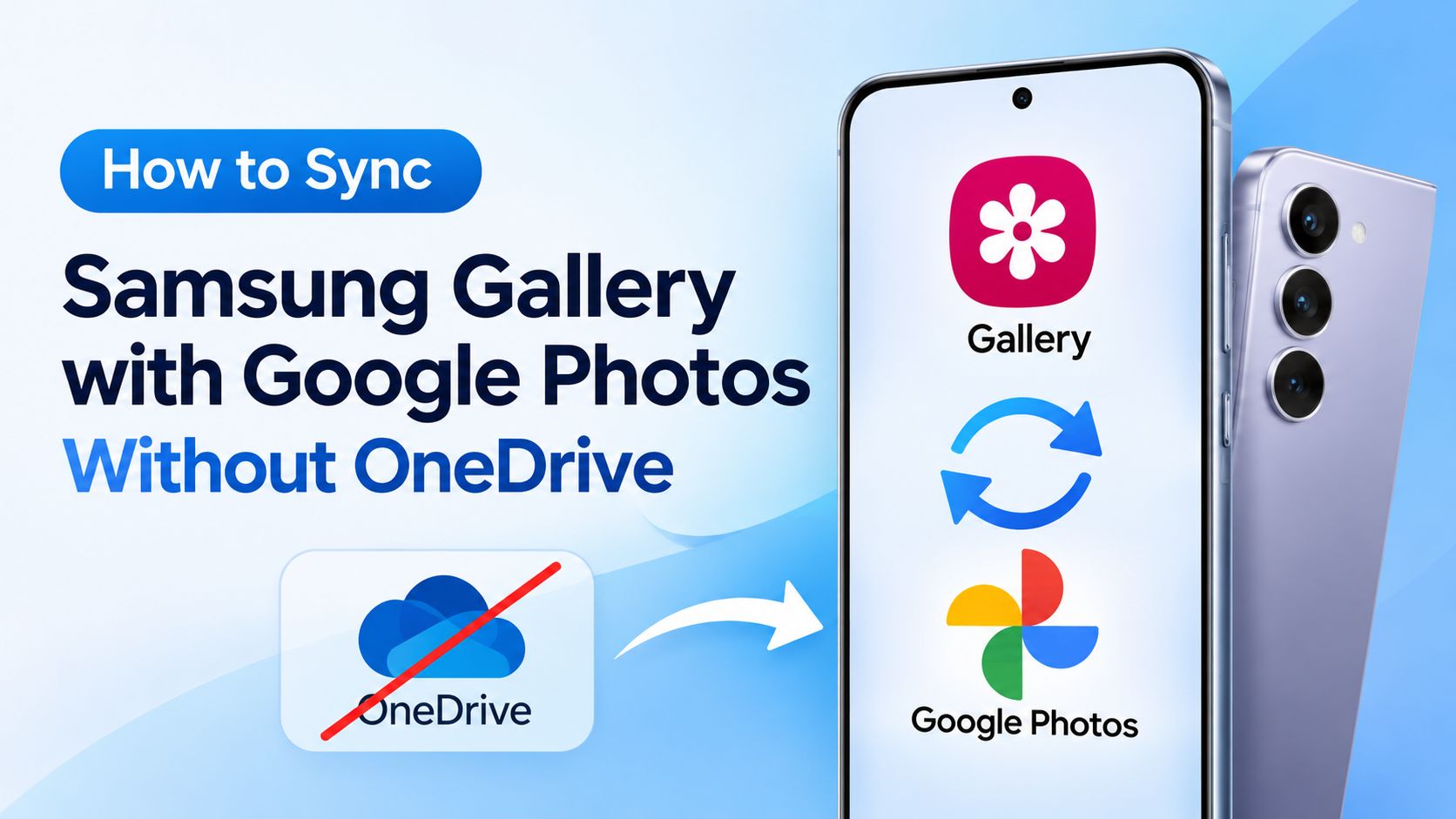
Below is an exhaustive walkthrough detailing how this integration functions, exact step-by-step setup instructions, device requirements, storage implications, and practical management strategies.
Understanding the New Samsung Gallery and Google Photos Integration
For years, Samsung devices relied on a deep partnership with Microsoft, routing Samsung Gallery Cloud Sync directly through OneDrive. While functional, this created friction for users who already utilized Google Photos for personal media storage, leading to redundant background backups, conflicting sync settings, and split storage quotas.
With Gallery Cloud Sync powered by Google storage, the architecture changes fundamentally:
-
Native System-Level Sync: Media captured on your Galaxy phone uploads directly to your connected personal Google Account through Samsung Gallery.
-
Shared Cloud Storage Quota: Backups utilize your Google Account storage quota, which shares a default 15 GB free tier across Google Photos, Google Drive, and Gmail, or links to your expanded Google One paid subscription.
-
Cross-Device Galaxy Previews: Uploaded photos and videos generate lightweight cloud previews on your other supported Galaxy phones and tablets logged into the same Samsung and Google accounts.
-
Local Offloading (Free Up Space): Once your high-resolution original media safely reaches the cloud, local copies can be deleted from physical device storage while keeping high-fidelity thumbnails accessible in the gallery.
System Requirements and Eligibility
Before attempting setup, verify that your device meets the technical prerequisites established by Samsung and Google.
OS and Hardware Requirements
-
Operating System: Devices running One UI 9 (based on Android 17).
-
Phased Rollout: Samsung has introduced the feature on flagship Galaxy phones and tablets running One UI 9, with general rollout expanding across regional variants and additional Galaxy tiers in subsequent software updates.
Account Requirements
-
Personal Google Account: The integration works exclusively with standard personal Google accounts.
-
Workspace and Supervised Exclusions: Managed enterprise/education accounts (Google Workspace) and child accounts supervised via Google Family Link cannot be linked to Gallery Cloud Sync.
-
Matched Sign-in: Both your Samsung Account and your Google Account must be actively authenticated on the device.
Step-by-Step Guide to Enable Sync in Samsung Gallery
Enabling the integration takes under two minutes. Follow these sequential steps to configure cloud synchronization directly within your native application.
Step 1: Open Gallery Settings
Launch the Samsung Gallery app on your One UI 9 device. Tap the Menu icon (three horizontal bars) located in the lower-right corner of the screen, then select Settings (gear icon). Alternatively, if a setup notification appears at the top of your gallery feed, tap Get started or the Cloud icon.
Step 2: Access Cloud Sync
Inside Gallery Settings, locate the entry labeled Sync photos and videos. Tap on it to enter the configuration wizard.
Step 3: Link Your Google Account
The setup screen will display an introduction explaining the switch to Google cloud storage. Select your preferred personal Google Account from the list of accounts already signed in on your device, or authenticate a new account.
Step 4: Grant Permissions
Review the permission dialogue. Granting access authorizes Samsung Gallery to sync photos, access album metadata (timestamps, location tags, and favorite statuses), and read your Google One storage quota. Confirm by tapping Allow or Agree to finalize activation.
Managing Synced Albums and Granular Folder Control
A major advantage of this direct integration over third-party auto-uploaders is granular folder governance. You are not forced to sync your entire camera roll or ingest unwanted media folders.
Once cloud sync is active, navigate to:
- Gallery Settings > Sync photos and videos > Albums to sync
From this menu, you can configure:
-
Selective Folder Uploads: Toggle off automatic camera backup while leaving specific folders (such as Downloads, Documents, or specialized camera project folders) enabled, or vice versa.
-
Exclude Junk and Screenshots: Prevent clutter folders—such as temporary messaging media, screen captures, or meme downloads—from consuming your cloud storage quota.
-
View-Only Mode: If you disable sync on all local folders on a secondary device while keeping the primary cloud sync toggle turned on, the device functions in a view-only state. It displays your cloud media from other devices without uploading any files from its own local storage.
How Library Sync and Cross-Device Previews Work
Understanding how media behaves between devices prevents accidental loss and avoids confusion regarding cloud access.
1. Two-Way vs. One-Way Library Visibility
It is critical to distinguish between your historical Google Photos library and newly synced Samsung media.
-
New Media Captured: Photos and videos captured on your Galaxy device after enabling sync will back up to your Google account and appear inside both Samsung Gallery and the Google Photos app.
-
Existing Google Photos Library: Photos and videos previously uploaded to Google Photos before activating Samsung Gallery sync do not automatically populate inside Samsung Gallery. They remain accessible via the standalone Google Photos app or web browser.
-
Cross-Galaxy Continuity: If you shoot a photo on a Galaxy phone, that photo generates a thumbnail preview in the Samsung Gallery app on your Galaxy tablet or secondary Galaxy phone, provided both devices share the same Samsung and Google accounts.
2. On-Demand Full-Resolution Downloads
Cloud-synced photos displayed in Samsung Gallery do not continuously hog physical disk space on your other devices. The gallery serves high-definition cached previews. Whenever you tap to edit, share, or zoom into an asset, the application automatically fetches the full-resolution RAW, JPEG, or video file from Google storage.
3. How Photo Edits Synchronize
Media modifications follow specific rules depending on where the edit occurs:
-
Edits Made in Samsung Gallery: Modifying a photo in Samsung Gallery updates the image across your other synced Samsung devices. In Google Photos, the edit is saved as an updated separate copy, preserving your unedited original in your Google Photos library.
-
Edits Made in Google Photos: If you apply filters or crop a photo inside the Google Photos app or web portal, that edit syncs to your Google account but will not overwrite local originals on your Samsung hardware until you confirm changes via out-of-sync review prompts.
Using the Free Up Space Feature
High-resolution 4K and 8K video capture, combined with 50MP and 200MP sensor outputs, can exhaust internal smartphone storage rapidly. Samsung Gallery includes an integrated Free Up Space utility.
- Samsung Gallery > Settings > Free up phone space
Operational Workflow
-
The system scans your device memory for items that have already completed verified uploads to Google storage.
-
It removes the heavy original local files from your device’s internal UFS flash storage.
-
The items remain visible in Samsung Gallery as browsable cloud previews.
-
Tapping any item re-downloads the complete asset on demand.
Google Photos Integration vs. OneDrive: A Feature Comparison
| Feature | New Google Photos Integration | Legacy OneDrive Sync |
| Default Free Storage | 15 GB (Shared with Gmail and Drive) | 5 GB (Shared with Outlook and Office) |
| Ecosystem Compatibility | Deep native Android/Google integration | Deep Windows 11 desktop integration |
| Selective Album Sync | Fully configurable by folder | Limited folder selection |
| Cross-Device Galaxy Previews | Fully supported across One UI 9 devices | Supported across Samsung Gallery apps |
| Local Storage Relief | Native “Free up space” tool | Native “Free up phone storage” tool |
| Web Access Portal | photos.google.com | onedrive.live.com |
Disconnecting or Disabling Samsung Gallery Cloud Sync
If you want to discontinue synchronization, switch Google accounts, or revert to manual backups, you can disconnect safely without losing your media.
To Turn Off Sync:
-
Open Samsung Gallery, tap Menu, and select Settings.
-
Locate Sync photos and videos and toggle the switch to Off.
Data Status After Disconnecting:
-
New Media: Any media captured after disabling the toggle will remain solely on local device storage.
-
Existing Backups: All previously synchronized assets remain stored in your Google Account and accessible anytime through the Google Photos app or web interface.
-
Revoking App Access: To completely dissolve the link, navigate to your Google Account Settings > Security > Third-party apps with account access, locate Samsung Gallery, and remove permissions.
Frequently Asked Questions
1. Does Samsung Gallery sync consume my Google One storage quota?
Yes. Every photo and video backed up through Samsung Gallery uses your shared Google storage allocation, which includes the standard 15 GB free tier and any purchased Google One tier.
2. Can I view my entire historical Google Photos collection inside Samsung Gallery?
No. The integration displays media synced from Galaxy devices after the feature is turned on, rather than populating your complete historical Google Photos library into the local gallery.
3. Will this feature work on devices running One UI 8 or older?
The direct native sync engine requires One UI 9 running on Android 17. Samsung has indicated plans to expand compatibility to additional Galaxy models in gradual phases.
4. What happens to my photos if I delete them from Samsung Gallery?
If cloud sync is active, deleting an item from your synced album in Samsung Gallery will delete it from both the local device and your cloud backup in Google storage. Deleted items remain in the trash bin temporarily before permanent removal.
5. Can I use a Google Workspace business or school account?
No. Samsung Gallery Cloud Sync is strictly limited to personal Google accounts and does not support Google Workspace accounts or supervised Family Link profiles.
6. Do my RAW photos and 8K videos sync in full quality?
Yes. Assets upload in their original resolution and bit depth, matching your standard Google Photos upload quality configurations.
7. Does disabling sync delete photos from Google Photos?
No. Turning off Gallery sync stops future uploads from occurring, but all media previously uploaded remains safely stored in your Google cloud repository.
8. Can I sync specific folders like Screenshots while ignoring the Camera roll?
Yes. Under Gallery Settings > Sync photos and videos, you can manage individual album toggles to choose precisely which folders sync and which stay offline.
9. How do I access synced photos from a computer?
Because the media backs up directly to your Google infrastructure, you can view, download, and organize all synced photos and videos on any computer by visiting photos.google.com.
10. Does this integration drain the battery during large uploads?
Initial sync operations involving thousands of media files will temporarily consume battery and bandwidth. Samsung Gallery throttles background syncing during low-power states and allows you to restrict uploads to Wi-Fi only.

Selva Ganesh is a Computer Science Engineer, Android Developer, and Tech Enthusiast. As the Chief Editor of this blog, he brings over 10 years of experience in Android development and professional blogging. He has completed multiple courses under the Google News Initiative, enhancing his expertise in digital journalism and content accuracy. Selva also manages Android Infotech, a globally recognized platform known for its practical, solution-focused articles that help users resolve Android-related issues.




Leave a Reply