
How to Use Google Rambler in Gboard: Everything You Need to Know – Google Rambler in Gboard marks a monumental shift in mobile communication. For years, traditional voice typing required users to speak like machines—painstakingly pronouncing every comma, period, and paragraph break while battling constant transcription errors caused by natural speech pauses. Google Rambler completely eliminates these frustrations by integrating Gemini intelligence directly into Gboard.
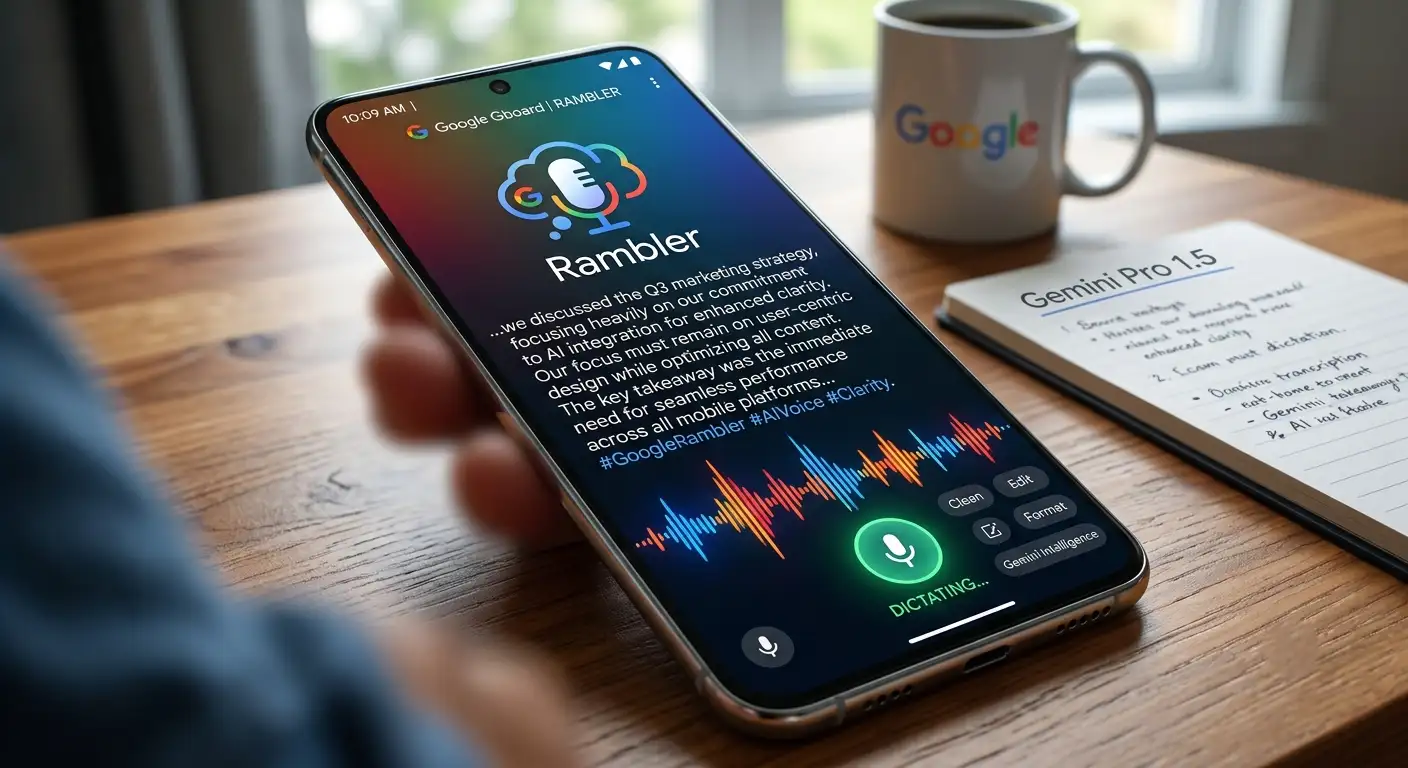

Instead of transcribing audio word-for-word, Google Rambler processes full spoken thoughts to generate clean, beautifully structured, and perfectly punctuated text automatically. Whether drafting professional emails, sending quick text messages, or capturing creative ideas on the go, Google Rambler transforms natural human speech into ready-to-send written content.
What Is Google Rambler in Gboard?
Google Rambler is an AI-powered voice input feature embedded directly within Gboard, the default keyboard software for modern Android smartphones. Powered by Google’s cutting-edge Gemini intelligence models, Google Rambler acts as a real-time smart editor rather than a simple audio recorder.
When speaking naturally, people frequently hesitate, repeat themselves, or use filler words such as “um,” “ah,” “like,” and “you know.” Standard speech-to-text tools write every single one of these unwanted sounds onto the screen. Google Rambler automatically filters out filler words, organizes complex sentences, and applies perfect grammar without requiring explicit voice commands for punctuation.
Key Benefits of Google Rambler
-
Automatic Removal of Filler Words: Speech pauses and hesitation words are filtered out before appearing on screen.
-
Intelligent Sentence Structuring: Grammatical rules, capitalization, and punctuation marks are added automatically based on natural cadence.
-
Contextual Self-Correction: Mid-sentence corrections are processed instantly to keep only the intended final message.
-
Conversational Editing: Drafted messages can be rewritten, reformatted, or adjusted in tone simply by giving secondary spoken instructions.
-
Seamless Multilingual Dictation: Multilingual users can alternate between supported languages mid-sentence without changing keyboard settings.
System Requirements and Availability
To access Google Rambler on Gboard, specific software and hardware prerequisites must be satisfied:
-
Supported Hardware: Devices running Gemini Intelligence hardware standards, such as the Google Pixel 11 series.
-
Application Version: The latest version of the Gboard app, configured as the device’s default input method.
-
System Permissions: Active Microphone permissions granted explicitly to Gboard.
-
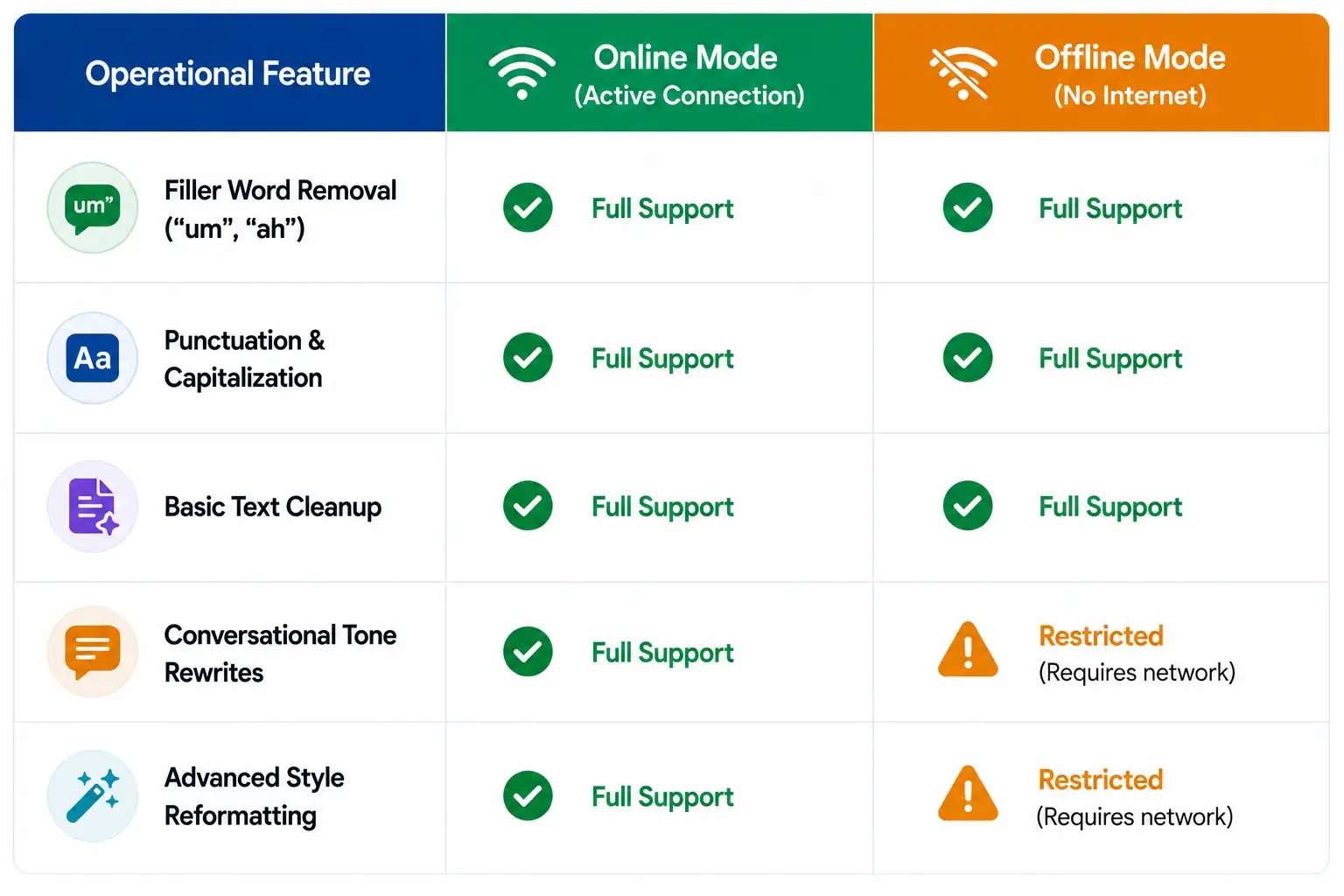
Network Connectivity: An active internet connection unlocks full conversational rewrites and stylistic editing. Basic dictation, punctuation, and cleanup continue to function offline.
Step-by-Step Guide: How to Enable Google Rambler in Gboard
Setting up Google Rambler in Gboard requires only a few moments. We have outlined the exact step-by-step procedures below.
Method 1: Enabling Google Rambler via Initial Setup Prompt
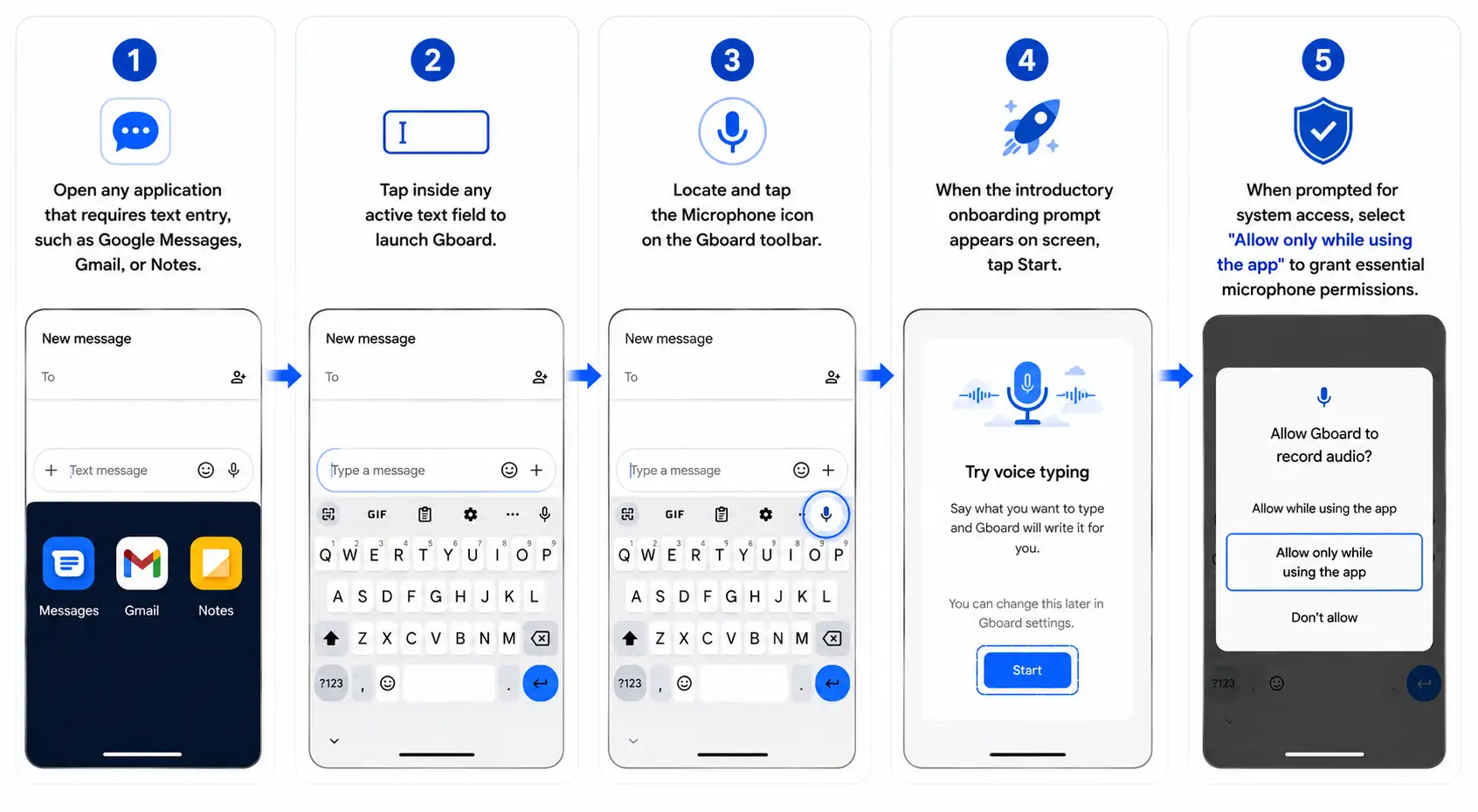
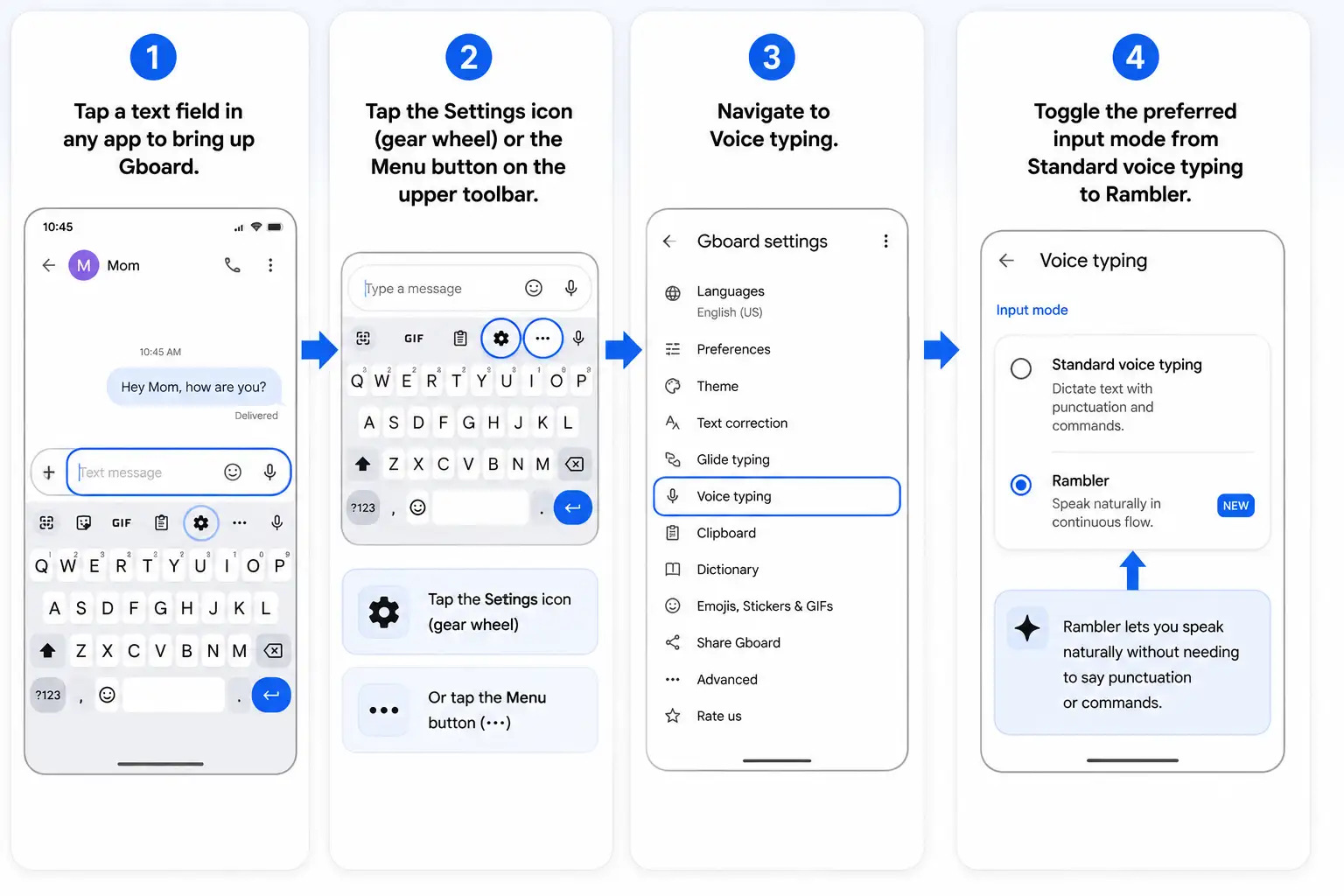
Method 2: Enabling Google Rambler Through Settings
If the onboarding prompt does not appear automatically, Google Rambler can be manually activated within Gboard settings:
How to Master Everyday Voice Dictation with Google Rambler
Using Google Rambler requires zero technical knowledge. Users no longer need to alter their normal speech rhythm or roboticize their cadence.
1. Hands-Free Dictation Workflow
-
Tap the Microphone icon on Gboard once to begin recording. A subtle glowing AI animation appears around the microphone button to indicate that Google Rambler is listening.
-
Alternatively, press and hold the Microphone icon while speaking, releasing the button when finished.
-
Speak thoughts naturally at an ordinary talking speed. Google Rambler holds the transcribed output inside its buffer until speaking stops, keeping the main text box clean during real-time speech.
-
Tap Done or tap the glowing microphone button again to finish dictating. Clean, formatted text instantly populates the message field.
2. Effortless Mid-Sentence Corrections
With legacy dictation software, correcting a spoken mistake required tapping the backspace button or saying rigid commands. Google Rambler automatically recognizes natural self-corrections.
-
Example: If someone states, “Let’s schedule our project kickoff meeting for Thursday morning—actually, wait, let’s make it Friday afternoon at 3 PM,” Google Rambler skips the false start entirely.
-
Final Output: “Let’s schedule our project kickoff meeting for Friday afternoon at 3:00 PM.”
Rewriting and Editing Text Using Conversational Voice Commands
Beyond initial dictation, Google Rambler functions as an intelligent document editor. Once text sits in the text area, users can issue natural voice commands to transform tone, structure, or content.
Adjusting Style, Tone, and Formatting
To adjust a draft, tap the microphone icon again and speak instructions naturally:
-
For Professional Emails: “Make this sound more formal and polite.”
-
For Brief Messaging: “Make this message shorter and more direct.”
-
For Task Lists: “Convert these ideas into a bulleted list.”
-
For Casual Chat: “Rephrase this to sound enthusiastic and friendly.”
Making Targeted Text Edits
Specific modifications within existing sentences can be made without touching the keyboard:
-
“Change Friday to Monday.”
-
“Replace the word urgent with priority.”
-
“Delete the final sentence entirely.”
Multilingual Support and Switching Languages Naturally
For multilingual speakers, traditional dictation tools require manually swapping keyboard language layouts before speaking a different tongue. Google Rambler features real-time language detection powered by Gemini models.
Users can switch between supported languages within the same sentence. Google Rambler processes blended multilingual speech seamlessly, placing correctly spelled words in both languages into the text box.
Supported Languages Include:
-
English
-
Spanish
-
French
-
German
-
Italian
-
Portuguese
-
Russian
-
Arabic
-
Hindi (and additional supported Indian regional languages)
-
Japanese
-
Korean
Offline Performance vs. Online Functionality
Google Rambler adapts intelligently based on network availability. While optimal capabilities are unlocked online, off-grid functionality remains robust.
Google Rambler Privacy and Security Standards
Because voice dictation processes personal messages, Google has engineered Rambler around strict user privacy protocols:
-
Temporary Audio Processing: Spoken audio files and transcribed text snippets are processed temporarily strictly to convert speech to written text.
-
Immediate Data Deletion: Dictation audio and raw transcripts are never permanently stored, archived, or shared. All temporary data is permanently erased immediately after output is delivered into the text field.
-
Built-In Safety Guardrails: On-device safety layers ensure authentic personal expression while preventing unwanted generation errors.
Google Rambler vs. Standard Voice Typing
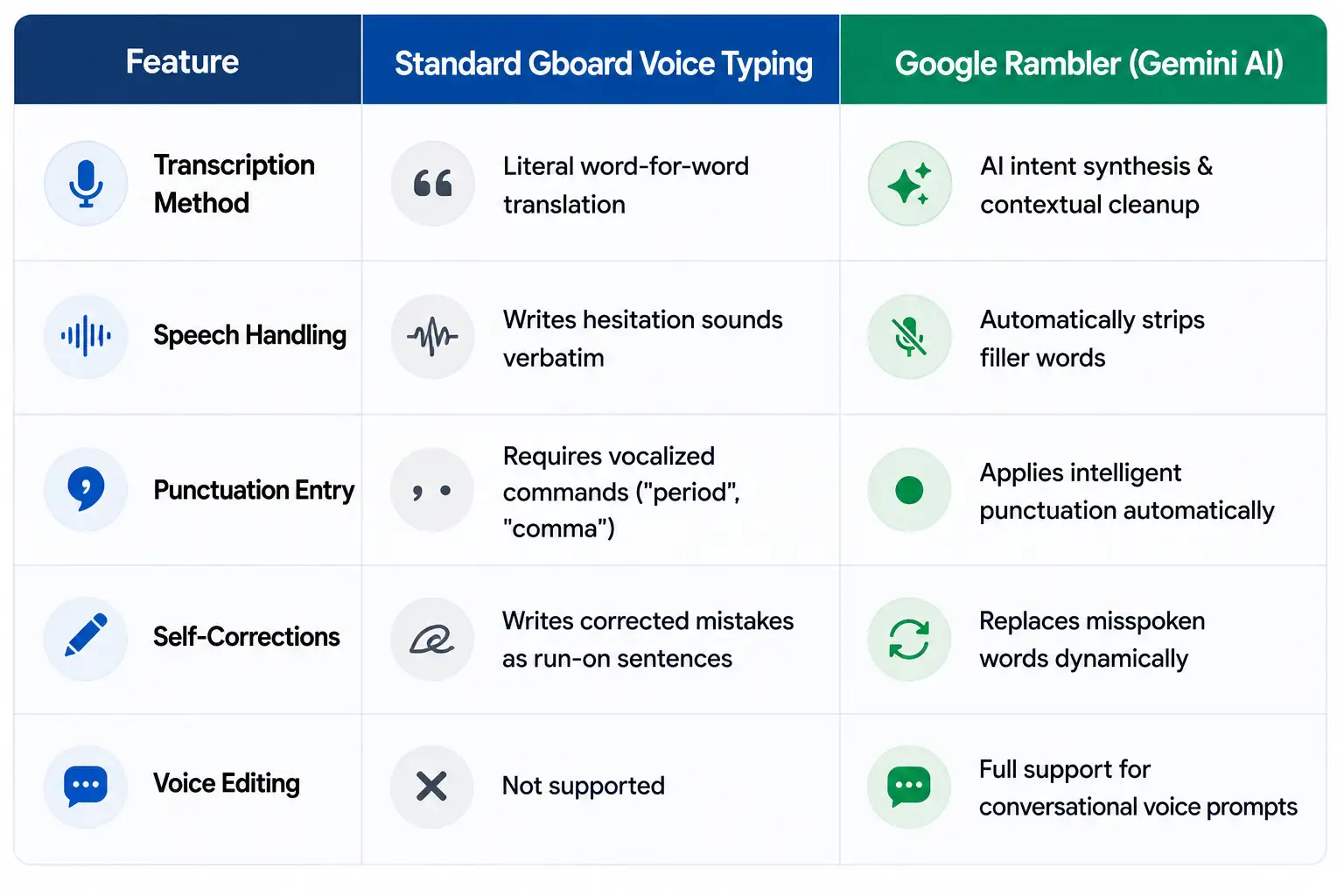
Transform Mobile Dictation with Google Rambler
Google Rambler in Gboard redefines mobile productivity by bridging the gap between natural speech and polished written prose. By automating punctuation, filtering out speech hesitations, and allowing direct voice edits, Google Rambler makes dictation faster, cleaner, and accessible to non-tech users worldwide.

Selva Ganesh is a Computer Science Engineer, Android Developer, and Tech Enthusiast. As the Chief Editor of this blog, he brings over 10 years of experience in Android development and professional blogging. He has completed multiple courses under the Google News Initiative, enhancing his expertise in digital journalism and content accuracy. Selva also manages Android Infotech, a globally recognized platform known for its practical, solution-focused articles that help users resolve Android-related issues.




Goodbye, robotic punctuation commands, and hello to fluent mobile communication. Gemini in Gboard is truly a monumental achievement.
Natural speech processing is the upgrade we have all been waiting for. Google Rambler is going to make texting effortless.
If this eliminates the constant editing loop of old voice typing, I am all in. Great article explaining this massive communication shift.
The integration of Gemini intelligence makes Gboard feel alive and intuitive. I am extremely excited to start using Google Rambler.
No more awkward punctuation commands means we can finally communicate fluidly. This is the future of mobile messaging right here.
I love how technology is finally adapting to human habits instead of forcing us to adapt to machines. Google Rambler is proof of that.
A truly seamless dictation experience has been a long time coming. Integrating Gemini into Gboard is a masterstroke by Google.
Traditional voice typing was always too clunky for casual messaging. Google Rambler fixes every single flaw that held the old tech back.
This update makes me want to switch back to Gboard full-time. The Gemini-powered speech processing sounds remarkably robust.
I am so glad we can finally talk at our normal pace without the system getting confused. Google Rambler is a masterpiece of AI design.
The reduction in transcription errors will make voice input actually usable in public spaces. Excellent overview of the new Gboard features.