
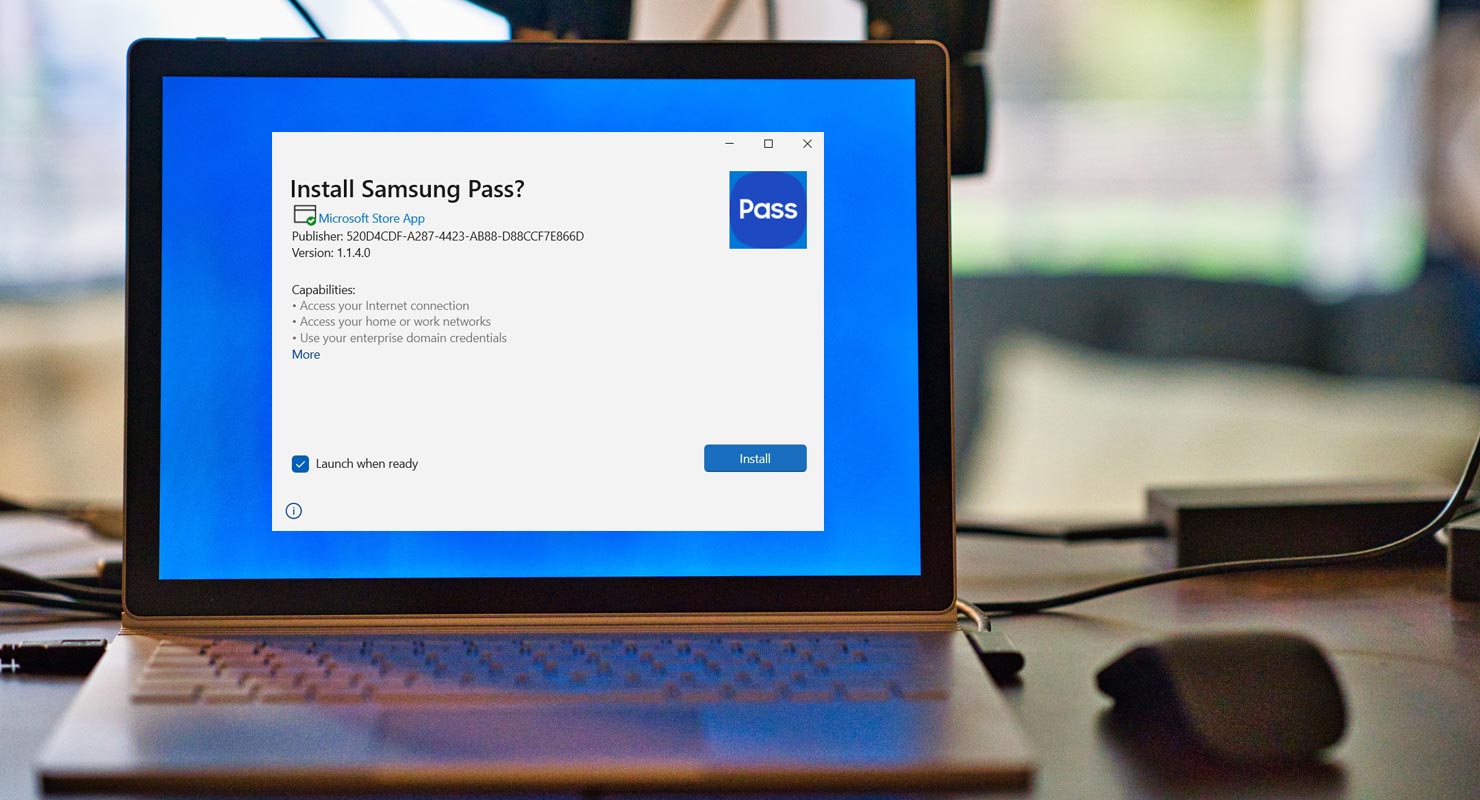
Using the below guide, You can Download Samsung Pass.exe for your Windows device. Samsung Pass is a biometric authentication platform that provides simple and secure sign-in to websites and apps on your Windows device. With Samsung Pass, you no longer have to memorize every login ID and password for multiple websites and apps. You can sign in using your registered biometric data, such as fingerprints or iris scans. To use Samsung Pass, you must sign in to your Samsung account and write your biometric data. Now, you can quickly sign in to your favorite websites and apps with a quick scan of your biometrics.
Samsung Pass
Samsung Pass is a biometric authentication platform for service providers across multiple industries. It provides simple and secure biometric authentication fully integrated into the user’s device. With Samsung Pass, users can sign in to websites and apps without typing in their login credentials, as the service scans their fingerprints or iris for identity verification.
Requirements
To use Samsung Pass, users must sign in to their Samsung account. They can then register their biometric data, such as fingerprints or iris scans, by going to the Samsung Pass section in the device’s Settings.

Compatibility
Samsung Pass is compatible with various Samsung mobile devices, including Galaxy S, Z, Note, and A series phones. The supported models include Galaxy S23, S22, S21, S20, S10, S9, S8, S7, S6, All Galaxy Z Flip, All Z Fold, Galaxy Note 20, Note 10, Note 9, Note 8, Note 5, and Galaxy A14, A53, A23, A52, A42, A32 5G. Besides the listed mobiles, when you have a Samsung mobile with Nougat 7.0 version, The app works without issues.
Download and Install Samsung Pass.exe for Windows (10/11)
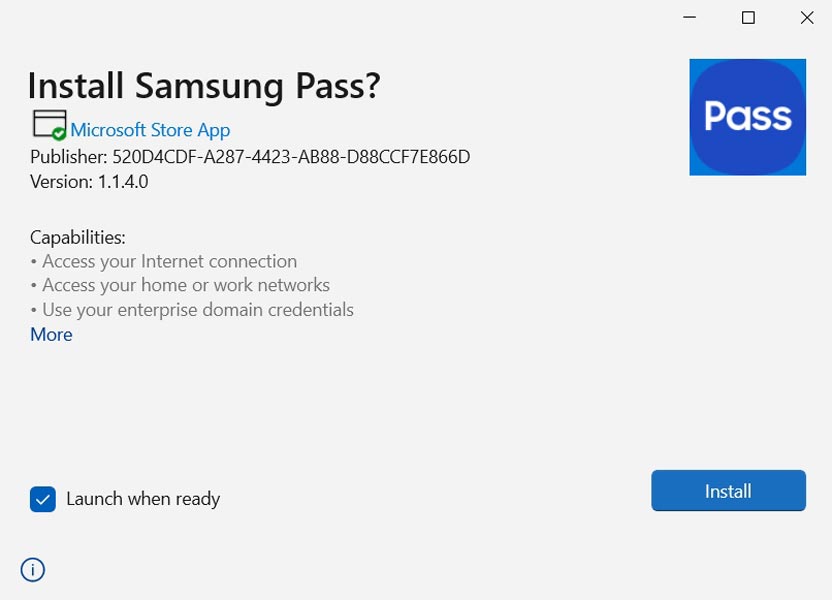
- You should have Windows 10/11 version.
- After installation, signing with your Samsung account.
- The passwords and other credentials will sync with your desktop app.
How to use Samsung Pass App?
Mobile
To sign in to a website or app using Samsung Pass, users need to open it through the Samsung Internet and then sign in to their account. Samsung Pass will then ask if the user wants to save their login information, and the next time they sign in, they only need to scan their biometrics.
If users experience any issues when setting up or using Samsung Pass, they can try switching their network connection or turning off Wi-Fi and using only mobile data.
PC
After installing the app, Sign in with the same Samsung account. You can copy and paste the username and password and use it as a standalone app. It can also fill the credentials with supported apps. The Passwords and Notes will sync with the desktop version.
Wrap Up
Samsung Pass is a must-have tool for anyone looking to simplify their online experience while maintaining the highest level of security. Samsung Pass is a convenient and secure way to sign in to websites and apps without remembering multiple login credentials. It provides a hassle-free biometric authentication experience for users with compatible Samsung mobile devices. Overall, Samsung Pass is valuable to mobile and Windows devices, offering users a seamless and secure authentication solution.

Selva Ganesh is a Computer Science Engineer, Android Developer, and Tech Enthusiast. As the Chief Editor of this blog, he brings over 10 years of experience in Android development and professional blogging. He has completed multiple courses under the Google News Initiative, enhancing his expertise in digital journalism and content accuracy. Selva also manages Android Infotech, a globally recognized platform known for its practical, solution-focused articles that help users resolve Android-related issues.




Leave a Reply