
Having quick access to your flashlight is a must in many situations. If you own a Samsung Galaxy mobile and want an easier way to turn on your flashlight, using the Shake Flashlight feature is a great option. This feature lets you turn on your flashlight simply by shaking your phone instead of navigating through menus or pressing buttons. In this guide, we will walk you through the steps to set up the Shake Flashlight feature on your Samsung Galaxy mobile using an app from the Play Store.

Why Use Shake Flashlight on Samsung Galaxy Mobiles?
Before diving into the setup process, let’s look at why Shake Flashlight is beneficial:
- Quick Access – No need to unlock your phone or search for the flashlight toggle.
- Hands-Free Convenience – A simple shake can activate the flashlight if your hands are occupied.
- Works in Emergencies – In dark or urgent situations, you can instantly turn on the flashlight without looking at your screen.
- Customizable Sensitivity – You can adjust the shake sensitivity according to your preference.
Step-by-Step Guide to Set Up Shake Flashlight
1. Download and Install the Shake Torch App
To enable the Shake Flashlight feature on your Samsung Galaxy device, follow these steps:
- Open the Google Play Store on your Samsung Galaxy phone.
- In the search bar, type Shake Torch.
- Locate the Shake Flashlight – Torch App and tap Install.
- Once installed, open the app.
2. Enable the Shake Detection Feature
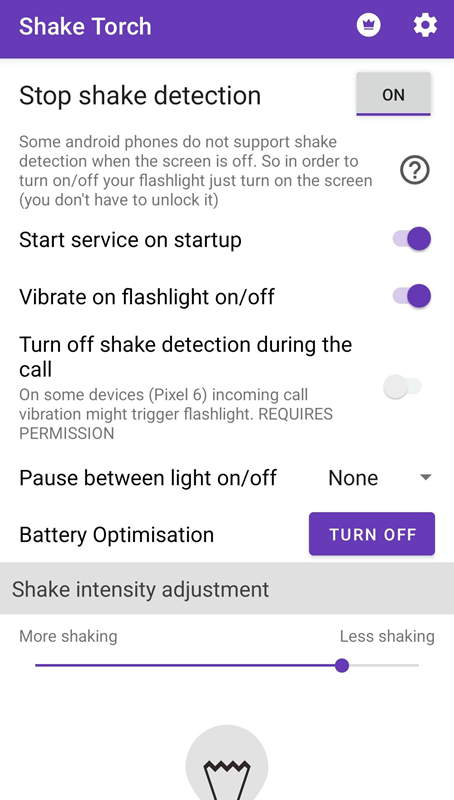
After installing the app, you need to enable the shake detection feature:
- Open the Shake Torch app.
- Grant necessary permissions for the app to function correctly.
- Toggle the Shake to turn on the flashlight option.
3. Enable Stop Shake Detection
Some Android devices, including Samsung Galaxy models, do not support shake detection when the screen is off. To ensure the feature works properly, you may need to turn on the screen before shaking your phone:
- Open the Shake Torch app.
- Navigate to Settings.
- Enable Stop Shake Detection.
- This setting ensures that shaking works when the screen is turned on, even if the device is locked.
4. Set the Service to Start on Boot
To make sure the Shake Flashlight feature is always available, you should set it to start automatically when your phone is restarted:
- Open Shake Torch settings.
- Enable Start service on startup.
- This ensures the flashlight shake feature is available whenever you restart your device.
5. Enable Vibrate on Flashlight On/Off
For a better user experience, you can enable vibration feedback when turning the flashlight on or off:
- Open the Shake Torch app.
- Go to Settings.
- Toggle the option Vibrate on the flashlight on/off.
- You will get a slight vibration feedback when you shake to turn on the flashlight.
6. Disable Shake Detection During Calls
Some devices may experience unintended flashlight activation during calls due to shake detection. To prevent this:
- Open Shake Torch settings.
- Find the option to turn off shake detection during the call.
- Enable this setting to avoid accidental flashlight activation when you receive or make calls.
7. Adjust Sensitivity Based on Your Experience
The Shake Torch app allows you to customize shake sensitivity. You can adjust it based on your personal experience to prevent accidental triggers:
- Open Shake Torch.
- Navigate to Sensitivity Settings.
- Adjust the slider to increase or decrease Sensitivity.
- Test by shaking your device and fine-tuning it accordingly.
Permissions Required for Shake Flashlight
For the Shake Flashlight feature to work correctly, you need to grant specific permissions:
- Camera Permission – The flashlight is part of the camera module, so this permission is necessary.
- Draw Over Other Apps – This allows the flashlight toggle to function even when using other apps.
- Vibration Permission – Required for vibration feedback when turning the flashlight on/off.
Troubleshooting Shake Flashlight Issues
If the Shake Flashlight feature is not working as expected, try these troubleshooting steps:
1. Check App Permissions
Ensure that the app has all the necessary permissions enabled:
- Go to Settings > Apps > Shake Torch.
- Select Permissions and enable Camera, Overlay, and Vibration.
2. Restart the App
If the shake function stops working:
- Close the Shake Torch app completely.
- Restart the app and test the shake function again.
3. Reinstall the App
If the issue persists, reinstall the app:
- Uninstall Shake Torch from your device.
- Restart your phone.
- Reinstall the app from the Google Play Store.
4. Adjust Sensitivity
If the flashlight turns on too frequently or not at all, adjust the shake sensitivity in settings.
5. Update Your Device
Outdated system software might cause compatibility issues:
- Go to Settings > Software Update.
- Check for and install available updates.
Wrap Up
The Shake Flashlight feature is a convenient and efficient way to access your flashlight on Samsung Galaxy mobiles quickly. Following the steps outlined in this guide, you can easily install and configure the Shake Torch app to suit your needs. Whether in a dark area, facing an emergency, or needing quick access, shaking your phone to turn on the flashlight can be a game-changer. Customize the sensitivity settings, enable necessary permissions, and enjoy a hands-free flashlight experience!

Selva Ganesh is a Computer Science Engineer, Android Developer, and Tech Enthusiast. As the Chief Editor of this blog, he brings over 10 years of experience in Android development and professional blogging. He has completed multiple courses under the Google News Initiative, enhancing his expertise in digital journalism and content accuracy. Selva also manages Android Infotech, a globally recognized platform known for its practical, solution-focused articles that help users resolve Android-related issues.




Simple and effective. Appreciate it.
Saved me a lot of time. Cheers!
Easy setup, works like a charm. Great guide!
Works on my Galaxy S21, thanks!
Cool feature, Samsung should promote this more.
Was looking for this tutorial. Perfect!
Well explained and easy to follow steps.
This trick really works! Thanks a lot!
Quick setup and very practical.
Really useful when walking at night.
This should be a default feature. Loved it.
Thanks, now I can shake and light up instantly!
Awesome! Saved me from searching in the dark.
Great tip, shared it with my friends.
Much needed feature. Thank you!
Tested on my phone, and it works flawlessly.
Didn’t know about this feature. Super helpful!