
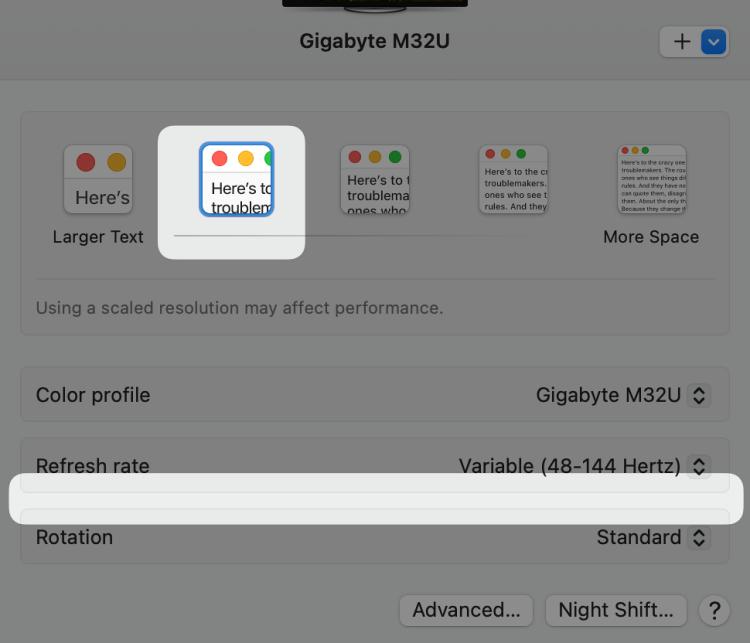
Mac users frequently encounter a vexing problem when attempting to enjoy the benefits of High Dynamic Range (HDR) on their 4K monitors, mainly when using the macOS Sonoma operating system. This issue becomes incredibly frustrating because HDR technology is renowned for delivering breathtaking visuals and is a primary selling point for contemporary displays. Numerous users have shared their grievances regarding the absence of the HDR option when selecting specific resolutions, such as 2560 x 1440, 3008 x 1692, and 3360 x 1890. Even for those fortunate enough to locate the HDR option, their enthusiasm is curtailed by the restriction of a 60Hz refresh rate. In this article, we unveil an ingenious workaround that promises to resolve this aggravating predicament, enabling users to savor the HDR experience.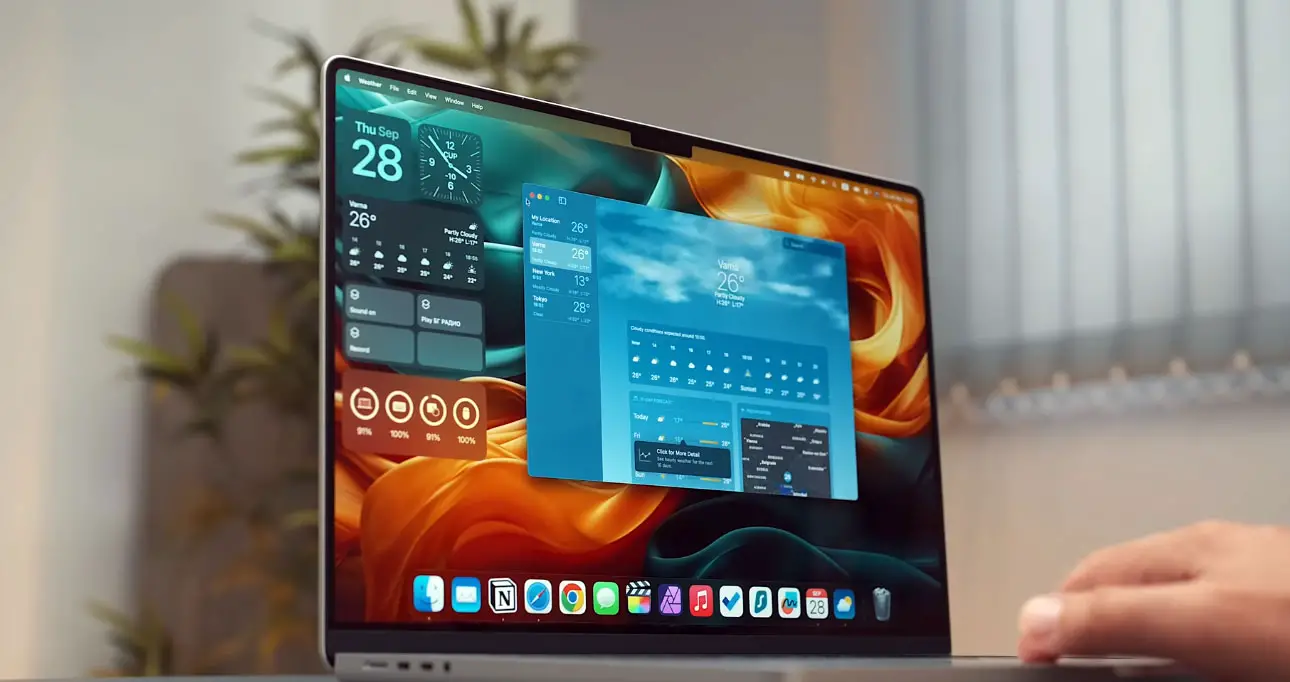
The Universal Problem
The issue of HDR not working on a 4K monitor on macOS Sonoma is not limited to specific display cables. Whether you’re using a USB-C DP-Alt Mode or a USB-C to DP converter cable, the problem persists. Even if you opt for HDMI, the refresh rate is still capped at 60Hz, causing a suboptimal viewing experience for those who crave the brilliance of HDR.

The Solution: Better Display
To address this frustrating issue, we recommend using an open-source tool called “Better Display.” Here’s a step-by-step guide to get HDR working on your 4K monitor with macOS Sonoma:
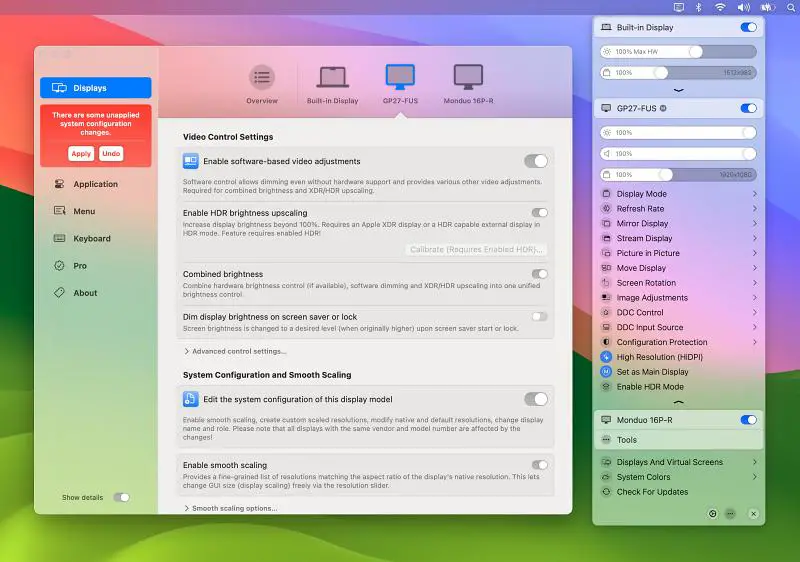
- Start by downloading Better Display from its GitHub repository.
- After downloading, install and launch Better Display.
- In Better Display, navigate to the “Smooth Scaling Resolutions” section.
- In the “Smooth Scaling Resolutions” section, adjust the settings as follows:
- Fixed 120Hz: max scaled HDR res is 2432 x 1368
- Fixed 144Hz or VRR (48-144Hz): max scaled HDR res is 2208 x 1242
- Once you’ve configured the settings, save the changes within Better Display.
- After saving the changes, you should notice a significant improvement in the HDR functionality on your 4K monitor.
FAQs
What is HDR, and why is it essential for 4K monitors?
HDR, short for High Dynamic Range, is a display technology that improves the contrast and color range, resulting in more lifelike and vibrant visuals on 4K monitors. It is crucial for an immersive viewing experience.
Can I use Better Display on other macOS versions?
While this article focuses on macOS Sonoma, Better Display may work with other macOS versions as well. It’s worth trying if you encounter HDR issues.
Are there any alternatives to Better Display for fixing HDR issues?
There might be other tools and methods available, but Better Display is a reliable open-source option that has worked for many users.
Will adjusting the settings with Better Display cause any harm to my monitor or system?
No, Better Display is a safe and reversible tool. Adjusting the settings within Better Display will not harm your monitor or system.
Is there a way to enable HDR on macOS Sonoma without using third-party tools?
Currently, using third-party tools like Better Display seems to be the most effective method to enable HDR on macOS Sonoma for 4K monitors.
Wrap Up
In conclusion, the challenge of HDR not functioning on a 4K monitor with macOS Sonoma can be a source of significant frustration for users seeking to elevate their visual experience. The allure of HDR, with its captivating vibrancy and immersive qualities, often feels out of reach in such situations. Fortunately, there is a beacon of hope in Better Display, an open-source tool that comes to the rescue. By adeptly tweaking the settings within this software, users can tap into the full potential of their monitors. It’s akin to unlocking a world of colors, contrasts, and depth that was previously inaccessible. The result is a display that brings content to life with unparalleled richness and realism, transforming your viewing experience into something truly extraordinary. Better Display is a valuable solution, bridging the gap between your monitor’s capabilities and your desire for visual excellence.

Selva Ganesh is a Computer Science Engineer, Android Developer, and Tech Enthusiast. As the Chief Editor of this blog, he brings over 10 years of experience in Android development and professional blogging. He has completed multiple courses under the Google News Initiative, enhancing his expertise in digital journalism and content accuracy. Selva also manages Android Infotech, a globally recognized platform known for its practical, solution-focused articles that help users resolve Android-related issues.




Leave a Reply