
Keep Instagram Playing – In the modern digital landscape, multitasking has become a fundamental necessity for productivity. Whether you are a professional navigating complex spreadsheets, a student drafting a research paper, or a creative designer working on your next masterpiece, the ability to maintain a seamless workflow while consuming content is invaluable. However, one of the most persistent frustrations for users is Instagram’s restrictive web interface. Traditionally, if you switch to another browser tab, the video or audio often pauses or becomes inaccessible, disrupting your momentum.
We understand that you want to maximize efficiency without sacrificing the entertainment or educational value of Instagram videos. In this comprehensive guide, we will explore the most effective ways to listen to Instagram videos while working in other tabs, focusing on user-friendly tools that require no technical expertise.

The Challenge of Instagram’s Auto-Pause Mechanism
Instagram is primarily a mobile-first platform that emphasizes active engagement. In the desktop version, the platform employs a mechanism that often pauses media playback when the window loses focus. For those who use Instagram to follow motivational speakers, educational webinars, or music performances, this limitation is a significant hurdle.
When we attempt to work across multiple tabs, we often find ourselves tethered to a single page just to keep the audio running. This creates a fragmented experience. To solve this, we must look toward browser extensions and clever navigation techniques that bypass these restrictions, allowing the audio to flow uninterrupted while you focus on your primary tasks.
Introducing the Instagram Auto-Play Fix: A Game Changer for Productivity
For those seeking a “set it and forget it” solution, the Instagram Auto-Play Fix is a premier browser extension designed specifically to address these playback hurdles. This tool is crafted for non-tech users who want a straightforward way to keep their content playing in the background.
How the Extension Works for You
The primary function of this extension is to override the command that tells Instagram to stop playing when you click away. By installing this tool, you empower your browser to maintain an active stream of audio and video, regardless of which tab is currently visible on your screen.
Key Benefits Include:
- Uninterrupted Audio: Listen to long-form interviews or Reels without the audio cutting out when you switch to your email or document editor.
- Seamless Integration: It runs quietly in the background of Google Chrome or any Chromium-based browser (such as Microsoft Edge or Brave).
- User-Friendly Interface: There are no complex codes to enter or settings to toggle; it simply enhances the existing Instagram web experience.
Step-by-Step Installation for Non-Tech Users
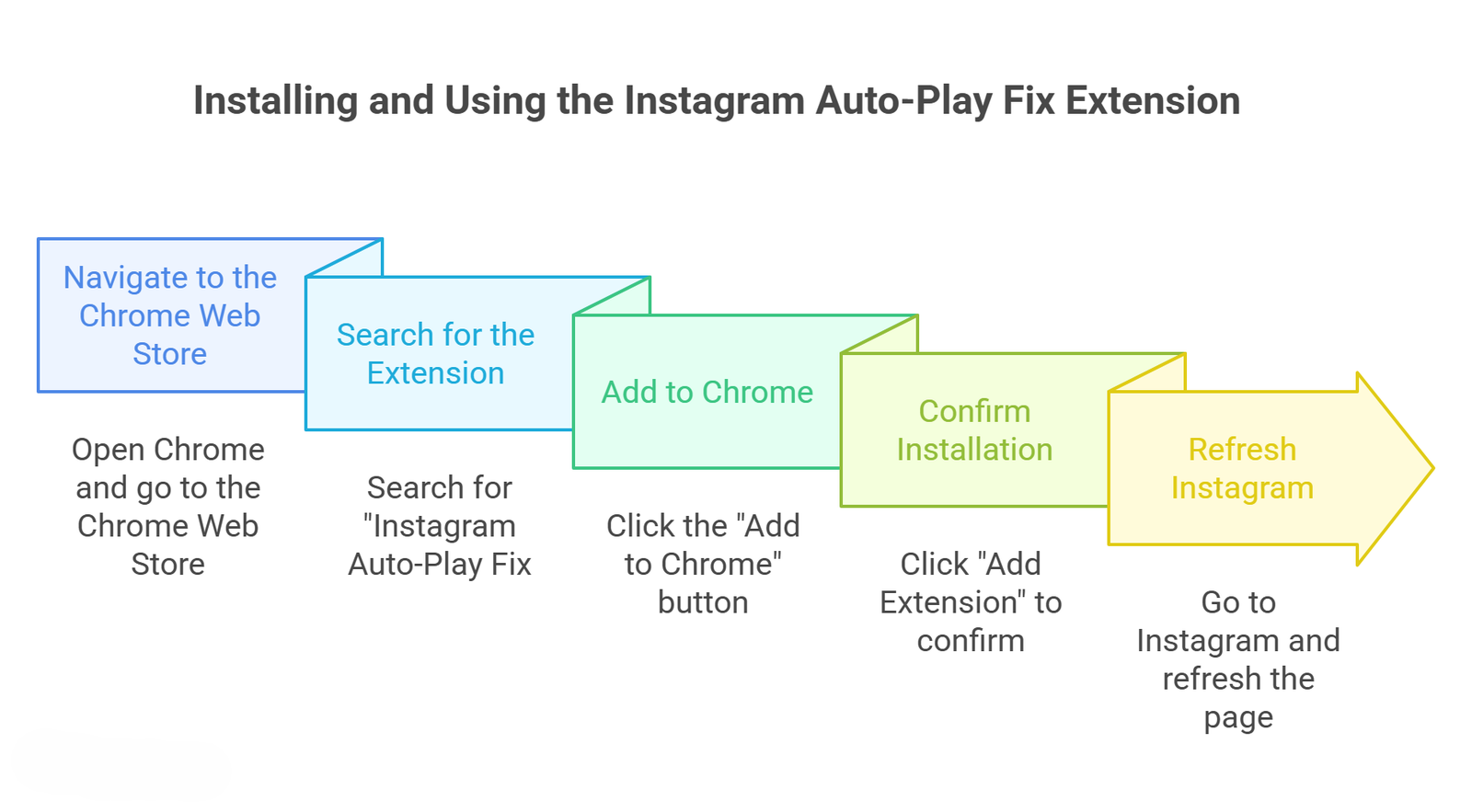
We believe that technology should be accessible to everyone. If you have never installed a browser extension before, follow these simple steps to get started:
Utilizing Picture-in-Picture (PiP) Mode for Visual and Audio Continuity
While the Auto-Play Fix handles the audio perfectly, some users may still want a small visual reference of the video while they work. This is where Picture-in-Picture (PiP) mode becomes essential.
Most modern browsers now support a native PiP mode, which allows you to “pop out” a video into a small, floating window that sits on top of all other windows.
How to Trigger PiP on Instagram:
- Right-Click Twice: On many video players, right-clicking once brings up the site’s menu (like “Save Video As”). Right-clicking a second time usually brings up the browser’s native menu, where you can select “Picture-in-Picture.”
- Floating Window: Once selected, the Instagram video will shrink into a small box in the corner of your screen. You can drag this box anywhere and resize it to fit your workspace.
- Focus on Work: You can now open your word processor, CRM, or any other software, and the video will stay visible and audible.
Optimizing Your Desktop Environment for Background Audio
To truly master multitasking, you should consider how your desktop environment is organized. Listening to content while working requires a balance between concentration and stimulation.
Manage Your Tab Volume
If you are working across multiple tabs that might also have sound (like a communication tool or another media site), remember that you can mute individual tabs in Chrome. Right-click the tab at the top of your browser and select “Mute Site.” This ensures that only the Instagram audio you want to hear reaches your speakers or headphones.
Use Shortcut Keys for Quick Control
We recommend learning basic keyboard shortcuts to manage your media without moving your mouse. Many keyboards have dedicated media keys (Play/Pause). When the Instagram Auto-Play Fix is active, these keys often work to control the background Instagram video, allowing you to pause the audio instantly if you receive a phone call or need to jump into a meeting.
Why This Method Beats the Mobile App for Workers
Many people ask, “Why not just play Instagram on my phone while I work on my computer?” While this is an option, it is often less efficient for several reasons:
- Battery Drain: Streaming video on a mobile device consumes significant battery life.
- Distraction Factor: Checking your phone frequently to change videos can lead to “notification rabbit holes,” where you end up checking texts or other apps, breaking your deep work state.
- Audio Quality: Using your computer’s browser, you can use your high-quality desktop speakers or professional headsets for a much better audio experience.
- Unified Control: Having everything on one screen—your work and your audio—allows for a more cohesive digital environment.
Troubleshooting Common Issues
Even with the best tools, technology can occasionally encounter a glitch. Here is how we suggest handling common hurdles:
- Audio Doesn’t Start: If you switch tabs and the audio stops, ensure the extension is pinned and active. Sometimes, a simple refresh of the Instagram tab (Press F5) resolves the connection.
- Browser Updates: Ensure your Google Chrome browser is up to date. Google frequently releases updates that improve how media extensions interact with websites.
- Conflicting Extensions: If you have multiple “video downloader” or “ad blocker” extensions, they may occasionally conflict. If you experience issues, try disabling other extensions temporarily to see if the Instagram Auto-Play Fix resumes normal operation.
The Importance of Background Content for Productivity
Research into workplace psychology suggests that for many individuals, “low-level” background noise or engaging audio can actually improve focus on repetitive tasks. This is often referred to as the “Coffee Shop Effect.” By listening to Instagram videos—whether they are industry news, ambient sounds, or educational content—you provide your brain with enough stimulation to prevent boredom without distracting from the primary cognitive task at hand.
By utilizing the Instagram Auto-Play Fix, you are not just “watching videos”; you are curating an audio environment that supports your professional goals.
Final Thoughts on Instagram Desktop Efficiency
We live in an era where the boundaries between different types of digital engagement are blurring. You should not be forced to choose between staying informed on social media and getting your work done. By leveraging simple, powerful tools like the Instagram Auto-Play Fix extension and native browser features like Picture-in-Picture, you can transform your browser into a productivity powerhouse.
This approach is safe, easy for non-tech users, and highly effective. We encourage you to try these methods today to see how much more enjoyable and fluid your workday can become. Stop letting tab switching interrupt your rhythm and start enjoying seamless Instagram playback as you conquer your to-do list.

Selva Ganesh is a Computer Science Engineer, Android Developer, and Tech Enthusiast. As the Chief Editor of this blog, he brings over 10 years of experience in Android development and professional blogging. He has completed multiple courses under the Google News Initiative, enhancing his expertise in digital journalism and content accuracy. Selva also manages Android Infotech, a globally recognized platform known for its practical, solution-focused articles that help users resolve Android-related issues.




Leave a Reply