
Disable Instagram Instants– Managing a social media presence often feels like a constant battle against interface clutter. As the platforms we use every day evolve, they frequently introduce “convenience” features that, for many of us, feel like unnecessary distractions. One such feature that has recently sparked a wave of frustration is the appearance of Instagram Instants within the direct messaging (DM) interface. We understand that your inbox should be a space for meaningful conversation, not a gallery of automated suggestions or ephemeral content that disrupts your workflow.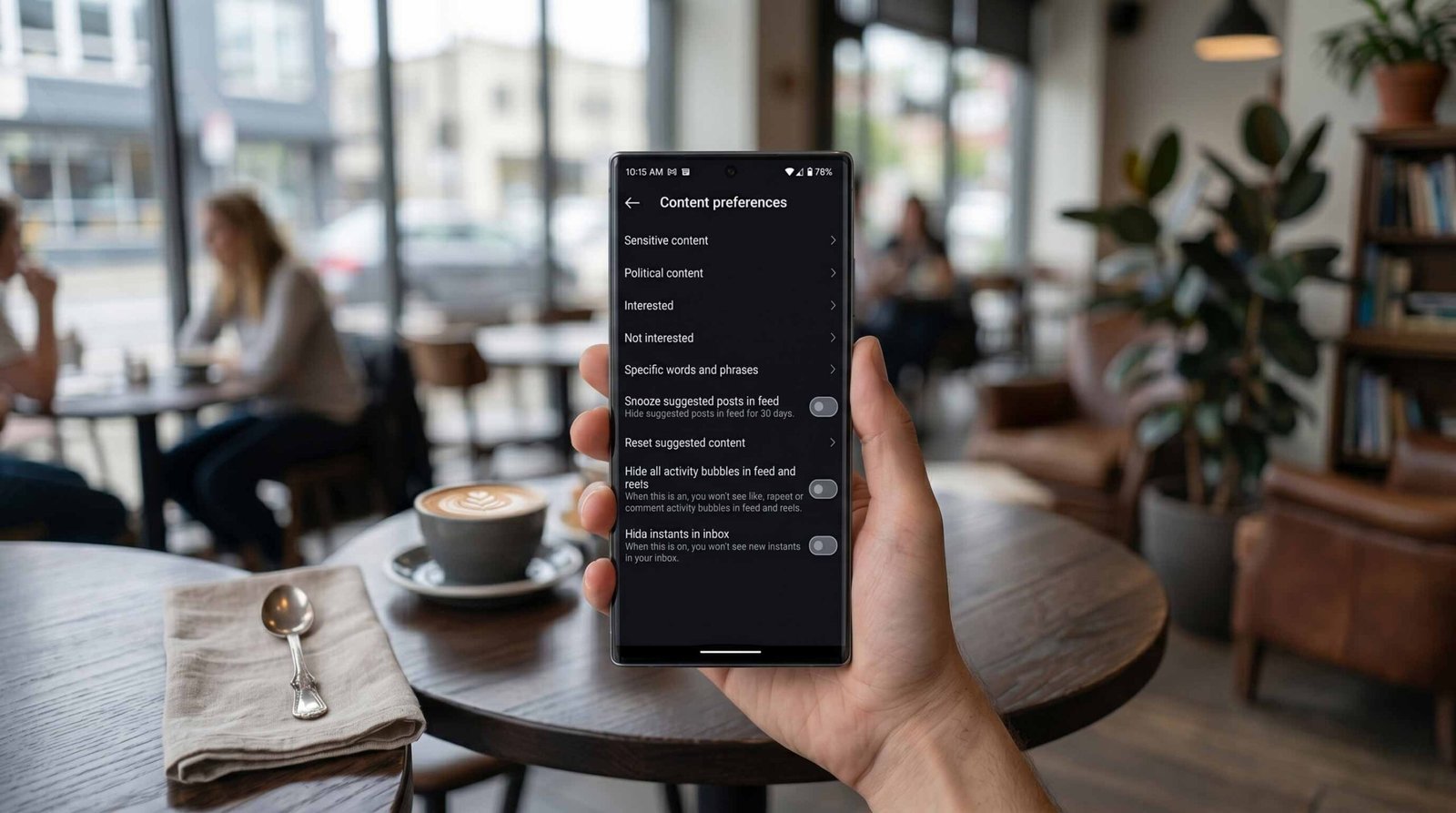
The Evolution of the Instagram Messaging Interface
Over the last few years, the Messages Tab has transformed from a simple list of private chats into a multifaceted hub. With the integration of Notes, Active Status, and now Instants, the visual real estate of the app has become increasingly crowded. For users who prioritize a minimalist aesthetic or those who use the platform for professional networking, these “Instants”—which often preview content or suggest interactions—can be perceived as intrusive.

We have observed that these features are designed to increase user engagement time, encouraging you to tap on content you might otherwise ignore. However, we believe in user agency. You should have the power to curate your digital environment. Disabling these prompts is not just about aesthetics; it is about reducing the cognitive load associated with navigating your daily communications.
Step by Step Guide to Disabling Instagram Instants
To reclaim your inbox, you must navigate through the deeper layers of the account settings. While Instagram often updates its UI, the core path for content preferences remains the most reliable way to toggle these visibility features. We have tested this method to ensure it provides a permanent solution to the cluttered inbox experience.
- Access Your Profile: Open the Instagram application and tap your profile icon in the bottom right corner.
- Enter the Settings Menu: Tap the three horizontal lines (the “hamburger” menu) in the top right. Select Settings and Activity.
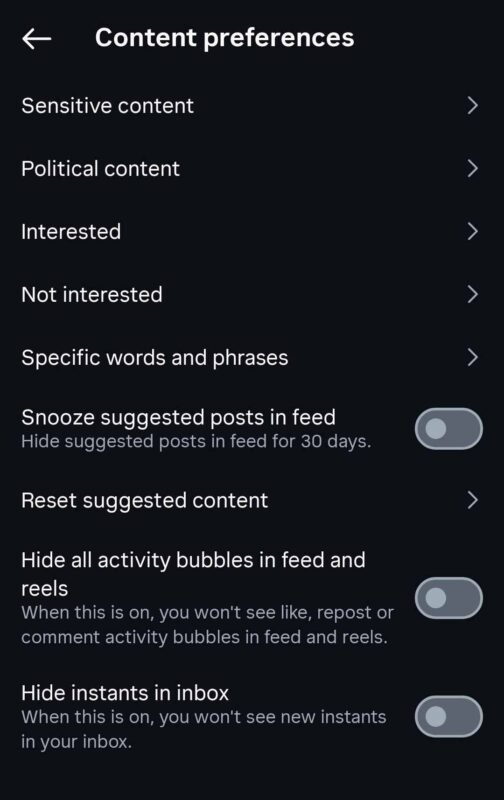
- Navigate to Content Preferences: Scroll down until you find the section labeled What You See. Within this section, locate and tap on Content Preferences.
- Manage Inbox Visibility: Look for the specific toggle labeled Hide Instants in Inbox or Show Instants in Messages.
- Toggle the Switch: Ensure the switch is turned ON to hide these elements. This action will effectively remove the previews from your primary messages tab.
Why You Should Customize Your Content Preferences
When we look at the broader scope of digital wellness, the ability to hide “Instants” or “Suggestions” is vital. Every time you open your DMs, your brain is processing a variety of stimuli. By removing Instants, you are practicing intentional browsing.
The Content Preferences menu is one of the most powerful tools in your arsenal. It allows you to filter out suggested posts, sensitive content, and now, specific messaging features. We recommend checking this menu periodically, as platform updates often reset certain defaults or introduce new categories of “suggested” content that may require manual deactivation.
Enhancing Your Privacy and Focus
The presence of Instagram Instants often utilizes predictive algorithms to guess what content you want to see based on your recent interactions. While some find this helpful, others view it as a breach of contextual privacy. By turning off this feature, you prevent the app from constantly pushing “top-of-mind” content into a space that should be reserved for your private correspondence.
Furthermore, a cleaner interface directly correlates with productivity. If you use Instagram for business, every second spent navigating past an “Instant” is a second diverted from responding to a client or collaborator. We advocate for a streamlined workflow where the tools serve the user, rather than the user serving the tool’s engagement metrics.
Troubleshooting Common Visibility Issues
Occasionally, users report that even after toggling the Hide Instants option, the interface does not immediately update. This is often due to cached data within the application. If you still see these elements after following the steps above, we suggest the following:
- Refresh the App: Force close the Instagram app and restart it.
- Clear Cache: If you are on an Android device, go to your phone settings, find Instagram under “Apps,” and select Clear Cache.
- Update the Software: Ensure you are running the latest version of Instagram from the App Store or Google Play Store. Often, preference toggles only function correctly on the most current build.
The Impact of AI on the Messaging Experience
As we move further into 2026, artificial intelligence plays a massive role in how these “Instants” are curated. The system analyzes your scrolling speed, the time you spend looking at specific profiles, and your interaction frequency to decide what appears in your inbox. By opting out, you are telling the algorithm to prioritize your manual input over its automated assumptions.
The future of social media should be opt-in, where features that change the core user experience are introduced as choices rather than mandates. Until that becomes the industry standard, knowing how to navigate the Settings and Privacy architecture is a necessary skill for every tech-savvy individual.
Conclusion on Inbox Management
Your digital space is an extension of your personal environment. Just as you wouldn’t allow unwanted advertisements to clutter your physical desk, you should not permit Instagram Instants to dominate your messaging tab. By utilizing the Content Preferences menu and selecting Hide Instants in Inbox, you take a significant step toward a more focused, private, and efficient social media experience.
Frequently Asked Questions (FAQs)
1. Will disabling Instants delete any of my messages?
No, this action only affects the visual elements and previews in your inbox. Your actual message history and data remain completely intact.
2. Can I turn this feature back on later?
Yes, you can return to the Content Preferences menu at any time and toggle the setting back to its original state if you decide you miss the suggestions.
3. Does this setting apply to all my Instagram accounts?
No, settings are usually account-specific. If you manage multiple profiles, you will need to repeat the process for each account.
4. Why don’t I see the “Content Preferences” option in my settings?
You may be using an outdated version of the app. Please update your Instagram app to the latest version to access the most recent privacy and interface settings.
5. Will hiding Instants affect my “Active Status” visibility?
No, Active Status is a separate setting found under “Messages and Story Replies.” Disabling Instants does not change whether others can see if you are online.
6. Do Instants use my mobile data?
Yes, because Instants often load thumbnails or previews, they do consume a small amount of data. Disabling them slightly reduces your data usage.
7. Is this feature available on the desktop version of Instagram?
Currently, most interface customization features are prioritized for the mobile app. The desktop layout remains unchanged regardless of mobile settings.
8. What exactly is an “Instagram Instant”?
It is a dynamic UI element that shows quick previews of stories, notes, or suggested reels directly within your messages tab to encourage faster interaction.
9. Does disabling this improve app performance?
It can. By reducing the number of dynamic elements the app has to load when you open your DMs, you may experience a slightly snappier interface.
10. Will my friends know I have disabled this feature?
No, this is a client-side preference. It only affects your view of the app and is not visible to your followers or contacts.

Selva Ganesh is a Computer Science Engineer, Android Developer, and Tech Enthusiast. As the Chief Editor of this blog, he brings over 10 years of experience in Android development and professional blogging. He has completed multiple courses under the Google News Initiative, enhancing his expertise in digital journalism and content accuracy. Selva also manages Android Infotech, a globally recognized platform known for its practical, solution-focused articles that help users resolve Android-related issues.




It’s refreshing to see this frustration addressed, especially how feature creep turns a simple messaging hub into a cluttered engagement trap. I agree that removing these ‘Instants’ is key for professionals who prefer a minimalist DM experience over algorithmic distractions. Hopefully, future updates allow for more granular control over exactly which elements appear in the inbox.