
Make a Call from WhatsApp Web- In our daily communication workflows, convenience and immediate connectivity are paramount. For years, millions of professionals and personal users relied on WhatsApp Web to manage text messaging, share multimedia files, and keep up with group chats. However, whenever a conversation demanded a direct voice call or a face-to-face video session, users were forced to pick up their mobile smartphones or install dedicated desktop applications.
That limitation is officially a thing of the past. Meta has introduced native Web Calling capabilities directly within the WhatsApp Web browser interface. You can now make, receive, and manage end-to-end encrypted audio and video calls without downloading software or leaving your web browser.

In this comprehensive guide, we walk you through everything you need to know about setting up and placing a WhatsApp call from a website platform, exploring new features such as Call Transfer, Waiting Room, QuickHD, and Noise Suppression.
Step-by-Step Guide to Making a WhatsApp Call from Your Web Browser
To initiate or receive a WhatsApp web call, you do not need to configure third-party browser extensions or install hefty executable programs. The entire functionality is built directly into the official WhatsApp Web client.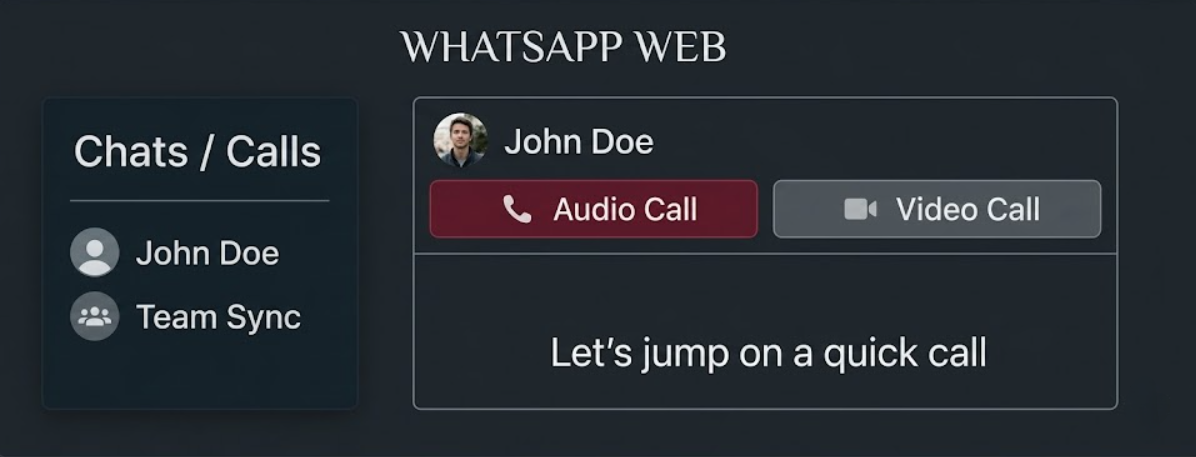
1. Launching and Authorizing WhatsApp Web
First, navigate to web.whatsapp.com on modern web browsers such as Google Chrome, Mozilla Firefox, Microsoft Edge, or Apple Safari.
- Open WhatsApp on your mobile phone.
- Access Settings (or the three-dot menu icon) and select Linked Devices.
- Click Link a Device and point your phone camera at the QR code displayed on your desktop browser screen.
- Once authenticated, your full messaging history, contact list, and conversation threads synchronize seamlessly in your browser window.
2. Granting Microphone and Camera Permissions
Before starting your first web call, your web browser will ask for hardware access.
- Click Allow when prompted by your browser to grant access to your microphone and webcam.
- If you miss the prompt, locate the lock icon in your browser’s address bar to adjust site permissions manually.
3. Initiating One-on-One Audio and Video Calls
Once permissions are enabled, starting a call takes just a few clicks:
- Open the chat conversation of the contact you wish to reach.
- Look at the top right header panel of the chat window. You will see two primary call buttons: a phone icon for audio calls and a video camera icon for video calls.
- Click either button to initiate the connection. A floating call panel will launch on your screen, indicating that the call is dialing.
Key Features Built Into WhatsApp Web Calling
Meta designed WhatsApp Web Calling not merely as a basic audio tool, but as a robust communication suite suited for both personal catch-ups and professional collaborations.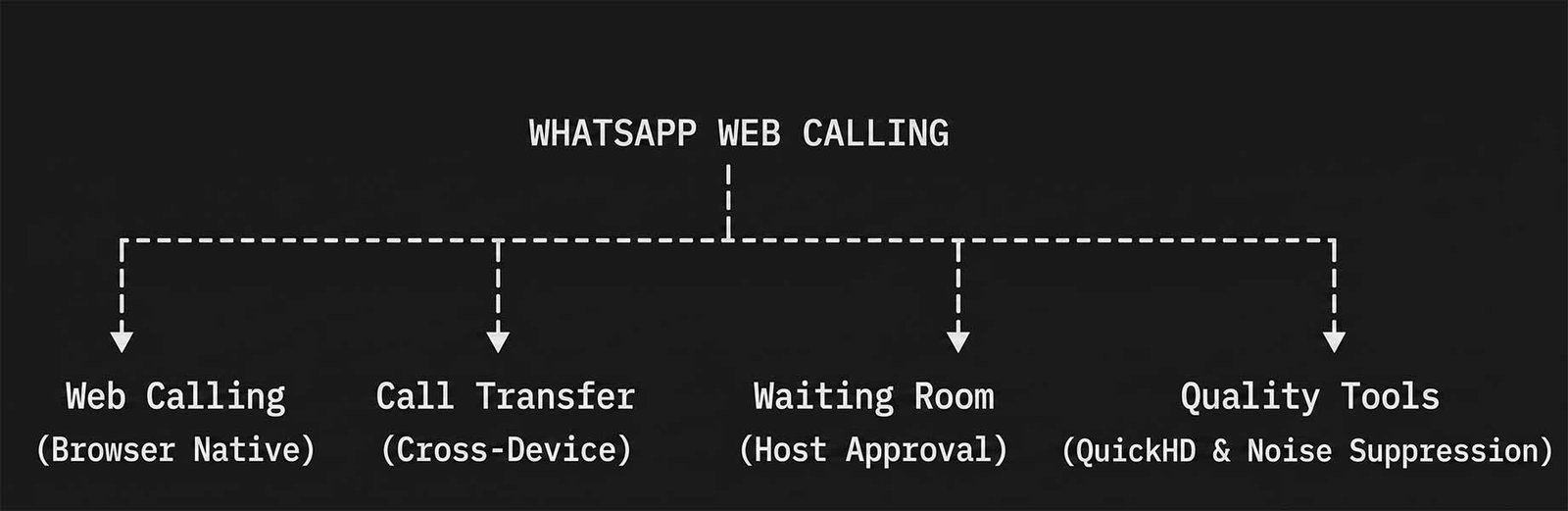
1. Web Native Audio and Video Calling
We can now start and receive both one-on-one and group calls directly in our favorite internet browser. This eliminates the need for standalone desktop applications, which is helpful when working on restricted devices like corporate laptops or shared workstation computers where installing new software is blocked.
In addition to core voice and video transmission, Web Calling supports screen sharing, real-time call reactions, and a dedicated Calls tab where you can view your full call history and jump back into favorite conversations. Crucially, all web calls remain end-to-end encrypted, ensuring that nobody outside the call—not even WhatsApp—can listen to or record your conversations.
2. Seamless Call Transfer Across Devices
One of the most practical additions to the ecosystem is Call Transfer. We frequently find ourselves starting a group discussion on a smartphone while on the commute, only to arrive at our desk needing a larger display and a physical keyboard.
With Call Transfer, you can switch an active call between your mobile device, desktop application, or WhatsApp Web browser session without hanging up or rejoining. The handover happens seamlessly in the background, maintaining call continuity without disturbing other participants.
3. Group Call Links and the Waiting Room
To streamline larger meetings and virtual gatherings, WhatsApp now lets hosts generate custom Call Links with an added layer of control: the Waiting Room.
When creating a call link, hosts can enable the “Require approval to join” setting. When invitees click the link, they do not enter the active call immediately; instead, they are held in a virtual waiting room. The host receives a prompt to review and approve each participant before granting access, preventing uninvited guests from interrupting private discussions.
4. Instant Clarity with QuickHD Video
Slow start-ups and grainy video during the first few seconds of a meeting can disrupt professional presentations. WhatsApp addresses this with QuickHD.
QuickHD optimizes video rendering speeds, delivering high-definition video from the very first moments of a call. It dynamically adjusts pixel density and bitrate algorithms based on your internet connection, ensuring crystal-clear visual quality right from the start.
5. Advanced Noise Suppression
Background audio interference—such as typing sounds, street traffic, construction noise, or chatter in a busy coffee shop—can ruin call clarity. The integrated Noise Suppression tool uses machine-learning audio filters to isolate human speech and remove unwanted ambient noise.
You can toggle Noise Suppression on or off directly within the in-call settings panel during any active session, providing a clear voice experience regardless of your surrounding environment.
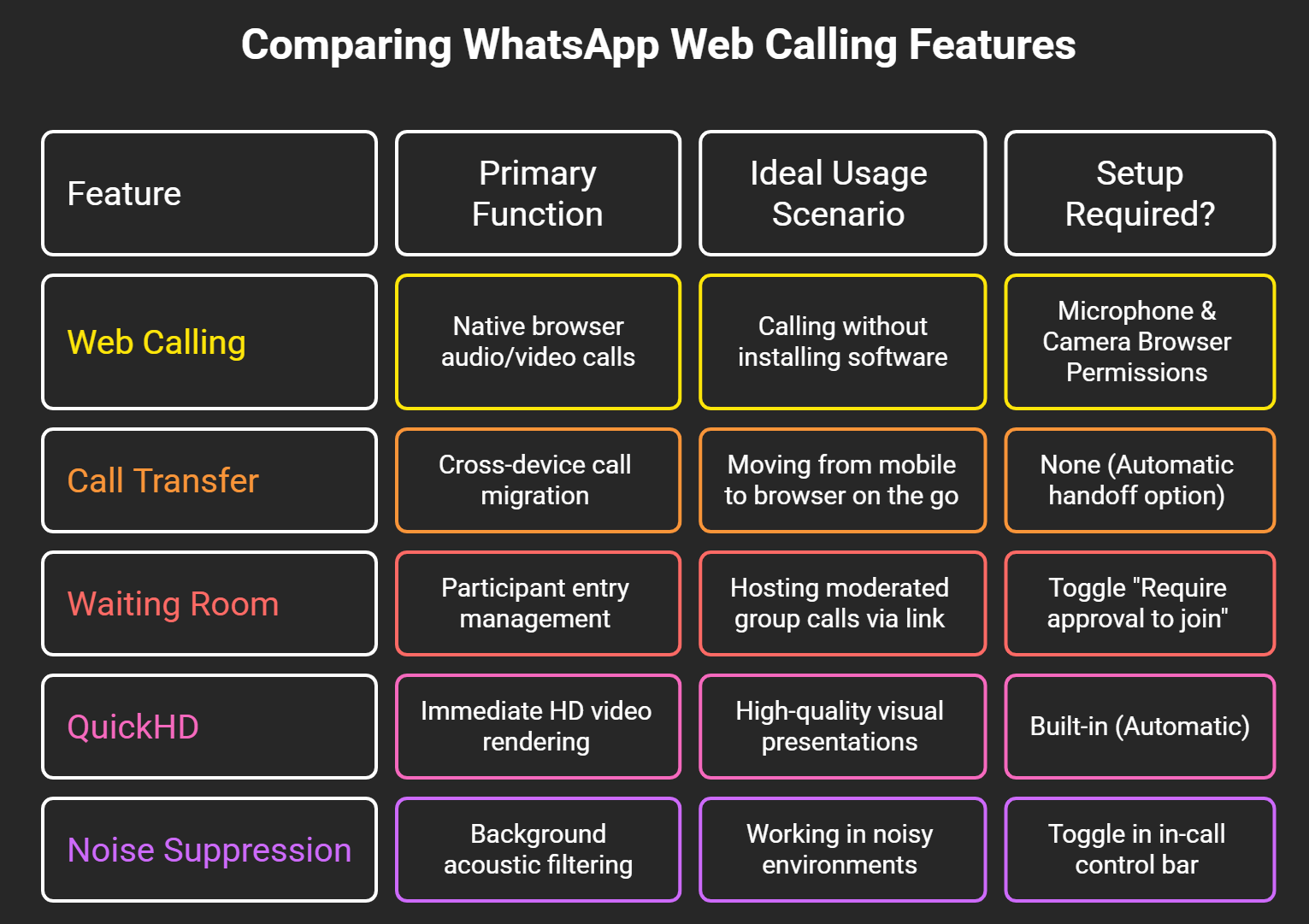
Comparing WhatsApp Web Calling Features
To help summarize these updates, we have compiled a comparison matrix outlining how these features function across your browser experience:
Troubleshooting Common WhatsApp Web Calling Issues
While the WhatsApp Web calling experience is designed to be plug-and-play, you may occasionally run into minor technical hurdles. Here is how we recommend addressing the most common issues:
Microphone or Camera Not Detected
- Ensure that no other communication software (such as Zoom, Microsoft Teams, or Google Meet) is actively using your camera or microphone in another window.
- Check your operating system privacy settings to verify that your web browser has permission to access recording hardware.
- Reload the browser tab (web.whatsapp.com) and re-grant access when prompted.
Distorted Audio or Robotic Voice
- Toggle the Noise Suppression setting inside the call menu. If your network connection slows down, turning off aggressive noise filters can restore natural voice tones.
- Verify that your internet connection offers stable bandwidth. Video calls generally require at least 1.5 Mbps upload/download speeds for optimal QuickHD performance.
Feature Not Appearing in Your Browser
- Meta rolls out major feature updates gradually across international regions and account tiers.
- Clear your browser cache and refresh your session, or log out of WhatsApp Web and re-scan the QR code to fetch the latest platform update.
Frequently Asked Questions
1. Do I need to install software to make WhatsApp calls on my computer?
No. With the release of native Web Calling, you can place and receive voice and video calls directly inside web browsers like Chrome, Edge, Firefox, and Safari without installing any desktop software.
2. Are WhatsApp Web calls end-to-end encrypted?
Yes. All audio and video calls made through WhatsApp Web maintain full end-to-end encryption, ensuring that only you and the person you are communicating with can hear or see the conversation.
3. Can I make group video calls from WhatsApp Web?
Yes. WhatsApp Web calling supports both one-on-one and group video calls, allowing you to collaborate with multiple participants directly from your web browser.
4. How does the WhatsApp Call Transfer feature work?
Call Transfer lets you shift an active call between devices—such as moving from your smartphone to your browser or desktop app—without dropping the call or needing to dial back in.
5. What is the Waiting Room setting in WhatsApp group calls?
The Waiting Room feature gives call hosts control over who enters a group call. When the host creates a call link with “Require approval to join” turned on, prospective participants remain in a holding space until approved.
6. Can I share my desktop screen during a WhatsApp Web call?
Yes. WhatsApp Web Calling includes native screen sharing, allowing you to share your entire display, a specific application window, or a browser tab during video calls.
7. What is QuickHD on WhatsApp video calls?
QuickHD is an optimization technology that delivers high-definition video within the first few seconds of starting a call, avoiding initial blurriness or delay.
8. How do I turn on Noise Suppression during a call?
You can manage Noise Suppression directly from the call controls on your screen. Open the call settings bar and toggle noise suppression on to filter out ambient sounds.
9. Is there any time limit on WhatsApp Web calls?
No. Calls made on WhatsApp Web are completely free of time restrictions, allowing for uninterrupted personal and professional conversations.
10. What should I do if the call button does not appear on WhatsApp Web?
Because this feature is being released in gradual updates worldwide, check back over the coming days if it isn’t visible yet. You can also log out of WhatsApp Web, clear your browser cache, and re-scan the QR code to refresh your account settings.

Selva Ganesh is a Computer Science Engineer, Android Developer, and Tech Enthusiast. As the Chief Editor of this blog, he brings over 10 years of experience in Android development and professional blogging. He has completed multiple courses under the Google News Initiative, enhancing his expertise in digital journalism and content accuracy. Selva also manages Android Infotech, a globally recognized platform known for its practical, solution-focused articles that help users resolve Android-related issues.




Leave a Reply