
Free QR Code using Google Chrome- In the modern digital landscape, sharing information rapidly and efficiently remains a cornerstone of effective online communication. Quick Response (QR) codes have evolved from niche inventory tracking symbols into ubiquitous entry points for websites, digital menus, contactless payments, and media sharing. While numerous third-party platforms offer QR generation tools—often hidden behind subscription paywalls or plagued by intrusive advertisements—a completely free, secure, and native solution exists right inside your web browser.
We utilize Google Chrome as our primary vehicle for seamless data transfer. Google integrated a robust, native QR code generator directly into the browser framework across all major operating systems. This internal utility eliminates the need to expose sensitive browsing data to unknown external generators. We examine the exact, step-by-step methodologies required to execute this function flawlessly on both desktop environments and mobile interfaces.
Desktop QR Code Generation Framework
The architecture of Google Chrome on desktop systems—encompassing Windows, macOS, Linux, and ChromeOS—provides an incredibly swift mechanism to convert any active URL into a scannable matrix barcode. This native tool automatically nests the iconic Chrome dinosaur silhouette into the center of the generated graphic, ensuring instant visual recognition.
Executing the Right-Click Context Menu Method
When navigating a website that requires immediate distribution, the context menu provides the most direct pathway.
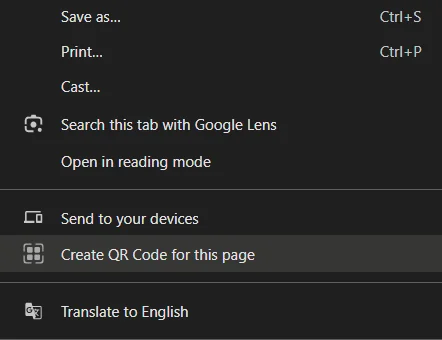
- Navigate to the Target URL: Open Google Chrome and access the specific webpage, landing page, or online asset you intend to share. Ensure the page loads completely to lock in the final, correct URL string.
- Initiate the Context Menu: Position your cursor over an open, unoccupied area of the webpage. Avoid clicking directly on images, hyperlinks, or interactive video frames, as this alters the available context options. Right-click to open the primary drop-down menu.
- Select the QR Engine: Locate and left-click the option labeled Create QR code for this page.
- Download and Export: A specialized pop-up interface materializes in the upper right-hand quadrant of the browser viewport. This module displays the newly generated graphic alongside the text field containing the source URL. Click the Download button to export the asset as a high-resolution PNG file to your local directory.
The Omnibox Share Address Bar Shortcut
For users who prefer keyboard navigation or cleaner interface interactions, the address bar offers an alternative, highly efficient shortcut.
- Focus the Omnibox: Click once inside the Google Chrome address bar (the Omnibox) at the top of the browser window.
- Trigger the Share Matrix: On the far right side of the address bar, immediately adjacent to your bookmark star icon, look for the Share this page icon (resembling an outgoing arrow or a structural link icon, depending on your exact version).
- Generate the Graphic: Click the share icon to open the native application menu. Select QR Code from the list of available transmission methods. The browser immediately displays the download module, allowing you to copy the link directly or download the final image file.
Mobile QR Code Generation Framework
The operational workflow shifts slightly when the transition occurs to mobile operating systems like Android and iOS. Because right-click functionality is absent in touch interfaces, Google Chrome utilizes the system Share Sheet architecture to process image generation.
Mastering the Android Chrome Workflow
Android devices leverage deep integration with the Google ecosystem, providing an incredibly streamlined pathway to export data visually.
- Access the Core Interface: Launch the Chrome application on your Android device and open the desired digital resource.
- Deploy the Primary Menu: Tap the three vertical dots menu located in the upper-right corner of the browser interface to reveal the global settings and navigation options.
- Activate the Share Sheet: Tap the Share option within the drop-down list. This action initializes the native Android share module at the base of your screen.
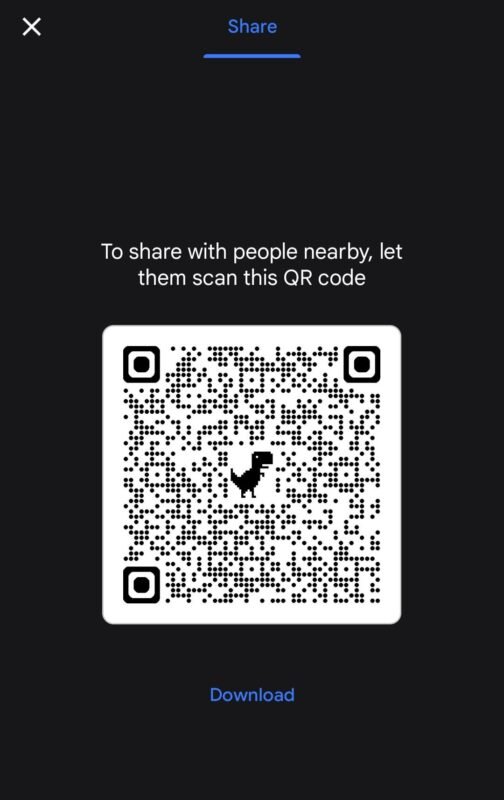
- Locate the QR Tool: Scroll horizontally through the lower row of system actions until you locate the QR Code option, designated by a clean barcode icon. Tap it.
- Finalize and Save: The interface transitions to a full-screen preview of the generated asset. Tap the Download button at the bottom of the screen to save the image directly to your device’s internal storage or photo gallery.
Navigating the iOS Chrome Interface
For users operating within the Apple ecosystem, Google Chrome adapts perfectly to the specific UI guidelines of iOS while maintaining access to the same native generation technology.
- Launch the Action Hub: Open Chrome on your iPhone or iPad and navigate to your chosen webpage.
- Locate the Share Icon: Tap the standard iOS Share icon (a square featuring an upward-pointing arrow) situated directly inside the address bar layout at the top right, or within the bottom navigation tray.
- Select the Generation Parameter: Scroll vertically through the native iOS share sheet options until you locate the action item titled Create a QR Code.
- Export to Camera Roll: Once the image displays on screen, tap the share option within that specific sub-menu, or choose Save Image to commit the graphic asset directly to your native iOS Photos application.
Advanced Optimization and Creative Use Cases
Understanding the mechanical execution of generating these assets is merely the baseline. To maximize the utility of these built-in browser tools, we must analyze how to deploy them strategically across various real-world scenarios.
Transforming Static Print Media
Physical marketing assets—such as business cards, promotional flyers, restaurant menus, real estate signage, and event posters—benefit immensely from digital integration. By utilizing the desktop export method, we can seamlessly place high-quality PNG graphics into graphic design software. This creates an immediate bridge for physical consumers to access deep links, promotional discounts, contact forms, or digital documentation without typing cumbersome URLs manually.
Enhancing Educational Environments
Educators and presenters can leverage the instantaneous generation capabilities of Chrome during live lectures or corporate presentations. By projecting a generated code directly onto a presentation screen, an entire audience can simultaneously scan the display using their smartphone cameras. This provides immediate, synchronized access to reference materials, interactive surveys, digital quizzes, or downloadable lecture notes without disrupting the instructional flow.
Troubleshooting Common Scanning Failures
While the internal Google Chrome generator creates highly precise layout matrices, external real-world factors can occasionally impede successful scanning. Implementing standard quality control measures ensures universal compatibility across all mobile scanning devices.
Resolving Contrast and Lighting Issues
The foundational design of barcode matrix scanning relies heavily on the sharp contrast between the dark structural blocks and the light background spaces.
- Avoid Over-Sizing in Low Resolution: When transferring the downloaded PNG file into print media, ensure the file is scaled proportionally without causing pixelation.
- Maintain Background Integrity: Do not overlay the generated image onto busy, multi-colored backgrounds that interfere with the scanning boundary box.
- Optimize External Lighting: When scanning a code from a physical surface or a secondary monitor, ensure glare, reflections, or deep shadows do not distort the sensor’s ability to read the embedded data patterns.
Managing URL Complexity and Length
The physical density of a QR code grid increases exponentially relative to the volume of text or character length contained within the source link. Long URLs filled with extensive tracking parameters, referral tokens, or deep-nested directory structures create complex, highly dense pixel grids. These intricate grids are inherently more difficult for older smartphone cameras or low-light lenses to resolve accurately. To mitigate this issue, clean the destination link by removing unnecessary tracking syntax before triggering the generation engine within Chrome.
Frequently Asked Questions
Do these generated images ever expire?
No. The assets created by this native browser utility contain static information, meaning they link directly to the exact URL string input during creation. They function indefinitely unless the destination website structure changes or the URL itself becomes inactive.
Is an internet connection required to generate the image?
An active data connection is required to navigate to the target website initially. Still, the actual computational processing of rendering the visual matrix happens locally within the application framework, meaning the rendering engine itself operates completely offline.
Are there scan limits or hidden usage fees?
Absolutely not. Because this feature is hardcoded directly into the open-source Chromium foundation, there are no structural caps on generation frequency, no scanning limits, and no monetization funnels whatsoever.
Can we track analytics or user data through these links?
Native static generation does not include built-in tracking analytics or dashboard management. To monitor traffic metrics, you must append tracking parameters directly to the source URL before generating the image, or utilize server-side analytics on the destination platform.
Can the central dinosaur logo be removed natively?
The embedded Chrome dinosaur icon is a permanent aesthetic component of the native generation tool. If a completely blank canvas or a custom corporate logo integration is required, external advanced vector editing software or specialized developer tools must be utilized.
Does this feature work for local files stored on a hard drive?
Yes. If you open a local PDF document, image, or HTML file directly inside a Google Chrome browser tab, the generation tool treats the local file path as a URL, allowing you to create a functional asset instantly.
What happens if the destination URL changes in the future?
Since static codes hardcode the original text string directly into the pixel arrangement, they cannot be dynamically altered after generation. If a URL changes, a completely new image asset must be created using the updated destination address.
Are these tools secure for corporate enterprise environments?
Yes. Because the entire creation process occurs locally within the isolated sandbox environment of the browser, no data is transmitted to third-party web servers for processing. This protects internal corporate links from external data harvesting.
What is the maximum character limit supported by the tool?
The native browser utility comfortably accommodates standard structural URL lengths up to several hundred characters, automatically adjusting the physical matrix density to match the input data volume smoothly.
Can I change the color of the outputted graphic inside Chrome?
No. The internal configuration defaults strictly to a high-contrast monochromatic black-and-white layout with a central gray icon to ensure universal scanner compatibility. Color modifications require external post-processing software.

Selva Ganesh is a Computer Science Engineer, Android Developer, and Tech Enthusiast. As the Chief Editor of this blog, he brings over 10 years of experience in Android development and professional blogging. He has completed multiple courses under the Google News Initiative, enhancing his expertise in digital journalism and content accuracy. Selva also manages Android Infotech, a globally recognized platform known for its practical, solution-focused articles that help users resolve Android-related issues.





Leave a Reply