
10 Things You Can Do with Samsung Routines and Modes – Modern smartphones possess immense processing power, yet many of us manually adjust our settings dozens of times each day. Samsung Modes and Routines—a built-in feature on Galaxy devices running One UI—acts as a personal digital assistant that automates these repetitive tasks without requiring technical skills.
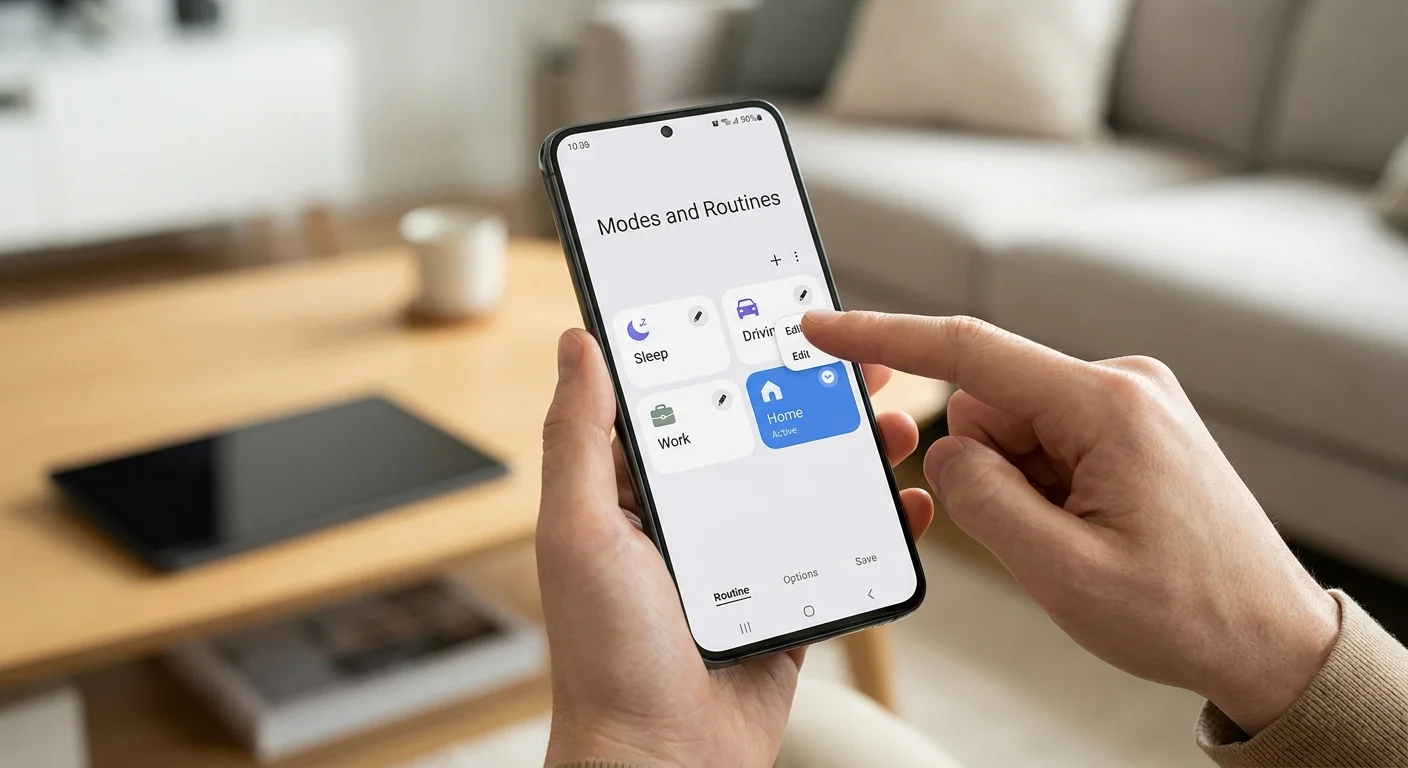

By utilizing simple “If/Then” logic (for example: If I arrive at work, Then silent mode turns on), Samsung Modes and Routines adapts your phone to your daily environment. We have compiled a comprehensive, beginner-friendly guide to ten practical ways you can automate your Galaxy phone to save battery, minimize distractions, and streamline your daily life.
1. Automate Overnight Battery Protection and Slow Charging
Charging your phone to 100% and leaving it plugged in all night can accelerate battery wear over time. Furthermore, Fast Charging generates excess heat, which further degrades lithium-ion cells.
By setting up an Overnight Charging Routine, we can instruct the device to disable Fast Charging during sleeping hours and enable Protect Battery (which limits charging to 80% or 85% until right before you wake up).
-
Trigger (If): Time is between 11:00 PM and 6:00 AM, and Charging Status is “Charging.”
-
Action (Then): Turn off Fast Charging, and turn on Protect Battery.
This small adjustment extends your battery’s lifespan over years of use without requiring any manual habit changes.
2. Keep Your Phone Unlocked Automatically at Home
Unlocking your device every few minutes while relaxing at home can feel redundant. While Android offers built-in Smart Lock features, a dedicated Home Location Routine provides much greater control over your screen timeout and security settings when you are in a safe environment.
-
Trigger (If): Connected to your home Wi-Fi Network OR located at your Home Address.
-
Action (Then): Keep phone unlocked, increase Screen Timeout to 2 or 5 minutes, and set Ringer Volume to a comfortable level.
When you leave your home Wi-Fi coverage area, the routine turns off automatically, restoring your standard security code and lock screen settings immediately.
3. Silence Your Phone Upon Arriving at Work or School
Forgetting to silence your phone before an important meeting or classroom lecture can cause unwanted disruptions. Instead of relying on memory, we can configure a Location-Based Mode that automatically modifies audio profiles upon entry to specific coordinates.
-
Trigger (If): Arriving at your Office or Campus Location.
-
Action (Then): Change Sound Mode to Mute or Vibrate, turn off Media Volume, and switch Wi-Fi to On (to automatically connect to office networks).
When you depart the location, your device seamlessly switches back to your default sound profile and volume settings.
4. Optimize Screen Settings for Comfortable Nighttime Reading
Bright screens emitting blue light late at night can suppress melatonin production and disrupt sleep cycles. Additionally, reading articles or e-books in low light can cause severe eye strain.
We can establish an automated Reading Routine that engages whenever you open reading or browser apps.
-
Trigger (If): Opening specific applications like Kindle, Samsung Internet, or Google Books.
-
Action (Then): Enable Eye Comfort Shield, turn on Extra Dim, set Screen Auto-Rotate to Portrait, and extend Screen Timeout so the display does not turn off while reading.
5. Launch Driving Essentials Automatically in the Car
When getting behind the wheel, manually opening navigation apps and selecting music playlists creates dangerous driving distractions. A dedicated Driving Routine handles these steps before you pull out of the driveway.
-
Trigger (If): Phone connects to your car’s Bluetooth Audio System or Android Auto.
-
Action (Then): Launch your preferred Navigation App (such as Google Maps), open your Music Streaming App, turn on Read Notifications Aloud, and set Media Volume to 100%.
Everything launches automatically upon turning the ignition key, allowing you to keep your hands on the wheel and eyes on the road.
6. Create a Distraction-Free Sleep Environment
Interrupted sleep due to late-night group chat notifications or spam calls affects health and focus. The built-in Sleep Mode on Galaxy devices allows us to establish strict boundaries between day and night activities.
-
Trigger (If): Sleep time begins (either via scheduled hours or automated sleep detection via Galaxy Watch).
-
Action (Then): Enable Do Not Disturb (allowing calls only from starred contacts), switch the display to Grayscale mode to reduce screen appeal, turn on Dark Mode, and lower screen brightness.
By turning the display black-and-white, your phone becomes far less visually enticing if you wake up and glance at the screen during the night.
7. Automatically Maximize Power Saving on Low Battery
When your device reaches a critically low battery percentage, manually navigating menus to conserve power is the last thing you want to worry about. An automated Emergency Power Routine steps in to ensure your phone remains operational for vital calls.
-
Trigger (If): Battery level drops below 20% (and device is not charging).
-
Action (Then): Turn on Power Saving Mode, decrease Screen Brightness to 20%, turn off Always On Display, disable Location Services, and set CPU Speed limit to 70%.
This routine automatically turns off the moment you connect your device to a power outlet or charger.
8. Toggle Auto-Rotation Only for Video and Gallery Apps
Most users prefer to keep Auto-Rotate disabled globally to prevent the screen from spinning unexpectedly when holding the phone in bed. However, viewing videos or photos in portrait mode is inconvenient.
Rather than toggling auto-rotate on and off manually throughout the day, we can automate screen rotation strictly for media-centric applications.
-
Trigger (If): Opening apps like YouTube, Netflix, Gallery, or Google Photos.
-
Action (Then): Switch Screen Orientation to Auto-Rotate.
When you exit the app, the screen automatically locks back into Portrait Orientation.
9. Enhance Security and Save Battery When Away From Home
Leaving your device’s Wi-Fi and Location features continuously searching for networks while traveling drains battery power unnecessary and exposes device metadata to public networks.
A Travel Routine optimizes connectivity whenever you leave trusted locations.
-
Trigger (If): Disconnected from Home Wi-Fi and Work Wi-Fi.
-
Action (Then): Turn off Wi-Fi, turn on Mobile Data, lower Screen Timeout to 30 seconds for security, and activate Auto-Lock immediately when screen turns off.
Once you return home or to the office, Wi-Fi turns back on automatically, reconnecting you without extra steps.
10. Set Up Custom Modes for Workouts, Gaming, or Cinema
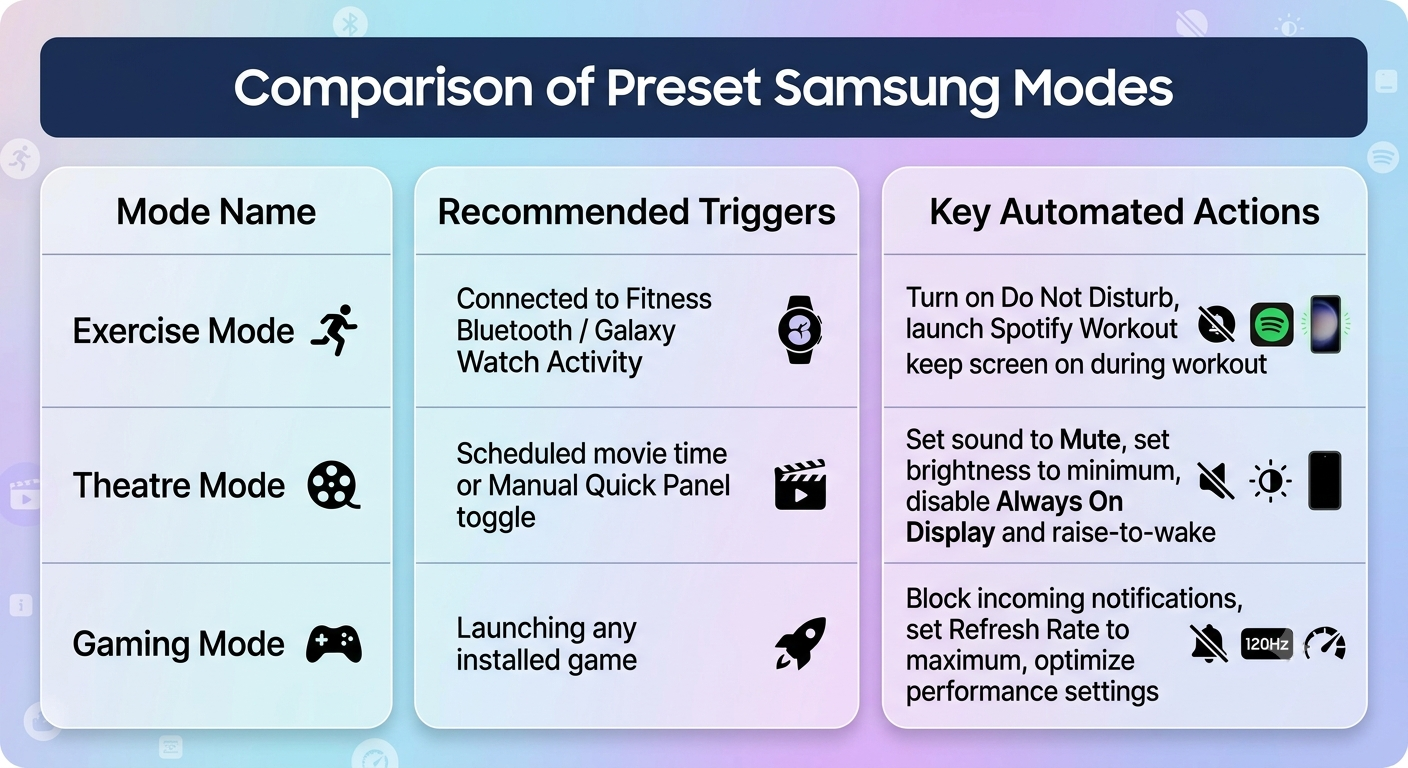
Beyond everyday routines, Samsung offers Modes, which act as master profiles for specific activities. You can customize existing presets like Exercise, Theatre, or Relax, or build custom ones from scratch.
How to Access and Set Up Your First Routine
Getting started with Samsung Modes and Routines takes less than two minutes. No coding or complex software configuration is required:
-
Open your Galaxy device’s Settings app.
-
Scroll down and tap Modes and Routines.
-
To build a custom task, tap the Routines tab at the bottom right, then select the Plus (+) icon at the top right.
-
Tap If to choose your trigger (e.g., Time, Location, App open, or Bluetooth connection).
-
Tap Then to choose what actions your phone should perform when the trigger is met.
-
Tap Save, assign a clear name and icon to your routine, and hit Done.
Summary
By taking a few minutes to configure Samsung Modes and Routines, we eliminate dozens of micro-tasks from our daily routines. Whether your goal is protecting your device’s battery health, maintaining focus during work hours, or ensuring your phone stays quiet while sleeping, these simple automation rules turn your Galaxy smartphone into a truly intuitive assistant.

Selva Ganesh is a Computer Science Engineer, Android Developer, and Tech Enthusiast. As the Chief Editor of this blog, he brings over 10 years of experience in Android development and professional blogging. He has completed multiple courses under the Google News Initiative, enhancing his expertise in digital journalism and content accuracy. Selva also manages Android Infotech, a globally recognized platform known for its practical, solution-focused articles that help users resolve Android-related issues.




Leave a Reply