
How to Find Petrol Pumps, Restaurants, Restrooms & Hotels Along Your Route in Google Maps?- Planning a long-distance road trip can be an exhilarating experience, filled with the promise of new landscapes, flexible schedules, and unforgettable memories. However, the success of any journey on the open road relies heavily on effective preparation, particularly when it comes to locating essential services such as Petrol Bunks, quality Restaurants, clean Rest Rooms, and comfortable Hotels. The ability to find these critical stops precisely when needed, without deviating significantly from your planned path, is paramount for maintaining safety, comfort, and efficiency throughout your adventure.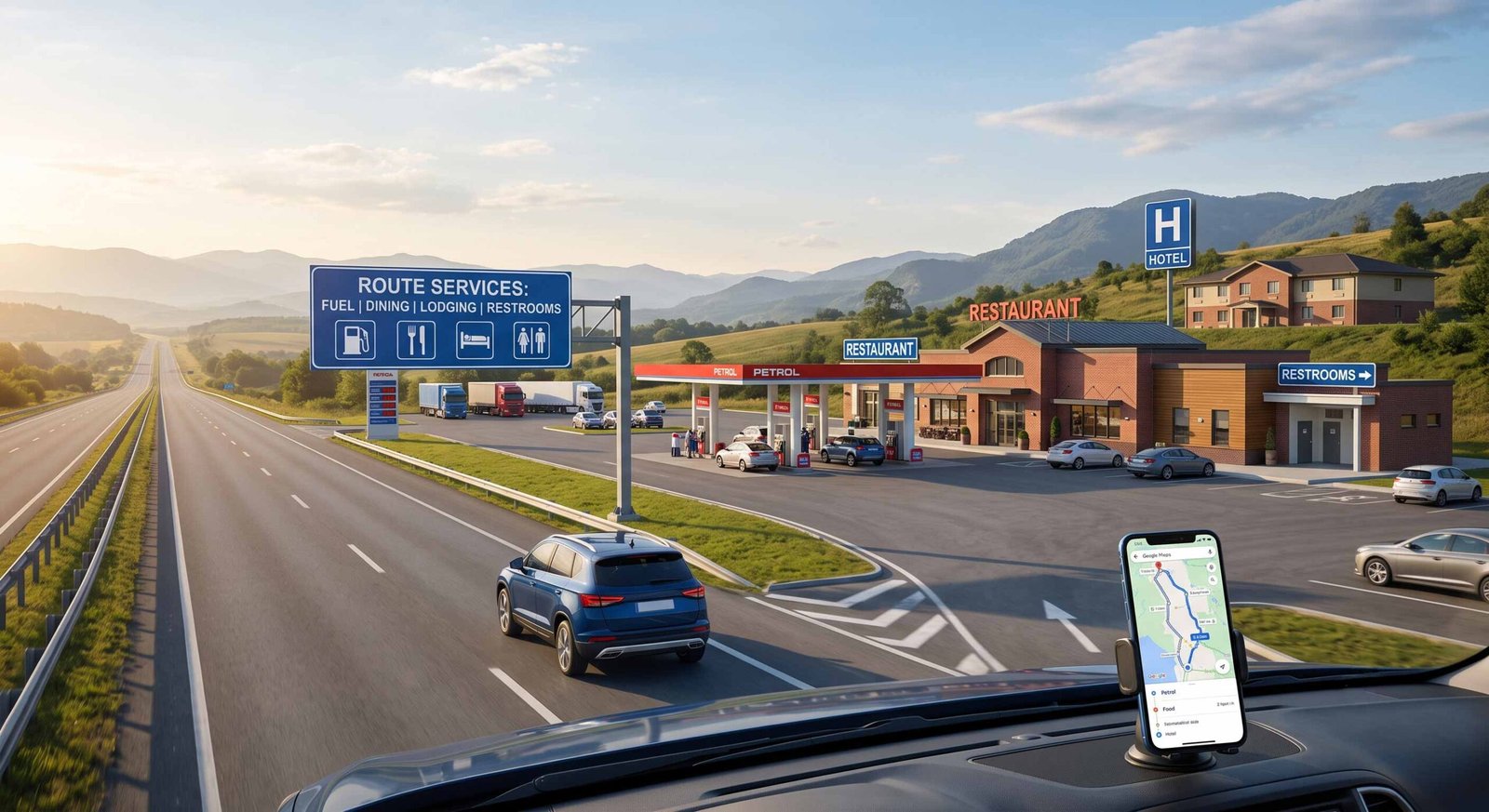
Google Maps has established itself as an indispensable tool for modern travelers, moving beyond simple navigation to become a comprehensive trip-planning platform. Its robust features allow us to customize our routes, integrate real-time data, and, most importantly, identify and Add Stops to our itinerary before and during our journey. We are going to provide you with the definitive, expert guide on how to utilize Google Maps to its full potential for a seamless, well-supported road trip.

The Foundation of a Stress Free Road Trip: The Initial Setup in Google Maps
A successful journey begins with a solid plan. Before we dive into the details of finding specific services, we must ensure the core of our route is optimized within the application.
To start, open Google Maps on your mobile device or desktop browser. Ensure that Location Services (GPS) are activated, as this is crucial for real-time tracking and locating nearby amenities accurately. Enter your Starting Location and your ultimate Destination. Google Maps will calculate the most efficient route, typically highlighting it in blue and providing an initial Estimated Time of Arrival (ETA).
Once this primary route is established, we have our foundation. However, a direct A-to-B route is rarely sufficient for a long journey. This is where the true power of Google Maps multi-stop routing becomes essential. We must learn to navigate the additional layers of customization.
Advanced Routing: How to Add and Organize Custom Stops to Your Itinerary
Adding intermediate destinations is the core skill for locating every amenity you need along your path. The user’s prompt outlines the basic mechanism, but we will refine and expand upon this process to ensure maximum effectiveness.
Here is the precise methodology for adding stops sequentially to your journey:
1. Locate the Essential Options Menu
After generating your basic A-to-B route, find the three dot icon (often called the meatball menu) in the upper right-hand corner of the screen, next to the input field for the starting location. Tap this menu to reveal a list of options.
2. Initiate Multi-Stop Routing
From the dropdown menu, select Add stop. This action instantly modifies the standard route input by inserting a new, blank field (often labeled ‘C’) between your origin and destination.
3. Reorder for Correct Sequential Navigation
This is the most critical organizational step. By default, Google Maps often appends new stops to the bottom of the list, potentially making your final destination stop ‘C’ or ‘D’. We must correct this immediately. Click and hold the two-line drag handle icon next to your ultimate destination and drag it down to the very end of the list. Your destination must always remain the last entry in the sequence, with all intended stops arranged chronologically above it.
4. Locate and Add Your Specific Services
Now that your destination is correctly placed at the end, tap on the blank stop field. Google Maps displays a set of category shortcut icons, including Petrol Pumps (or Gas Stations), Restaurants, Hotels, and Coffee. By clicking on one of these icons, the app will instantly search along your defined trajectory and overlay relevant points of interest as red pins on the map. Alternatively, you can type a specific keyword, such as “clean restrooms” or “fast food,” into the search bar.
Once you have located the desired service point—for instance, a highly-rated Petrol Bunk that is exactly 200 miles into your 400-mile journey—select its pin and click Add stop. Google Maps will recalculate the entire route, optimizing the travel time across your origin, the new intermediate stop, and your final destination.
Optimizing Fuel Management: Finding Petrol Bunks on the Trajectory
Fuel anxiety is a common challenge on long drives, especially in unfamiliar territory. We recommend proactively integrating Petrol Bunks (also referred to as Petrol Pumps or Gas Stations) into your itinerary.
When searching for Petrol Bunks along your route, pay attention to these advanced search features:
-
Detour Time: Google Maps calculates how much time a particular Petrol Bunk will add to your overall journey (e.g., “+3 min”). Favor stops with minimal deviation.
-
Fuel Prices: Many stations in the platform display real-time fuel pricing, allowing for budget optimization (this data is country-dependent but growing rapidly).
-
Station Amenities: Look at the station’s detailed profile to confirm it offers additional necessities, such as a convenience store, air pumps, or dedicated Rest Rooms.
By spacing out your planned fuel stops based on your vehicle’s range, you can ensure you never run critically low, even in remote areas.
Dining on the Go: Identifying Restaurants and Meal Breaks
Sustaining energy during an extended drive requires well-planned meal breaks. Utilizing the Restaurants search function allows you to identify suitable dining options directly on your path.
To ensure a quality dining experience, refine your Restaurant search using these filters:
-
Ratings and Reviews: We always recommend prioritizing establishments with high average ratings (4.0 stars or higher). Read recent reviews to gauge current food quality and service speed.
-
Cuisine and Price: Use filters to select preferred cuisine types or budget ranges, from quick drive-thru fast food to more leisurely sit-down diners.
-
Open Now: Ensure the establishment is operating at the precise hour you expect to arrive.
Selecting a highly-rated Restaurant located just off a highway exit ensures a quick and satisfying break that minimizes total travel time.
Comfort and Hygiene: Locating Clean Rest Rooms and Service Plazas
While perhaps the most critical necessity, Rest Rooms can be the hardest amenity to find reliable information about. While they are often attached to other services, a dedicated search can be very helpful.
Here are strategies for finding hygiene facilities:
-
Search Service Plazas: On major interstates and highways, searching for “service plazas” or “rest stops” often yields dedicated government-maintained facilities that provide large, accessible Rest Rooms.
-
Combine Stops: The most effective strategy is to combine this need with other planned stops. Target major Petrol Bunks and large Restaurants, which are required to maintain public facilities.
-
Check Reviews: Scan the reviews of potential Petrol Pumps or dining locations, as travelers frequently comment specifically on the cleanliness and availability of their Rest Rooms.
Strategic Resting: Securing Hotels for Overnight Journeys
If your road trip spans multiple days, scheduling a comfortable place to sleep is essential for driver safety. Finding Hotels along your driving route ensures that your resting point is optimized for your journey’s progression.
Utilize the comprehensive Hotels search integrated directly within Google Maps:
-
Real-Time Pricing: Google Maps integrates with major booking platforms to display current nightly rates, enabling instant budget comparison.
-
Vacancy and Amenities: Instantly check room availability and verify key features such as secure vehicle parking, complimentary breakfast, and EV charging stations.
-
Booking Links: Complete your reservation directly through the app using verified booking partner links found on the hotel’s profile card.
Selecting lodging that is situated directly adjacent to your trajectory saves you from navigating complex, unfamiliar city center roads late at night, facilitating an efficient morning departure.
Advanced Trip Management: Maximizing Efficiency and Safety
To further enhance your road trip, incorporate these pro-level navigation strategies:
Live Route Searches During Active Navigation
We may have forgotten to plan a stop, or a sudden need arises while we are actively driving. Google Maps excels at handling real-time requests. While in live navigation mode, you can tap the magnifying glass search icon on the right side of the screen. This allows you to search for Gas, Restaurants, Hotels, and other categories along your current route. The app will show detours and pricing, allowing you to add the stop seamlessly without stopping your navigation session.
Utilizing Offline Maps for Remote Segments
Cellular connectivity is not guaranteed in every region, especially when traversing rural highways or mountainous areas. To ensure constant access to map data, search tools, and routing, you must download Offline Maps for your intended travel corridor. While offline mode cannot provide real-time traffic data, it will still allow you to navigate, search the internal database for Petrol Bunks and Hotels, and maintain turn-by-turn guidance based on pre-loaded map areas.
Proactive Planning for a Seamless Adventure
A successful long-distance road trip is defined by the quality of its planning. While the road brings unexpected wonders, relying on hope to find critical services like Petrol Bunks, reliable Restaurants, clean Rest Rooms, and comfortable Hotels is inefficient and potentially stressful. By mastering the ability to set up optimized routes, seamlessly integrate multiple custom stops, and utilize real-time data within Google Maps, you transform the logistics of your journey from a source of anxiety into a fundamental pillar of its success.
Execute these strategies, familiarize yourself with the multi-stop routing process, and proactively map your essential pit stops before you depart. By taking control of your navigation, you are free to truly enjoy the adventure, secure in the knowledge that every resource you need is already plotted on your optimized trajectory.
Frequently Asked Questions (FAQs)
1. How many total stops can I add to my Google Maps route?
Google Maps allows a maximum of nine intermediate stops in addition to your starting location and final destination within a single itinerary.
2. Can I add a stop like a petrol bunk while I am already actively navigating?
Yes. While in live turn-by-turn navigation, you can tap the magnifying glass search icon to quickly search for services like gas or food that are positioned precisely along your current driving path.
3. Will Google Maps show me how much time a specific detour adds to my journey?
Yes. When you select a service pin along your route, Google Maps displays the estimated calculated time (e.g., “+4 min”) that adding that specific Petrol Bunk or Restaurant will detour you from your primary path.
4. How can I ensure my final destination stays at the end of the stop list?
In the route editing screen, you must physically click and hold the two-line drag handle next to your ultimate destination and move it to the very bottom of the sequential stop list.
5. What is the best way to find clean restrooms along a highway?
The most reliable method is to search for keywords like service plaza or rest stop. Alternatively, target large corporate Petrol Bunks and major fast-food chain Restaurants, which generally maintain higher cleanliness standards than smaller, independent locations.
6. Can I search for hotels based on my specific location after driving for 8 hours?
Yes. During active navigation, tap the search icon and type “hotels.” Google Maps will identify lodging options located along the segment of your journey that is directly ahead of you.
7. Is it possible to filter restaurants by dietary requirements?
While not as precise as dedicated food apps, you can use general filters (e.g., ‘Vegetarian’) within the restaurant category search on Google Maps to find suitable dining options along your path.
8. How do I remove a stop from my route if I decide I don’t need it?
In the route editing screen, simply tap the ‘X’ icon next to the intermediate stop you wish to remove, and Google Maps will instantly recalculate the total journey.
9. Will my planned stops work if I lose my mobile phone signal?
To ensure your stops and navigation work without connectivity, you must download the Offline Maps area covering your entire route before your departure.
10. Can I share my complete multi-stop itinerary with others in my group?
Yes. After planning all your stops, tap the three-dot menu icon and select Share directions to send the interactive itinerary link via messaging apps or email.

Selva Ganesh is a Computer Science Engineer, Android Developer, and Tech Enthusiast. As the Chief Editor of this blog, he brings over 10 years of experience in Android development and professional blogging. He has completed multiple courses under the Google News Initiative, enhancing his expertise in digital journalism and content accuracy. Selva also manages Android Infotech, a globally recognized platform known for its practical, solution-focused articles that help users resolve Android-related issues.




Leave a Reply