
How to Use the HiLight Feature on Pixel 11 – Smartphone technology continuously evolves to make our lives easier, and Google’s latest flagship lineup—including the Google Pixel 11, Pixel 11 Pro, Pixel 11 Pro XL, and Pixel 11 Pro Fold—introduces one of the most innovative, user-friendly hardware additions in years: the HiLight feature.
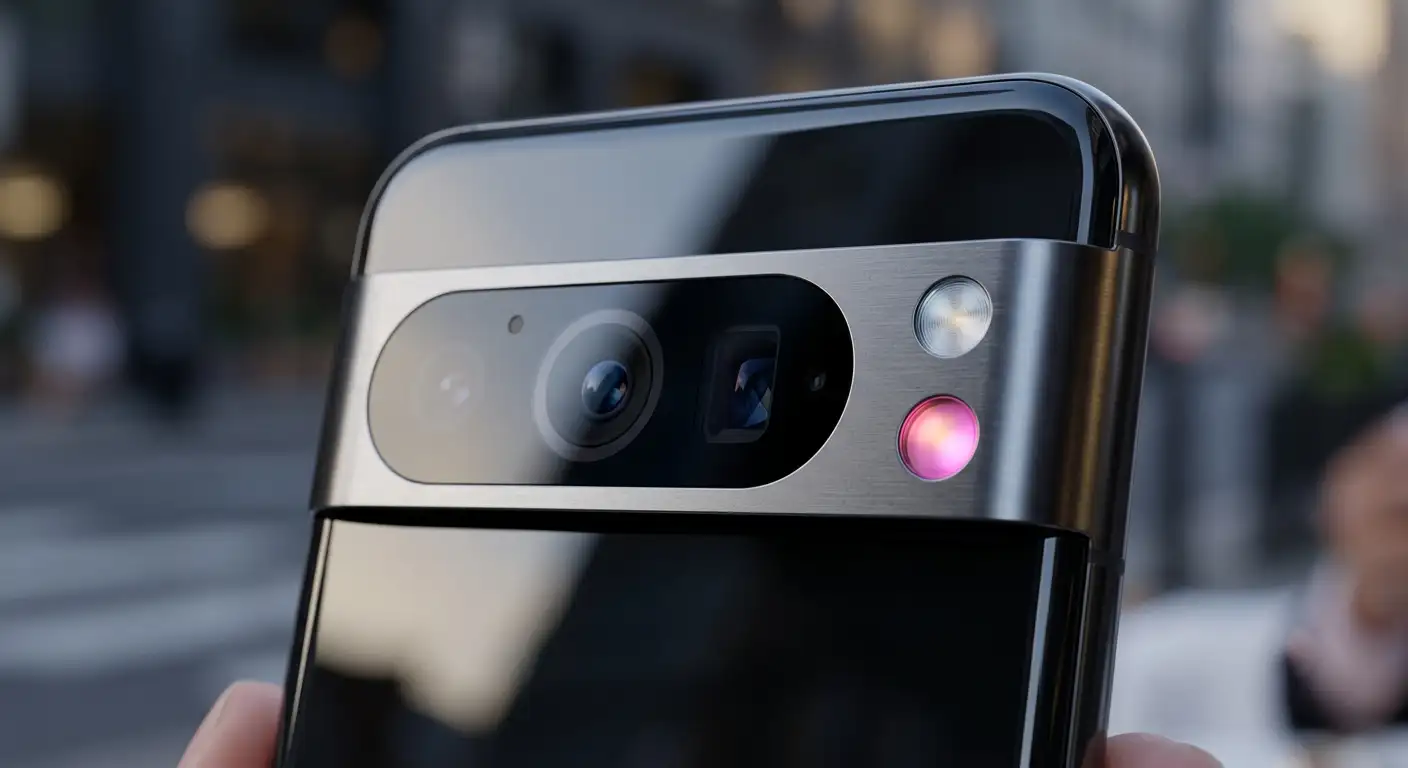

If you have ever missed an important phone call because your device was face down on a table, or if you find yourself constantly picking up your phone just to check for updates, the HiLight feature was built specifically for you. Located directly on the refined camera bar across the back of the device, this smart, multi-color LED illumination strip acts as a modern visual notification system. It allows you to stay informed at a glance without getting distracted by a glowing screen.
In this comprehensive guide, we break down everything you need to know about how to use HiLight on Pixel 11, from basic setup to real-world everyday uses, written in simple, non-technical language so anyone can master it immediately.
What Is the Pixel 11 HiLight Feature?
At its simplest, the HiLight feature is an intelligent visual indicator light built into the camera housing on the back of your Pixel 11. Think of it as a subtle, multi-colored glow that communicates key updates quietly and elegantly while your phone rests face down.
Unlike traditional camera flashes that emit a harsh white beam to illuminate photos in the dark, HiLight uses soft, ambient LED lighting that can display custom colors, gentle pulses, and distinct illumination patterns.
Key Benefits of Using HiLight
-
Distraction-Free Focus: You can keep your phone face down during dinners, meetings, or family time without worrying about missing critical contact alerts.
-
Instant Visual Identification: Assign specific glowing colors to important contacts so you immediately know who is calling without picking up the phone.
-
Interactive AI Feedback: Provides a clear visual response when interacting with Gemini AI, letting you know when the assistant is listening or processing your requests.
-
Non-Intrusive Alerts: Delivers peaceful, silent visual cues instead of loud rings or harsh vibrations.
How HiLight Works Out of the Box
When you unbox your Pixel 11 or Pixel 11 Pro XL, the HiLight system comes pre-configured for two primary everyday scenarios:
-
Favorite Contact Incoming Calls: When your phone is placed face down on a surface and a designated “Favorite” contact calls you (via the Phone app or supported messaging apps like WhatsApp), the HiLight bar glows in a distinct, customized color.
-
Gemini AI Interaction: When you talk to Google’s built-in Gemini Intelligence, the HiLight LED pulses smoothly on the back of the phone, giving you immediate visual confirmation that your voice commands are being heard.
How to Set Up and Customize HiLight on Pixel 11
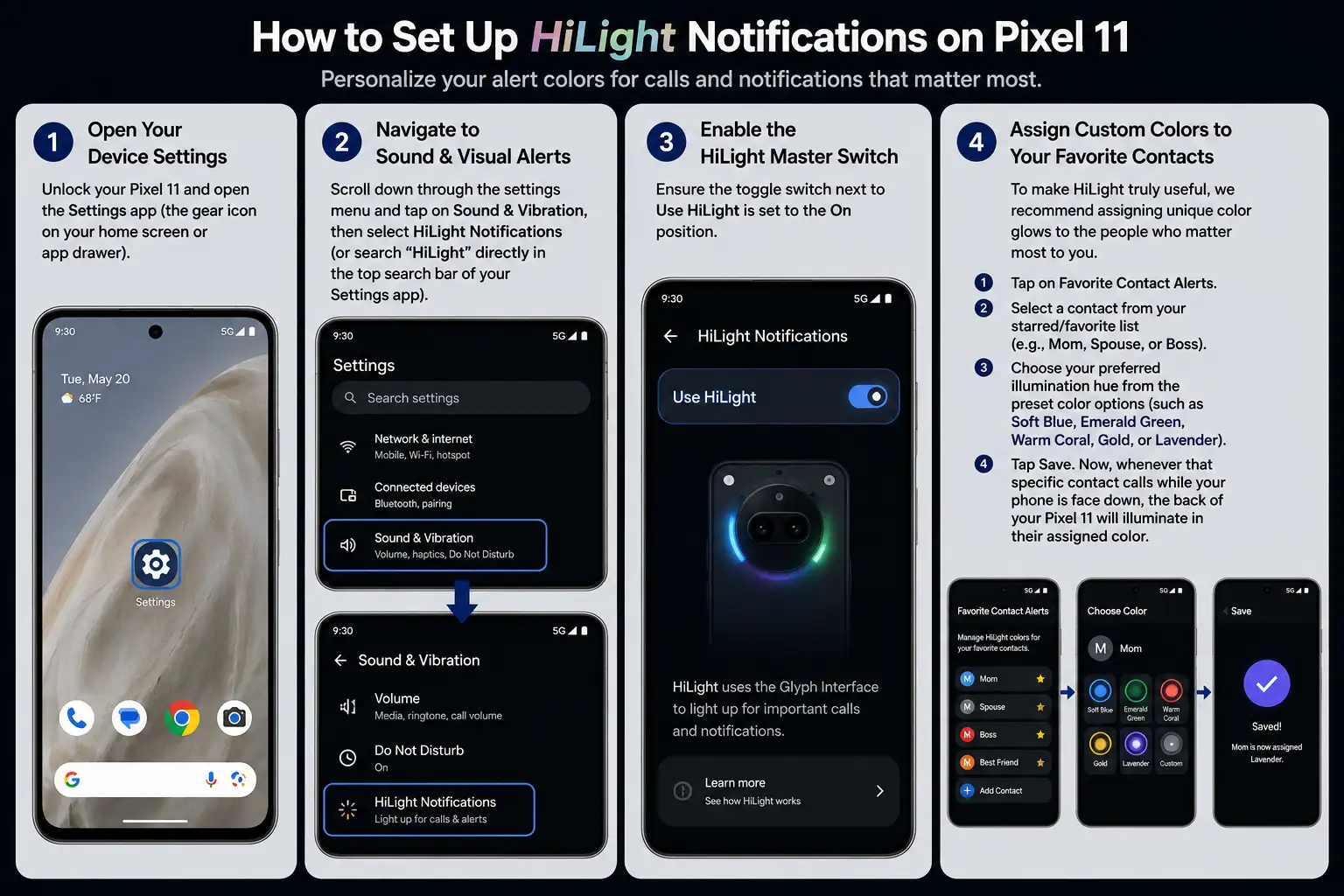
Setting up HiLight takes less than two minutes and requires no technical expertise. Follow our simple step-by-step instructions below to customize your lighting preferences.
Step 1: Open Your Device Settings
Unlock your Pixel 11 and open the Settings app (the gear icon on your home screen or app drawer).
Step 2: Navigate to Sound & Visual Alerts
Scroll down through the settings menu and tap on Sound & Vibration, then select HiLight Notifications (or search “HiLight” directly in the top search bar of your Settings app).
Step 3: Enable the HiLight Master Switch
Ensure the toggle switch next to Use HiLight is set to the On position.
Step 4: Assign Custom Colors to Your Favorite Contacts
To make HiLight truly useful, we recommend assigning unique color glows to the people who matter most to you:
-
Tap on Favorite Contact Alerts.
-
Select a contact from your starred/favorite list (e.g., Mom, Spouse, or Boss).
-
Choose your preferred illumination hue from the preset color options (such as Soft Blue, Emerald Green, Warm Coral, Gold, or Lavender).
-
Tap Save. Now, whenever that specific contact calls while your phone is face down, the back of your Pixel 11 will illuminate in their assigned color.
Real-World Scenarios: When to Use HiLight
Understanding when to rely on HiLight helps you integrate it seamlessly into your daily routine. Here are a few practical examples of how we use this feature every day:
1. Important Meetings and Work Focus
During important business meetings or focused work hours, keeping a phone screen face up can lead to constant visual distractions from app notifications, social media, and junk emails. Placing your Pixel 11 face down silences display glare while HiLight ensures that urgent incoming calls from VIP contacts or family members still get your attention silently.
2. Dinner Tables and Social Gatherings
Putting your phone face down at the dinner table is a sign of courtesy to those around you. With HiLight, you remain present with your friends and family, knowing that if an emergency call comes through from a babysitter or family member, the distinct color glow will quietly let you know without disrupting the conversation.
3. Nightstand and Bedside Use
If you charge your phone on a bedside table, bright screen pop-ups can wake you or your partner up in the middle of the night. HiLight provides a soft, warm ambient glow that is gentle on the eyes during late hours.
Unlocking Advanced HiLight Controls with Third-Party Apps
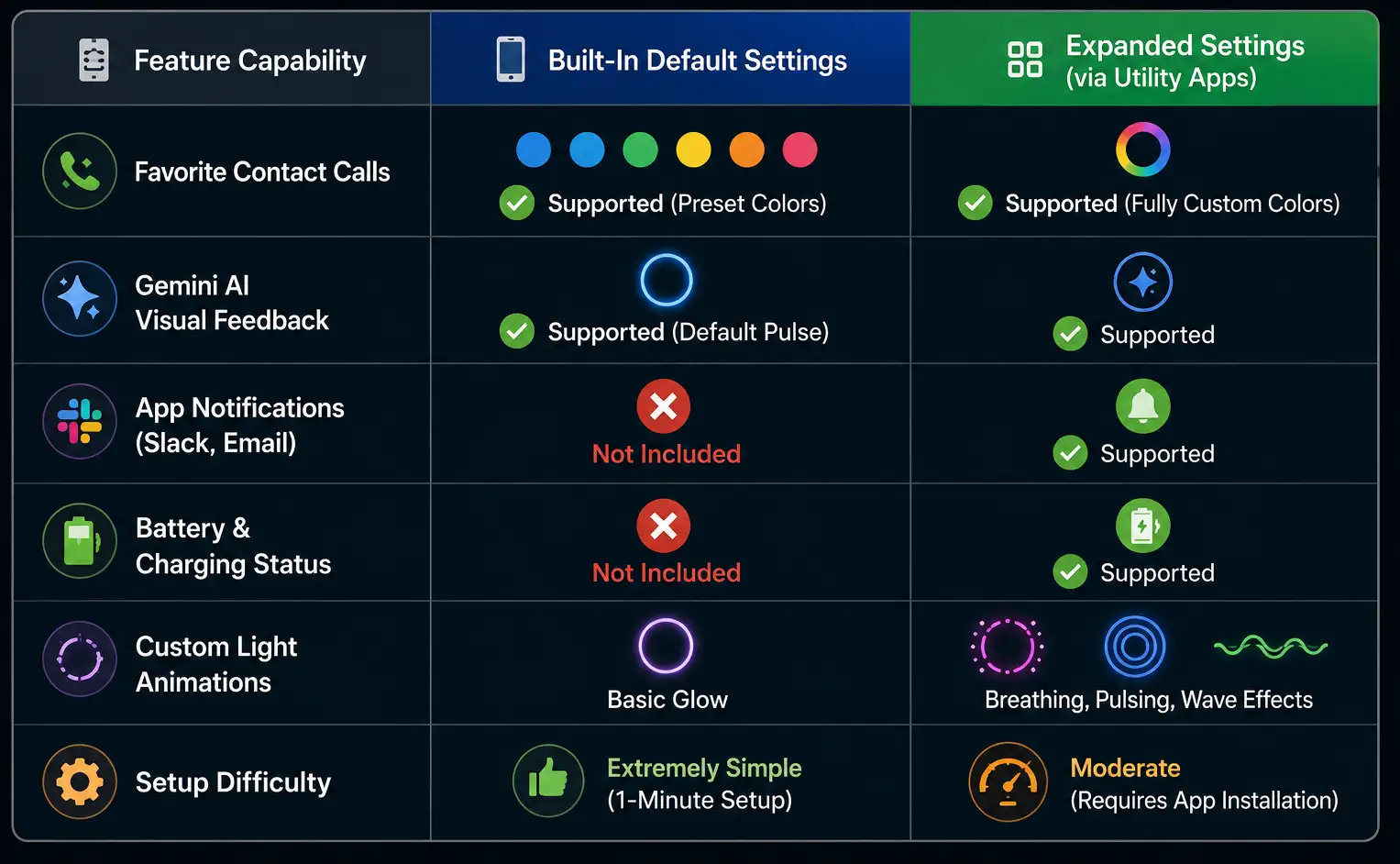
While Google’s built-in settings cover key essentials out of the box, power users and customization enthusiasts can expand HiLight to work with every app on their device.
Community-developed open-source tools—such as HiLight Studio—allow you to expand the functionality of the camera bar’s LED strip across the entire Android system.
What You Can Do with Expanded HiLight Capabilities:
-
App-Specific Alerts: Assign dedicated light colors to individual apps (e.g., Green for WhatsApp, Blue for Outlook, Yellow for Snapchat).
-
Dynamic Lighting Effects: Choose custom animation styles like Pulse, Breathe, or Wave instead of a static glow.
-
Battery Charging Indicators: Set the light strip to show real-time charging status or low-battery alerts when connected to a charger face down.
-
Quiet Hours Integration: Automatically disable HiLight animations when your device enters Do Not Disturb or night mode.
HiLight Feature Comparison: Default vs. Enhanced Capabilities
Frequently Asked Questions (FAQ) About Pixel 11 HiLight
1. Does using HiLight drain my Pixel 11 battery fast?
No. HiLight utilizes highly energy-efficient LED technology built directly into the camera bar. Because it only illuminates during active incoming alerts or brief voice assistant queries, its impact on your overall daily battery life is virtually unnoticeable.
2. Will HiLight work if my phone has a case on it?
Yes, provided you use a case designed for the Pixel 11 series. Official Google cases and third-party protective cases feature precise cutouts around the rear camera bar, leaving the HiLight LED strip completely unobstructed.
3. Does HiLight turn off automatically in the dark?
Yes. The Pixel 11 uses its onboard ambient light sensors to adjust the brightness of HiLight. In dark rooms, the brightness automatically dims to prevent harsh light glare, and it respects your device’s Do Not Disturb schedules.
4. Can I turn off HiLight entirely if I don’t want to use it?
Absolute simplicity is a core design principle of the Pixel 11. If you prefer not to use visual light alerts, simply navigate to Settings > Sound & Vibration > HiLight and toggle the feature off.
Final Thoughts
The HiLight feature on Pixel 11 represents a thoughtful step forward in practical smartphone design. By shifting critical visual cues to the back of the device, Google provides a seamless bridge between staying connected and staying present in the physical world around you.
Whether you rely on the out-of-the-box settings for favorite caller alerts or customize it further for all your favorite apps, mastering HiLight ensures you never miss what matters most while keeping daily smartphone distractions to a minimum.

Selva Ganesh is a Computer Science Engineer, Android Developer, and Tech Enthusiast. As the Chief Editor of this blog, he brings over 10 years of experience in Android development and professional blogging. He has completed multiple courses under the Google News Initiative, enhancing his expertise in digital journalism and content accuracy. Selva also manages Android Infotech, a globally recognized platform known for its practical, solution-focused articles that help users resolve Android-related issues.




Leave a Reply