
How to Use Magic Capture on Pixel 11 – Capturing life’s best moments should be simple, but traditionally, choosing between recording a continuous video or taking high-resolution still photos meant sacrificing one for the other. With the Google Pixel 11 series, including the Pixel 11, Pixel 11 Pro, Pixel 11 Pro XL, and Pixel 11 Pro Fold, Google introduces Magic Capture—an innovative, AI-powered camera feature designed to capture perfect photos and smooth video simultaneously without forcing you to press buttons repeatedly.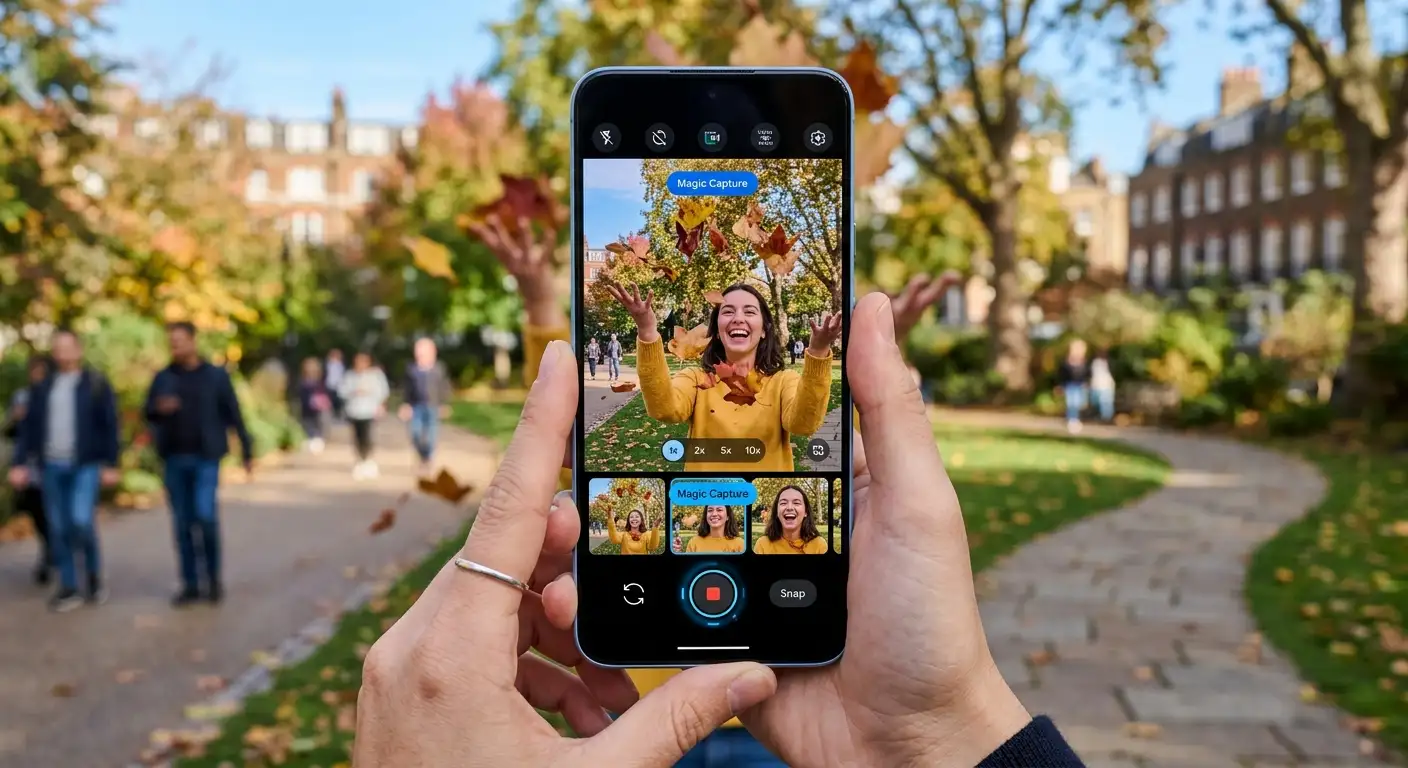
Whether you are capturing fast-moving children, playful pets, live sports, or family gatherings, Magic Capture eliminates the stress of missing the decisive frame. We have compiled this comprehensive, beginner-friendly guide to explain exactly how to use Magic Capture on Pixel 11, how it works under the hood, and how you can get the best possible results every single time.

What Is Magic Capture on Pixel 11?
At its core, Magic Capture is a hybrid shooting mode in the Pixel Camera app. Instead of choosing between Photo Mode and Video Mode, Magic Capture records a high-definition video while using on-device Gemini AI to automatically evaluate, extract, and enhance top-tier still photos from the footage in real time.
How Magic Capture Simplifies Photography
-
Simultaneous Photo and Video: You get a full video clip of the action alongside crisp, standalone snapshot images.
-
AI-Selected Peak Moments: Powered by Google’s Tensor G6 chip and Gemini Intelligence, the camera identifies sharp focus, open eyes, genuine smiles, and dynamic action automatically.
-
Automated Enhancements: The AI applies automatic unblurring, lighting adjustments, and optimal frame cropping so your extracted photos look like professional still shots rather than blurry video stills.
-
Hands-Off Convenience: You can keep your eyes on the real-world scene instead of constantly staring at your screen trying to time the shutter tap.
How to Use Magic Capture on Pixel 11: Step-by-Step
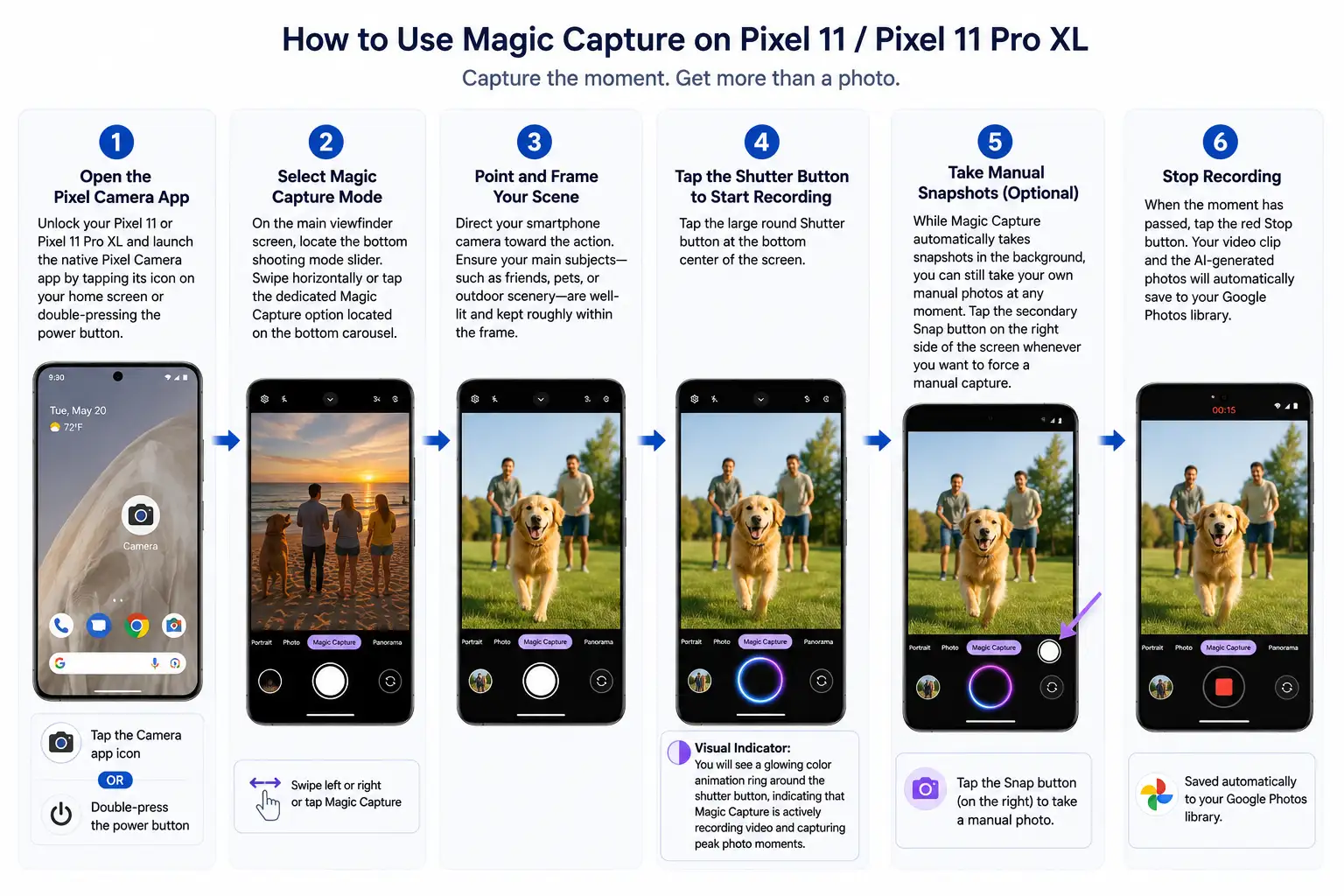
Using Magic Capture requires no technical knowledge or complex camera setting adjustments. Follow these straightforward steps to capture instant high-quality photos and videos:
Step 1: Open the Pixel Camera App
Unlock your Pixel 11 or Pixel 11 Pro XL and launch the native Pixel Camera app by tapping its icon on your home screen or double-pressing the power button.
Step 2: Select Magic Capture Mode
On the main viewfinder screen, locate the bottom shooting mode slider. Swipe horizontally or tap the dedicated Magic Capture option located on the bottom carousel.
Step 3: Point and Frame Your Scene
Direct your smartphone camera toward the action. Ensure your main subjects—such as friends, pets, or outdoor scenery—are well-lit and kept roughly within the frame.
Step 4: Tap the Shutter Button to Start Recording
Tap the large round Shutter button at the bottom center of the screen.
-
Visual Indicator: You will see a glowing color animation ring around the shutter button, indicating that Magic Capture is actively recording video and capturing peak photo moments.
Step 5: Take Manual Snapshots (Optional)
While Magic Capture automatically takes snapshots in the background, you can still take your own manual photos at any moment. Tap the secondary Snap button on the right side of the screen whenever you want to force a manual capture.
Step 6: Stop Recording
When the moment has passed, tap the red Stop button. Your video clip and the AI-generated photos will automatically save to your Google Photos library.
Unlocking Advanced Quality: Enabling Video Boost with Magic Capture
For users looking to achieve maximum image clarity and dynamic color depth, Magic Capture integrates directly with Video Boost on supported devices (Pixel 11 Pro, Pixel 11 Pro XL, and Pixel 11 Pro Fold).
Why Enable Video Boost?
When Video Boost is active during Magic Capture, the baseline footage is captured in 4K 10-bit HDR. This guarantees that all AI-extracted still photos retain maximum dynamic range, richer colors, and improved clarity in low-light environments.
How to Enable Video Boost in Magic Capture:
-
Open the Pixel Camera app and switch to Magic Capture mode.
-
Tap Magic Capture Settings in the bottom-left corner or swipe up on the viewfinder.
-
Toggle the switch next to Video Boost to the On position.
-
Start capturing your scene as normal.
Note: Because Video Boost uses cloud-assisted processing, high-resolution clips and extracted photos may take a few moments to finish processing in your Google Photos gallery.
Where to Find and View Your Magic Capture Photos
Once you have recorded a Magic Capture sequence, reviewing your captured content is easy:
-
Open the Google Photos app on your Pixel 11 device.
-
Locate the recently saved item. Magic Capture media appears as a combined thumbnail.
-
Tap on the thumbnail to open the video player.
-
Below the video preview, you will see a carousel of AI Highlight Photos flagged by Gemini.
-
Tap any individual highlight photo to view, edit, export, or share it separately.
If you prefer a different frame than the ones selected by the AI, you can scrub through the video timeline manually and select Save Frame to convert any moment into a crisp still shot.
When Should You Use Magic Capture?
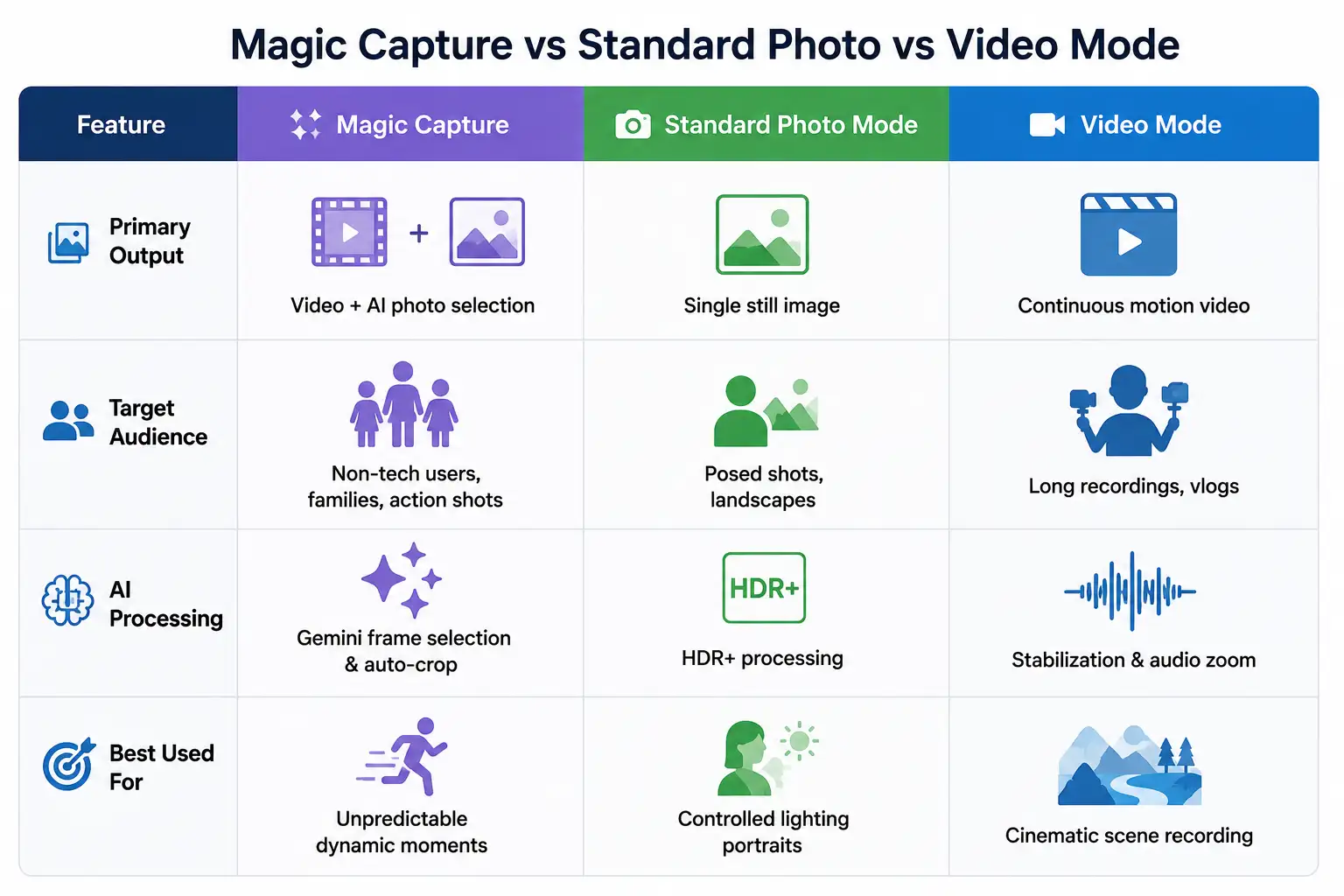
While traditional Photo Mode remains optimal for posed portraits and landscape shots, Magic Capture shines in fast-paced scenarios where timing is unpredictable.
Best Real-World Scenarios for Magic Capture:
-
Kids and Toddlers: Children rarely hold still for photos. Magic Capture lets you record them playing while taking sharp pictures of authentic laughter.
-
Pets: Catching dynamic animal movements without motion blur is tricky. Magic Capture ensures you capture clear, unblurred shots of your running dog or playing cat.
-
Sports and Action: From a soccer game goal to surfing waves, Magic Capture analyzes hundreds of frames in seconds to pick the exact split-second impact frame.
-
Candid Group Gatherings: Avoid photos where someone has their eyes closed or is looking away. The AI chooses frames where everyone is smiling and looking toward the camera.
Pro Tips for Getting the Best Results with Magic Capture
To maximize photo quality and smooth device performance while using Magic Capture, consider the following best practices:
-
Keep Storage Space Clear: Running real-time high-resolution video and AI frame extraction requires sufficient storage space. Keep your internal storage managed to avoid capture lag.
-
Ensure Good Lighting: While Pixel 11 features enhanced computational night algorithms, well-lit environments yield higher shutter speeds in video frames, resulting in sharper extracted photos.
-
Customize Your Camera Shortcuts: You can configure your Pixel Camera app settings to launch directly into Magic Capture mode by default if it is your preferred daily shooting mode.
Summary Table: Magic Capture vs. Traditional Photo Modes

Selva Ganesh is a Computer Science Engineer, Android Developer, and Tech Enthusiast. As the Chief Editor of this blog, he brings over 10 years of experience in Android development and professional blogging. He has completed multiple courses under the Google News Initiative, enhancing his expertise in digital journalism and content accuracy. Selva also manages Android Infotech, a globally recognized platform known for its practical, solution-focused articles that help users resolve Android-related issues.




Leave a Reply