
Replace Google Assistant with Gemini on Google Home– We remember the exact moment our connected home went from feeling slightly mechanical to genuinely intelligent. For years, we relied on Google Assistant across our household ecosystem. We issued rigid voice commands, repeated preset phrases, and managed fragile automations across dozens of Google Nest displays, smart lights, and connected speakers. While the classic setup served us reliably for basic commands like checking the weather or timing pasta, it frequently stumbled over conversational nuance, multi-step queries, and complex home automations.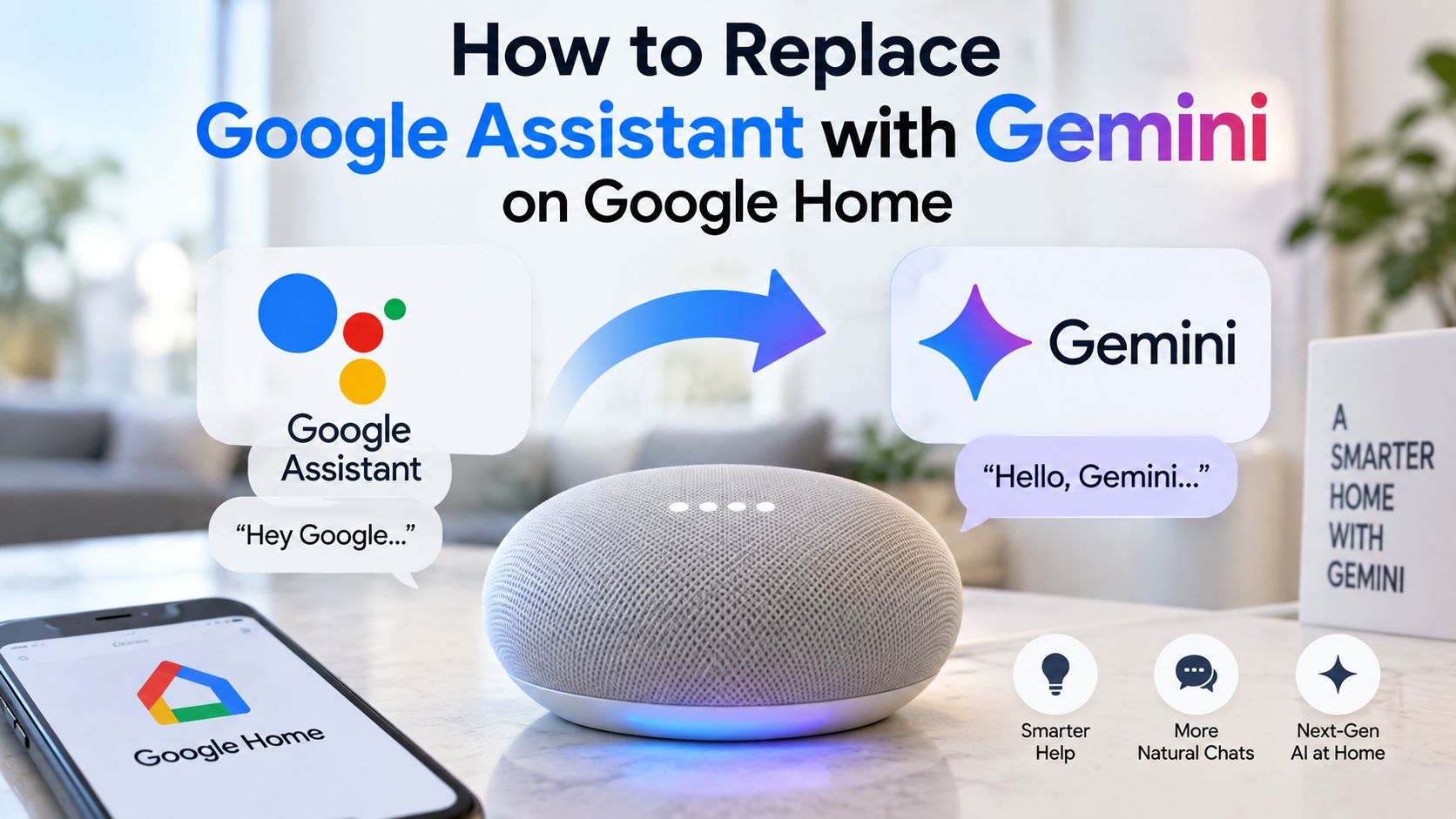
When Google announced the deployment of large language models directly into ambient computing via Gemini for Home, we immediately set out to migrate our entire network. The transition represents a massive leap forward: shifting away from the legacy voice parser of Google Assistant and moving into the generative reasoning of Google Gemini. Below, we share our hands-on experience, the exact technical prerequisites, our step-by-step update process, and the practical troubleshooting steps we learned while making the switch.

Understanding the Upgrade Path Across Devices
Before touching a single setting, we had to clarify how the transition works. Upgrading from Google Assistant to Google Gemini involves two distinct device categories:
-
The Primary Smartphone and Tablet Layer: This is where Gemini functions as your primary daily assistant, managing your calendar, answering ad-hoc queries, and executing device-level requests.
-
The Ambient Hardware Layer (Nest and Home Speakers/Displays): This involves Gemini for Home, where the underlying artificial intelligence of your Google Nest Hub, Nest Mini, and third-party cast units shifts to a generative model capable of natural conversation and context-aware smart automation.
Upgrading our primary phone to Gemini was our first milestone, because the mobile device serves as the management engine for the Google Home app.
Phase 1: Upgrading Google Assistant to Gemini on Your Mobile Device
To ensure seamless control over our smart home network, we upgraded our handheld devices first. Gemini operates natively as the default assistant on Android, directly interfacing with your smart home structure.
-
Step 1: Check App Updates. We launched the Google Play Store, checked for updates, and confirmed that both the Google app and Google Play Services were running on the latest stable versions. On Android, updating Speech Recognition and Synthesis is equally critical to prevent voice-recognition latency.
-
Step 2: Download and Launch the Gemini App. We installed the standalone Google Gemini app. When opening it for the first time, the software guided us through opt-in permissions.
-
Step 3: Set Gemini as the Default Assistant. If the prompt does not automatically trigger, we went to Settings > Apps > Default Apps > Digital Assistant app (or navigated within the Google app to Settings > Google Assistant > Digital assistants from Google) and selected Google Gemini.
-
Step 4: Enable Workspace and Home Extensions. Inside the Gemini app settings, we tapped our profile picture, navigated to Extensions, and toggled on Google Home, Google Workspace, and Device Controls. This critical step gives the language model direct permission to interact with lights, locks, thermostats, and media devices.
Phase 2: Enrolling in Gemini for Home on Speakers and Displays
Updating our stationary Google Home and Nest hardware required a slightly different path. Google deploys Gemini for Home through a combination of firmware upgrades and targeted feature rollouts via the Google Home app.
Here is the exact method we used to qualify our hardware and transition our smart speakers:
1. Confirm Hardware and Firmware Compatibility
We audited our devices to ensure they met the necessary baseline software requirements:
-
Smart Speakers (Nest Audio, Nest Mini, Google Home): Must be running Cast firmware version 3.76 or higher.
-
Smart Displays (Nest Hub 2nd Gen, Nest Hub Max): Must operate on Fuchsia OS version 28 or higher.
-
Account Type: The home structure must be tied to a standard personal Google Account (
@gmail.com). We found that managing our home with a Google Workspace business account blocked early access to Gemini features.
2. Join the Early Access and Public Preview Program
Because ambient generative features roll out in waves, we enabled early access directly within the ecosystem settings:
-
Open the Google Home app.
-
Tap your profile picture or initials in the top-right corner.
-
Navigate to Home settings and scroll down to Early Access (or Public Preview).
-
Tap Request Early Access or Join Program.
-
Confirm your Google Groups configuration: ensure your account permits group enrollment under your Google Account’s global settings.
3. Complete the “Introducing Gemini for Home” Setup
Once our home structure was cleared for the update, an in-app banner appeared: “Set up Gemini for Home for more natural conversations.”
-
We tapped Get Started on the notification banner.
-
We reviewed the terms regarding cloud processing, contextual memory, and ambient audio interpretation.
-
We enabled Continued Conversation, allowing us to ask follow-up questions across our rooms without repeating the wake phrase every single time.
-
We selected our household’s default Gemini Voice, which instantly unified the speech profile across all compatible displays and speakers in our home.
What Changes After Migrating to Google Gemini?
Once we finalized our update, the operational difference between the old assistant and the new generative model was immediately apparent:
-
Natural, Unstructured Phrasing: Under Google Assistant, we had to say: “Hey Google, set thermostat to 70 degrees.” With Gemini, we say: “Hey Google, it feels a bit chilly in the living room,” and the system understands the context, adjusts the climate control, and confirms the action naturally.
-
Advanced Automation via “Help Me Create”: Creating intricate automations used to require manual scripting in the Home script editor. Gemini allows us to write plain-English prompts—such as “Dim the lights and set the living room speakers to 20% volume whenever the TV starts playing after 9 PM”—and it instantly generates the automation logic for us.
-
Multi-Turn Contextual Awareness: We can now ask complex, multi-part household questions. For example: “Hey Google, did the porch camera detect any deliveries today, and is the garage door closed?” The model parses both inputs, queries the respective devices, and provides a clear, consolidated response.
Practical Troubleshooting and Key Lessons
During our migration process, we encountered a few hiccups that are worth noting:
-
One-Way Migration on Connected Speakers: Once our entire home environment accepted the Gemini for Home voice protocol, our compatible speakers stayed permanently on the new voice processing architecture. While mobile phones can easily toggle back to Google Assistant, smart speaker firmware moves forward.
-
Device Control Delays After Setup: Immediately after activating Gemini on our phones, commands to third-party smart plugs occasionally returned a “Device not reachable” response. We resolved this by opening the Google Home app, navigating to our linked services, and performing a quick sync by asking: “Hey Google, sync my devices.”
-
Family Member Access: Everyone registered under your Google Home household structure will interact with Gemini once it is enabled on shared speakers. We made sure each family member had Voice Match retrained so personal calendar items and contacts remained isolated and protected.
Frequently Asked Questions
Can I switch back to Google Assistant after upgrading to Gemini on my phone?
Yes. On Android devices, you can revert at any time by opening the Google app, navigating to Settings > Google Assistant > Digital assistants from Google, and re-selecting Google Assistant.
Are older Google Home original speakers compatible with Gemini?
Older first-generation Google Home speakers can still receive voice commands routed through the Gemini system, provided their Cast firmware is up to date, though on-device processing speed may be slower than newer Nest Audio hardware.
Do I need a paid subscription to use Gemini on Google Home?
Core smart home controls and everyday voice commands through Gemini are available without a subscription. However, advanced features such as Gemini Live conversational brainstorming and natural-language automation generation may require a Google Home Premium or Google One AI tier.
Why does Gemini say it cannot control my smart lights?
This typically happens if the Google Home Extension is disabled in the Gemini app. Open your Gemini settings, go to Extensions, and verify that Google Home is toggled on.
Can I use a Google Workspace account to update Google Home to Gemini?
No. As of current rollouts, Gemini for Home requires a personal Google Account (@gmail.com). Managed Workspace accounts for enterprise or education do not support the home migration.
How do I know if my Nest Hub is using Gemini?
When Gemini is active, your smart display will display updated visual prompt cards and a more fluid, conversational interface when answering questions, rather than static search result cards.
Does Gemini for Home work in all languages?
Gemini initially rolls out in select languages, primarily English, with additional regions and dialects arriving via progressive software updates. Your device language must match a supported region.
Will my existing Google Home routines still work?
Yes. All your previously configured automations, scheduled routines, and device pairings remain intact after the transition.
Why is the Gemini update banner not appearing in my Google Home app?
Eligibility depends on your region, app version, and participation in the Early Access or Public Preview program. Ensure your Google Home app is updated to version 4.1 or higher.
Does Gemini on Google Home listen constantly?
No. Gemini adheres to the same standard activation protocols as Google Assistant; the microphone only processes active queries after detecting the configured wake words or when manually engaged.

Selva Ganesh is a Computer Science Engineer, Android Developer, and Tech Enthusiast. As the Chief Editor of this blog, he brings over 10 years of experience in Android development and professional blogging. He has completed multiple courses under the Google News Initiative, enhancing his expertise in digital journalism and content accuracy. Selva also manages Android Infotech, a globally recognized platform known for its practical, solution-focused articles that help users resolve Android-related issues.




Leave a Reply