
Sign and Annotate PDF Documents in Google Chrome– For years, processing everyday paperwork meant maintaining multiple bloated desktop applications, tolerating subscription paywalls, or uploading sensitive records to unknown cloud conversion portals. Whether we need to execute a lease agreement, approve an invoice, markup technical blueprints, or sign an employment contract, the friction of juggling dedicated readers has consistently slowed down basic administrative tasks.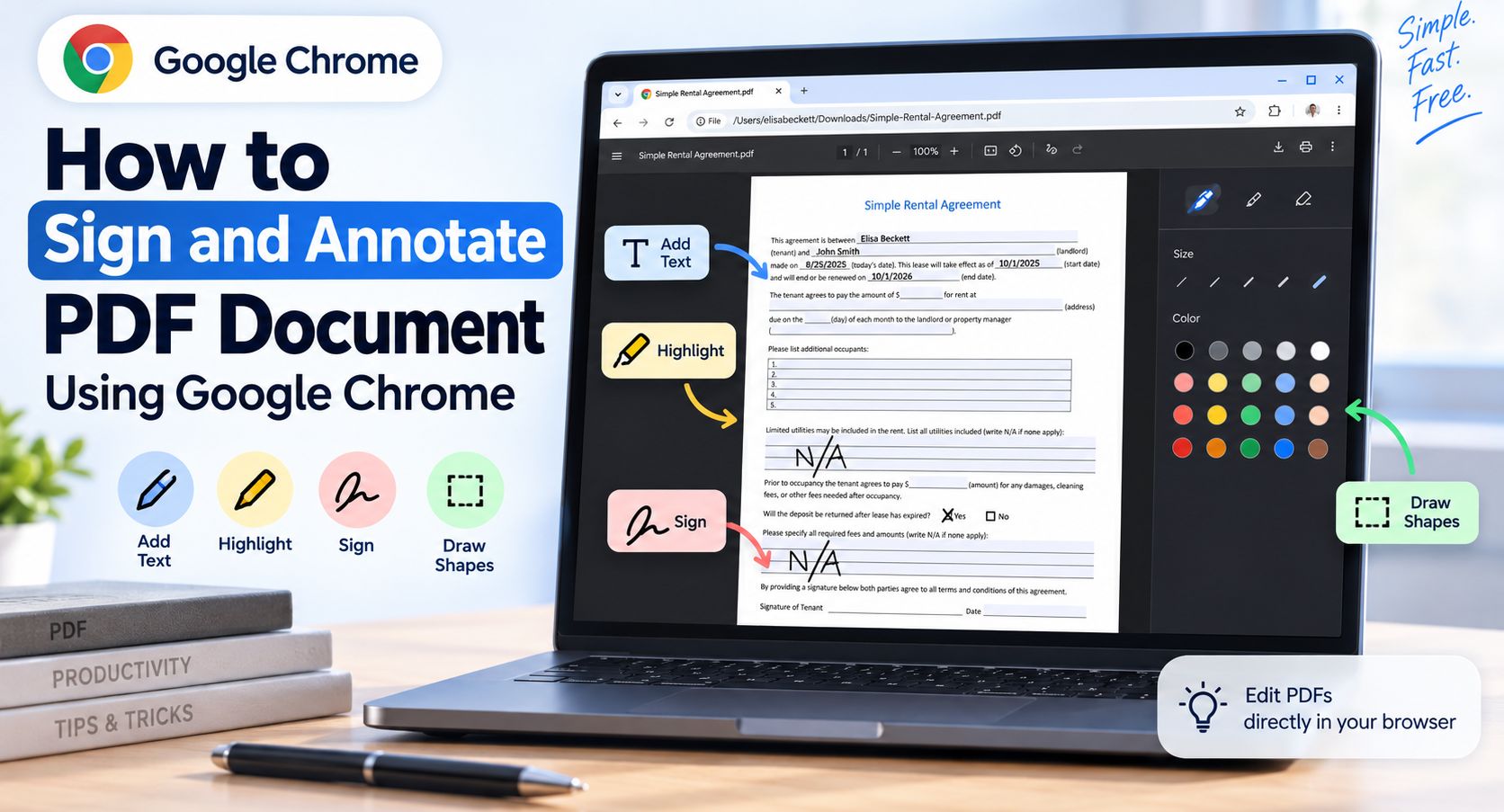
Through its built-in PDF viewer, Google Chrome transforms this entire workflow into an immediate, browser-native experience. By integrating dedicated drawing, handwriting, highlighting, and form-handling instruments directly into the tab bar, we can sign, annotate, review, and export complete PDF files without installing single-purpose extensions or third-party desktop suites.

The Shift to Browser-Native Document Processing
Historically, web browsers treated Portable Document Format files as passive view-only artifacts. When an individual needed to add a cursive signature or comment on a passage, the required sequence involved downloading the file, opening an external suite like Adobe Acrobat, applying changes, saving a secondary duplicate, and returning to the browser to send it out.
Chrome removes this fragmented workflow entirely. The native Chrome PDF engine operates directly within your active window, providing a responsive environment where documents render with hardware-accelerated precision. We no longer need to rely on external SaaS utilities that require user account creation or compromise sensitive financial, legal, and operational documents by sending them across unverified servers.
Everything happens locally within the browser session, giving us an isolated, fast, and entirely private mechanism for administrative completion.
Opening Documents Inside the Native Chrome PDF Viewer
To begin modifying any contract, application, or form, we must first load it inside Chrome’s dedicated reading and editing interface.
-
Direct Drag-and-Drop: Drag your downloaded PDF file straight from your computer desktop or file manager into any empty space inside an open Google Chrome window.
-
Context Menu Execution: Right-click the PDF on your local drive, select Open with, and choose Google Chrome from the application list.
-
Internal Navigation: Enter the exact path to the file inside the Chrome Omnibox address bar (for example, file:///C:/Users/Name/Documents/contract.pdf on Windows or file:///Users/name/Downloads/lease.pdf on macOS).
Once loaded, the upper control bar appears, revealing navigation panels, scaling toggles, form resets, and the native annotation toolset.
Setting Up Document Fields and Form Inputs
Before applying digital ink or signatures, structured documents often require filled text parameters such as dates, monetary figures, tenant names, or checkboxes.
Chrome automatically detects interactive AcroForm elements. When viewing an interactive file:
-
Navigating Text Fields: Click directly into any highlighted text box. We can input required data, advance through fields sequentially using the Tab key, or return to previous entries using Shift + Tab.
-
Toggling Radio Controls: Checkboxes and conditional choices respond to single mouse clicks.
-
Purging Alterations: If a template requires complete clearing, the top-right toolbar displays a dedicated Clear Form action, allowing us to wipe form entries instantly without reloading the entire webpage.
Completing typed form fields before applying freehand signatures guarantees that your layout remains organized and prevents accidental stroke displacement.
Using the Native Chrome Ink Annotation Tools
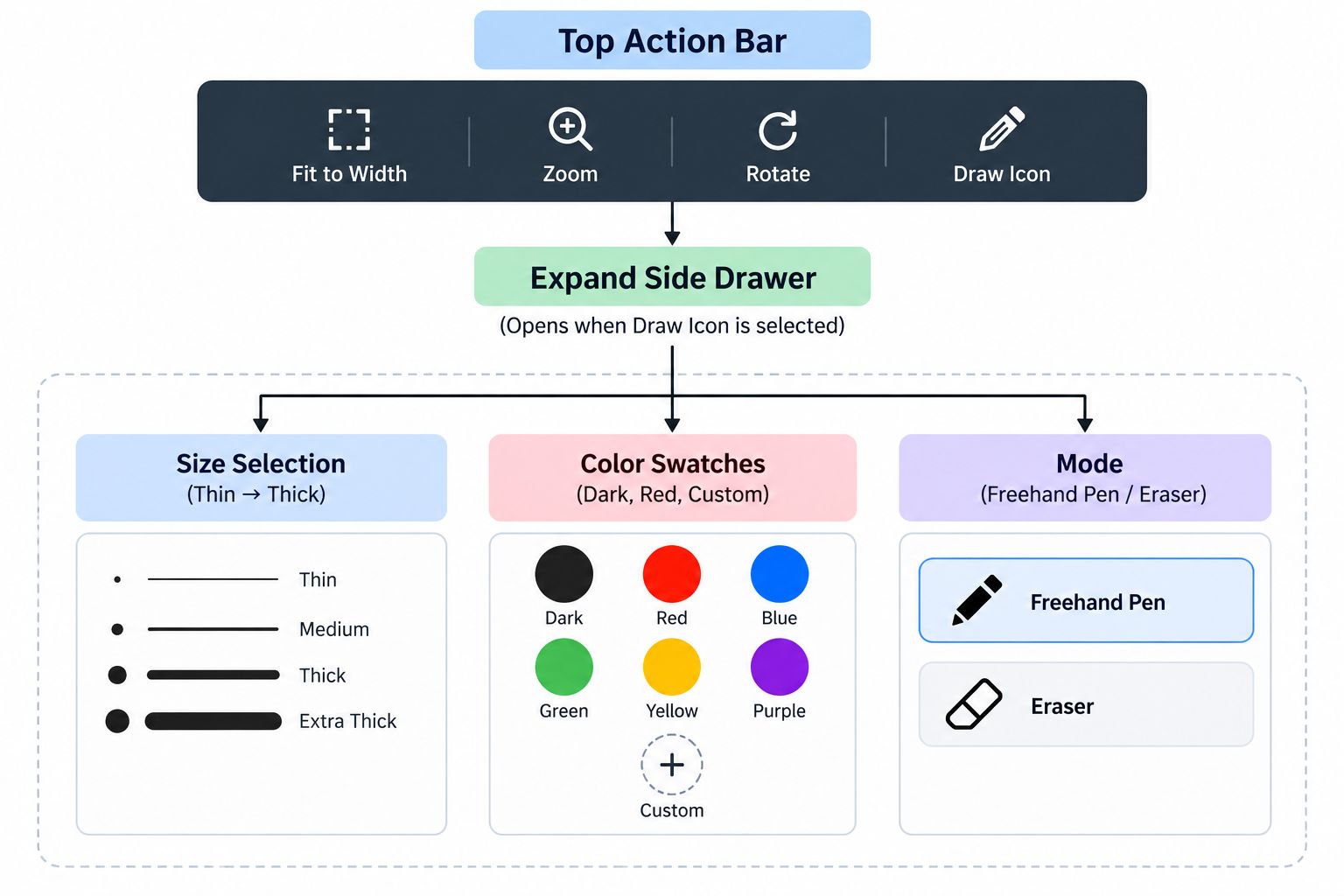
When you open a supported document inside the browser, the toolbar reveals the Draw tool (represented by a pen icon). Clicking this icon opens the secondary properties panel along the right-hand margin.
1. Adjusting Stroke Width and Precision
Inside the side panel, Chrome offers multiple stroke weights:
-
Fine Weight: Best suited for cursive legal signatures, small-box initials, and precision handwriting where line bleeding must be avoided.
-
Medium Weight: Ideal for margin corrections, drafting arrows, circle notations, and drawing directional callouts.
-
Broad Weight: Useful for crossing out outdated clauses, creating visual stamps, or applying freehand backgrounds.
2. Selecting Professional Color Palettes
The native tool drawer provides a curated grid of ink swatches:
-
Black and Dark Navy: The standard industry choice for formal contract execution, legal paperwork, and banking documents.
-
Red and Amber: Ideal for editorial markup, proofreading revisions, critical notices, and striking unapproved contract terms.
-
Green and Blue: Excellent for internal operational sign-offs, reviewer approvals, and personal marginalia.
Step-by-Step Guide to Signing a Document in Chrome
Adding your handwritten signature to a PDF inside Chrome requires no specialized hardware, though precision input devices make the result even cleaner.
-
Locate the Signature Block: Use the mouse wheel, page controls, or zoom buttons to bring the signature line directly into the center of the viewing screen.
-
Increase Zoom Level: Expand the document view to 150% or 200%. Increasing the physical canvas size gives you far greater motor control over your line strokes, preventing your signature from appearing jagged or irregular.
-
Activate the Pen Tool: Click the pen icon in the top toolbar to reveal the side settings panel.
-
Configure Ink Properties: Choose the finest stroke weight and pick an authentic ink shade (traditional Black or deep Navy Blue).
-
Draw the Signature: Using your mouse, trackpad, touchscreen, or drawing stylus, write your signature directly across the target line.
-
Apply Initials and Date: If the contract requires initialing across every page, scroll through each sheet, maintaining the active pen tool to sign individual checkpoints. Switch to typing mode to fill in the date field accurately.
Annotating, Reviewing, and Marking Up Documents
Beyond signing agreements, markup tools streamline real-time collaboration and editorial review.
Highlighting and Emphasizing Text Passages
When reviewing lengthy documentation, policies, or contracts, highlighting key paragraphs prevents critical clauses from being overlooked. We can select text directly to apply digital highlights or use the freehand pen in a broader stroke to underline key phrases manually.
Margin Notes and Redline Revisions
Editorial markups require clear, scannable directives. By selecting contrasting shades such as Red or Bright Orange, reviewers can:
-
Draw strike-through lines across outdated clauses.
-
Sketch brackets around passages that require corporate legal review.
-
Draft question marks or simple handwritten codes directly in the margins.
Correcting Errant Strokes
Mistakes happen during document reviews. Chrome provides two direct corrective paths:
-
Undo / Redo Icons: The top control ribbon contains direct Undo and Redo arrows to peel back sequential strokes instantly.
-
The Eraser Tool: Toggling the eraser icon allows us to click any misplaced stroke to remove that specific vector line without disturbing underlying typewritten text or form structures.
Best Practices for Saving and Exporting Marked PDFs
Applying ink within a browser is non-destructive until the file is written to your local drive. To prevent losing unsaved annotations, we must export the altered document correctly using Chrome’s save parameters.
-
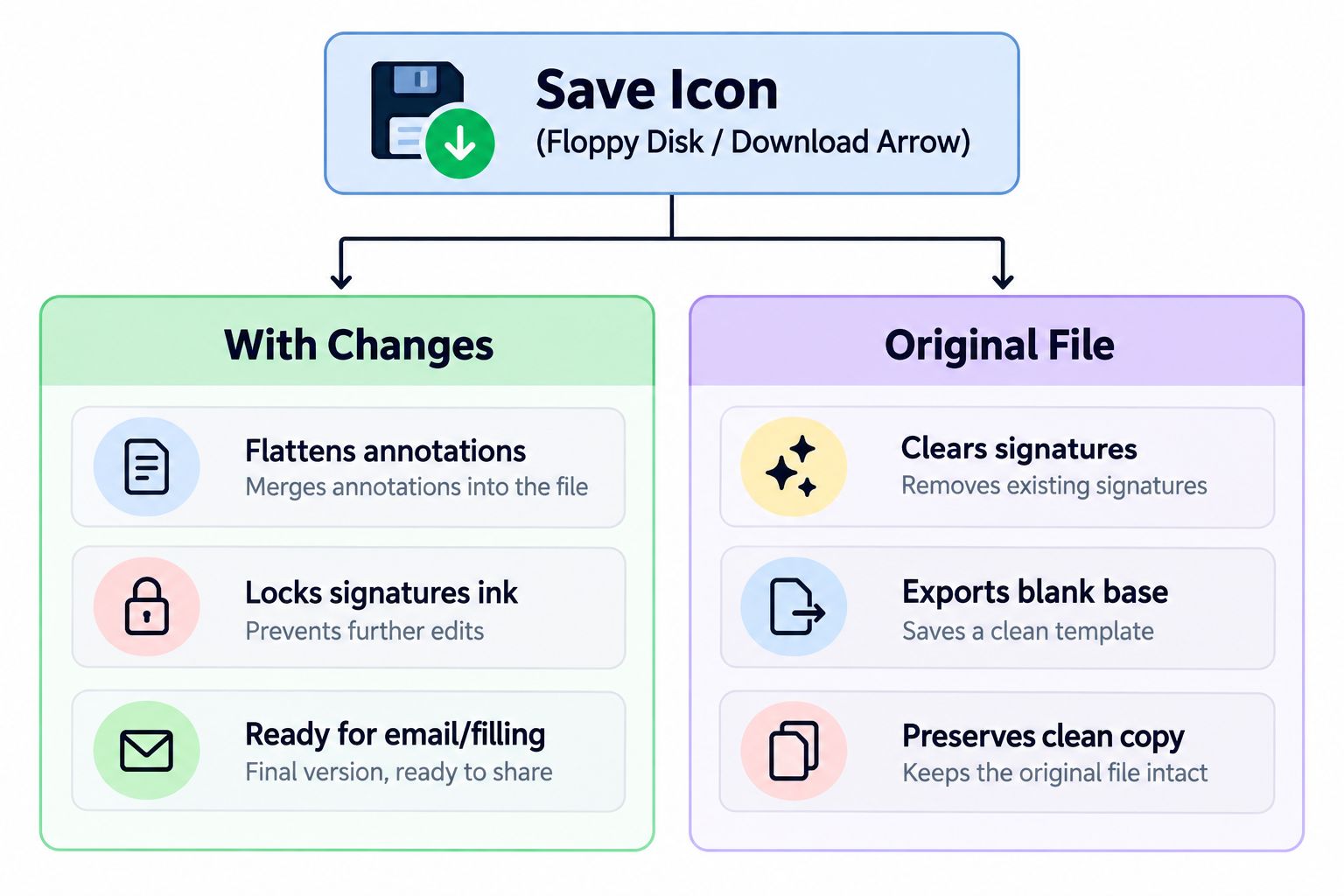
Click the Save/Download Icon: In the upper-right corner of the viewer, locate the download symbol (an arrow pointing down over a tray).
-
Select the Export Mode: Chrome will prompt you with two distinct options:
-
With changes: This option burns your entered form fields, annotations, and handwritten signatures directly into the file layers. Choose this when sending the signed document to counterparties.
-
Original: This exports the untouched, blank source document without any of your markup or inputs.
-
-
Target Destination and File Naming: Save the document with a distinct file name, such as Document_Signed_Final.pdf, so you never accidentally overwrite your clean original template.
Frequently Asked Questions
Can we sign documents in Chrome without third-party extensions?
Yes. Chrome features a native PDF reader that includes integrated drawing, form handling, and annotation features without needing external add-ons or browser extensions.
Are digital signatures created in Chrome legally binding?
In most jurisdictions, an electronic mark or drawn cursive signature applied with intent satisfies basic electronic signature laws for standard commercial agreements. However, transactions requiring cryptographic verification, such as qualified certificates under eIDAS or enterprise PKI compliance, require dedicated cryptographic software.
Can we edit existing underlying text using Chrome?
No. Chrome functions as an advanced viewer, form filler, and annotation suite. It allows you to draw, highlight, type into interactive fields, and sign, but it cannot alter pre-existing underlying layout text.
How do we erase a mistaken signature or drawing?
Click the eraser icon located beside the drawing tool in the annotation panel, then click directly on the stroke you wish to eliminate. You can also click the Undo arrow in the top toolbar.
What should we do if the draw tool does not appear?
Ensure that Google Chrome is updated to the latest stable release. If the toolbar is hidden, move your cursor toward the top of the browser tab to expand the control ribbon.
Can we annotate PDF files inside Chrome on a touchscreen laptop?
Yes. Chrome supports direct touch and active stylus input on compatible Windows laptops, Chromebooks, and two-in-one convertible screens, making drawing signatures very natural.
Does Chrome save our annotations automatically if the tab closes?
No. Browser sessions do not automatically write changes to your storage drive. You must manually click the Save button and choose With changes before closing the tab.
Can we highlight text in multiple colors?
Chrome’s drawing engine includes a full color palette that can be used for manual highlighting and underlining. Native text highlighting colors depend on the active system features enabled in your browser build.
How do we add a typed date next to our drawn signature?
If the PDF contains an interactive form field next to the signature line, click it directly and enter the date using your keyboard. If no active field exists, you can write the date freehand using a fine-point pen tool.
Does Google see or store the contents of our annotated PDF files?
No. Local PDF viewing and annotation occur on your local machine using the Chrome browser engine. Chrome does not automatically upload your local documents to Google Drive or external remote servers during this process.

Selva Ganesh is a Computer Science Engineer, Android Developer, and Tech Enthusiast. As the Chief Editor of this blog, he brings over 10 years of experience in Android development and professional blogging. He has completed multiple courses under the Google News Initiative, enhancing his expertise in digital journalism and content accuracy. Selva also manages Android Infotech, a globally recognized platform known for its practical, solution-focused articles that help users resolve Android-related issues.




Leave a Reply