
Navigating the web on a smartphone has undergone a fundamental transformation. For years, mobile browsing meant endless scrolling through dense articles, constantly switching back and forth between research tabs, and manually copying text to parse complex information. We experienced this daily friction until we integrated native artificial intelligence directly into our everyday browsing workflow. With the introduction of Ask Gemini in Google Chrome Android, contextual intelligence is embedded straight into the browser interface. Instead of treating artificial intelligence as a separate web application or an isolated tool, this feature allows users to query, analyze, condense, and interact with live web pages directly inside active mobile tabs. We have tested and streamlined the complete activation process to help you unlock this powerful browsing capability.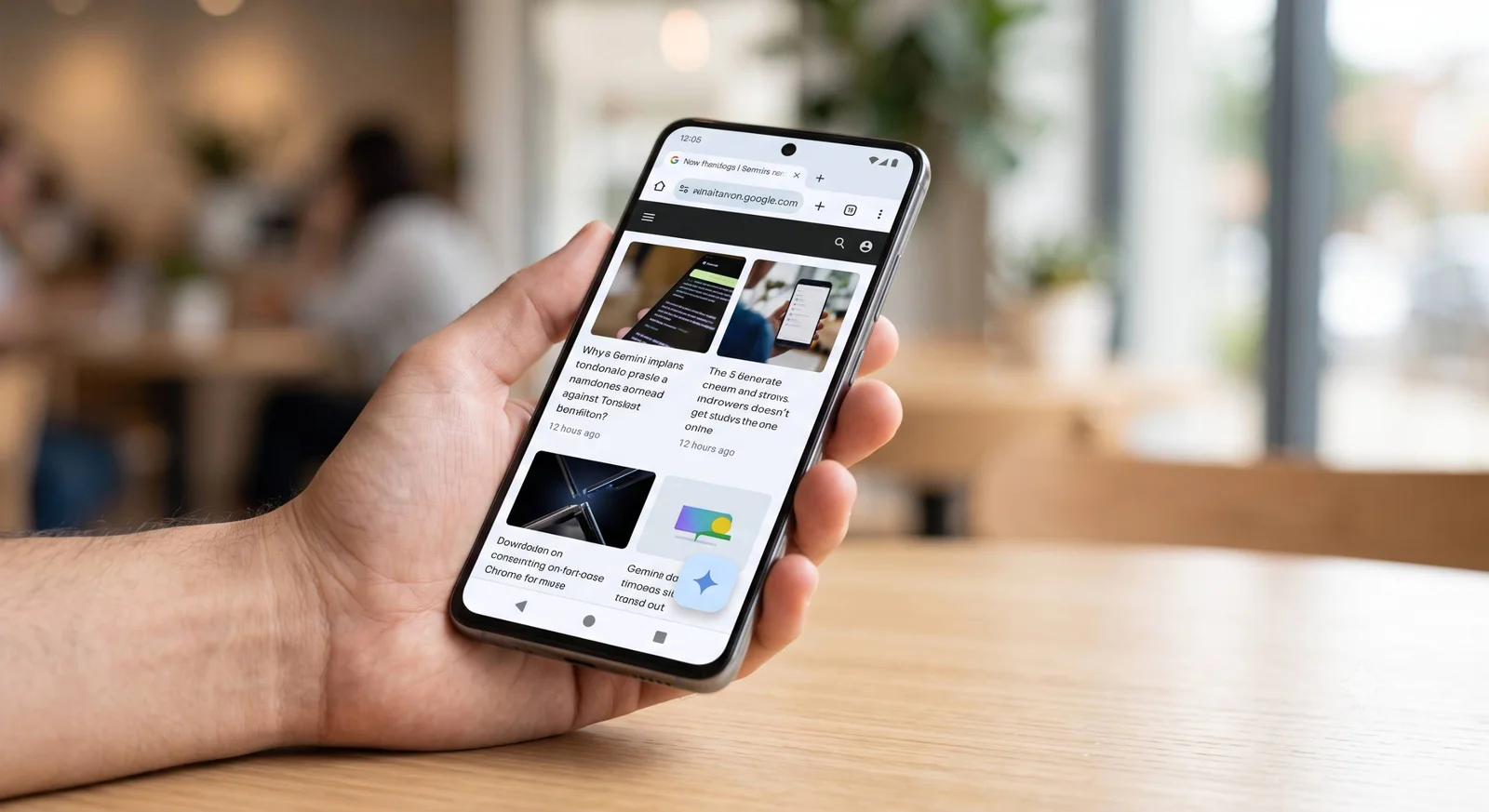
Understanding the Ask Gemini Experience on Android
The Ask Gemini feature in Chrome is not simply a shortcut to an external chatbot. It operates as an on-demand, context-aware layer over your active browser tab. When activated, the AI dynamically reads the text and structural context of the web page you are visiting, allowing you to ask hyper-specific questions without copying a single sentence.

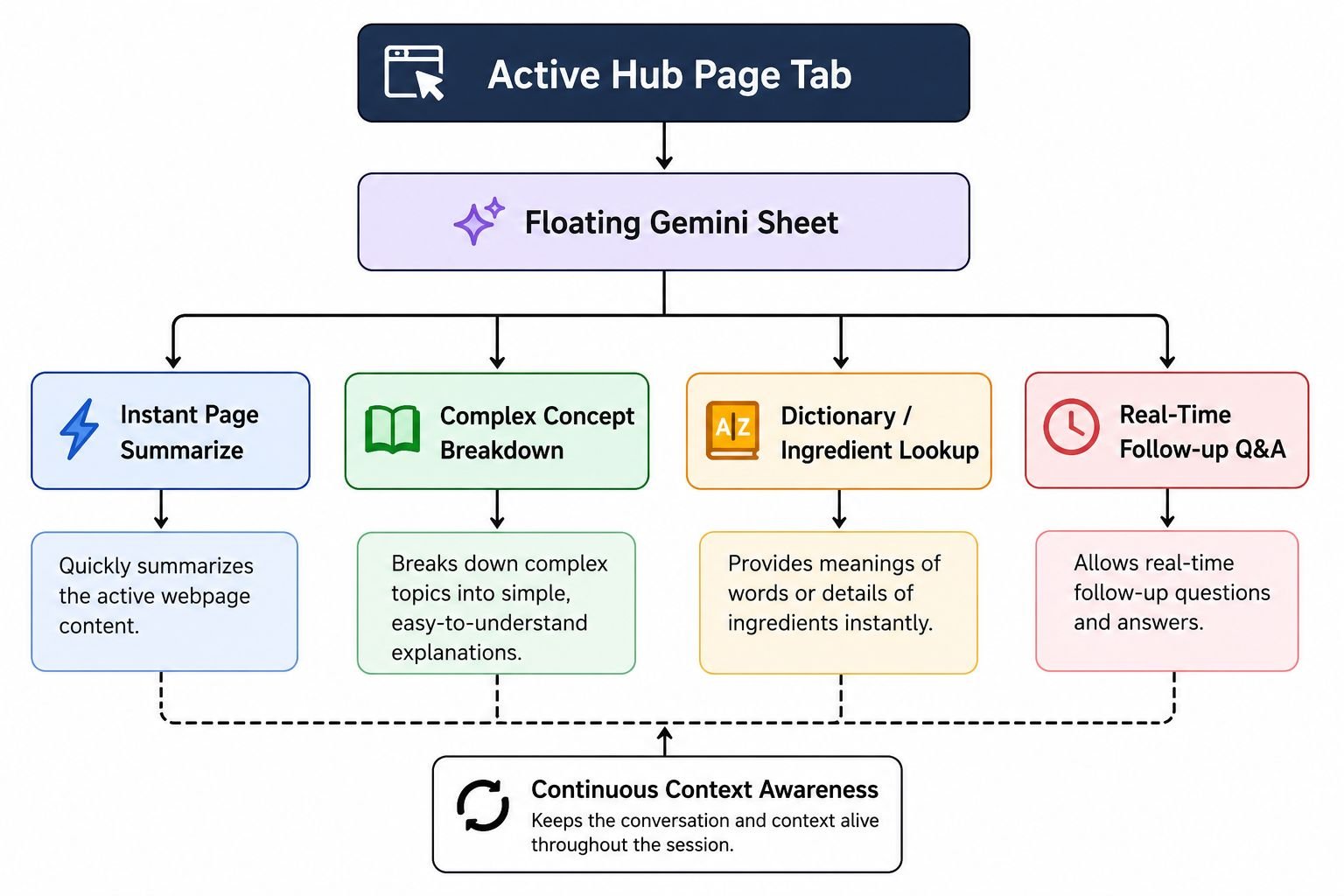
From our practical usage, the tool fundamentally enhances standard browsing across several major scenarios:
-
Long-Form Article Summarization: Instant extraction of core thesis statements, bullet-point takeaways, and statistical highlights from extensive investigative pieces or technical documentation.
-
Contextual Data Filtering: Extracting specific data points—such as converting measurements, isolating recipe modifications, or listing pros and cons—directly from massive product review guides.
-
Interactive Clarification: Asking immediate follow-up questions about difficult jargon or complex arguments without navigating away from the original source.
-
Live Page Interrogation: Asking comparative questions regarding information presented across multiple sections of a lengthy web page.
System Prerequisites and Compatibility Requirements
Before attempting to activate Ask Gemini in Chrome, we must verify that your Android hardware and software meet the requisite baseline. Because Google is rolling out contextual AI features gradually, specific hardware thresholds and account settings must be aligned.
| Requirement Category | Minimum Specification | Recommended Specification |
| Operating System | Android 12 or higher | Android 14 or latest stable build |
| Device Memory (RAM) | 4GB RAM minimum | 8GB RAM or higher |
| Browser Version | Latest stable Google Chrome release | Google Chrome Beta / Latest Stable |
| Account Status | Standard Personal Google Account | Primary account signed into Chrome |
| Language Setting | System and Chrome set to English | English (United States) |
| Browsing Mode | Standard Tab Browsing | Standard Tab (Disabled in Incognito) |
- Crucial Note on Account Types: If you are using an enterprise Workspace or educational Google Account, your network administrator must explicitly enable generative AI access before this feature will appear in your mobile browser.
Step-by-Step Guide to Enable Ask Gemini in Google Chrome Android
To get the feature running seamlessly, follow our sequential configuration process below.
1. Update Google Chrome and Core Services
First, ensure that your device is running the latest binary versions of the browser and support libraries:
-
Open the Google Play Store on your Android device.
-
Tap your profile icon in the top-right corner and select Manage apps & device.
-
Check for updates under Updates available and ensure Google Chrome and the core Google App are completely up to date.
2. Configure Default Assistant Permissions
For Chrome to smoothly coordinate with Gemini’s screen-reading framework, Gemini must be authorized as your digital assistant:
-
Open your Android device’s Settings menu.
-
Navigate to Apps > Default apps.
-
Select Digital assistant app (or Device assistant app depending on your manufacturer UI).
-
Ensure that the default assistant is set to Google / Gemini.
3. Activate Screen Context and Sharing
Gemini requires permission to interpret on-screen text to provide tab-specific answers:
-
Open the standalone Gemini app or launch the assistant overlay.
-
Tap your Profile Picture or initials in the upper corner, then tap Settings.
-
Select Screen context.
-
Toggle on Use text from screen and Use screenshot.
4. Launch and Opt In via Google Chrome
With the underlying permissions configured, launch the feature directly within Chrome:
-
Open Google Chrome on your Android device.
-
Navigate to any content-rich website or article.
-
Tap the Three-Dot Menu (More) in the top-right corner of the address bar.
-
Look for the Ask Gemini or Gemini in Chrome button. On updated builds, a dedicated Gemini sparkle icon may appear directly in the top toolbar or within the contextual drop-down menu.
-
Tap Ask Gemini. If this is your first time accessing the feature, an introductory terms screen will appear.
-
Tap Agree / Opt In to complete the initial setup.
Mastering Ask Gemini During Daily Browsing
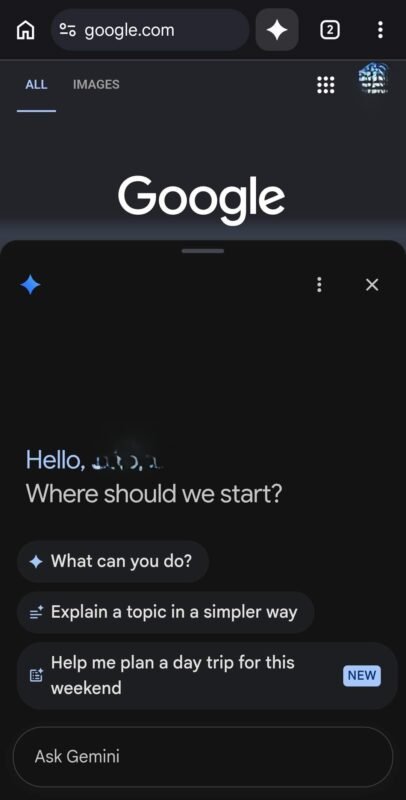
Once enabled, a floating, draggable conversation sheet appears over your active webpage. You do not lose your place on the page, and the browser window remains fully functional beneath the AI layer.
Practical Prompt Strategies for Mobile Research
To maximize the value of Ask Gemini, we recommend utilizing concise, action-oriented prompts tailored to page content:
-
For Academic and Technical Papers:
"Extract the methodology and final conclusions of this study in three concise bullet points." -
For Product and Buying Guides:
"List all products mentioned on this page priced under $100 along with their primary drawbacks." -
For Detailed Cooking Guides:
"Give me an ingredient checklist from this recipe adjusted for four servings, omitting dairy products." -
For News Analysis:
"Summarize the key events mentioned here in strict chronological order."
Managing Tab Privacy and Context Control
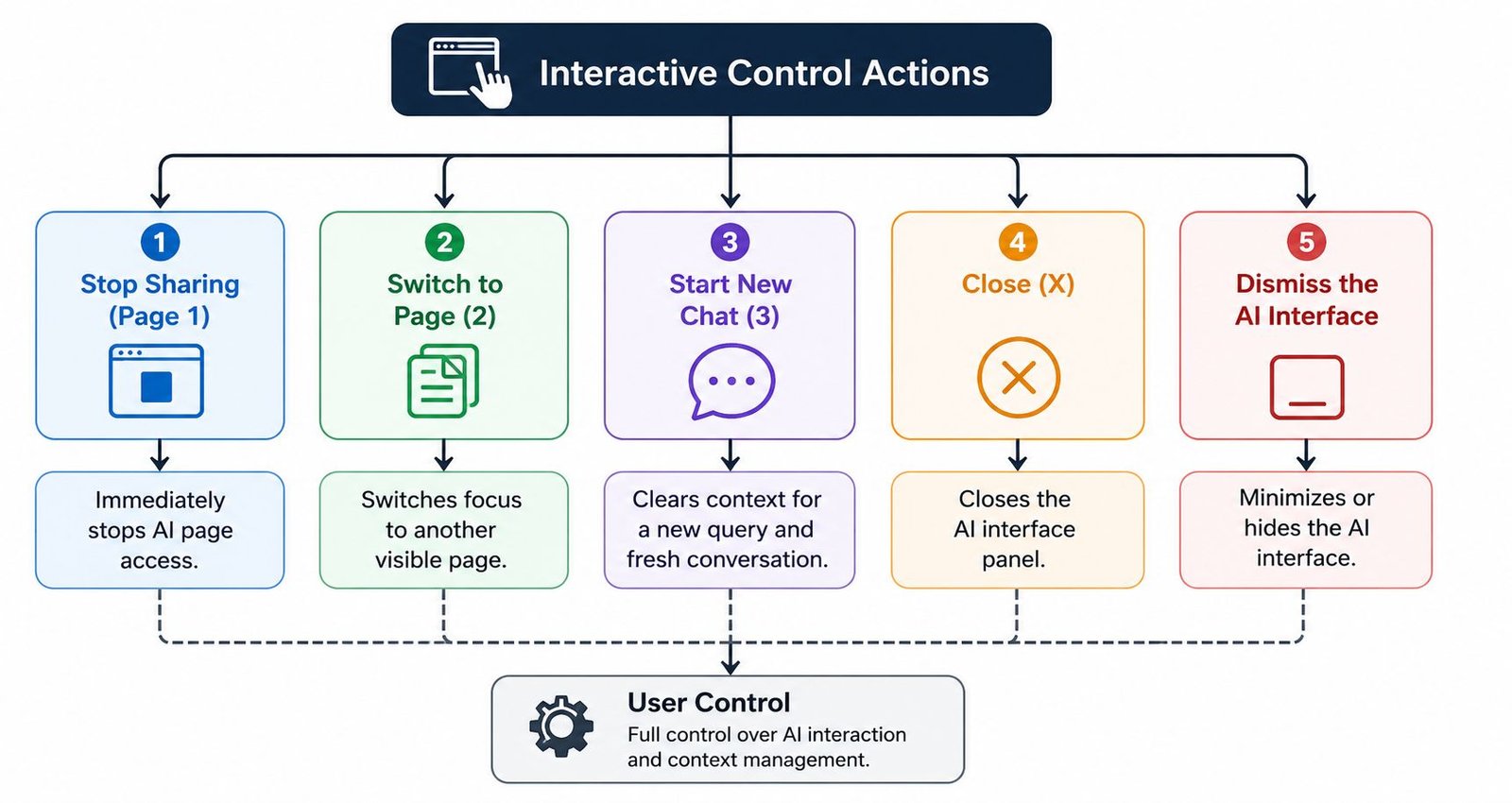
By default, the active URL and visible DOM text are referenced by Gemini to generate answers. If you navigate to sensitive information or wish to ask general questions unrelated to the open site, you can tap Stop sharing page directly inside the chat interface. This immediately severs page access while keeping the AI dialogue active.
Troubleshooting Missing or Inactive Ask Gemini Options
If the Ask Gemini option does not appear after completing the standard setup, apply these field-tested troubleshooting fixes:
1. Resolve Account-Level Restrictions
Gemini AI integrations are age-gated and account-dependent. Ensure you are signed in with a verified account age of 18 or older. Furthermore, ensure you are not browsing inside an Incognito Tab, as privacy protections intentionally disable contextual AI extensions in private sessions.
2. Force-Stop and Clear Chrome Cache
Corrupted application cache can prevent UI feature flags from refreshing:
-
Open Android Settings > Apps > Chrome.
-
Tap Force Stop.
-
Select Storage & cache, then tap Clear Cache (avoid clearing user data unless strictly necessary).
-
Relaunch Chrome and verify the menu options.
3. Check Experimental Flags (Chrome Flags)
When Google rolls out new features via server-side updates, advanced users can frequently preview and enforce them using the internal flags panel:
-
In the Chrome address bar, type
chrome://flagsand press enter. -
In the search box at the top, type
GeminiorContextual Page Actions. -
Locate relevant generative AI entries (such as Gemini in Chrome or Page Content Sharing).
-
Change the drop-down setting from Default to Enabled.
-
Tap the Relaunch button at the bottom of the screen to apply the configuration.
Frequently Asked Questions
1. Is Ask Gemini in Google Chrome Android free to use?
Yes, the core contextual features of Ask Gemini in Google Chrome for Android are included at no additional cost for standard Google Account holders.
2. Why is Ask Gemini missing from my Chrome menu?
The feature is being deployed in phased regional rollouts. Ensure your device runs Android 12 or newer, has at least 4GB of RAM, runs the latest version of Chrome in English, and is not operating in Incognito mode.
3. Does Ask Gemini read my personal data on secure pages?
Gemini processes text from the active tab to formulate relevant responses. However, it does not execute in Incognito mode, and you can manually tap Stop sharing page at any point during your browsing session.
4. Can I use Ask Gemini while browsing in Incognito mode?
No. To preserve strict privacy guarantees, all AI context-sharing and Gemini integrations are disabled by default inside Incognito tabs.
5. Does Ask Gemini support multiple tabs on Android simultaneously?
On mobile devices, Ask Gemini primarily focuses on the single active tab. Multi-tab synthesis (analyzing up to 10 tabs at once) is primarily supported on desktop versions of Google Chrome.
6. How do I turn off Ask Gemini if I no longer want it?
Open Chrome, go to Settings > AI Innovations (or Gemini in Chrome), and toggle off page content permissions. You can also switch your device’s default assistant back to Google Assistant in your Android system settings.
7. Does Ask Gemini work without an active internet connection?
No. Gemini relies on cloud-based multimodal models to parse complex web pages and generate natural language summaries, requiring an active Wi-Fi or cellular data connection.
8. Can Ask Gemini translate foreign language web pages into English?
Yes. You can prompt the tool on any foreign-language page with requests like "Translate this article into English and provide a summary", and it will synthesize the text accurately.
9. Why does Ask Gemini say it cannot summarize a specific page?
Pages heavily protected by dynamic paywalls, complex client-side scripts, or restrictive security protocols may block text scraping, preventing the model from reading the full page context.
10. Can I interact with Ask Gemini using voice commands inside Chrome?
Yes. You can tap the microphone icon within the floating Gemini interface or trigger your assistant using voice match commands to speak your queries directly.

Selva Ganesh is a Computer Science Engineer, Android Developer, and Tech Enthusiast. As the Chief Editor of this blog, he brings over 10 years of experience in Android development and professional blogging. He has completed multiple courses under the Google News Initiative, enhancing his expertise in digital journalism and content accuracy. Selva also manages Android Infotech, a globally recognized platform known for its practical, solution-focused articles that help users resolve Android-related issues.




Leave a Reply