
Set Up Price Alerts with Google Gemini– Tracking price drops across online retailers, travel bookings, and digital services often takes hours of manual checking. Using Google Gemini, we can automate recurring price checks through scheduled actions in the Gemini web or mobile app or build custom automated alerts using the Gemini API with search grounding. Knowing how Gemini prepares responses and handles live web data helps us configure alerts that deliver reliable updates without false expectations.
How Price Tracking Works in Google Gemini?
Google Gemini does not operate as a continuous high-frequency price ticker that fires instant millisecond notifications the moment a retailer changes a tag. Instead, Gemini handles price monitoring in two main ways depending on how much control we need.

The first approach uses scheduled actions inside Gemini Apps on desktop or mobile. We give Gemini a recurring prompt with a target product, price threshold, region, or currency, and a preferred delivery time. Gemini runs that prompt on a recurring cadence such as daily, weekly, or monthly and notifies us when the scheduled response is ready.
The second approach uses automated scripts or workflows powered by the Gemini API with Google Search grounding. By pairing a time-driven trigger such as Google Apps Script, a cron job, or a workflow runner with Gemini and a spreadsheet or notification webhook, we can check prices on our own schedule, compare the returned price against a stored number, and send an email or message only when the condition is met.
Setting Up a Scheduled Price Alert in Gemini Apps
For everyday shopping and routine price checks, scheduled actions in Gemini Apps offer the fastest setup without writing code. Before creating a schedule, make sure we sign in with a supported Google Account and keep Gemini Apps Activity turned on, since schedules require activity history.
Step 1: Write a Specific Price Prompt
Vague prompts produce vague answers. When we set up a price alert in chat, we include four concrete details:
-
Exact product name and model: Specify brand, model number, storage or size, and condition such as new or refurbished so Gemini does not mix up variants.
-
Target price and currency: State whether we want alerts below a specific amount, at a discount percentage, or simply a daily price check across retailers.
-
Region or store scope: Mention the country, currency, or preferred retailers so pricing matches local availability and taxes or shipping norms.
-
Frequency and delivery time: State how often Gemini should check and when we want the update delivered.
An effective prompt looks like this: Check the current price of the Sony WH-1000XM5 wireless headphones in India in INR across major online stores every day at 9:00 AM IST, highlight any listing below ₹22,000, and summarize the lowest price found.
Step 2: Enable Notifications and Manage the Schedule
Once submitted, Gemini creates the recurring schedule and displays a summary. On mobile devices, enabling notifications for the Gemini app ensures alerts surface promptly when a scheduled run finishes.
We can manage existing alerts from the Scheduled section in the Gemini menu on web or mobile, or directly inside the schedule’s chat thread. From there, we can edit the prompt or timing, pause a schedule while traveling or waiting on a release, resume it later, or delete it once we make a purchase.
Building Custom Automated Price Alerts With the Gemini API
When we need stricter rule evaluation, multi-item watchlists, or conditional alerts that stay quiet until a threshold is crossed, building a lightweight script around the Gemini API gives us full control.
Designing the Evaluation Loop
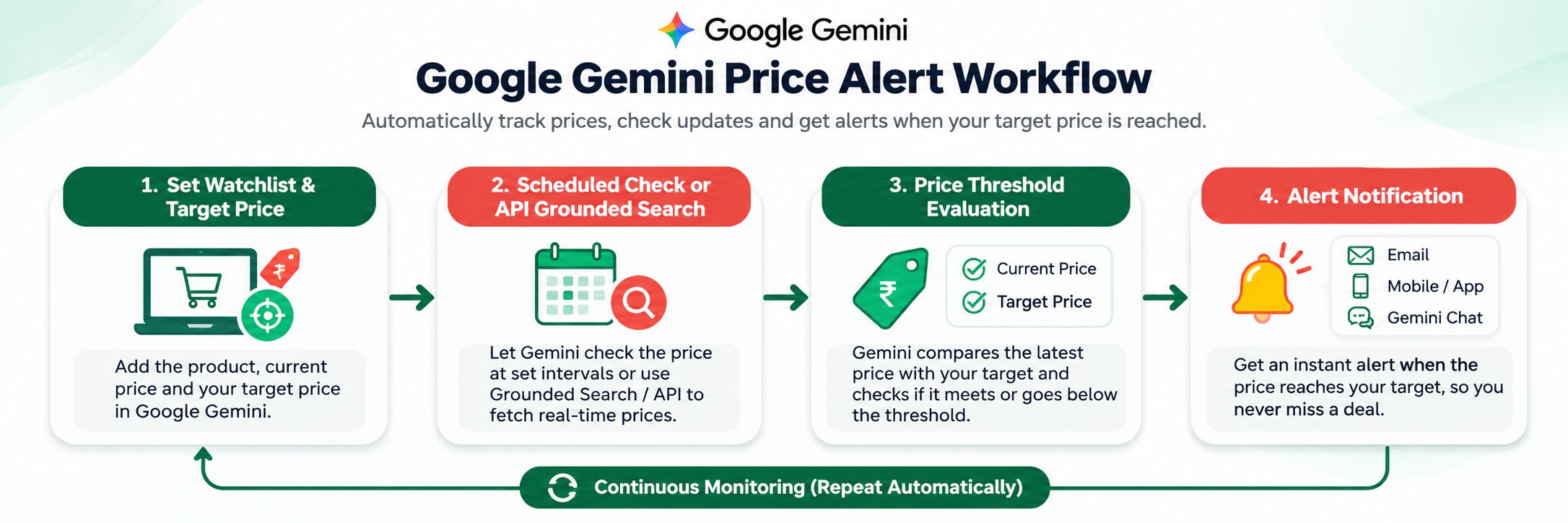
In practice, we found that separating data retrieval and threshold comparison from notification delivery makes custom price trackers far easier to maintain. A typical workflow follows a clear sequence:
-
Maintain a watchlist: Store product names, target prices, currencies, and last seen prices in a Google Sheet or JSON configuration file.
-
Query grounded search: Send a structured prompt to a Gemini model with Google Search grounding enabled, asking for current listed prices and source URLs for each item.
-
Request structured output: Instruct the model to return clean JSON containing the item identifier, detected price, currency, retailer name, availability status, and source link.
-
Compare against thresholds: Run deterministic logic in code to check whether the detected price is lower than or equal to our target price, or lower than the previously logged price.
-
Trigger an alert on match: Send an email, chat message, or sheet log entry only when the threshold rule passes, preventing notification fatigue when prices stay flat.
Practical Alert Scenarios
Different buying goals benefit from slightly different alert designs:
-
Electronics and appliances: Track exact model numbers weekly or daily leading up to major seasonal sales, watching for bundle offers or bank discounts that bring the effective price into range.
-
Flights and hotels: Monitor route and date combinations regularly so we spot fare drops early, while keeping in mind that travel inventory and fare classes shift frequently.
-
Software and subscriptions: Check annual plan pricing or promotional tiers before renewal dates so we can switch billing cycles or compare plans before charges post.
Comparing Gemini Schedules and Custom API Alerts
Choosing between built-in Gemini schedules and a custom API workflow depends on how we want alerts delivered and how complex our rules are.
| Feature | Gemini Scheduled Actions | Custom Gemini API Workflow |
| Setup effort | Low; configured in natural language chat | Moderate; requires scripting and API key management |
| Active limit | Up to 10 active schedules per account | Governed by script runtime and API quotas |
| Delivery format | Gemini app or web chat notification | Email, messaging webhooks, sheets, or custom apps |
| Conditional logic | Prompt-driven summaries and comparisons | Exact numeric threshold and state comparisons in code |
| Maintenance | Managed on the Scheduled page or in chat | Owned in code, schedules, and configuration files |
Limitations, Common Mistakes, and Troubleshooting
Understanding Gemini’s operational behavior prevents surprises after an alert goes live.
Advance Preparation and Fast-Moving Prices
Google prepares scheduled responses within the hour leading up to the delivery time to ensure timely delivery. Because responses are generated ahead of delivery, fast-moving numbers such as live stock ticks or flash-sale inventory may already have shifted by the time we read the message. For shopping, daily or weekly check-ins work well for spotting genuine price trends rather than chasing second-by-second fluctuations.
Common Setup Mistakes to Avoid
-
Leaving out currency or country: Without a location or currency, search results may return prices in another market or omit local import and tax differences.
-
Using ambiguous product names: A broad label like a phone name without storage capacity or color can match accessories, cases, or older generations.
-
Relying on schedules for instant flash drops: A once-daily check can miss a two-hour lightning deal that starts and ends between runs.
-
Ignoring inactive schedule behavior: Gemini schedules can be turned off automatically due to inactivity, so periodic review on the Scheduled page keeps trackers healthy.
Troubleshooting Missing or Stale Alerts
If alerts stop arriving or look outdated, check three areas first. Confirm that Gemini Apps Activity remains enabled and that the schedule was not paused or turned off automatically. Check device notification permissions for the Gemini app on mobile so background alerts are not silenced. Finally, inspect the prompt wording to verify that the product name, retailer scope, and price condition are still accurate and not blocked by paywalled or login-required pages.
Frequently Asked Questions
1. Can Google Gemini send automatic price drop alerts?
Yes. We can set up recurring scheduled actions in Gemini Apps to check prices on a set schedule and notify us, or build a custom script using the Gemini API to evaluate target prices and send alerts.
2. How many active scheduled actions can we run in Gemini Apps?
Gemini Apps support up to 10 active scheduled actions at a time. If we track more items than that, we can group related items into a single check or use a script with a spreadsheet.
3. Why might a scheduled price check not show live real-time pricing?
Gemini prepares scheduled responses within the hour before delivery so they arrive on time. Because of that advance preparation, rapidly changing prices may shift before the notification reaches us.
4. How do we edit or stop a price alert in Gemini?
Open the Scheduled section in the Gemini menu on web or mobile, or open the schedule’s chat thread. From there, we can edit the schedule or instructions, pause or resume it, or delete it.
5. Why did my Gemini scheduled alert stop running?
A schedule will not run if activity history is turned off, if the schedule is paused, or if Google turns it off automatically after a period of inactivity. Resuming or recreating the schedule restores it.
6. Can we track prices in a specific currency and country?
Yes. Including the target country, currency, and preferred storefronts directly in the prompt helps Gemini return relevant regional pricing.
7. Is Gemini better for tracking retail products or live stock tickers?
Retail products, travel fares, and recurring price comparisons fit scheduled summaries well, whereas live stock prices require dedicated financial platforms or real-time market feeds rather than scheduled AI summaries.
8. Can we use a custom API script to alert us only when a price drops below a limit?
Yes. By asking the Gemini API for structured price data and comparing that value against a target number in code, we can send notifications only when the price meets our condition.
9. Why is including exact model details important for price alerts?
Similar product names often cover different capacities, editions, or accessories with very different prices. Exact model details prevent false price-drop alerts on the wrong variant.
10. What should we do when an online store hides prices behind login walls or dynamic scripts?
When a specific retailer blocks automated access or requires sign-in, we can expand the prompt to check authorized marketplaces, official brand stores, or public price comparison listings where current prices are openly visible.

Selva Ganesh is a Computer Science Engineer, Android Developer, and Tech Enthusiast. As the Chief Editor of this blog, he brings over 10 years of experience in Android development and professional blogging. He has completed multiple courses under the Google News Initiative, enhancing his expertise in digital journalism and content accuracy. Selva also manages Android Infotech, a globally recognized platform known for its practical, solution-focused articles that help users resolve Android-related issues.




Leave a Reply