
Keep Google Gemini Chat History Without Sharing Your Chats for AI Training– Google has fundamentally redesigned its privacy controls for Gemini, ending the frustrating trade-off that forced users to choose between convenience and data privacy. By splitting the single Keep Activity setting into two independent controls, Google now allows you to preserve your searchable conversation archive while completely opting out of generative AI model training. For years, anyone who wanted to prevent their prompts, uploaded files, and personal context from feeding Google’s training pipelines had only one blunt instrument: disabling chat history entirely. Doing so meant losing every past thread the moment you closed the browser tab. With this November 2026 rollout, we can finally decouple storage from model improvement.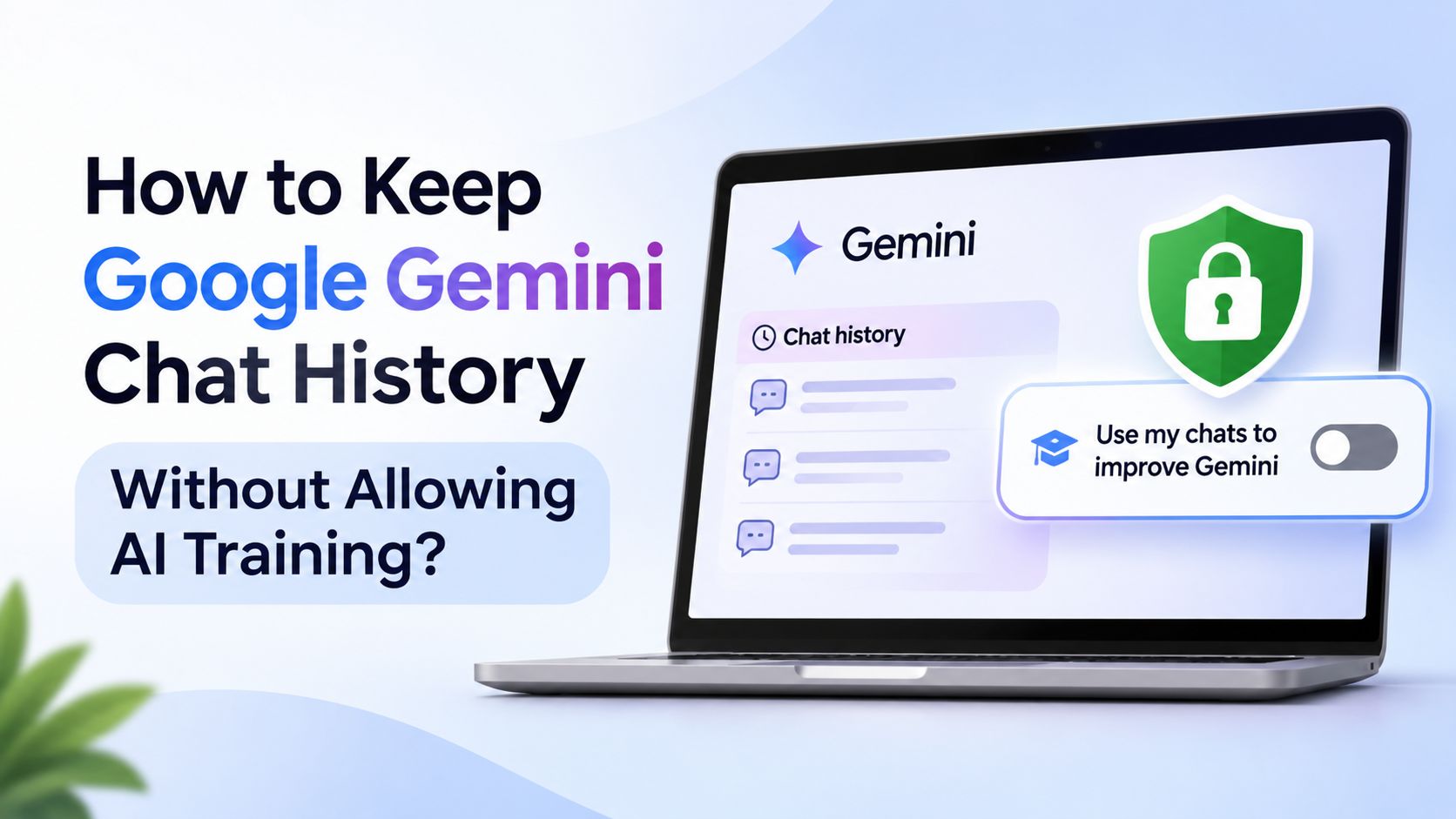
Understanding the New Gemini Privacy Split
Previously, the Keep Activity switch inside Gemini Apps Activity acted as an all-or-nothing gatekeeper. Turning it on saved your conversations for 18 months by default and simultaneously granted Google permission to use your text and attachments to train future AI models. Turning it off blocked training, but wiped your ongoing workspace.

Google has replaced that single toggle with two distinct privacy layers:
-
History Control: Governs whether your conversations remain visible in your sidebar and how long Google retains them in your account before automatic deletion.
-
Generative AI Model Training Control: Governs whether Google can use your future chat content—specifically text prompts and uploaded attachments—to train and improve its underlying AI models.
This structural change aligns Google with major industry competitors. Both OpenAI’s ChatGPT and Anthropic’s Claude have long offered independent switches that let users disable model training without sacrificing their saved conversation threads.
How Existing Accounts Transition Automatically
Because Google rolled out this update across millions of active accounts, the default state of your two new switches depends entirely on how your Keep Activity setting was configured prior to the change:
| Previous Keep Activity Status | New History Setting | New Model Training Setting | Required Action to Keep History Without Training |
| Turned On | Automatically On | Automatically On | Manually toggle off the chat content training option. |
| Turned Off | Remains Off | Remains Off | Turn on History while keeping the training option off. |
The important point here is that existing active users do not get opted out automatically. If you were already saving your Gemini conversations, Google enables both new controls by default during the migration. You must visit your activity dashboard and manually uncheck the training permission.
Step by Step: How to Keep Gemini Chat History While Opting Out of AI Training
You can configure these settings directly through the Gemini web interface or your Google Account activity portal. The process takes less than a minute and applies across your signed-in devices.
1. Open Your Gemini Activity Settings
Navigate to gemini.google.com on your desktop or mobile browser and sign in to your Google Account. Look toward the bottom-left corner of the screen, click the Settings gear icon, and select Activity (or Gemini History). Alternatively, you can go straight to myactivity.google.com/product/gemini.
2. Confirm Your History Preference
At the top of the Gemini Apps Activity page, verify that the History dropdown or toggle is set to On. Keeping this enabled ensures your conversations remain accessible in your sidebar, preserves your Memory Summary preferences, and allows you to pick up complex projects across multiple sessions.
3. Disable Chat Content Training
Look directly beneath the main History switch for the section labeled Help train generative AI models with. Here, you will find a separate checkbox or toggle for Chat content including text & attachments. Uncheck or toggle this option Off. Once disabled, your future text prompts, documents, code snippets, and image uploads will no longer be routed into model training datasets.
4. Verify Audio and Gemini Live Settings
Below the text and attachments option, check the preference for Audio and Gemini Live videos & screenshares. Google keeps this setting turned Off by default as an opt-in preference. Confirm that it remains unchecked so your voice interactions and live camera or screen shares stay excluded from training.
5. Set Your Auto-Delete Timeline
While you are on the same page, review your auto-delete schedule. When History is active, Google sets automatic deletion to 18 months by default. If you prefer tighter data hygiene, click the auto-delete option and shorten the retention window to 3 months, or extend it to 36 months if you rely on long-term project archives. You can also delete individual conversations manually at any time.
Important Privacy Caveats You Should Know
Turning off model training while keeping your chat history is a major privacy upgrade, but it does not mean your data vanishes from Google’s servers instantaneously or remains completely isolated under every circumstance. In practice, two specific policy rules still apply.
Extended Two-Month Retention When History Is Off
If you decide to switch History completely off, Google no longer purges your temporary conversations after 72 hours. Under the updated privacy policy, future chats created with History disabled are retained on Google servers for approximately two months.
Google states that this extended 60-day buffer is used strictly to deliver responses, process explicit feedback, maintain service security, and prevent platform abuse. During this window, conversations may still undergo review by trained human annotators for safety and abuse-prevention enforcement, even though they are excluded from generative model training. By comparison, competitors like OpenAI and Anthropic generally retain temporary, history-off chats for 30 days.
The Thumbs Up and Thumbs Down Feedback Exception
Even after you opt out of AI training, interacting with Gemini’s response rating buttons creates a specific exception. Whenever you click the thumbs up or thumbs down icon on a Gemini reply, or submit written feedback about an output, Google captures that interaction to improve the product.
Submitting feedback shares the rated response along with the preceding 24 hours of chat content and attachments from that conversation. That feedback package can be reviewed by human specialists and stored separately for up to three years. If you handle confidential documents, proprietary source code, or sensitive personal information inside Gemini, avoid clicking the rating buttons on those threads.
Practical Best Practices for Protecting Sensitive Data
Combining the new privacy toggles with smart daily habits gives you strong control over your digital footprint inside Gemini:
-
Audit your existing history: Changing the training toggle applies to future conversations. If you previously uploaded sensitive files while Keep Activity was active, visit your Gemini Apps Activity log and manually delete those older entries.
-
Use Temporary Chats for sensitive one-offs: When you need quick help with a confidential contract, medical question, or private financial calculation that you never need to revisit, start a temporary session rather than cluttering your main archive.
-
Avoid rating sensitive threads: Treat the thumbs up and thumbs down buttons as an explicit data-submission trigger. Leave responses unrated whenever a conversation contains private attachments or proprietary work.
-
Review Google Workspace protections: If you use Gemini through a paid Google Workspace business or enterprise account, your prompts and files are already excluded from public model training by default under enterprise data governance terms.
Frequently Asked Questions
1. Can I keep my Gemini chat history without letting Google train its AI on my chats?
Yes. Google separated its old Keep Activity control into two independent settings. You can leave History turned on to save your conversations while switching off the option that allows chat content and attachments to train generative AI models.
2. Where do I find the new Gemini AI training opt-out toggle?
Open gemini.google.com, click the Settings gear icon in the bottom-left corner, and select Activity or Gemini History. You can also access the page directly by visiting myactivity.google.com/product/gemini while signed into your Google Account.
3. Does turning off AI training delete my existing Gemini conversations?
No. Disabling the model training switch only stops Google from using your future text prompts and file attachments to train AI models. Your saved conversation archive remains intact as long as the separate History setting stays enabled.
4. What happens if my Keep Activity setting was already turned off before the update?
If you had previously disabled Keep Activity, Google keeps both of the new toggles switched off automatically. To start saving your conversations without enabling AI training, turn on the History setting while leaving the model training checkbox unchecked.
5. Are uploaded files and images included in the AI training opt-out?
Yes. The training control specifically covers chat content including both text prompts and uploaded attachments. When you toggle that setting off, your future documents, spreadsheets, code files, and images are excluded from model training.
6. Does Google train AI models on Gemini Live audio or screen shares by default?
No. Audio recordings, Gemini Live video feeds, and screen shares remain excluded from generative AI model training by default. Training on those media types requires you to explicitly opt in.
7. How long does Google store Gemini chats if I turn History completely off?
Under the updated policy, future chats created while History is turned off are retained for approximately two months. This replaces the previous 72-hour retention window and is used strictly for service delivery, safety, security, and abuse prevention.
8. Why does rating a Gemini response share my chat data even if training is off?
Clicking the thumbs up or thumbs down icon submits explicit quality feedback to Google. To understand the context of your rating, Google collects the preceding 24 hours of conversation history and attachments from that thread, which may be reviewed by humans and stored for up to three years.
9. Can human reviewers still read my chats if I opt out of AI training?
While your chats are excluded from generative model training datasets, Google notes that conversations may still be reviewed by trained human specialists when necessary to investigate safety issues, prevent platform abuse, or process explicit thumbs up or thumbs down feedback.
10. How often does Google automatically delete saved Gemini chat history?
When History is enabled, Google sets automatic deletion to 18 months by default. You can adjust this auto-delete schedule inside your Gemini Apps Activity settings to either 3 months or 36 months, or delete individual conversations manually at any time.

Selva Ganesh is a Computer Science Engineer, Android Developer, and Tech Enthusiast. As the Chief Editor of this blog, he brings over 10 years of experience in Android development and professional blogging. He has completed multiple courses under the Google News Initiative, enhancing his expertise in digital journalism and content accuracy. Selva also manages Android Infotech, a globally recognized platform known for its practical, solution-focused articles that help users resolve Android-related issues.



Leave a Reply