
The days of reciting stiff, robotic voice commands just to get a dashboard assistant to understand a simple request are over. With Google Gemini integrated natively into Android Auto, your vehicle transforms from basic transportation into a hands-free workstation, a conversational travel companion, and an intelligent personal concierge. Unlike legacy Google Assistant, which relied on rigid phrasing and single-turn commands, Gemini uses deep natural language processing, multi-turn conversational memory, and opt-in Personal Intelligence integrations across Google Workspace (including Gmail, Calendar, and Maps). Drivers can speak naturally, interrupt responses, ask follow-up questions without repeating context, and combine multiple tasks into a single spoken prompt.
Below, we break down 25 practical Google Gemini tricks for Android Auto across navigation, messaging, personal productivity, media control, and continuous live conversation, followed by the exact setup steps to activate it on your display.

How Gemini Differs from Legacy Google Assistant in the Car
Before diving into specific voice prompts, it helps to understand why Gemini handles road requests differently than the older assistant architecture.
| Capability | Legacy Google Assistant | Google Gemini on Android Auto |
| Speech Understanding | Required exact keywords and rigid syntax | Understands natural, conversational human phrasing |
| Context Retention | Treated each command as an isolated query | Remembers previous turns for seamless follow-up questions |
| Message Handling | Read incoming texts word-for-word | Summarizes long threads and rewrites replies to match tone |
| Workspace Access | Limited to basic reminders and calendar events | Cross-references Gmail, Calendar, and Maps in one request |
| Multi-Turn Dialogue | Required saying the wake word for every turn | Supports continuous, back-and-forth dialogue via Gemini Live |
Navigation and Smart Location Queries
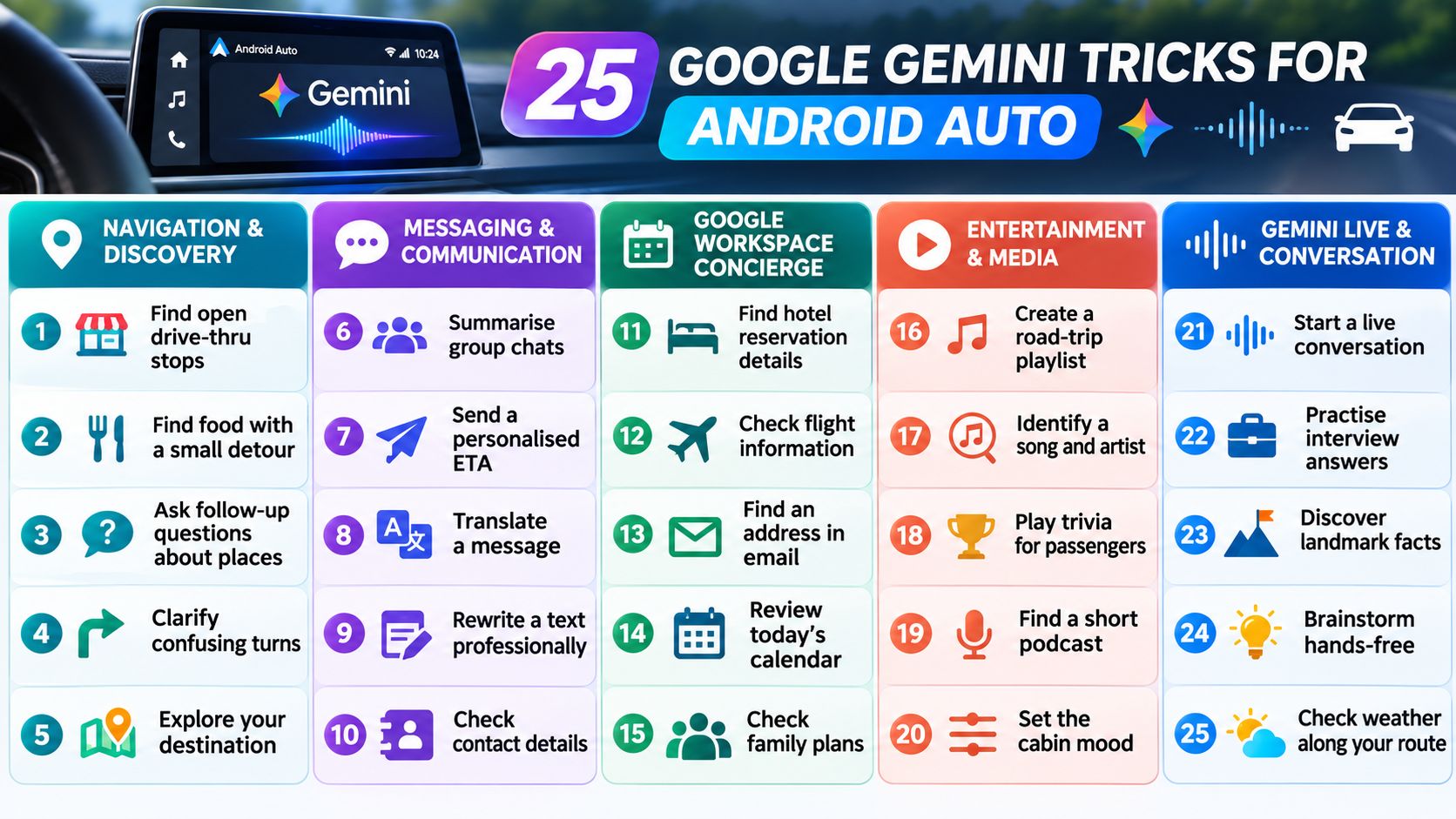
Searching for stops while driving used to require tapping through menus or settling for the closest generic listing. Gemini cross-references live Google Maps business attributes with your active route so you can filter stops by real-time conditions.
-
Multi-Condition Location Hunts: Combine business type, service style, and operating hours into one natural sentence instead of searching broadly.
-
Try saying: “Find me a drive-thru coffee shop that is open right now.”
-
-
Dynamic Detour Calculations: Measure how far a stop pulls you off course before committing to a turn.
-
Try saying: “Find a barbecue spot on my route that is less than a mile detour.”
-
-
In-Route Detail Probing: Ask follow-up questions about a suggested venue without repeating its name, taking advantage of Gemini’s conversational memory.
-
Try saying: “Does that diner have outdoor seating?” or “What time do they close?”
-
-
Clarify Confusing Turns: When highway interchanges or multi-lane intersections look crowded on your infotainment screen, ask for plain directional clarity.
-
Try saying: “After this intersection, do I need to go east or west?”
-
-
Contextual Trip Exploration: Turn your dashboard into a local tour guide when heading toward an unfamiliar city or neighborhood.
-
Try saying: “I’m headed to [Destination]. Tell me some interesting things about it.”
-
Next-Gen Messaging and Hands-Free Communication
Reading or replying to long message chains behind the wheel creates severe visual distraction. Gemini condenses incoming clutter into quick spoken takeaways and drafts outgoing messages that match your intended tone.
-
AI Group Chat Summaries: Catch up on active family or work threads in seconds without listening to dozens of individual notifications.
-
Try saying: “Summarize my unread WhatsApp messages from my family group.”
-
-
Hands-Free Playful Customization: Add personality, warmth, or specific emojis to a quick status update just by describing how it should feel.
-
Try saying: “Text Sarah my ETA, but add an apology and a sorry emoji.”
-
-
Real-Time Voice Translation: Communicate smoothly across languages without switching apps or dictating phonetic spellings.
-
Try saying: “Tell [Contact] I’ll be there in 10 minutes—translate it to Spanish, please.”
-
-
No-Script Text Rewrites: Speak your raw thoughts out loud and let Gemini polish the wording before sending.
-
Try saying: “Tell my boss I’m running five minutes late because of traffic, but make it sound professional.”
-
-
Confirm Contact Specifics: Pull contact details or preferred communication channels from recent message history before sending an update.
-
Try saying: “Which email does Dave want me to send this update to?”
-
Personal Concierge with Google Workspace
When you opt into Personal Intelligence and connected Google Workspace apps in your Gemini settings, Android Auto can retrieve details buried inside your Gmail and Google Calendar and pair them directly with navigation.
-
Check Reservation Details: Pull booking confirmations hands-free when arriving in a new city or heading to dinner.
-
Try saying: “I have a hotel booked for tonight. What’s the name and address?”
-
-
Retrieve Travel Logistics: Combine inbox retrieval with live status checks in a single spoken question.
-
Try saying: “What is my flight’s gate number and departure time according to my Gmail?”
-
-
Surface Buried Address Details: Extract locations sent inside casual emails and launch turn-by-turn directions immediately.
-
Try saying: “Find the soccer game address that my wife emailed me yesterday.”
-
-
Daily Agenda Planning: Review upcoming meetings and time blocks while commuting to the office.
-
Try saying: “What does my calendar look like for the rest of today?”
-
-
Cross-Referencing Family Plans: Check shared schedules or household commitments without touching your phone.
-
Try saying: “When is my daughter’s dance practice tonight?”
-
Entertainment and Cabin Vibe Control
Scrolling through media libraries on a dashboard touchscreen takes your eyes off the road. Gemini interprets mood, audience, and topic preferences to queue audio across supported media apps.
-
Granular Music Curation: Request a specific atmosphere, genre blend, or passenger-appropriate mix rather than naming a single track.
-
Try saying: “Make an upbeat, family-friendly playlist for a 3-hour road trip.”
-
-
Identify Soundtracks and Trivia: Learn more about the track currently playing through your speakers without picking up your phone.
-
Try saying: “What can you tell me about the artist and background of this song?”
-
-
Interactive In-Car Trivia: Turn long highway stretches into a voice-guided game for passengers and kids.
-
Try saying: “Give me some pop-culture trivia questions for me and the kids.”
-
-
Intelligent Podcast Sourcing: Discover episodes based on subject matter, duration, and listener reception.
-
Try saying: “Find a highly-rated, short podcast about quantum physics.”
-
-
Set the Mood Effortlessly: Shift the cabin soundtrack immediately when driving conditions or weather change.
-
Try saying: “Play some mellow jazz for when the rain starts.”
-
Continuous Conversation and Live Brainstorming
With Gemini Live available in the car, you do not have to repeat “Hey Google” before every single sentence. You can hold a natural, uninterrupted dialogue, interrupt Gemini mid-sentence to steer the topic, and say “Stop” whenever you want to end the session.
-
Launch Continuous Chat: Enter hands-free conversational mode for open-ended back-and-forth discussion.
-
Try saying: “Hey Google, let’s talk live.”
-
-
In-Car Interview Prep: Turn a solo commute into a productive rehearsal session with real-time verbal feedback.
-
Try saying: “I have an interview for a marketing manager role. Quiz me and give feedback.”
-
-
Trivia, Jokes, and Landmark Facts: Keep passengers engaged during scenic drives with spontaneous local knowledge.
-
Try saying: “Tell me a fun fact about the landmark we just passed.”
-
-
Multi-Turn Brainstorming: Talk through errands, presentation outlines, or dinner plans while keeping both hands on the wheel.
-
Try saying: “Help me brainstorm some quick dinner ideas based on what’s in my fridge.”
-
-
Complex Weather Deep-Dives: Ask timing-specific forecast questions along your route rather than settling for a basic daily temperature readout.
-
Try saying: “When will it actually stop raining on my route?” or “What’s the weather going to be like at my destination on Saturday?”
-
Quick-Start: How to Enable Gemini on Android Auto
Android Auto mirrors the assistant configured on your connected Android smartphone. Before connecting to your car, verify that your phone meets basic requirements (Android 11 or newer with at least 2 GB of RAM) and complete these steps:
-
Update Core Apps: Open the Google Play Store and update both the Google app and the Google Gemini app to their latest versions.
-
Open Assistant Settings: Launch the Google Gemini app, tap your profile picture in the top-right corner, and open Settings. (Alternatively, open your phone’s Settings > Google > Settings for Google apps > Search, Assistant & Voice > Google Assistant.)
-
Select Gemini as Default: Tap Digital assistants from Google and switch your primary assistant from Google Assistant to Gemini.
-
Enable Personal Intelligence (Optional): If you want Gemini to read flight confirmations, hotel reservations, or calendar addresses in the car, open Settings > Personal Intelligence inside the Gemini app and toggle on Gmail, Google Calendar, and Google Maps.
-
Connect to Your Vehicle: Plug in your USB cable or connect via wireless Android Auto. When you press your steering wheel voice button, tap the screen microphone, or say “Hey Google,” you will see the Gemini spark icon appear on your infotainment display instead of the legacy four-color dots.
Practical Privacy and Road Safety Considerations
In practice, we found two habits make using Gemini in the car significantly safer and more reliable:
-
Mind passenger privacy: Because Gemini reads retrieved emails and calendar entries aloud over your cabin speakers, consider pausing Gmail access in Personal Intelligence when driving with coworkers or guests.
-
Verify critical destinations: Generative AI can occasionally pull an outdated address from an older email thread. Always glance at the confirmed destination on your dashboard map before starting your drive.
Frequently Asked Questions
1. Do I need to buy a new car head unit to get Google Gemini on Android Auto?
No. Gemini runs through your connected Android phone rather than requiring new dashboard hardware. Any vehicle or aftermarket display that already supports Android Auto can run Gemini once you switch your phone’s default assistant.
2. How can I tell if Android Auto is using Gemini instead of classic Google Assistant?
When you trigger voice control via your steering wheel button, dashboard microphone icon, or the “Hey Google” wake phrase, a glowing Gemini spark icon appears on the screen in place of the traditional multi-colored Google Assistant dots.
3. Can Gemini read my Gmail and Calendar without my permission?
No. Google Workspace integrations under Personal Intelligence are turned off by default. You must explicitly opt in within your Gemini app settings and select which specific Google apps Gemini is allowed to access.
4. How do I start and stop a continuous Gemini Live conversation while driving?
Say “Hey Google, let’s talk live” to begin a continuous back-and-forth conversation without repeating the wake phrase. When you are finished talking, simply say “Stop” to end the Live session hands-free.
5. Does Gemini on Android Auto work with third-party messaging apps like WhatsApp?
Yes. Gemini can summarize unread incoming messages and draft custom replies for supported messaging platforms, including WhatsApp and Google Messages, allowing you to stay updated without looking at your screen.
6. What Android version is required to run Gemini on Android Auto?
According to Google’s official requirements, your smartphone needs to run Android 11 or newer with at least 2 GB of RAM, alongside updated versions of the Google and Gemini apps.
7. Can I switch back to the classic Google Assistant if I prefer it?
Yes. You can revert at any time by opening the Gemini app settings (or your phone’s Google Assistant settings), tapping Digital assistants from Google, and selecting Google Assistant as your primary option.
8. Why is Gemini unable to find my flight or hotel confirmation from Gmail?
If Gemini cannot locate a reservation, check that Personal Intelligence and the Gmail extension are enabled in your Gemini app settings, and ensure you are signed into the same Google Account that received the booking email.
9. Is Gemini also available on vehicles with Google built-in?
Yes. Beyond phone-projected Android Auto, Google is rolling out Gemini to vehicles equipped with Google built-in infotainment systems via over-the-air updates, allowing drivers to enable Gemini directly inside their car’s Google Assistant settings.
10. Can Gemini control physical car hardware like air conditioning or seat warmers?
On standard phone-projected Android Auto, Gemini controls navigation, media, calls, messages, and Workspace queries. Direct vehicle hardware controls—such as cabin climate or seat heating—depend on deeper automaker integration found in supported Google built-in vehicles.

Selva Ganesh is a Computer Science Engineer, Android Developer, and Tech Enthusiast. As the Chief Editor of this blog, he brings over 10 years of experience in Android development and professional blogging. He has completed multiple courses under the Google News Initiative, enhancing his expertise in digital journalism and content accuracy. Selva also manages Android Infotech, a globally recognized platform known for its practical, solution-focused articles that help users resolve Android-related issues.




Leave a Reply